
That sudden blue screen on your ASUS ZenBook 14 is Windows hitting the emergency stop button. It's usually a driver throwing a fit, a hardware hiccup, or a system file that got scrambled. While the specific error code gives you a clue, these steps will tackle the most common culprits behind the crash.
Write Down the Stop Code
When the blue screen flashes, look for the all-caps error code. On a ZenBook, you might see things like DRIVER_IRQL_NOT_LESS_OR_EQUAL, SYSTEM_SERVICE_EXCEPTION, or KERNEL_SECURITY_CHECK_FAILURE. Jot this down. It points to the type of failure, which is useful if the basic fixes don't work.
Restart and See if It Happens Again
A one-off blue screen can just be a temporary glitch. Restart your laptop normally. If it boots to Windows and runs fine, you can probably chalk it up to bad luck. If the blue screen comes back quickly or prevents you from logging in, there's a deeper issue that needs fixing.
Boot Into Safe Mode to Isolate the Problem
If crashes are constant, you need to get into Safe Mode. From the sign-in screen, hold the Shift key and click the power icon, then select Restart. After it reboots to a menu, go to Troubleshoot > Advanced options > Startup Settings > Restart. When it restarts again, press the 4 key. This loads Windows with only essential drivers, which can bypass the faulty one causing the crash.
Use the MyASUS App for Diagnostics and Updates
This is your ZenBook's built-in toolkit. Open the MyASUS app and head to the Customer Support section. Run the System Diagnosis to check your memory, storage, and other hardware. Then, go to Live Update to get the latest drivers and BIOS specifically for your model. I'd start here, as it automates finding the right updates.
Uninstall Recent Software or Windows Updates
Think about what changed just before the blue screens started. If you installed a new program or a Windows update, that's the prime suspect. Go to Settings > Windows Update > Update history > Uninstall updates to remove the latest one. For regular software, uninstall it through Settings > Apps > Installed apps.
Manually Update Critical Drivers
Outdated drivers are a top cause. Pay special attention to your graphics driver (Intel, NVIDIA, or AMD) and chipset drivers. Get them directly from the Intel or NVIDIA website, not just through Windows Update. For ZenBooks with a ScreenPad, ensure that secondary display driver is up to date via the MyASUS app or ASUS's support site.
Also, check for a firmware update for your Thunderbolt controller if your model has it. An outdated Thunderbolt firmware has been a known trigger for instability on some ZenBooks.
Scan for Corrupted System Files
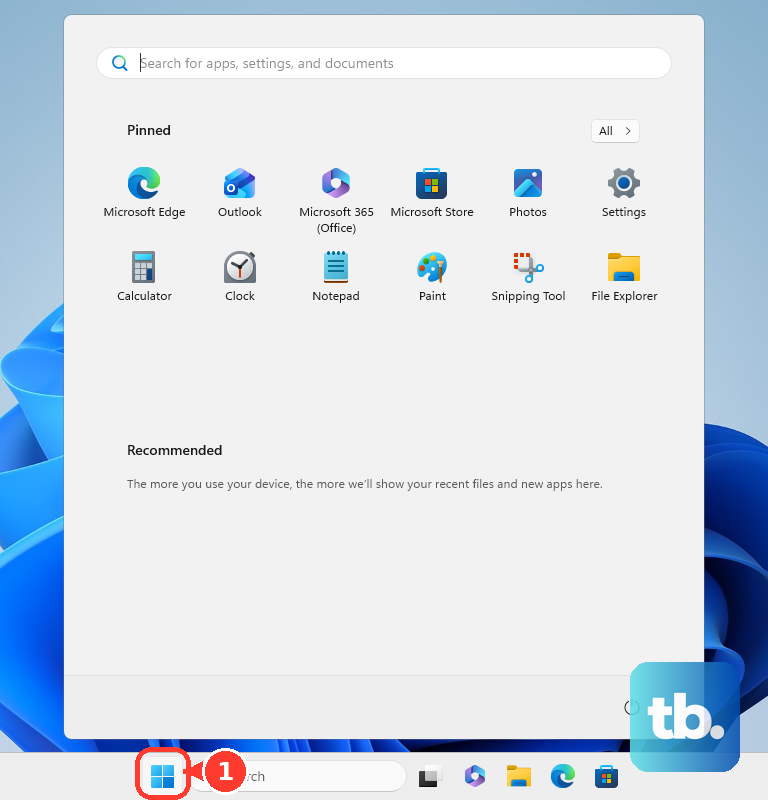
Open the Start menu, type cmd, right-click Command Prompt, and select Run as administrator. In the window, type sfc /scannow and press Enter. This scans and repairs Windows system files. If it finds problems it can't fix, run DISM /Online /Cleanup-Image /RestoreHealth first, then try the sfc command again.
Check Your Memory and Storage
Faulty RAM can cause all sorts of random crashes. Search for Windows Memory Diagnostic in the Start menu and run it. It will restart your laptop and test the memory. Any errors mean you likely have a bad RAM module.
For your SSD, open an Administrator Command Prompt and type chkdsk C: /f /r. It will schedule a check for the next restart. This looks for bad sectors on your drive that could be causing read/write errors leading to a BSOD.
Monitor for Overheating and Power Issues
If blue screens happen during heavy use like gaming or editing, your ZenBook might be overheating. Make sure the vents on the bottom and sides aren't blocked. Some users have noted increased fan noise during USB-C charging, which is normal, but it's a sign the system is managing heat.
Ensure you're using the original ASUS charger or a high-quality replacement that meets the laptop's power needs. An underpowered or unstable power source can sometimes cause system instability.
Reset or Refresh Your Windows Installation
If you're still stuck, a reset can clear out deep-seated software conflicts. Go to Settings > System > Recovery and click Reset this PC. Choose Keep my files to reinstall Windows while preserving your personal data. This is a solid last resort before looking at hardware.
For a more targeted approach, you can try a clean boot to disable all non-Microsoft startup services and apps. Type msconfig in the Start menu, go to the Services tab, check Hide all Microsoft services, then click Disable all. This can help identify a conflicting background program.