
When your ASUS VivoBook 15 won't connect to WiFi, it can feel like you're stuck on an island. You might see no networks at all, get stuck on "Connecting...", or have a connection that drops every few minutes. The good news is, most of these problems are software-related and can be fixed right from your keyboard.
I'd start with the quickest fix first. Click the WiFi icon in your taskbar and toggle the WiFi switch off. Wait a solid ten seconds, then turn it back on. This simple action forces your laptop's wireless adapter to restart, which clears out any temporary glitches. If that doesn't do it, try toggling Airplane mode on and off from the same menu for a more comprehensive reset.
Run the Windows Network Troubleshooter
Windows has a built-in tool that's surprisingly good at diagnosing common connection problems. Right-click the WiFi icon in your taskbar and select Troubleshoot network problems. Let it run its scan and follow any prompts it gives you. It can often fix issues like incorrect IP addresses or adapter conflicts automatically.
Forget and Reconnect to Your Network
Sometimes the saved profile for your WiFi network gets corrupted. To fix this, go to Settings > Network & Internet > WiFi > Manage known networks. Find your home or office network in the list and click the Forget button next to it. Then, simply select it again from the available networks list and re-enter your password. This establishes a fresh, clean connection.
Update Your WiFi Driver
Outdated or buggy drivers are a leading cause of WiFi problems. Press the Windows key + X and choose Device Manager. Expand the Network adapters section, right-click on your wireless adapter (it might be named something like Realtek or Intel Wireless), and select Update driver > Search automatically for drivers.
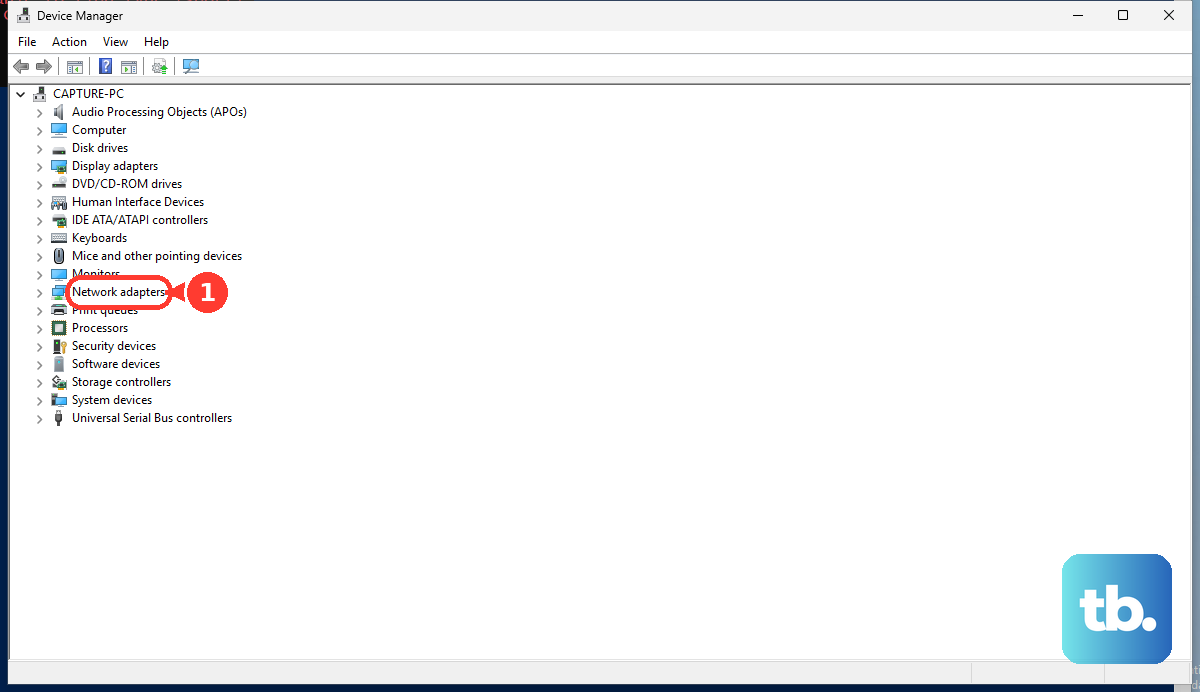
If Windows says you have the best driver already, don't stop there. Head over to the official ASUS support website, enter your VivoBook 15's exact model number, and download the latest WiFi driver from there. The budget WiFi adapters in some VivoBooks can be sensitive, so having the manufacturer's latest driver is key.
Use the MyASUS App for System Health
ASUS includes a useful tool called MyASUS on your laptop. Open it and look for sections like "System Diagnosis" or "Hardware Settings." There's often a network diagnostic tool built right in that can check your WiFi adapter's health. This app is also your central hub for all ASUS-specific driver updates and firmware.
Perform a Full Network Reset
If you're still having issues, a network reset is a powerful step. Go to Settings > Network & Internet > Advanced network settings. At the bottom, click on Network reset. This will remove and reinstall all your network adapters and set every networking component back to its default state.
Be aware, this will make you forget all saved WiFi networks and Bluetooth pairings. You'll need to reconnect to your WiFi and re-pair any devices afterward, but it's a very effective way to wipe the slate clean.
Disable and Re-enable the WiFi Adapter in Device Manager
This is like a targeted restart for just your WiFi hardware. Go back to Device Manager > Network adapters. Right-click your wireless adapter and choose Disable device. Wait a moment, then right-click it again and select Enable device. This forces the driver to reload completely without requiring a full system reboot.
Check for and Install All Windows Updates
Microsoft regularly releases updates that include fixes for connectivity issues. Go to Settings > Windows Update and click Check for updates. Install any available feature or quality updates. After the updates install, make sure to restart your laptop, as some fixes don't take effect until you do.
Flush DNS and Reset the Network Stack via Command Prompt
For persistent "Connected, no internet" issues, this command-line method can help. Search for "Command Prompt," right-click it, and select Run as administrator. Type the following commands one by one, pressing Enter after each:
netsh winsock reset
netsh int ip reset
ipconfig /flushdns
After running them, restart your VivoBook. This clears out old network cache and resets core internet protocols.
Review Your Installed Software
Some pre-installed ASUS software or other programs can interfere with network stability. Take a look in your Start menu and consider removing any ASUS utilities you don't actively use. Also, check if you have any third-party VPNs, firewalls, or "network booster" apps installed, as these are frequent culprits for connection drops.
Test with a Different Network and Check Your Router
To rule out a problem with your laptop's hardware, try connecting to a different WiFi source. Use your phone's mobile hotspot if you have one. If your VivoBook connects to the hotspot without issue, the problem is likely with your primary router or internet service.
In that case, restart your router by unplugging it from power for 30 seconds. Also, check if other devices in your home are having trouble. If they are, the issue is with your internet provider or router, not your laptop.