
When your ASUS VivoBook 15 keyboard acts up, it's usually a software hiccup you can fix yourself. I'd start with the quick restart, as that resolves a lot of odd behavior right away.
Restart Your VivoBook
Hold down the power button for about 10 seconds until the laptop completely powers off. Wait a few seconds, then press the power button again to turn it back on. This simple step reloads the keyboard driver and clears out any temporary glitches that might be blocking input.
Check for Physical Debris
Turn your VivoBook upside down and give it a gentle shake. Crumbs and dust can easily get lodged under the keys on these models. For a more thorough clean, use a can of compressed air to blow between the keycaps, focusing on the non-working ones.
Disable Filter Keys in Windows
Sometimes an accessibility feature gets turned on by accident. Go to Settings > Accessibility > Keyboard and make sure the toggle for Filter keys is switched off. While you're there, check that Sticky keys and Toggle keys are also disabled, as they can interfere with normal typing.
Update or Reinstall Keyboard Drivers
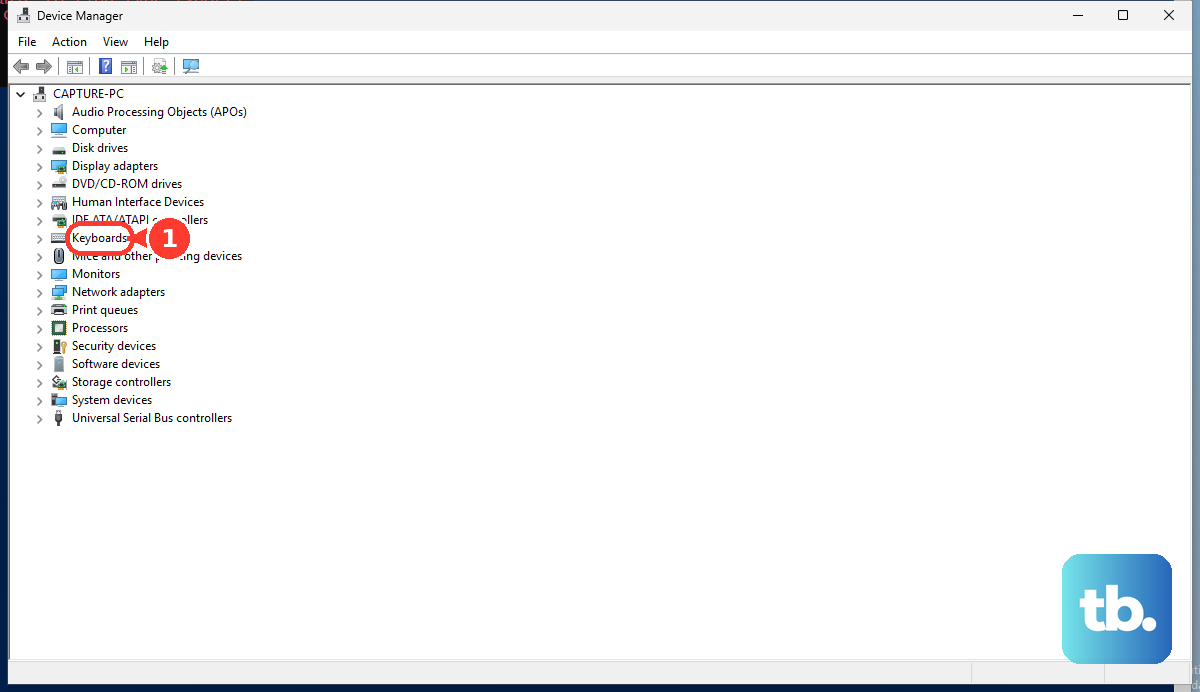
Press the Windows key + X and select Device Manager. Expand the Keyboards section, right-click on the listed device (often "Standard PS/2 Keyboard" or similar), and choose Update driver. Select "Search automatically for drivers." If that doesn't help, right-click again and choose Uninstall device, then restart your laptop. Windows will automatically reinstall a fresh driver when it boots back up.
Verify Your Keyboard Layout
If your keys are typing the wrong characters, the input language might have changed. Click the language icon in your taskbar (like "ENG") or go to Settings > Time & language > Language & region. Ensure your correct language is set as the default and remove any extra keyboard layouts you don't use to prevent accidental switching.
Use the MyASUS App for Diagnostics
ASUS includes a helpful tool called MyASUS. Open it and look for the "Hardware Diagnostics" or "System Diagnostics" section. There's often a specific keyboard test you can run. This app can also check for and install the latest, official drivers for your specific VivoBook 15 model, which is more reliable than Windows Update for some components.
Boot into Safe Mode
If the keyboard works fine in Safe Mode, you know a third-party program is causing the conflict. To get into Safe Mode, go to Settings > System > Recovery and click "Restart now" under Advanced startup. After the reboot, choose Troubleshoot > Advanced options > Startup Settings > Restart. Press the 4 or F4 key to enable Safe Mode. Once in, you can uninstall any recently added software.
Check for Windows Updates
Sometimes a Windows update introduces a bug, or a necessary fix is waiting to be installed. Go to Settings > Windows Update and click "Check for updates." Install any available updates and restart. If the problem started right after a recent update, you can roll it back from the Update history page under the same settings menu.
Test with an External Keyboard
Plug in any USB keyboard. If it works perfectly, it strongly points to a hardware issue with your VivoBook's built-in keyboard. The cause could be a loose internal ribbon cable, which sometimes happens due to the chassis flex, or physical damage from a spill. This test helps narrow down where the problem truly lies.