
When Bluetooth stops working on your ASUS VivoBook 15, it can leave your wireless mouse, headphones, or speakers useless. You might see the Bluetooth toggle missing, devices failing to pair, or connections that keep dropping. Here's how to get your Bluetooth working again.
Toggle Bluetooth On and Off
First, click the notification icon in the bottom-right corner of your taskbar to open the quick actions panel. Look for the Bluetooth tile and make sure it's highlighted blue, indicating it's on. If it's off, click it once to turn it on. If you don't see the tile there, you can also go to Settings > Bluetooth & devices and flip the main Bluetooth switch.
Restart Your VivoBook
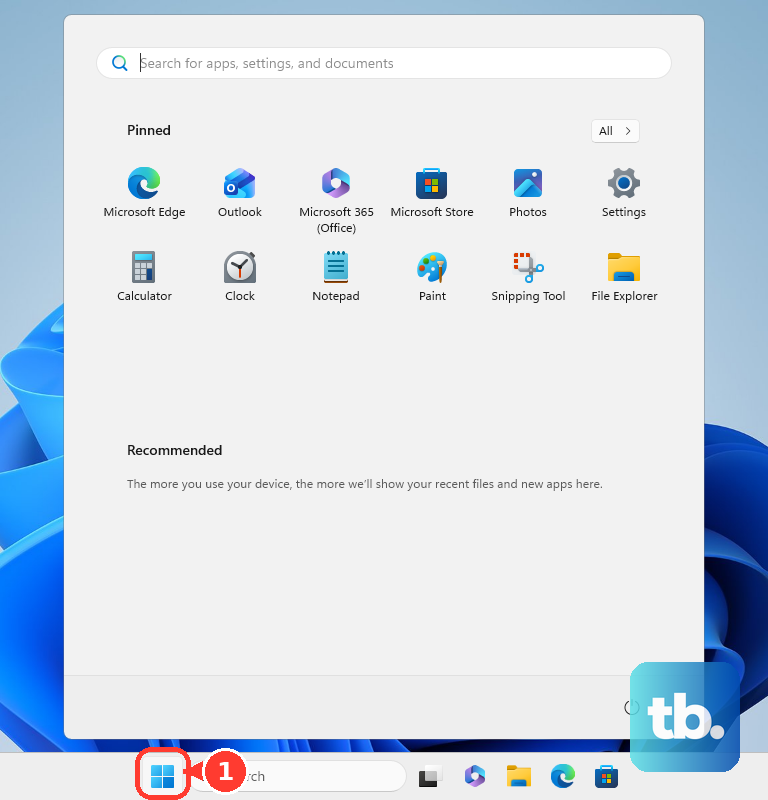
This is the classic fix for a reason. A full restart clears out temporary software glitches and reloads all your drivers, including the Bluetooth radio. I'd start with this one, especially if the problem started after your laptop woke from sleep or installed a recent update. Just click Start, select Power, and choose Restart.
Remove and Re-Pair Your Device
Go to Settings > Bluetooth & devices and click on the problematic device. Select Remove device and confirm. Now, put your Bluetooth speaker, mouse, or headphones into pairing mode, this usually involves holding a button until a light flashes. Back in the Bluetooth settings, click Add device and select Bluetooth to find and pair it fresh.
Run the Windows Bluetooth Troubleshooter
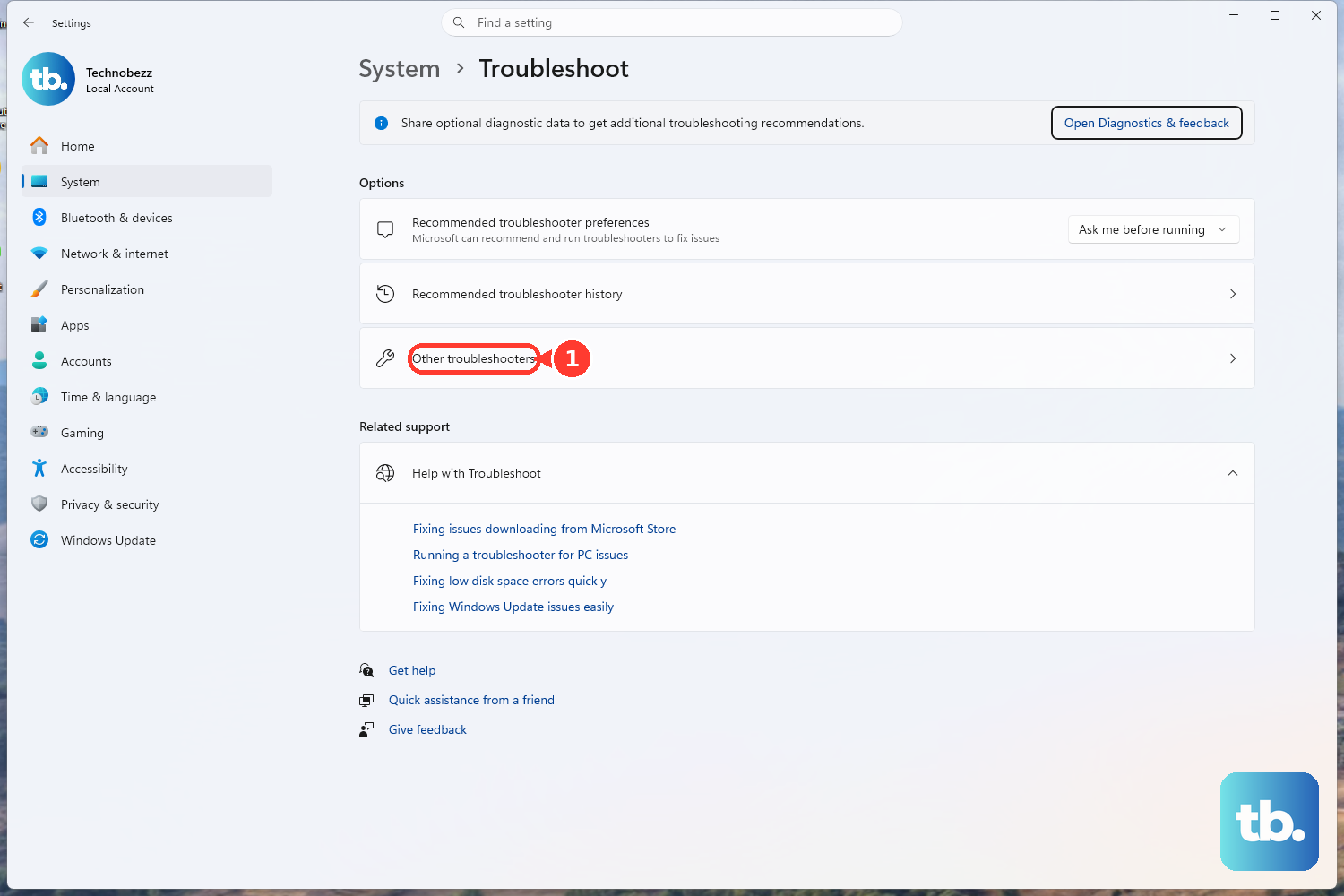
Windows has a built-in tool that can automatically find and fix some common Bluetooth problems. Open Settings > System > Troubleshoot > Other troubleshooters. Find the Bluetooth troubleshooter in the list and click the Run button next to it. Follow any on-screen prompts it provides.
Update Your Bluetooth Drivers
Outdated or corrupted drivers are a frequent culprit. Press the Windows key + X and select Device Manager. Expand the Bluetooth section, right-click on your Bluetooth adapter (it might be listed as Intel, Realtek, or MediaTek), and choose Update driver. Select Search automatically for drivers and let Windows look for an update.
If that doesn't find anything, you should check the MyASUS app that came pre-installed on your VivoBook. Open MyASUS, go to the Customer Support or LiveUpdate section, and check for any available driver updates specifically for your model. This is often more reliable than Windows Update for ASUS hardware.
Check for Interference
Bluetooth shares the 2.4 GHz wireless band with WiFi and many other devices. If you're in a crowded area like an office or apartment, interference can cause dropouts. Try moving your Bluetooth device and laptop closer together. Also, unplug any USB 3.0 devices, as they can sometimes emit radio noise that interferes with the Bluetooth signal.
Restart the Bluetooth Support Service
Sometimes the background service that manages Bluetooth gets stuck. Press Windows key + R, type services.msc, and press Enter. Scroll down in the Services window until you find Bluetooth Support Service. Right-click on it and select Restart. While you're there, double-click it to open its properties and ensure the Startup type is set to Automatic.
Install All Windows Updates
Microsoft regularly releases patches that fix system bugs, including Bluetooth issues. Go to Settings > Windows Update and click Check for updates. Install any available feature or quality updates. After the updates install and your laptop restarts, check if your Bluetooth connection is more stable.
Reinstall the Bluetooth Adapter
This step gives you a completely fresh start with the Bluetooth driver. Go back to Device Manager and expand the Bluetooth section. Right-click your Bluetooth adapter and select Uninstall device. If you see a checkbox that says "Attempt to remove the driver for this device," check it. Then, restart your VivoBook. Windows will automatically detect the hardware on boot and reinstall the default driver.
Check the Physical Wireless Switch
Some ASUS laptops have a physical switch or a keyboard function key that disables all wireless radios, including Bluetooth. On many VivoBooks, you can press the Fn + F2 keys to toggle airplane mode, which turns off WiFi and Bluetooth. Press that key combination once to turn airplane mode off, then try again. Look for a wireless icon on the F2 key.
If you've worked through these steps and Bluetooth is still not connecting, the issue could be with the Bluetooth device itself. Try pairing that device with another phone or computer to see if it works there. For persistent problems, the MyASUS app also has system diagnostic tools that can check the health of your wireless hardware.