
When your ASUS TUF Gaming A15 can't find WiFi, it's game over before you even start. The issue can show up as a missing WiFi icon, a connection with no internet, or a signal that keeps dropping mid-match. These steps will get you back online.
Toggle WiFi and Airplane Mode
Click the network icon in your taskbar and turn WiFi off. Wait about ten seconds, then switch it back on. If that doesn't work, try toggling Airplane mode on and off from the same menu. This is the quickest way to refresh your laptop's wireless adapter and often solves temporary glitches.
Run the Windows Network Troubleshooter
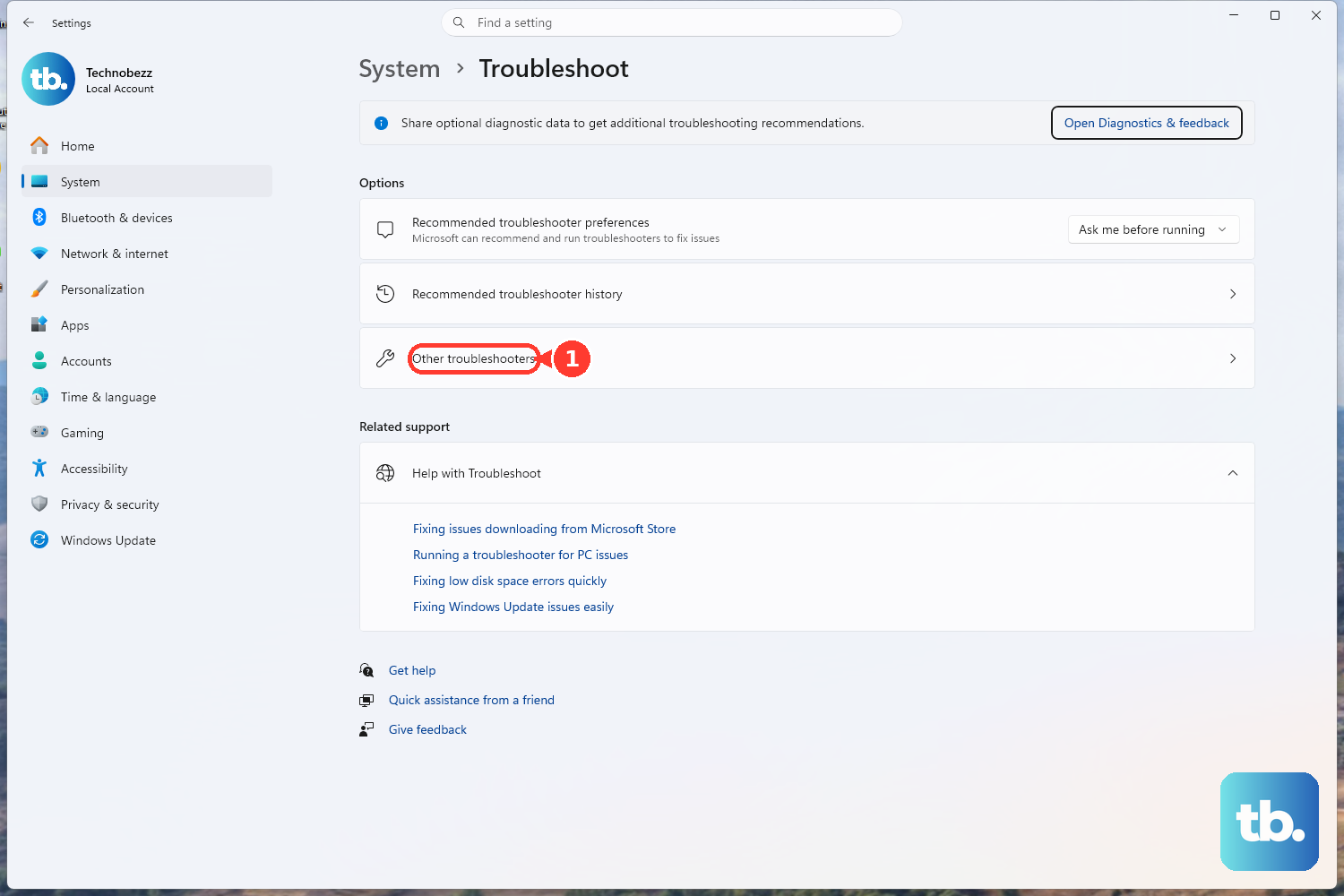
Right-click the WiFi icon in the system tray and select Troubleshoot problems. Windows will automatically scan for and try to fix common network issues. You can also find it by going to Settings > System > Troubleshoot > Other troubleshooters and running the Network and Internet troubleshooter.
Forget and Reconnect to Your Network
Head to Settings > Network & internet > Wi-Fi > Manage known networks. Find your home or gaming network in the list and click the Forget button next to it. Then, scan for networks again and reconnect by entering your password. This clears out any corrupted connection profiles that might be causing the problem.
Update Your WiFi Driver
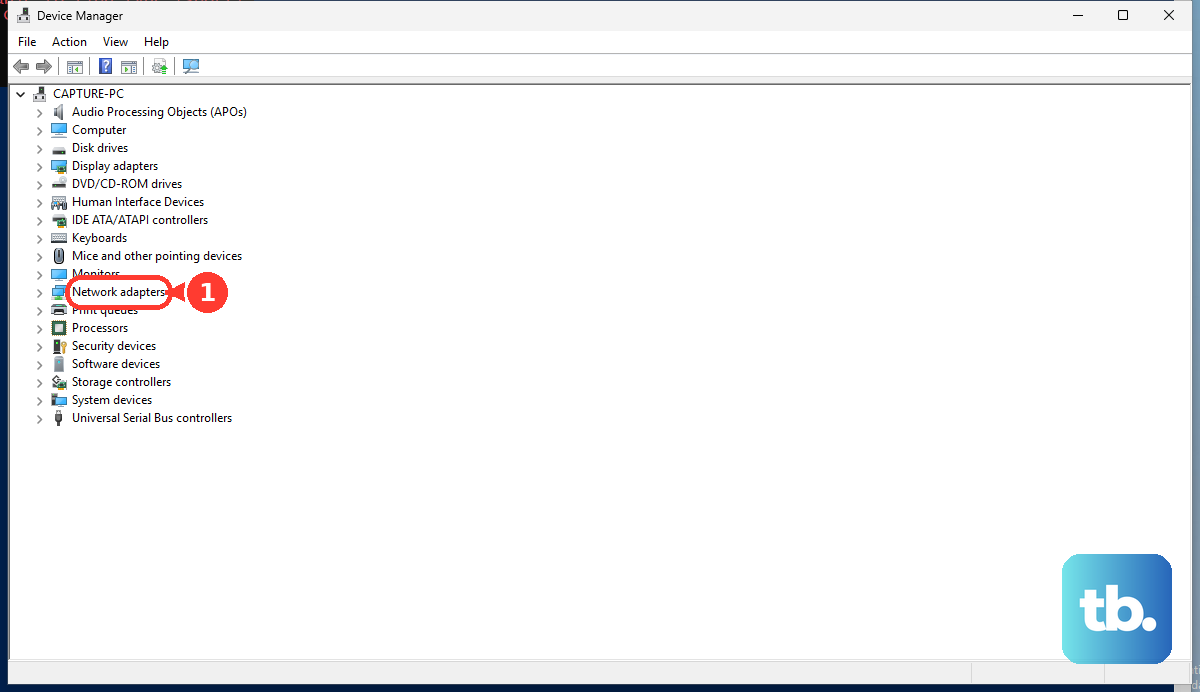
Outdated or corrupted drivers are a frequent culprit. Press the Windows key + X and choose Device Manager. Expand the Network adapters section, right-click your wireless adapter (it might be labeled MediaTek, Intel, or Realtek), and select Update driver > Search automatically for drivers.
If Windows doesn't find an update, you'll need to get it directly from ASUS. Visit the ASUS support site, enter your TUF A15 model number, and download the latest WiFi driver under the "Driver & Tools" section. I've seen this fix persistent drops on several TUF models.
Restart Your Laptop and Router
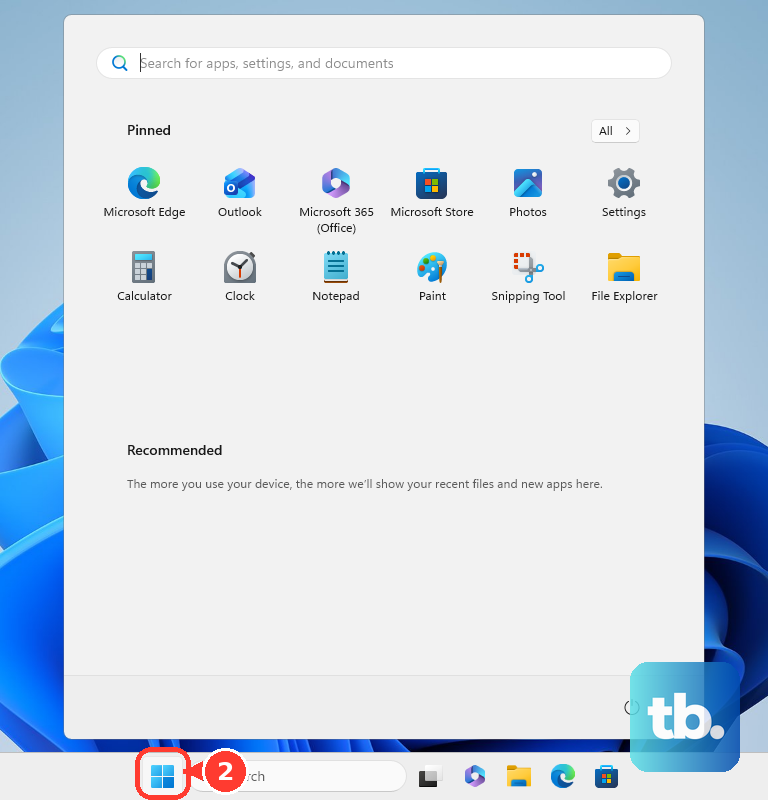
A full restart clears your laptop's network stack. Click Start > Power > Restart. If you're still having issues, don't forget to check your router. Unplug it from power for 30 seconds, then plug it back in. If other devices also can't connect, the router is likely the source of the problem.
Disable and Re-Enable the WiFi Adapter
Go back into Device Manager under Network adapters. Right-click your wireless adapter and choose Disable device. Wait a moment, then right-click it again and select Enable device. This forces the hardware to reinitialize without requiring a full system reboot.
Reset Your Network Settings
This is a more comprehensive fix. Navigate to Settings > Network & internet > Advanced network settings > Network reset. Click Reset now. This will remove and reinstall all network adapters and set everything back to defaults. You will need to re-enter your WiFi passwords afterward.
Check Your Power Management Settings
Windows can sometimes turn off the WiFi adapter to save power, which can cause dropouts. In Device Manager, right-click your wireless adapter and select Properties. Go to the Power Management tab and uncheck the box that says Allow the computer to turn off this device to save power. Click OK. This is a good setting to change for a gaming laptop that's usually plugged in.
Flush DNS and Reset Network Stack via Command Prompt
Search for "Command Prompt," right-click it, and choose Run as administrator. Type the following commands one by one, pressing Enter after each: netsh winsock reset, then netsh int ip reset, then ipconfig /flushdns. After they complete, restart your laptop for the changes to take full effect.
Check for Windows and BIOS Updates
Go to Settings > Windows Update and install any available updates. Microsoft often patches network-related bugs. It's also worth checking for a BIOS update from the ASUS support site for your specific model, as these can improve system stability and hardware compatibility, including for WiFi.
You can enter the BIOS by restarting your TUF A15 and pressing the F2 key repeatedly as it boots up. Note your current BIOS version before updating.