
A non-responsive touchpad on your ASUS TUF Gaming A15 forces you to plug in a mouse, which really defeats the purpose of a portable gaming machine. Whether the cursor is frozen, taps don't register, or your two-finger scroll gesture has given up, the issue is almost always software-related and fixable.
Toggle the Touchpad with the Function Key
Your TUF A15 has a dedicated function key to disable the touchpad, usually to prevent accidental inputs during gaming. Look for the key with a touchpad icon crossed out, often on the F10 or F11 key. Press Fn + that key to toggle it back on. You should see a small on-screen notification confirming the change.
Restart Your Laptop
A simple restart reloads all the drivers, including the one for your touchpad. This is the most effective fix if the touchpad stopped working after the laptop woke from sleep or hibernation. Use your keyboard to navigate: press the Windows key, then use the arrow keys to highlight the power icon and select Restart.
Disconnect Any External Mouse
Windows has a setting that can automatically disable the built-in touchpad when an external mouse is connected. Unplug any USB mouse or disconnect your Bluetooth mouse. If the touchpad springs back to life, you can change the setting. Go to Settings > Bluetooth & devices > Touchpad and look for a setting like "Leave touchpad on when a mouse is connected."
Update Your Touchpad Driver
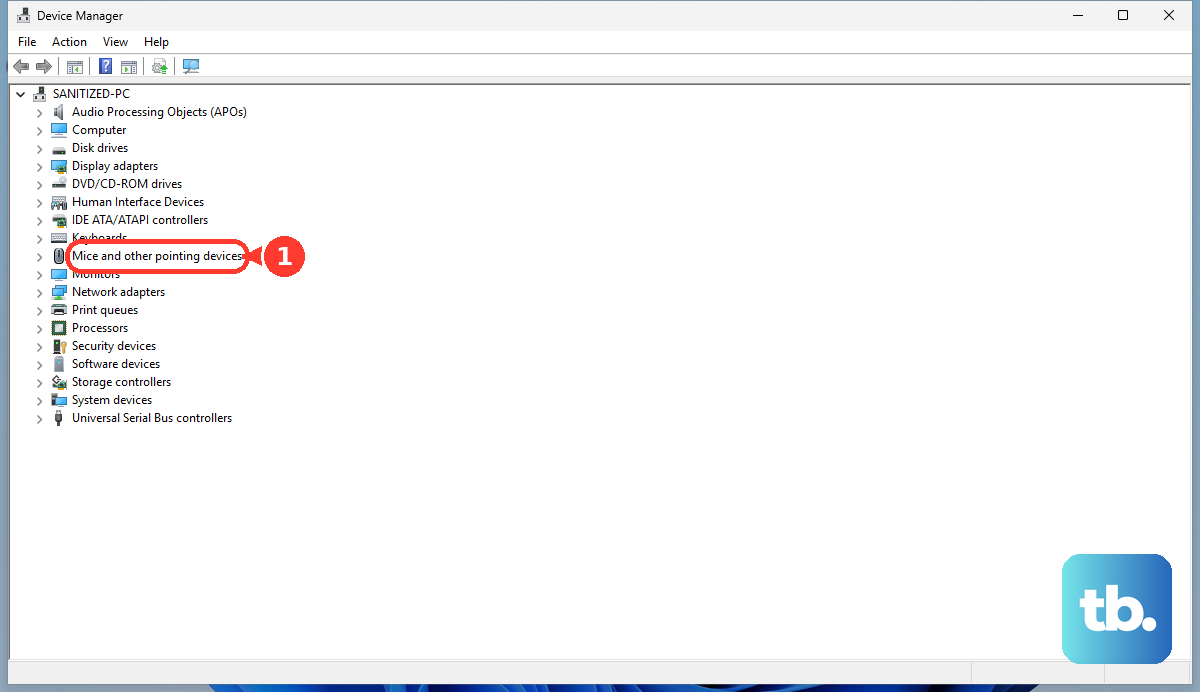
Outdated or corrupted drivers are a common culprit. Press Windows + X and select Device Manager. Expand the Mice and other pointing devices section. Right-click on your touchpad device (it might be listed as an ASUS Precision Touchpad, I2C HID, or ELAN device) and select Update driver. For the best results, I'd then visit the official ASUS support site, enter your exact TUF A15 model, and download the latest touchpad driver from there.
Check Armoury Crate Settings
Since your TUF laptop is managed by ASUS's Armoury Crate software, it's worth a look. Open Armoury Crate and navigate to the Device section, then System or Configuration. Look for any settings related to the touchpad or input devices. Some performance profiles might affect driver behavior.
Reinstall the Touchpad Driver Completely
If updating didn't work, a clean reinstall often does. Back in Device Manager, right-click the touchpad device and choose Uninstall device. Check the box that says "Attempt to remove the driver software for this device" if it appears. Restart your laptop. Windows will install a basic driver upon reboot. Then, install the specific driver you downloaded from the ASUS website for full functionality.
Check the BIOS for Touchpad Settings
You can disable the touchpad at a hardware level in the BIOS. Restart your TUF A15 and immediately start tapping the F2 key to enter the BIOS. Use the arrow keys to navigate to the Advanced tab. Look for an option like "Internal Pointing Device" and make sure it is set to Enabled. Save and exit (usually F10).
Run System File Checker
Corrupted Windows system files can sometimes interfere with hardware. Press Windows + S, type cmd, right-click on Command Prompt, and select Run as administrator. In the window, type sfc /scannow and press Enter. This scan will check for and repair damaged files. Restart your laptop once it completes.
Consider the Hardware
If the touchpad is completely dead, no response in the BIOS, in Windows Safe Mode, or even during startup, the issue could be physical. The touchpad is connected to the motherboard by a thin ribbon cable that can come loose if the laptop has been dropped or opened for upgrades. Liquid damage is another possibility. At this point, professional repair might be necessary.