
Seeing your ASUS TUF Gaming A15's screen flicker or flash is incredibly distracting, especially when you're trying to game or get work done. It can look like rapid flashes, horizontal lines, or the screen going black for a split second. Let's get it sorted.
Update Your Graphics Drivers
Outdated or corrupted graphics drivers are the most common cause of screen flickering on gaming laptops. For your TUF A15, you'll want to get the driver straight from the source. Don't just rely on Windows Update for this.
Head to the NVIDIA or AMD website (depending on your model) and use their detection tool or manually select your GPU. Download and install the latest Game Ready or Adrenalin driver. I'd do a clean installation if the option is presented, as it removes old driver files that might be causing the conflict.
Check Your Refresh Rate Settings
Your TUF A15 likely has a high refresh rate display, often 144Hz or 165Hz. Sometimes, the communication between Windows and the panel can get confused. Right-click your desktop and select Display settings.
Scroll down and click Advanced display. Look at the refresh rate dropdown. Try switching it to a different value, like from 144Hz to 60Hz, and see if the flickering stops. If it does, switch it back to your preferred rate; sometimes that simple reset is all it needs.
Use Armoury Crate to Switch Performance Modes
This is a device-specific tip that can make a big difference. Open the Armoury Crate app that came with your laptop. The performance mode you're in can affect how the GPU and display behave.
If you're in Turbo mode for maximum gaming performance, try switching to Performance or even Silent mode. The change in power delivery and fan curves can sometimes stabilize a flickering screen caused by power fluctuations under heavy load.
Disable Hardware Acceleration in Apps
Many apps, like Chrome, Discord, and Slack, use your GPU to render content via a feature called hardware acceleration. When this conflicts with your drivers, it can cause flickering only within that app's window.
In Chrome, go to Settings > System and turn off Use hardware acceleration when available. Restart the browser. Check other apps for similar settings in their preferences menus. This isolates the problem to software, not your laptop's hardware.
Boot Into Safe Mode to Test
If the flickering is constant and makes it hard to navigate Windows, booting into Safe Mode is your next move. This loads Windows with only the most basic drivers. Hold the Shift key while clicking Restart from the Windows power menu.
Navigate through the menus to Troubleshoot > Advanced options > Startup Settings > Restart. After the reboot, press 4 or F4 to enable Safe Mode. If the screen is perfectly stable here, you know a driver or startup program is the culprit.
Roll Back a Recent Display Driver
Did the flickering start right after you updated your graphics driver? You can easily go back. Press the Windows key + X and select Device Manager. Expand Display adapters, right-click your NVIDIA or AMD GPU, and select Properties.
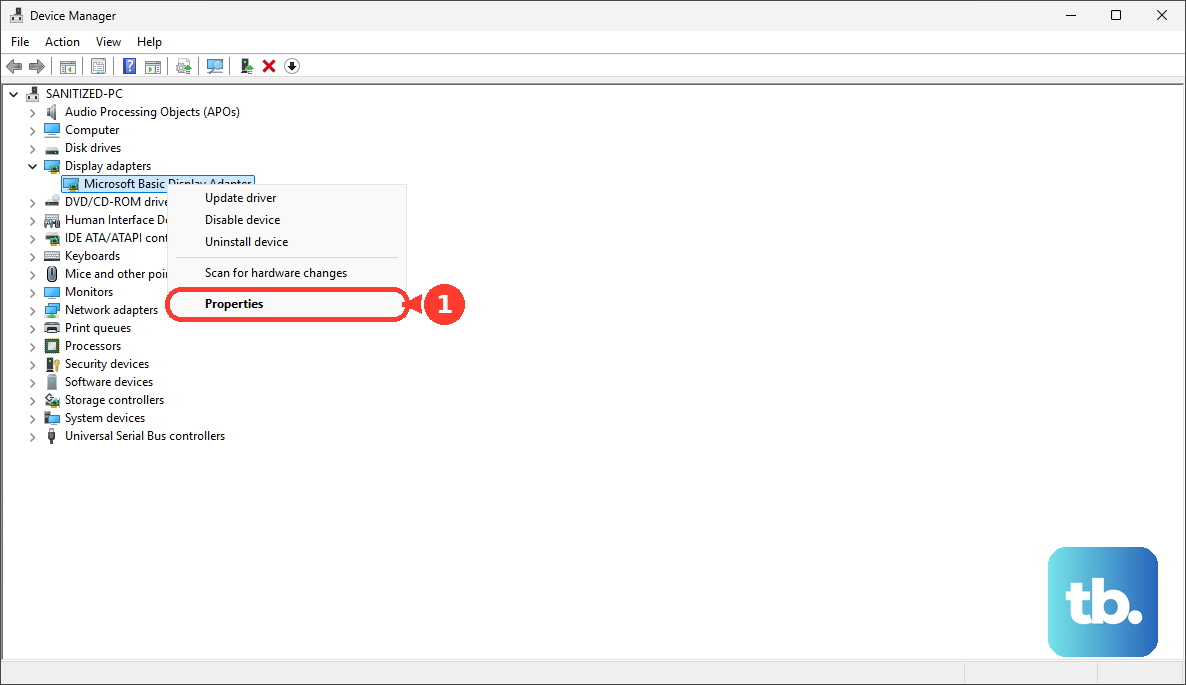
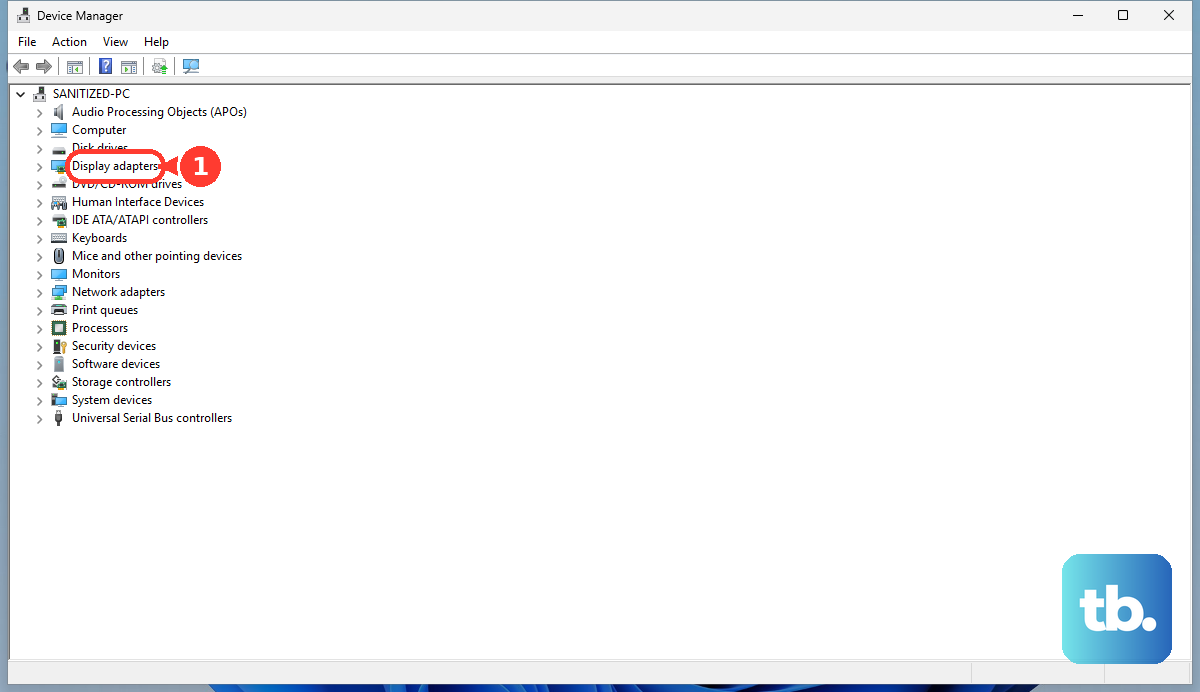
Go to the Driver tab and click Roll Back Driver. Follow the prompts. This will revert to the previous driver version that was working correctly. It's a quick fix that often solves the problem immediately.
Check for a Loose Internal Cable
This is less common but worth considering if the flickering happens when you move the laptop's lid. The thin display cable that connects the screen to the motherboard can become slightly loose over time, especially with frequent opening and closing.
If the flickering gets worse when you gently flex the screen or the bezel, it points to a hardware connection issue. This isn't a typical user fix and would require opening the laptop chassis to reseat the cable, so it's something to be aware of for a professional repair.
Run All Windows Updates
Sometimes the fix comes from Microsoft. Go to Settings > Windows Update and click Check for updates. Install everything available, including optional updates if offered.
Windows updates can contain critical fixes for display and graphics subsystems that work in tandem with your GPU drivers. Making sure your operating system is completely current removes it as a potential variable.