
A gaming laptop that's lost its edge is incredibly frustrating. When your ASUS TUF Gaming A15 starts to stutter in games, takes ages to load, or feels sluggish on the desktop, it can feel like a hardware failure. Most of the time, it's a software or settings issue you can fix yourself.
Restart Your TUF A15
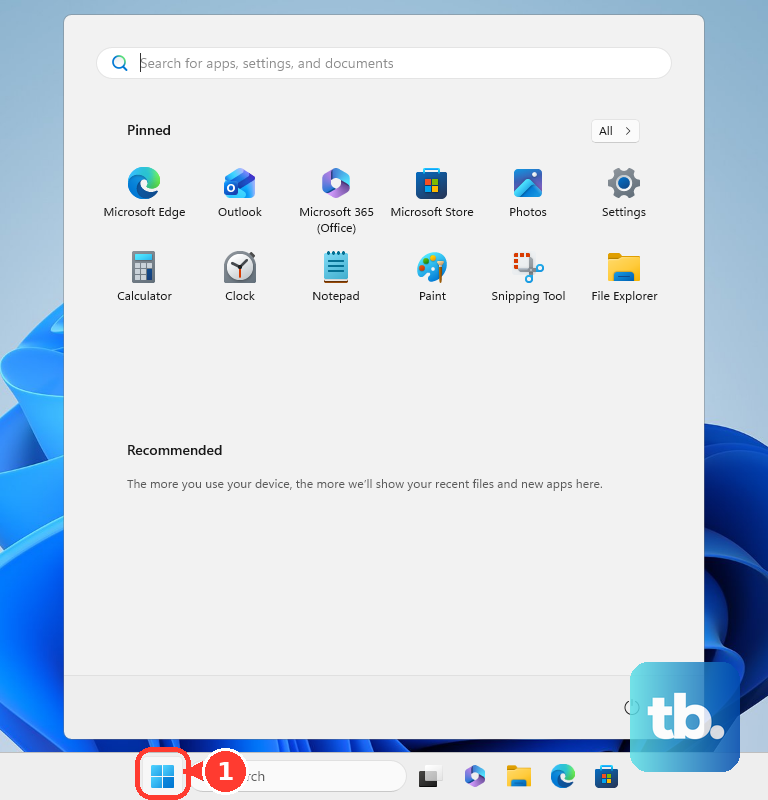
If you just close the lid and let it sleep for days, background processes and memory can get clogged up. A full restart clears this out. Click Start > Power > Restart. Don't just choose Shut Down, as Windows' Fast Startup feature can prevent a full system flush.
Use Armoury Crate to Check Performance Mode
Your TUF A15's performance is directly controlled by the Armoury Crate software. Open it and check your operating mode. For general desktop use, SilentPerformance or Turbo mode to unlock your CPU and GPU's full potential. Being stuck in Silent mode while gaming is a common cause of poor frame rates.
Check Task Manager for Resource Hogs
Press Ctrl + Shift + Esc to open Task Manager. Click the CPU, Memory, or Disk columns to sort by what's being used the most. If a single process is eating 90% of your CPU or RAM, that's your problem. Right-click and End task on non-essential applications. Watch out for background Windows processes like "Antimalware Service Executable" during a scan.
Disable Unnecessary Startup Programs
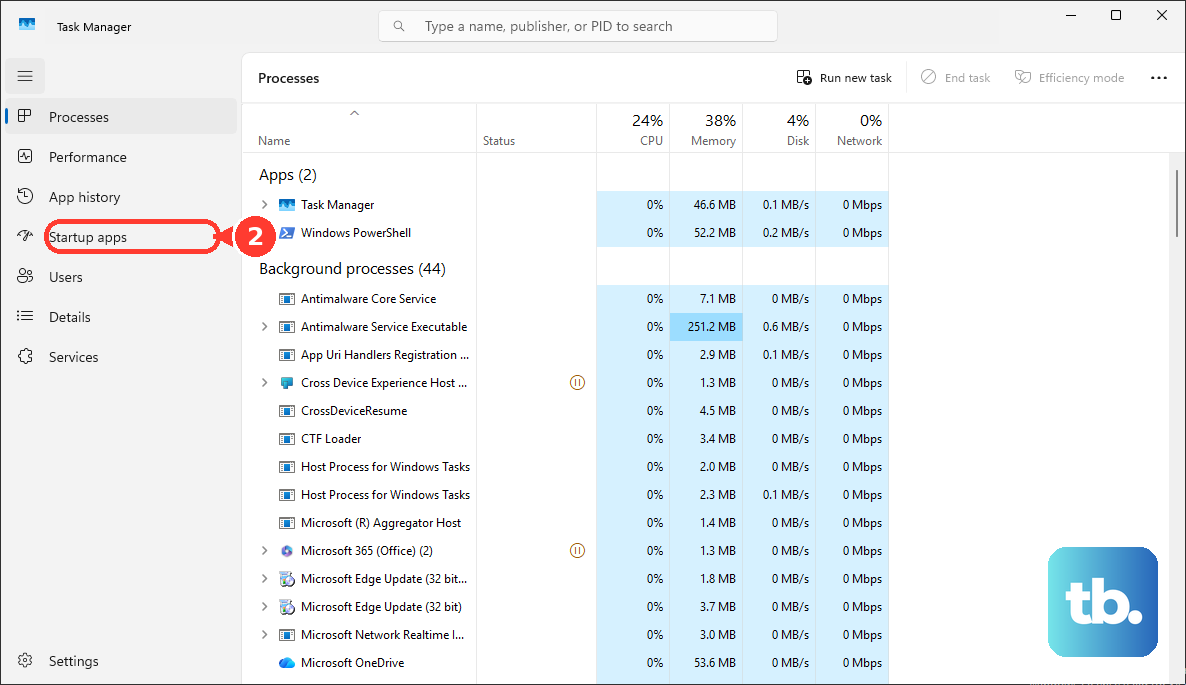
Too many apps launching at boot will slow your startup to a crawl and eat RAM. In Task Manager, go to the Startup apps tab. Disable everything you don't need immediately when Windows starts, like game launchers (Steam, Epic), communication apps (Discord, Teams), or media software. I'd keep Armoury Crate and your antivirus enabled.
Update Your Graphics and Chipset Drivers
Outdated drivers, especially for your NVIDIA GeForce GPU and AMD chipset, are a major source of performance issues and game crashes. Don't rely solely on Windows Update. Open the NVIDIA app app to get the latest Game Ready drivers directly. For other drivers, you can check the ASUS support page for your specific A15 model.
Free Up Space on Your SSD
A solid-state drive that's nearly full will slow down dramatically. Open Settings > System > Storage. Turn on Storage Sense to let Windows automatically clean temporary files. You can also click Temporary files to manually clear out update leftovers and your recycle bin. Try to keep at least 20% of your main drive free.
Adjust Windows Power Plan for Maximum Performance
Even in Performance mode in Armoury Crate, Windows might still be holding back. Search for "Edit power plan" in the Start menu and open it. Click Change advanced power settings. In the new window, expand Processor power management and set both Minimum processor state and Maximum processor state to 100%. This ensures Windows isn't limiting your CPU clock speed.
Check for Malware and Bloatware
Run a full scan with Windows Security. Go to Virus & threat protection and run a Full scan. Also, review programs installed on your PC. Some pre-installed software or things you've downloaded can run heavy background processes. Uninstall anything you don't recognize or use from Settings > Apps > Installed apps.
Manage Background Apps and Visual Effects
Go to Settings > Privacy & security > Background apps. Turn off background activity for apps that don't need to run all the time, like weather or news apps. For a further boost, especially on older models, you can reduce visual flair. Search for "Adjust the appearance and performance of Windows" and choose Adjust for best performance.
Consider a Hardware Upgrade
The TUF A15 is designed to be upgraded. If you're still running on 8GB of RAM, adding another 8GB stick (for dual-channel 16GB) can provide a huge boost in gaming and multitasking. If your model came with a smaller SSD, adding a second, larger M.2 NVMe drive for your games can drastically reduce load times compared to a hard drive.
Reset or Reinstall Windows
If all else fails and your system is bogged down by years of software installs, a reset can bring back that "out-of-the-box" speed. Go to Settings > System > Recovery and click Reset PC. Choose Keep my files to remove all your apps and settings but keep your personal documents. You'll need to reinstall games and applications afterward.