
When you plug your ASUS TUF Gaming A15 into an external monitor and get nothing but a blank screen, it's a real buzzkill. The issue usually comes down to a simple setting, a driver conflict, or the laptop not switching to the right graphics mode. Let's get your second screen working.
It is worth viewing a few test patterns from a online monitor test before changing hardware. Faults that persist across every pattern point firmly at the display itself.
Press Windows + P First
This is the quickest thing to try. Press the Windows + P keys together. A menu will pop up on the right side of your screen. Make sure it's not set to PC screen only, as that disables the external output. Try selecting Duplicate or Extend to see if the signal kicks in.
Check Your HDMI Cable and Port
Unplug the HDMI cable from both your laptop and the monitor, then plug it back in firmly. I've seen loose connections cause this more often than you'd think. If you have a spare cable, try it. Also, double-check that your monitor is set to the correct HDMI input source using its physical buttons or menu.
Restart With the Monitor Connected
Leave the HDMI cable plugged into both devices, then restart your TUF A15. Sometimes the graphics card needs to detect the external display right as it boots up. A fresh start with everything connected can force that handshake to happen correctly.
Update Your Graphics Drivers
Outdated drivers are a common culprit for display problems. For your TUF A15, you'll want to get the latest driver directly from NVIDIA or AMD's website, not just through Windows Update. You can also use the MyASUS app or the Armoury Crate software to check for driver updates specific to your model.
If you're gaming, make sure the game is using the correct high-performance GPU (like the NVIDIA card) and not the integrated graphics. You can set this globally in the NVIDIA Control Panel under Manage 3D settings.
Detect the Display in Windows Settings
Go to Settings > System > Display. Click the Detect button. If Windows finds your monitor, you can arrange it here. Sometimes the external display is detected but set to an unsupported resolution. Try setting it to a common resolution like 1920x1080.
Try a Different Port or Adapter
Many TUF A15 models have a USB-C port that supports DisplayPort Alt Mode. If your monitor has a DisplayPort input, try using a USB-C to DisplayPort cable. If the external display works through USB-C but not the dedicated HDMI port, the HDMI port itself might have an issue.
Disable and Re-enable Your Graphics Card
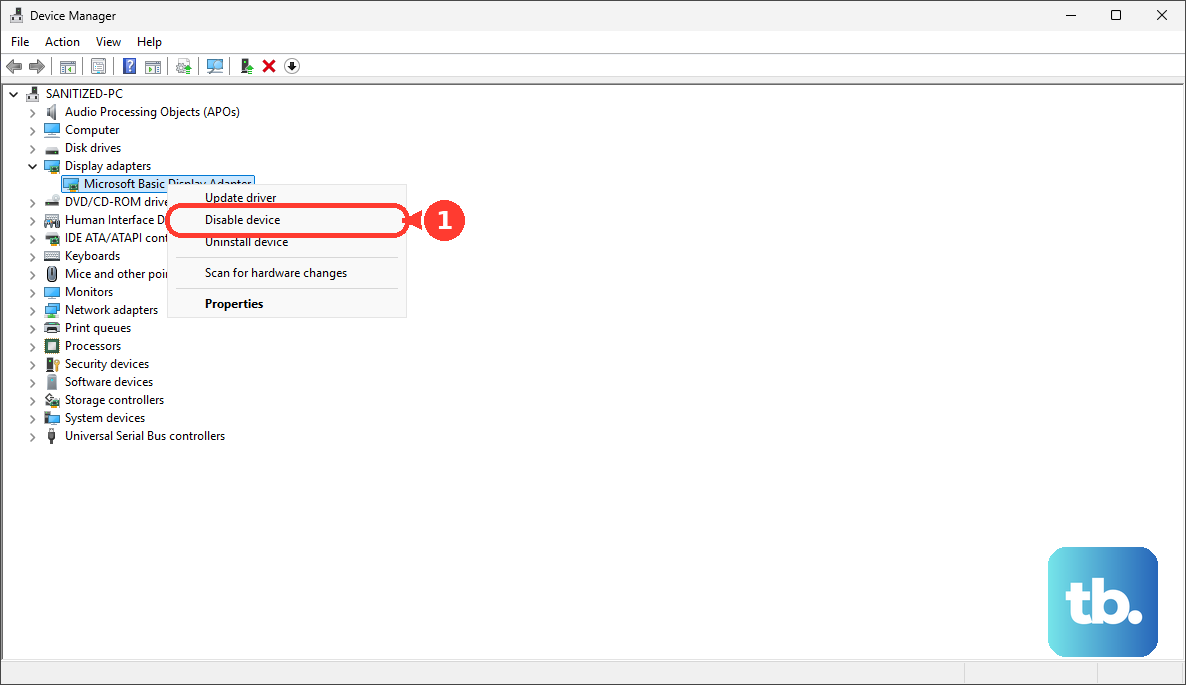
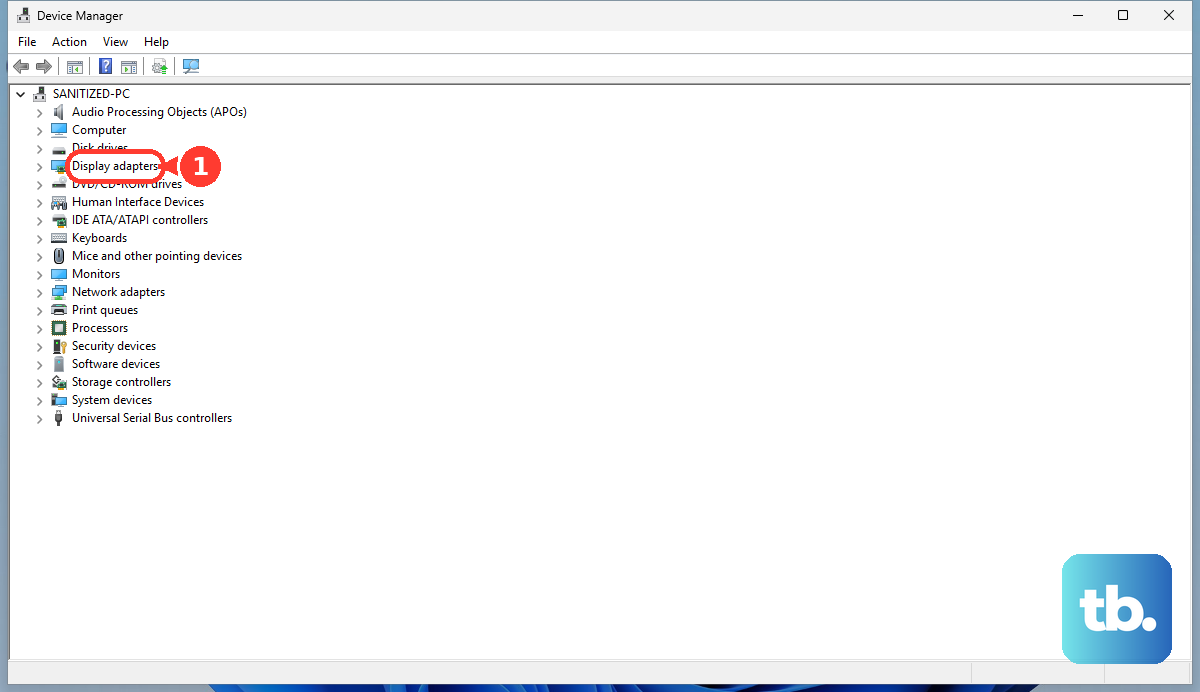
Open Device Manager by right-clicking the Start button. Expand Display adapters, right-click on your NVIDIA or AMD graphics card, and select Disable device. Wait about ten seconds, then right-click it again and choose Enable device. This resets the driver and can clear up output problems.
Check Your Performance Mode in Armoury Crate
Open the Armoury Crate app on your laptop. Look at which performance profile is active. If you're in Silent mode, the system heavily limits power to components, which can sometimes affect external display output. Try switching to Performance or Turbo mode and see if the monitor is detected.
Look at BIOS Settings
Restart your laptop and press F2 repeatedly as it boots to enter the BIOS. Navigate using the arrow keys. Look for any settings related to display output, primary display, or graphics configuration (sometimes called a setting like "Primary Display" set to Auto or PCIe). Be careful not to change anything you're unsure of. If you find a relevant setting, ensure it's enabled, then save and exit.