
That sudden blue screen on your ASUS TUF Gaming A15 can be a real gut punch, especially right after an update. It's Windows hitting the emergency stop button because something went critically wrong, usually a driver conflict, a hardware hiccup, or a corrupted system file. The fixes below are the most reliable ways to get your system stable again.
Restart and See if It Happens Again
The first thing to do is a normal restart. Sometimes a BSOD is just a one-time glitch caused by a temporary driver load failure. If your TUF A15 boots back to the desktop normally and runs fine, you can probably chalk it up to a fluke. If the blue screen comes back immediately or within a few minutes of using the laptop, you've got a persistent issue that needs fixing.
Write Down the Stop Code
When the blue screen appears, look for the all-caps error code near the bottom. Common ones include DRIVER_IRQL_NOT_LESS_OR_EQUAL, SYSTEM_SERVICE_EXCEPTION, or KERNEL_SECURITY_CHECK_FAILURE. This code is your biggest clue. Jot it down or take a phone picture. You can search for the exact code later, but the general steps here will tackle most causes behind it.
Boot Into Safe Mode
If the laptop crashes before you can even log in, you'll need to boot into Safe Mode. From the sign-in screen, hold the Shift key while you click the power icon and select Restart. After it reboots to a blue menu, go to Troubleshoot > Advanced options > Startup Settings > Restart. When it restarts again, press the 4 key to enable Safe Mode. This loads Windows with minimal drivers, which can help you isolate a problematic software or driver.
Uninstall Recent Updates or Drivers
Since this started after an update, that's your prime suspect. In Safe Mode or normal Windows, go to Settings > Windows Update > Update history > Uninstall updates. Look for the most recent quality update or feature update and remove it. If you installed a new game, peripheral, or piece of software just before the crashes began, uninstall that as well. I've seen recent Windows updates cause BSODs on gaming laptops with specific Nvidia driver combinations.
Update Your Drivers, Especially GPU and Chipset
Outdated or buggy drivers are the most common cause of BSODs on gaming laptops. Don't just rely on Windows Update. For your TUF A15, you should get your GPU drivers directly from NVIDIA's website or the AMD website if you have a Radeon model. Also, visit the official ASUS support page for your specific A15 model and download the latest chipset, audio, and network drivers. Armoury Crate can sometimes handle updates, but going to the source is more reliable for major components.
Run the System File Checker
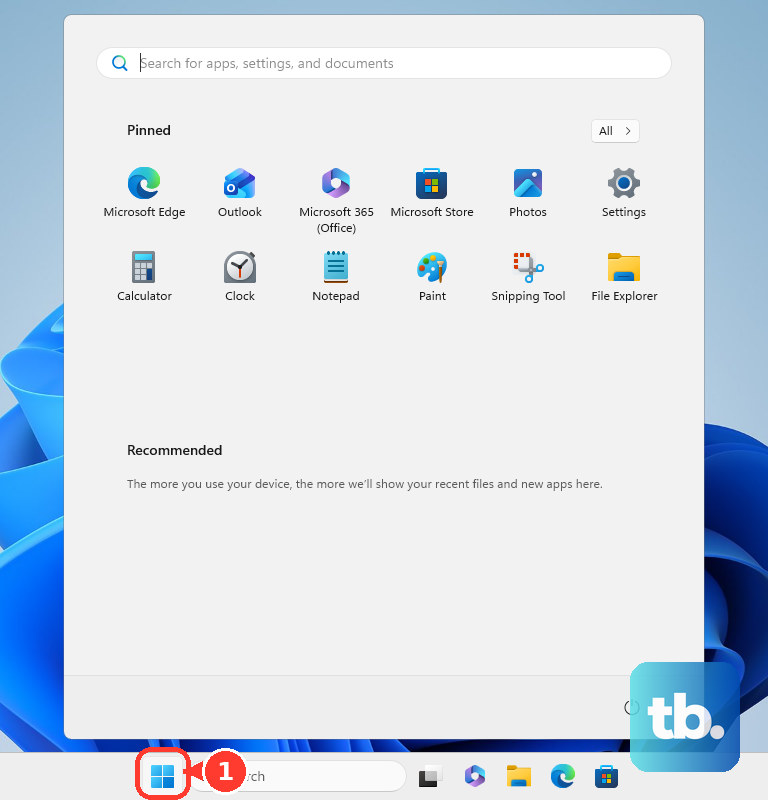
Corrupted Windows system files can trigger crashes. Open the Start menu, type cmd, right-click on Command Prompt, and select Run as administrator. In the black window, type sfc /scannow and press Enter. This will scan and attempt to repair any corrupted protected files. If it finds problems it can't fix, run DISM /Online /Cleanup-Image /RestoreHealth first, then run sfc /scannow again.
Check for Overheating Issues
The TUF A15 can run hot under load, and overheating is a classic cause of crashes during gaming or other intensive tasks. If your BSODs happen when the fans are spinning loudly, thermal throttling might be the culprit. Make sure the laptop's vents on the bottom and sides are clear of dust and not blocked by a blanket or your lap. Using a laptop cooling pad can make a significant difference. Also, try switching from Turbo mode to Performance mode in Armoury Crate to reduce heat generation if you're not in the middle of a demanding game.
Test Your RAM with Windows Memory Diagnostic
Faulty RAM is a frequent hardware cause of blue screens. Search for Windows Memory Diagnostic in the Start menu and run it. Choose Restart now and check for problems. Your laptop will reboot and run a memory test before Windows loads. If it finds any errors, you'll see a report after it boots back up. This could mean you need to reseat the RAM modules or, in rare cases, replace one.
Check Your Storage Drive for Errors
A failing SSD can also cause BSODs related to data read/write failures. Open an Administrator Command Prompt like before and type chkdsk C: /f /r. It will schedule a check for the next restart. Type Y to confirm, then restart your laptop. The check will run and repair any file system errors it finds. If it reports a large number of bad sectors, it's a sign your drive might be failing.
Reset Your PC (Keep Your Files)
If you've tried everything and the blue screens won't stop, a reset is your nuclear option for software issues. Go to Settings > System > Recovery and click Reset PC. Choose Keep my files. This will reinstall Windows fresh while preserving your personal documents, photos, and similar files. It will remove all your apps and drivers, giving you a completely clean slate, which often resolves deep-seated driver conflicts or system corruption that other tools can't fix.