
A flickering screen on your ASUS ROG Zephyrus G16 is more than just annoying, it can make gaming or work impossible. The issue might show up as rapid flashes, horizontal lines, or intermittent blackouts. Let's get it fixed.
Update Your NVIDIA GPU Drivers Directly
This is the most common fix for flickering on a gaming laptop like the G16. I'd start here. Don't rely on Windows Update or even the Armoury Crate software for this. Head directly to the NVIDIA website, use their driver search to find the latest Game Ready Driver for your specific RTX GPU, and do a clean installation. The installer has an option for this, which removes old driver files that might be causing the conflict.
Check the GPU MUX Switch Setting
The Zephyrus G16 has a MUX switch that lets you choose between the integrated and dedicated GPU for the display. A mismatch here can cause flickering. Open the Armoury Crate app and navigate to the GPU mode settings. If it's set to "Eco Mode" (which uses only the integrated GPU), try switching to "Standard" or "Ultimate" mode. Remember, switching to "Ultimate" mode requires a full system reboot to take effect.
Adjust the Display Refresh Rate
Right-click on your desktop and select Display settings. Scroll down and click Advanced display. Look at the refresh rate dropdown. If your G16's panel is set to a high refresh rate like 240Hz, try switching it down to 60Hz to see if the flickering stops. If it does, you can try stepping back up to see which rate is stable, or it may indicate a driver issue that needs resolving first.
Disable Hardware Acceleration in Apps
Some applications, particularly web browsers like Chrome or Discord, can cause screen tearing and flickering when their hardware acceleration feature conflicts with your GPU drivers. In Chrome, go to Settings > System and turn off Use hardware acceleration when available. Do the same in any other app where you notice the flickering is worse.
Manage Armoury Crate and Aura Sync
The Armoury Crate software is powerful, but it can sometimes conflict with other system processes. Make sure Armoury Crate itself is fully updated through the Microsoft Store or the ASUS website. Also, if you have RGB lighting via Aura Sync, try temporarily disabling the lighting effects. Some users have reported that specific Aura Sync patterns or conflicts with other RGB software can cause display instability.
Boot Into Safe Mode to Isolate the Problem
If the flickering is constant, restart your laptop and boot into Windows Safe Mode. This loads Windows with only the most basic drivers. If the screen is perfectly stable in Safe Mode, you've confirmed the issue is caused by a driver or a startup application. You can then use Safe Mode to uninstall recent GPU drivers or software you suspect.
Roll Back a Recent Display Driver
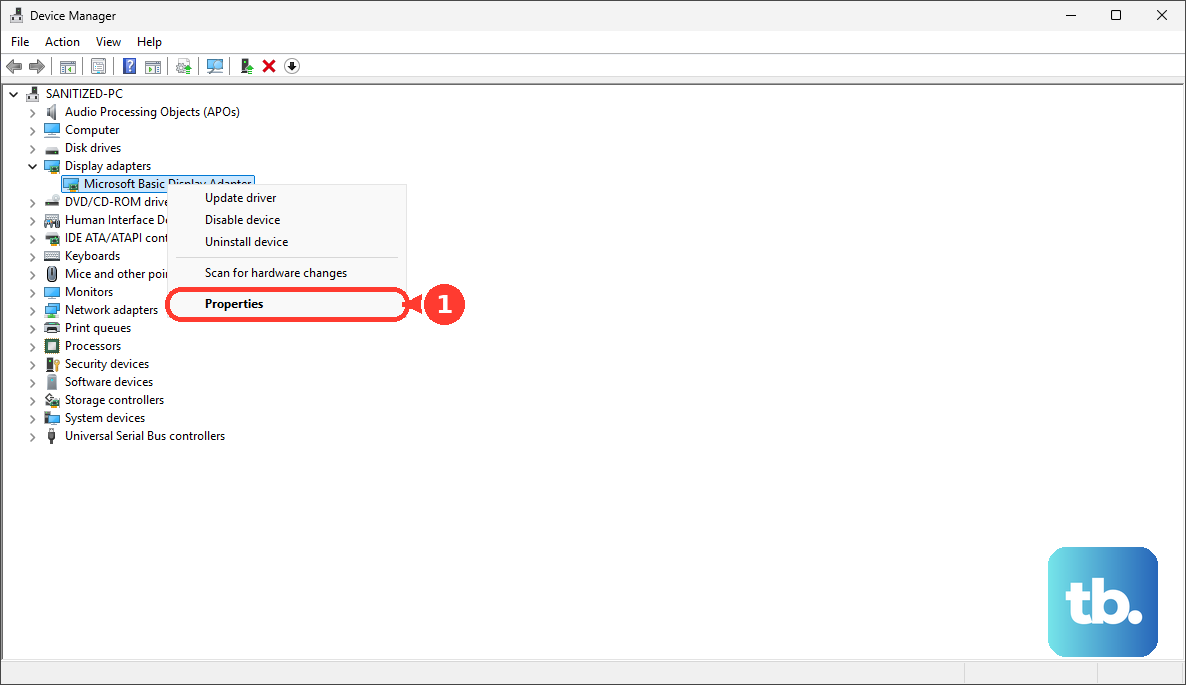
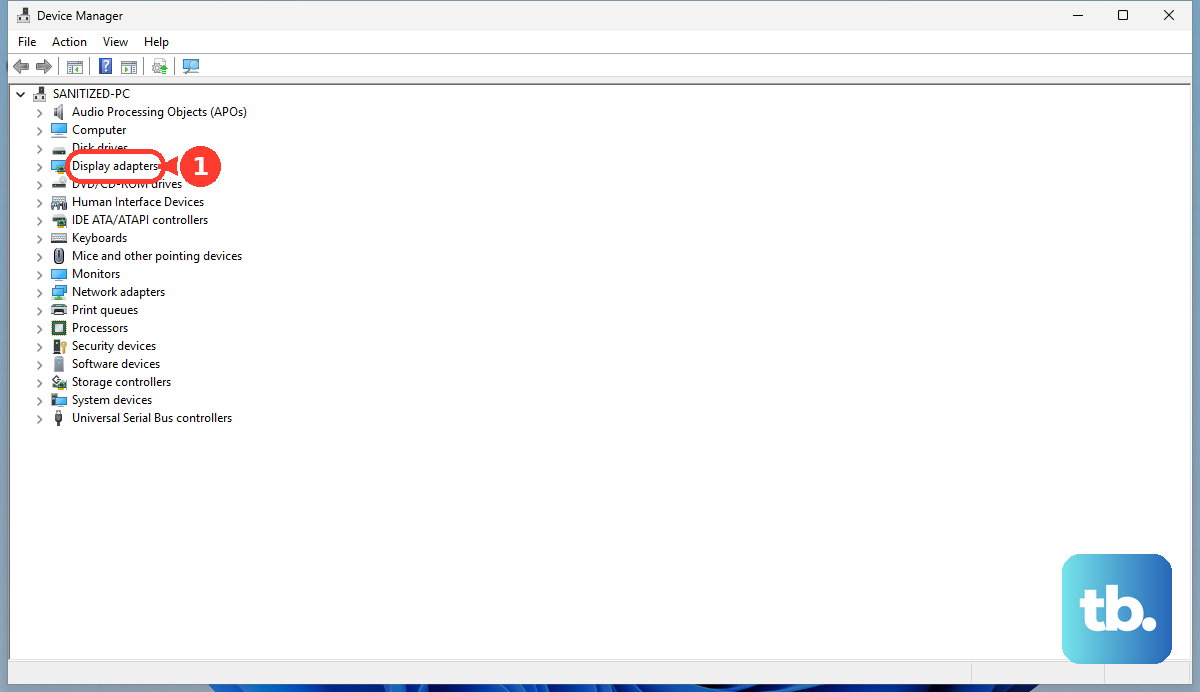
If the flickering started right after you updated your graphics driver, rolling it back can be a quick fix. Press the Windows key + X and select Device Manager. Expand Display adapters, right-click your NVIDIA GeForce RTX card, select Properties, go to the Driver tab, and click Roll Back Driver if the option is available.
Check for Physical Connection Issues
This is less common but worth considering if the flickering seems tied to moving the laptop lid. The internal display cable can become slightly loose over time. If the flickering changes or intensifies when you gently flex the screen hinge or the bottom corner of the display bezel, it may point to a hardware connection issue that would require a professional to reseat the cable.
Run All Available System Updates
Finally, make sure everything else is up to date. Go to Settings > Windows Update and install all pending updates. Then, open the ASUS Armoury Crate app and check for any BIOS, chipset, or other firmware updates specifically for your G16 model. These updates often include stability fixes for the display and other components.