

To hard reset a frozen Apple Watch, force restart it: hold the side button and Digital Crown together for at least 10 seconds, until the Apple logo appears. To factory reset it instead, open Settings on the watch and tap General, Reset, then Erase All Content and Settings. That erase leaves Activation Lock on, so unpair the watch from its iPhone if you are selling it.
The two jobs share a name but do very different things. A force restart is a reboot, while Erase All Content and Settings wipes the watch back to factory settings. If the screen is only stuck, restart your Apple Watch without erasing it first, and come back here if you really want a clean slate.
The short version
- Frozen watch: hold the side button and Digital Crown for at least 10 seconds. It reboots and does not erase.
- Factory reset on the watch: Settings, General, Reset, Erase All Content and Settings, then Erase All.
- Forgot the passcode: put the watch on its charger, hold the side button, then hold the Digital Crown and tap Reset twice.
- Selling it: unpair it in the Watch app on the iPhone, which erases it and removes Activation Lock.
- Your data: the paired iPhone backs up the watch while the two are near each other, but Apple Pay cards and the passcode are not in the backup.
Which Apple Watch reset you need
Pick the row that matches your situation. Only the last two rows clear Activation Lock, the link to your Apple Account that stops anyone else from setting the watch up, and that is the difference that matters most before a sale.
| Your situation | What to do | What happens |
|---|---|---|
| The screen is frozen | Hold the side button and Digital Crown for at least 10 seconds | A forced reboot, not an erase |
| Fresh start, you have the watch and its passcode | Settings > General > Reset > Erase All Content and Settings on the watch | Erased, Activation Lock stays on |
| Fresh start, the iPhone is nearby | Watch app > My Watch > General > Reset > Erase Apple Watch Content and Settings | Erased, Activation Lock stays on |
| You forgot the watch passcode | Watch on its charger, hold the side button, then the Digital Crown, then tap Reset twice | Erased, Activation Lock stays on |
| Calendar on the watch is out of date | Watch app > My Watch > General > Reset > Reset Sync Data | Calendar data is forced to sync again, not a factory reset |
| Selling or giving it away | Watch app > My Watch > All Watches > info button > Unpair Apple Watch | Erased and Activation Lock removed, after the iPhone tries to back it up |
| The watch is already gone | Erase it at icloud.com/find, then remove it from your account | Erased, Activation Lock removed |
The routes in this table follow Apple's support articles and its Apple Watch User Guide. There is no hidden reset pinhole either. Apple says the watch has no SIM slot or reset button, and the holes in the case are for sound and, on Apple Watch Ultra, water-depth measurement, so never push anything into them.
Make sure your watch is backed up before you erase
The watch backup is automatic. Apple says the watch backs up to its paired iPhone automatically while the two are near each other, and that unpairing normally backs the watch up to the iPhone first. Its sale checklist words this more carefully, saying the iPhone tries to create a backup. Apple's forgotten-passcode page also says a backup of the watch is created on the iPhone before the watch is erased.
That backup depends on the iPhone being there. If you erase the watch with its paired iPhone out of reach, do not count on a fresh backup, because the newest copy may be the last one the iPhone made while the two were together. Keep the iPhone close when you can.
That watch backup reaches iCloud or a computer as part of the iPhone's own backup. So before a sale or a phone swap, back up your iPhone as well, which gives your watch data a second home if the phone itself is lost or replaced.
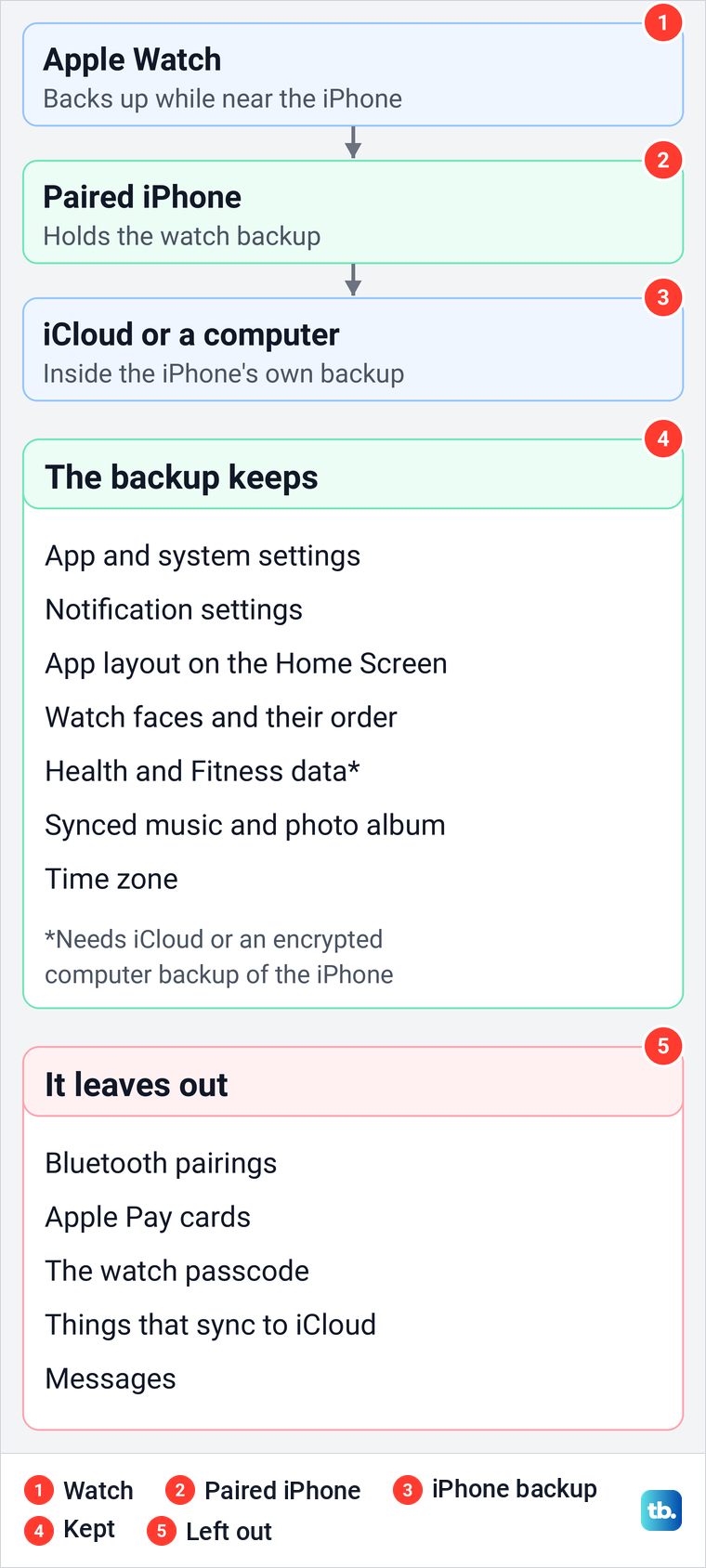
Apple's list of what the backup keeps covers settings for built-in and third-party apps, system settings such as brightness and sound, notification settings, the app layout on the Home Screen, your watch faces with their customizations and order, and Health and Fitness data. Synced playlists, the synced photo album and your time zone come back too.
The gaps matter more. The backup leaves out Bluetooth pairings, the cards you use for Apple Pay, the watch passcode, anything that syncs through iCloud and Messages. Health and Fitness data needs iCloud or an encrypted computer backup of the iPhone, so encrypt the computer backup if that is how you back up.
Erase Apple Watch from its Settings app
This is the factory reset that works without the iPhone, as long as you know the watch passcode. Open the Settings app on the watch and scroll to General. On the watch we opened, with watchOS 26.5, General sat fourth in the list, under Notifications, Smart Stack and Control Center.
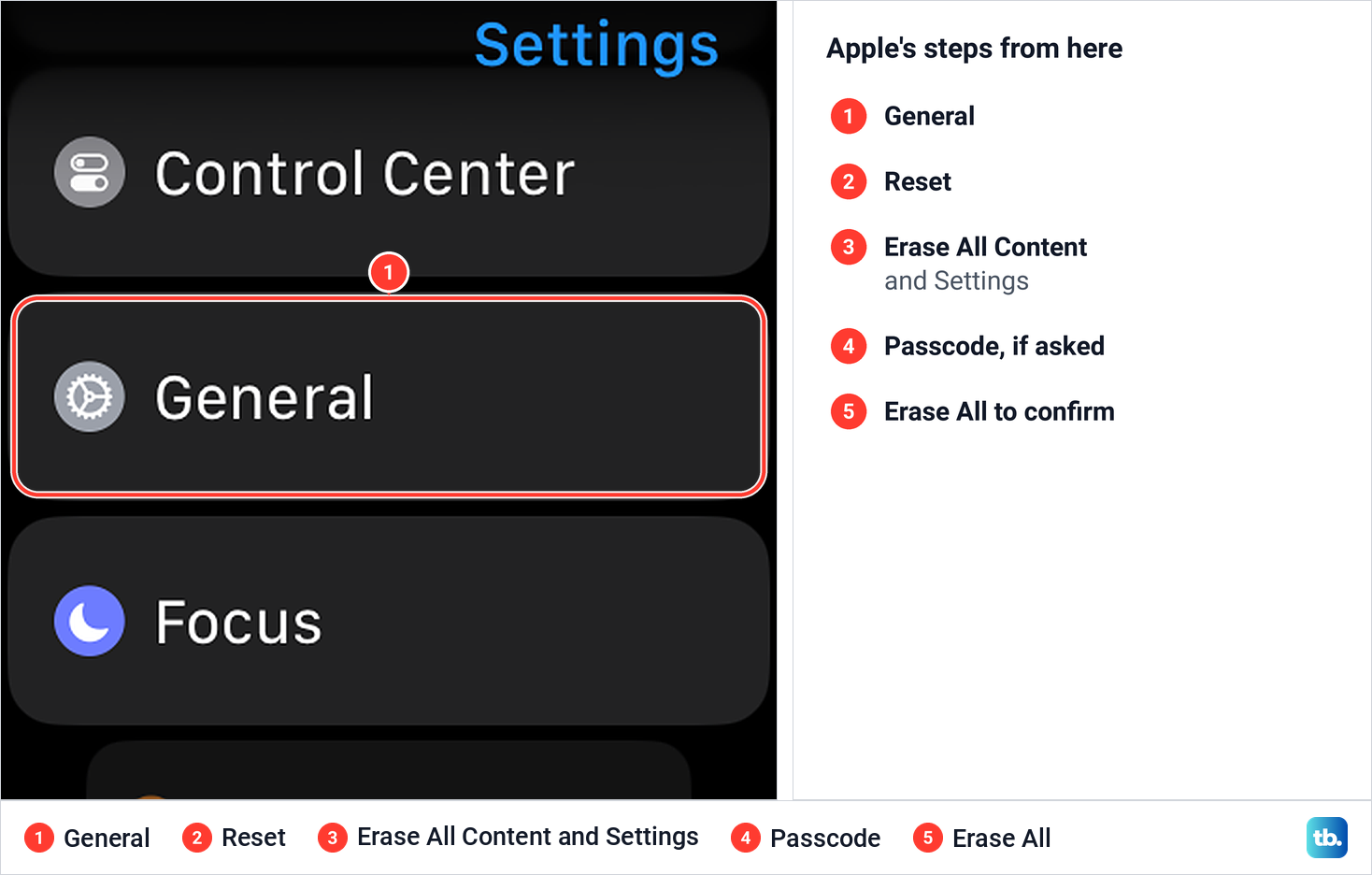
From there, Apple's steps are to tap General, then Reset, then Erase All Content and Settings. Type your passcode if the watch asks for it. A cellular watch then asks whether to keep or remove its plan, which the section below explains, and you tap Erase All to confirm.
Apple says this restores the watch to factory settings but does not remove Activation Lock, and that you need the Apple Account and password linked to the watch to set it up again. Apple's watchOS 27 guide adds that this erase leaves the watch paired with your iPhone, and it calls this the route to use if you plan to keep the watch and only need to reset it.
Apple's sale checklist spells out what an erase removes, including the cards you added for Apple Pay and any photos, contacts, music or apps. It also turns off iCloud, iMessage, FaceTime and Game Center on the watch, while your content stays in iCloud.
Erase Apple Watch from the iPhone Watch app
If the watch is close to its paired iPhone, you can run the same erase from the phone. This also helps when the watch screen is hard to use or you cannot remember the watch passcode, because the steps happen on the iPhone. Keep the two devices together until it finishes.
Open the Watch app on the iPhone and stay on the My Watch tab. In the Watch app with iOS 26.5, General was the first row of the second group, just under App View.
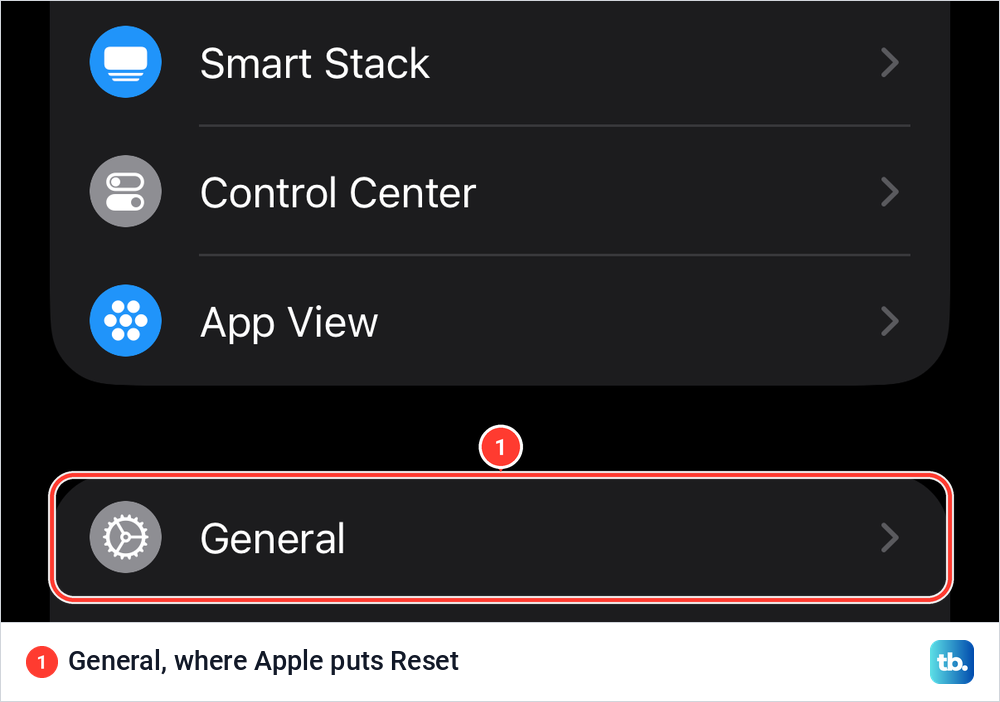
Apple's steps from there are General, then Reset, then Erase Apple Watch Content and Settings, which you tap a second time at the bottom of the screen to confirm. Apple says you might need to enter your Apple Account password. A GPS + Cellular watch then asks about its plan, and when the erase finishes, Apple says to set the watch up again and restore from a backup when asked.
Apple's guide lists this route under erasing the watch without unpairing it, and it is unpairing that removes Activation Lock, so the lock stays on. Apple's advice is to unpair the watch first if you want the lock removed.
Reset Apple Watch without the passcode
A forgotten passcode does not lock you out for good. Apple says you need to reset the watch and set it up again, and the buttons on the watch can do it with no iPhone in reach. The steps start on the charger, so check whether your Apple Watch is charging before you hold anything.
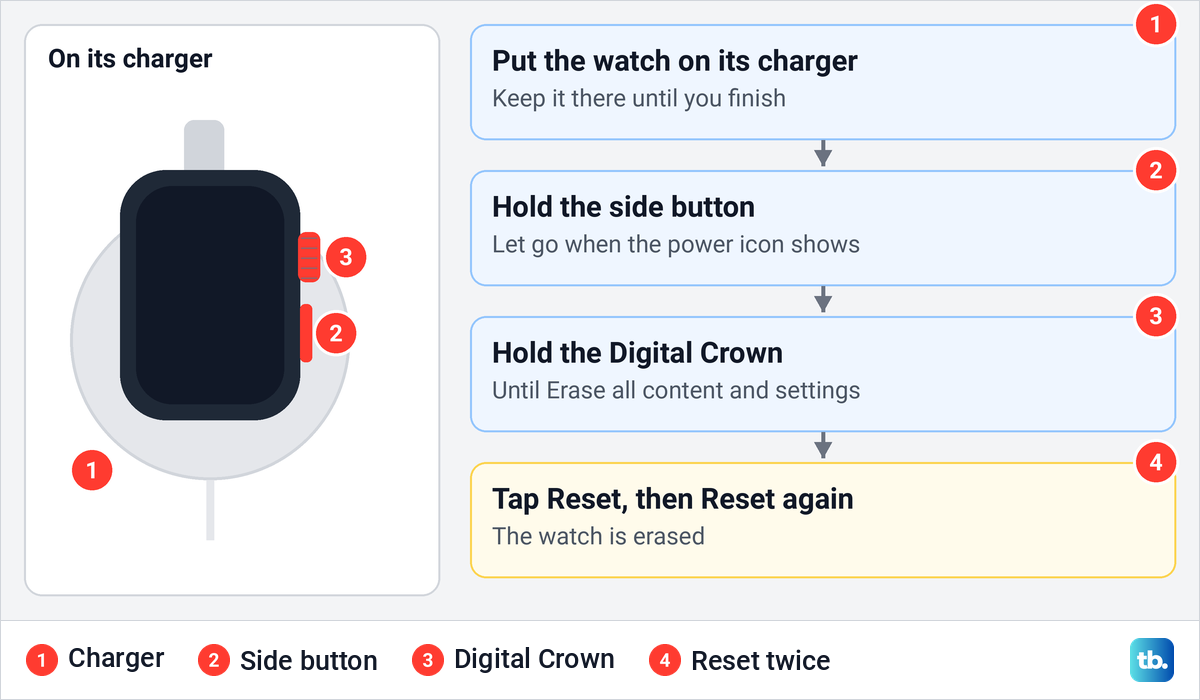
Put the watch on its charger and keep it there until you finish. Press and hold the side button until you see the power button in the upper-right corner of the display, then let go of the side button. Next, press and hold the Digital Crown until you see Erase all content and settings, tap Reset, then tap Reset again to confirm.
Timing the first step matters. If you keep holding the side button after the power screen appears, the red SOS knob turns into a countdown on the Emergency Call slider, as the second screen below shows. Apple's watchOS 9 guide says that when the countdown ends, the watch calls emergency services.
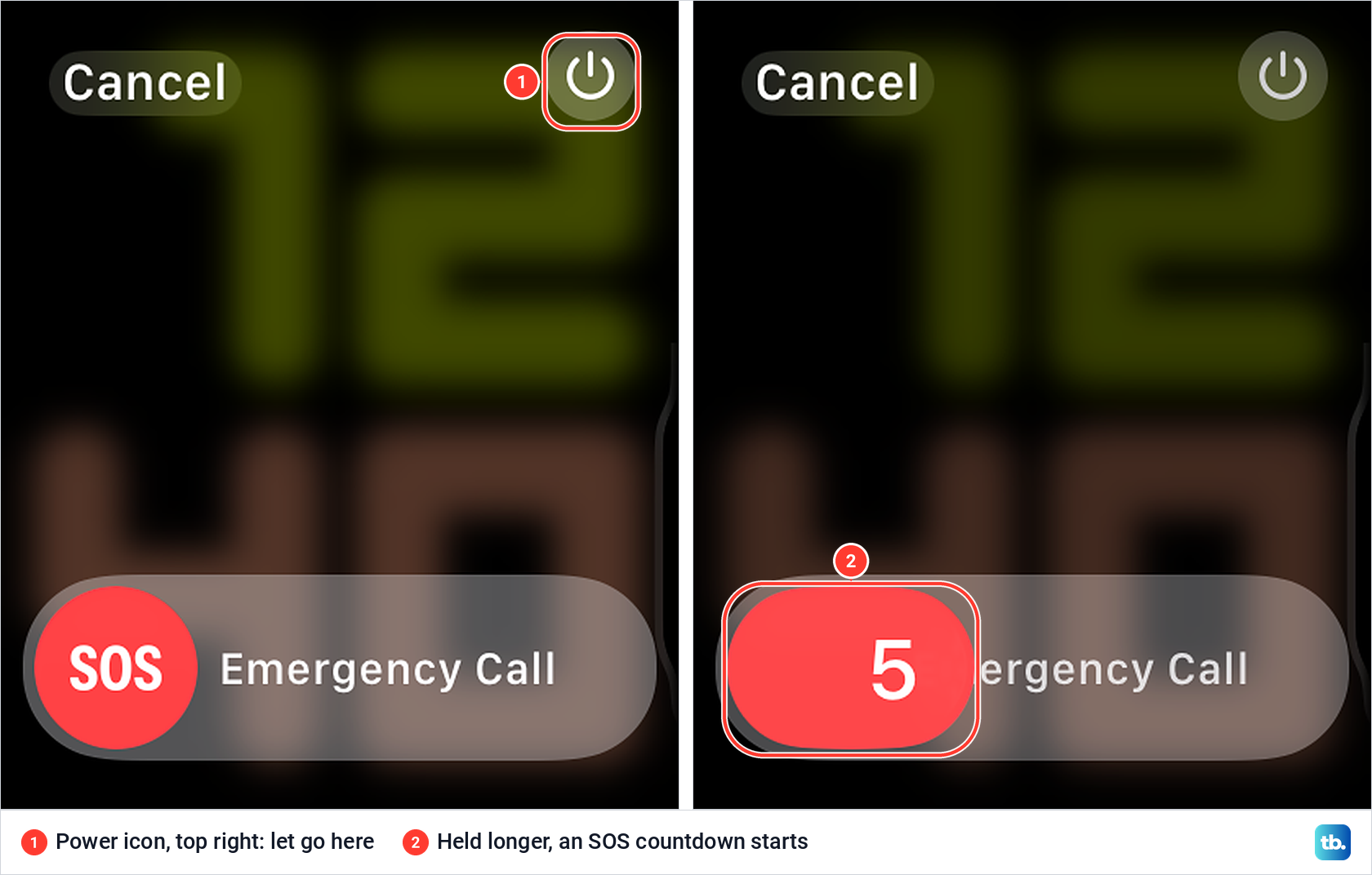
So let go of the side button as soon as the power button appears, then move to the Digital Crown. Apple says a watch with an earlier version of watchOS shows a Power Off slider instead of the power button, and its pairing help describes the next screen as a red Reset button. Either way, you tap Reset twice.
Apple says this reset erases all media, data and settings but does not remove Activation Lock, so you still need the Apple Account that set the watch up. With the iPhone out of reach, the backup you restore later is the last one the iPhone made. If the screen stays dark when you hold the side button, fix an Apple Watch that will not turn on before trying the reset again.
Keep or remove the cellular plan
On a cellular watch, Apple's erase and unpair steps ask what to do with its plan. Apple says to keep the plan if you will pair the same watch and iPhone again, and to remove it if you are selling the watch, giving it away or pairing it with another iPhone.
Removing the plan from the watch does not end the contract. Apple says to contact your carrier to cancel the cellular subscription, and that carrier fees may apply. You can also remove a plan without erasing anything, in the Watch app under My Watch > Cellular, the info button next to the plan, then Remove [carrier] Plan.
Remove Activation Lock before you sell it
Activation Lock turns on by itself when Find My is set up on the paired iPhone. Apple says that with it on, your Apple Account details are needed before anyone can unpair the watch, pair it with a new iPhone or turn off Find My. An erase on its own does not change that, which is why a buyer can end up with a wiped watch they cannot use.
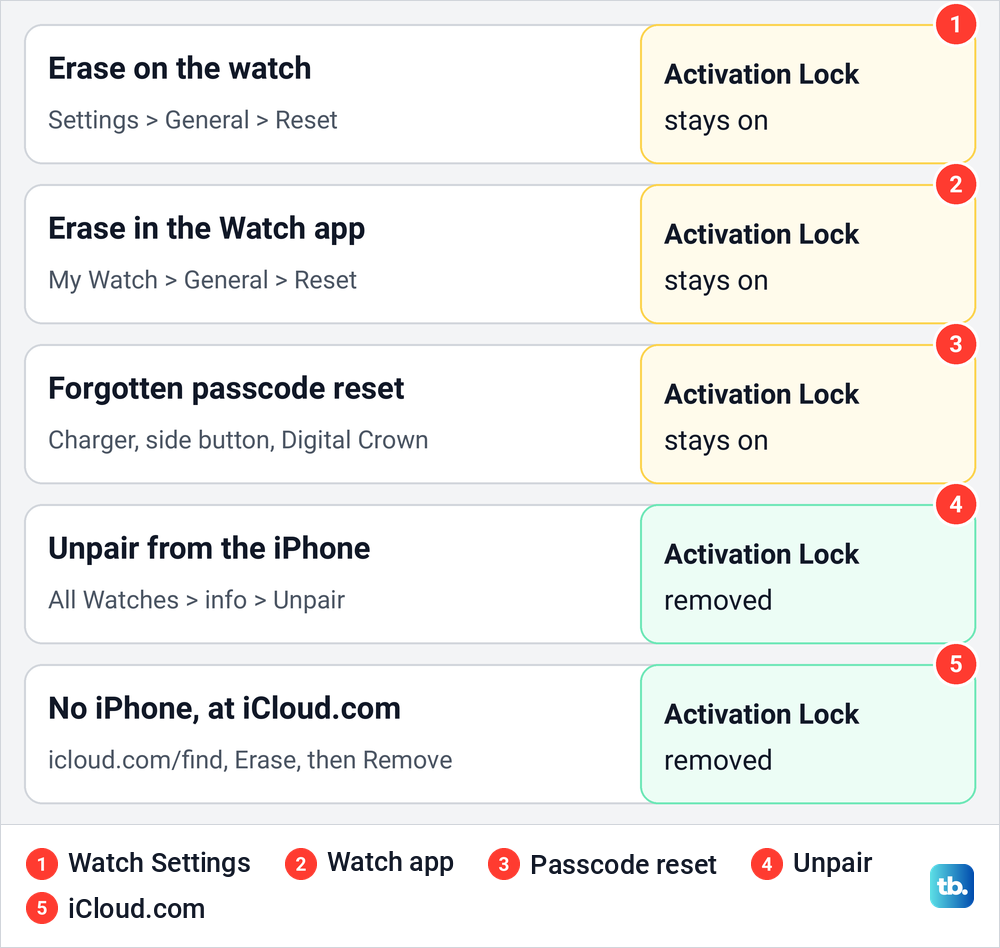
The clean route for a sale is to unpair. Keep the watch and iPhone close, open the Watch app, tap All Watches at the top of the My Watch tab, then the info button next to the watch. On iOS 26.5 that sheet listed the watch with an orange info button at the right of its row. Apple's rule is that if you see Find My Apple Watch on the page it opens, Activation Lock is on.
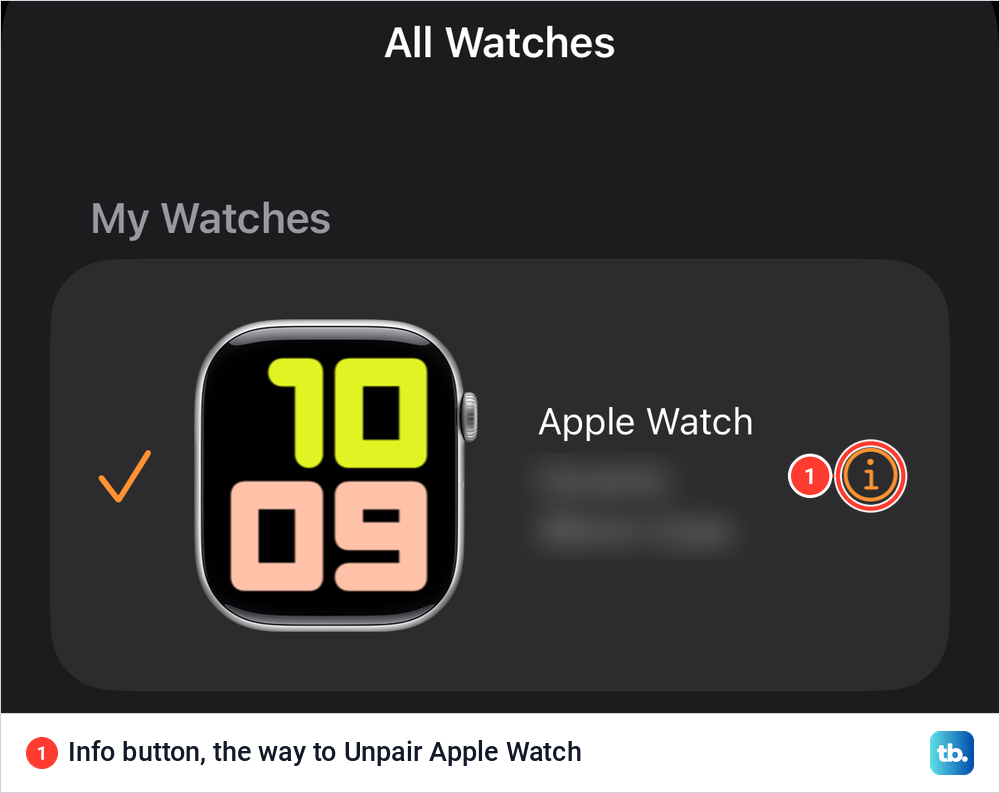
Tap Unpair Apple Watch and confirm with your watch's name. If you have a cellular Apple Watch, choose Remove Cellular Plan, then enter your Apple Account password to turn off Activation Lock. Apple says the iPhone tries to back up the watch as it unpairs. Our guide on how to unpair your Apple Watch from the iPhone covers this step in more detail, and if the password is the problem, reset your Apple Account password first.
Without the iPhone, Apple's web route still works. Go to icloud.com/find, sign in, select the watch under All Devices and click Erase, then follow the prompts. Once it is erased, click the Remove button that appears under the watch, then Continue. Apple's steps make adding a phone number optional.
Selling the phone as well? Deal with the watch first, because the unpair steps run in the Watch app on that iPhone. Once the watch is unpaired, erase the iPhone before you sell it.
Lighter resets that are not a factory reset
Not every reset wipes the watch. Apple puts Reset Sync Data on the same Reset page in the Watch app, and lists it as the way to force Calendar data to sync to Apple Watch. The route is My Watch > General > Reset > Reset Sync Data, and Apple says it is not available on a watch a family member set up for you.
The Watch app has smaller resets on other pages too. On iOS 26.5, the Control Center page under My Watch showed an orange Reset Control Center button below the line Press the side button to access Control Center.
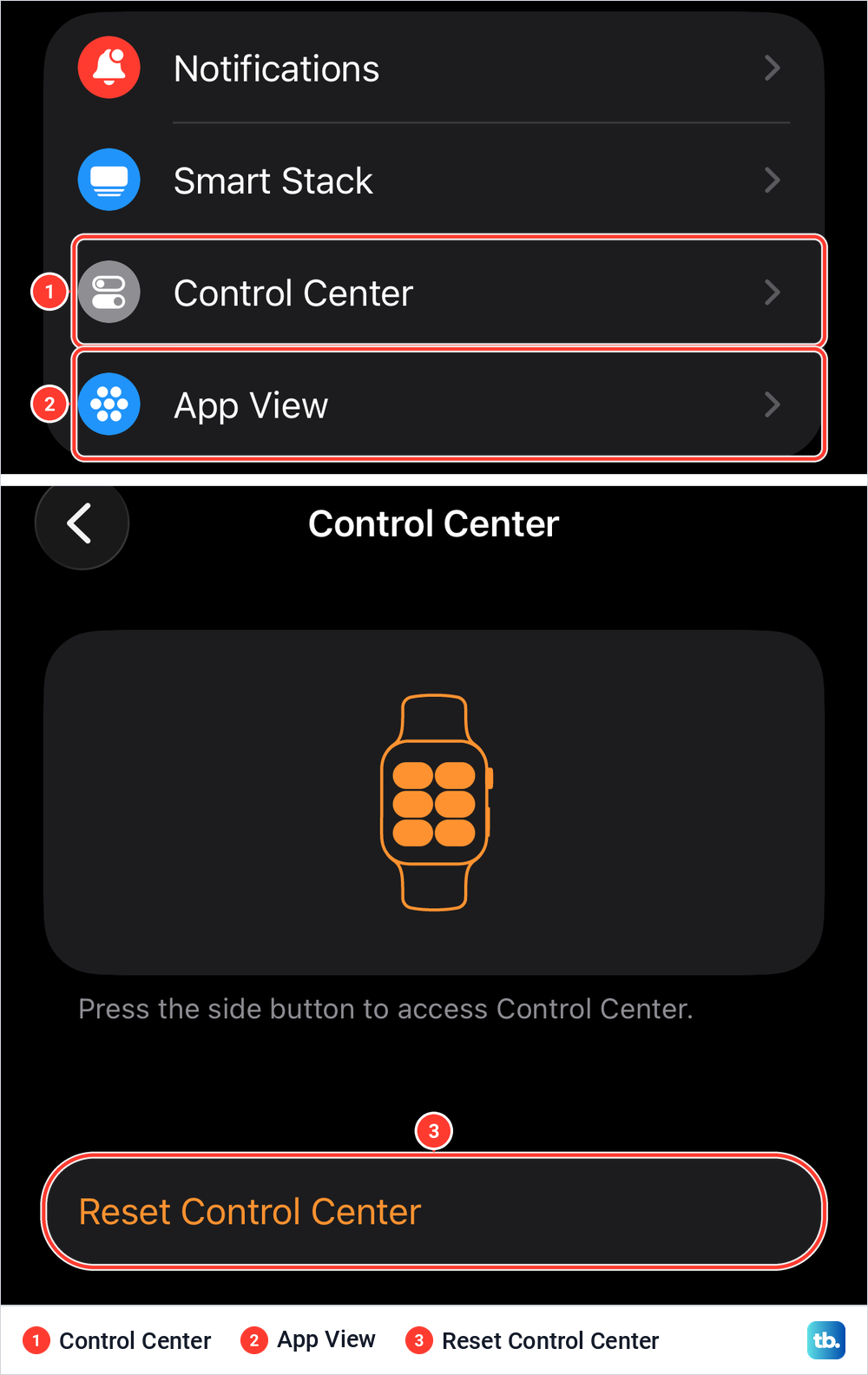
If the problem is an untidy app grid, a reset is overkill. Apple's steps are to tap App View in the My Watch tab, then Arrangement, and drag the app icons where you want them. You can do the same on the watch by touching and holding an app on the grid and dragging it.
Some problems need no reset at all. If constant alerts are what bother you, mute Apple Watch alerts instead, and for a break from the watch, turn off your Apple Watch and keep everything on it as it is.
If the watch is stuck on the Apple logo
A watch that never gets past the logo needs Apple's order of steps, not an erase from Settings, since the watch never reaches its Settings app. Start with one force restart. Press and hold the side button and Digital Crown until the screen turns black and the Apple logo reappears, then let go of both.
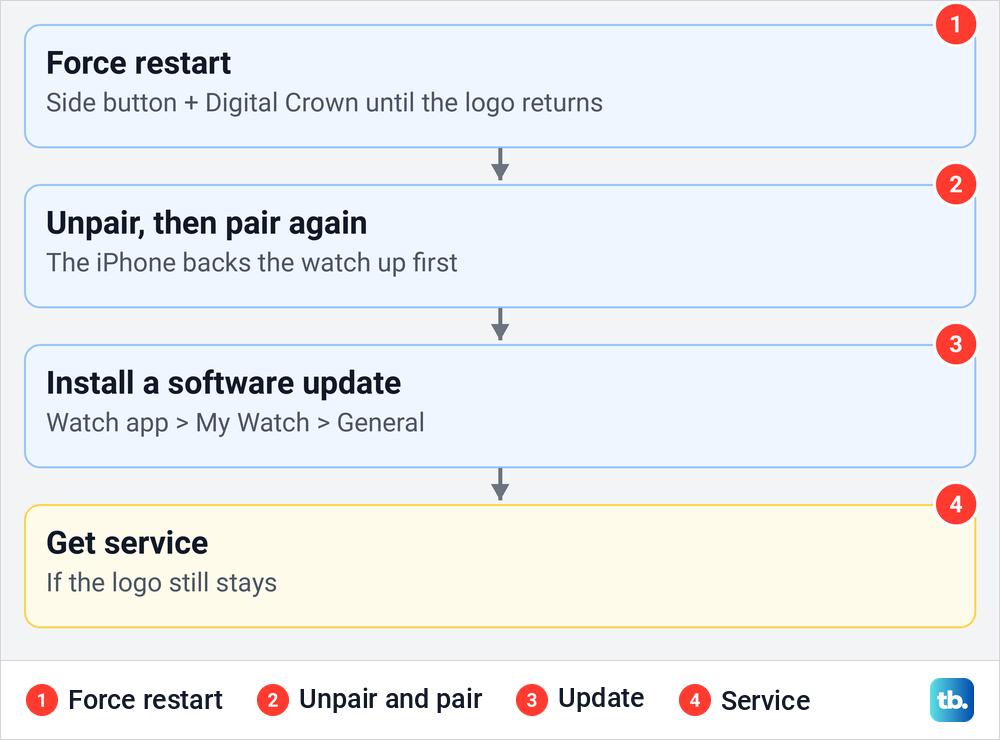
If the logo is still there, Apple says to unpair the watch from the iPhone and pair it again, keeping the two close together. For a GPS + Cellular watch, choose to keep the plan, and when you unpair, the iPhone creates a backup. After pairing again, tap Restore from Backup to restore the watch from that backup.
Apple's next step is a software update. In the Watch app, open My Watch, tap General, then Software Update, and tap Download and Install if an update is offered. If the watch is still stuck after that, Apple says to get service for it.
Set up Apple Watch again after a reset
Turn the watch on by holding the side button until the Apple logo appears, and put it on your wrist. Hold it close to your unlocked iPhone and tap Continue when the message Use your iPhone to set up this Apple Watch appears. If it does not, open the Watch app, tap All Watches, then Add Watch.
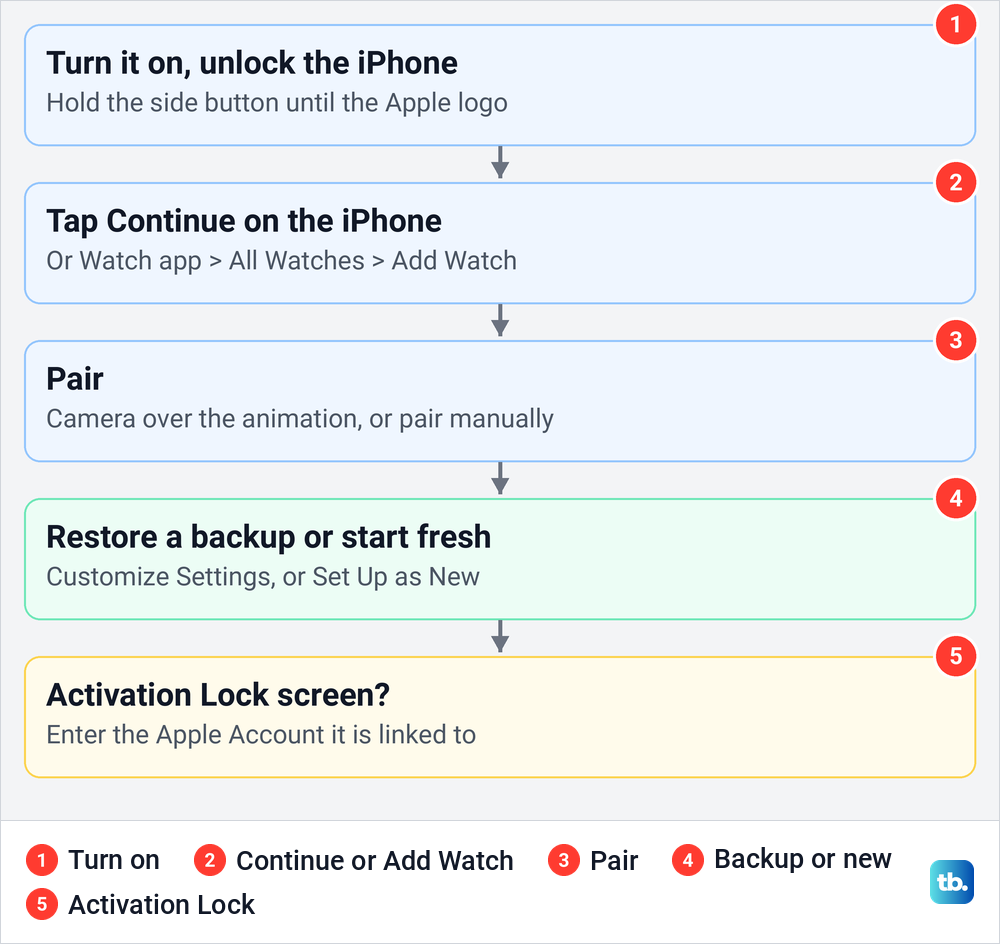
Tap Set Up for Myself, then center the watch face in the iPhone's viewfinder, or tap Pair Apple Watch Manually if the camera cannot read the animation. If you set up a watch with this iPhone before, Apple says a Make This Your New Apple Watch screen appears. Tap Customize Settings there to choose a backup, or Set Up as New Apple Watch to start clean.
An Activation Lock screen means the watch is still linked to an Apple Account, and you need that account's email address and password to continue. If the watch asks for a passcode instead, Apple says it is still paired with another iPhone. If the pairing animation sits on screen for several minutes, Apple says to hold the Digital Crown while the watch is in pairing mode and tap Reset, then pair again.
If you restore a backup, your watch faces come back with it, and you can change and customize your Apple Watch face afterwards. The backup does not carry cards, so set up Apple Pay on the watch again once you have a new passcode. If the reset was part of a phone upgrade, follow the steps to pair your Apple Watch with a new iPhone instead.
How we tested this guide
We tested this on an Apple Watch with watchOS 26.5, opening the Settings list and the power screen from the side button.
Frequently Asked Questions
Is a hard reset the same as a factory reset on Apple Watch?
No, although people use the phrase for both. Holding the side button and Digital Crown for at least 10 seconds forces a restart and does not erase the watch. A factory reset is Erase All Content and Settings, or unpairing the watch from its iPhone.
Can I factory reset an Apple Watch without the iPhone?
Yes. On the watch, open Settings and tap General, Reset, then Erase All Content and Settings, or use the charger and button reset if you forgot the passcode. Activation Lock stays on afterwards, so remove the watch at icloud.com/find if it is leaving you.
How do I reset an Apple Watch without the passcode?
Put it on its charger and hold the side button until the power button shows at the top right, then let go. Hold the Digital Crown until Erase all content and settings appears, then tap Reset twice.
Does erasing an Apple Watch remove Activation Lock?
No. Erasing on the watch, in the Watch app or with the passcode reset leaves it on. Unpairing from the paired iPhone, or erasing and removing the watch at icloud.com/find, turns it off.
Will I lose my data when I reset my Apple Watch?
The watch itself is wiped, but Apple says its paired iPhone keeps a backup, made while the two are near each other, that you can restore during setup. If the iPhone was out of reach before the erase, that backup may be older than the watch's latest data. Apple Pay cards, Bluetooth pairings and the passcode are not in that backup, so you add those again.
What does Reset Sync Data do on Apple Watch?
Apple lists it as the way to force Calendar data to sync to the watch. It is not a factory reset, and it is not available on a watch that a family member set up for you.
What if my Apple Watch is stuck on the Apple logo?
Force restart it first. If the logo stays, Apple says to unpair and pair it again, then install a software update from the Watch app, and get service if it is still stuck.