
Your Apple Watch Series 10 refuses to pair, and you're staring at the endless swirl of bubbles on the watch face. Maybe your iPhone never even sees the watch in the Watch app, or the pairing process starts and then drops. Whatever the symptom, this usually comes down to one of a handful of things, and none of them require a trip to the Apple Store.
The absolute fastest fix to check first is your iPhone's software version. The Series 10 ships with watchOS 26, and watchOS 26 only pairs with iPhones running iOS 26 or later. If your iPhone is on iOS 25.x or earlier, the pairing handshake never completes. Open Settings > General > Software Update on your iPhone and make sure you're on iOS 26 or later.
Skip the QR Code Scanner
The standard pairing method uses your iPhone's camera to scan a QR code on the watch. It fails more often than you'd think, especially in dim light or if the Series 10's glossy display glass creates glare. Bypass the camera entirely.
When the Watch app prompts you to scan the code, tap Pair Apple Watch Manually at the bottom of the screen. The watch will display a long string of letters and numbers. Type that code into your iPhone exactly as shown. This works in any lighting and avoids camera-permission hiccups.
Give Both Devices a Fresh Start
Before diving into deeper fixes, restart both your iPhone and Apple Watch. Temporary Bluetooth ghosts and software glitches cause a surprising number of pairing failures. On iPhone XS or later, press and release Volume Up, press and release Volume Down, then hold the Side button until the Apple logo appears.
On the Series 10, press and hold the side button until the power slider appears, then drag it to turn off. Wait ten seconds, then hold the side button again until the Apple logo shows. Once both are back up, open the Watch app and try pairing again.
Wipe the Watch Clean
If the Series 10 was previously paired to anyone (including yourself), it stubbornly remembers and won't start fresh without a full erase. On the watch itself, go to Settings > General > Reset > Erase All Content and Settings. You'll need to enter your passcode if one is set.
The watch takes about five minutes to wipe itself clean. After it reboots, you'll see the pairing swirl animation again. That's the clean slate your iPhone needs to detect it properly.
Is Activation Lock Blocking You?
If you bought your Series 10 used, it might be locked to the previous owner's Apple ID. This is the same Activation Lock that protects iPhones. The watch will show a screen with a partially obscured email address belonging to the original owner.
You can't remove this yourself. The owner has to go to iCloud.com/find, remove the watch from their account, then the lock clears. If you bought from Apple or an authorized reseller and have a receipt, Apple Support can sometimes unlock it with proof of purchase. Until that happens, the watch won't pair with any other Apple ID.
Reset Your iPhone's Network Setup
If you've restarted both devices, manually paired, and erased the watch with no luck, your iPhone's network settings might have deep corruption. This wipes saved Wi-Fi passwords, VPN configurations, and Bluetooth pairings, but it clears the kind of junk that blocks pairing.
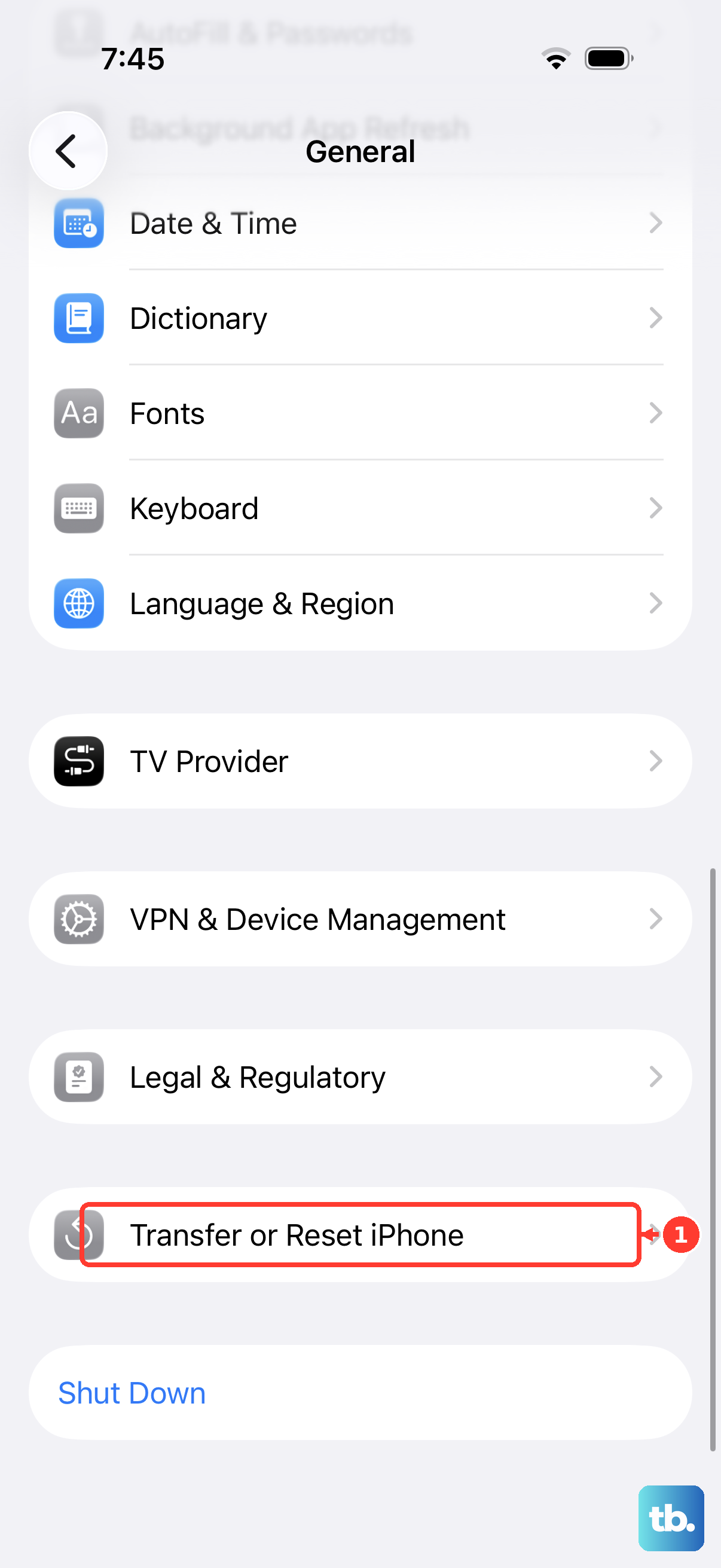
Go to Settings > General > Transfer or Reset iPhone > Reset > Reset Network Settings. Your iPhone will reboot. You'll need to reconnect to Wi-Fi and re-pair any Bluetooth devices, but this often fixes stubborn pairing issues on the first try.
Force Restart the Apple Watch Series 10
If your watch is frozen on the pairing animation and won't respond to taps or button presses, force restart it. Press and hold the side button and Digital Crown together for at least ten seconds. Keep holding until you see the Apple logo, then release both buttons.
After the restart, the swirl-of-bubbles screen should appear cleanly within about thirty seconds. Then you can try pairing again from the Watch app on your iPhone.
Check Camera Permission
If you're using the QR code method and your iPhone's camera doesn't open in the Watch app, the app may have lost camera permission. This sometimes happens after an iOS update. Open Settings > Privacy & Security > Camera on your iPhone. Scroll down to Watch in the app list and toggle it on if it's off.
After enabling, return to the Watch app and try scanning the code again. If that doesn't work, switch to manual pairing instead.
Try a Different iPhone
At this point, if nothing has worked, borrow another iPhone running iOS 26 or later and try pairing your Series 10 there. If it pairs successfully on the second phone, the original iPhone has a Bluetooth or Watch app issue specific to it.
Restoring that iPhone via Finder (on a Mac) or iTunes (on a PC) may be necessary. If the watch fails to pair on multiple iPhones, the problem is on the watch side. You can open the Apple Support app on your iPhone and choose Apple Watch > Repairs and Physical Damage to start a mail-in or Genius Bar repair flow.
Restore From a Backup
This is the deepest fix, and only worth doing if everything else has failed. After erasing the watch (as above), boot it up so it shows the pairing swirl. On your iPhone, open the Watch app and start the setup process. When asked, choose Restore from Backup instead of Set Up as New.
If a backup exists from a previous Apple Watch, this brings back your settings, watch faces, and complications without needing to set everything manually. If pairing still fails after a clean restore, you're looking at a hardware issue that requires Apple support.