
When your Apple TV 4K loses its internet connection, your streaming world grinds to a halt. Whether it's stuck on "Connecting..." or shows a connection with no actual access, getting back online is usually straightforward.
Restart Your Apple TV
Go to Settings > System > Restart. This is the software restart and often clears up temporary glitches. If the menu is unresponsive, you can force a restart using your Siri Remote. Press and hold the TV/Control Center button and the Volume Down button together for about five seconds until the status light on the Apple TV flashes rapidly.
Check Your Router
Unplug your modem and router from power for a full minute. Plug the modem back in first, wait for all its lights to stabilize, then plug in your router. Give it another two minutes to boot completely. This simple step resolves more network issues than you'd think.
Forget and Rejoin Your WiFi Network
On your Apple TV, navigate to Settings > Network. Select your WiFi network and choose Forget This Network. Confirm, then go back and select your network from the list to rejoin it, entering your password again. This creates a fresh connection profile, which can fix authentication errors.
Verify Your WiFi Password
Double-check that you're entering the correct password, especially if you've recently changed it. The on-screen keyboard can be tricky, so watch for accidental caps lock or incorrect characters. I've seen this be the culprit more times than I can count.
Switch WiFi Bands
If your router broadcasts both 2.4GHz and 5GHz networks, try switching bands. The 5GHz band is faster but has a shorter range. If your Apple TV is far from the router, the 2.4GHz band's better wall penetration might provide a more stable connection. You can manage this from your router's admin page.
Update tvOS Software
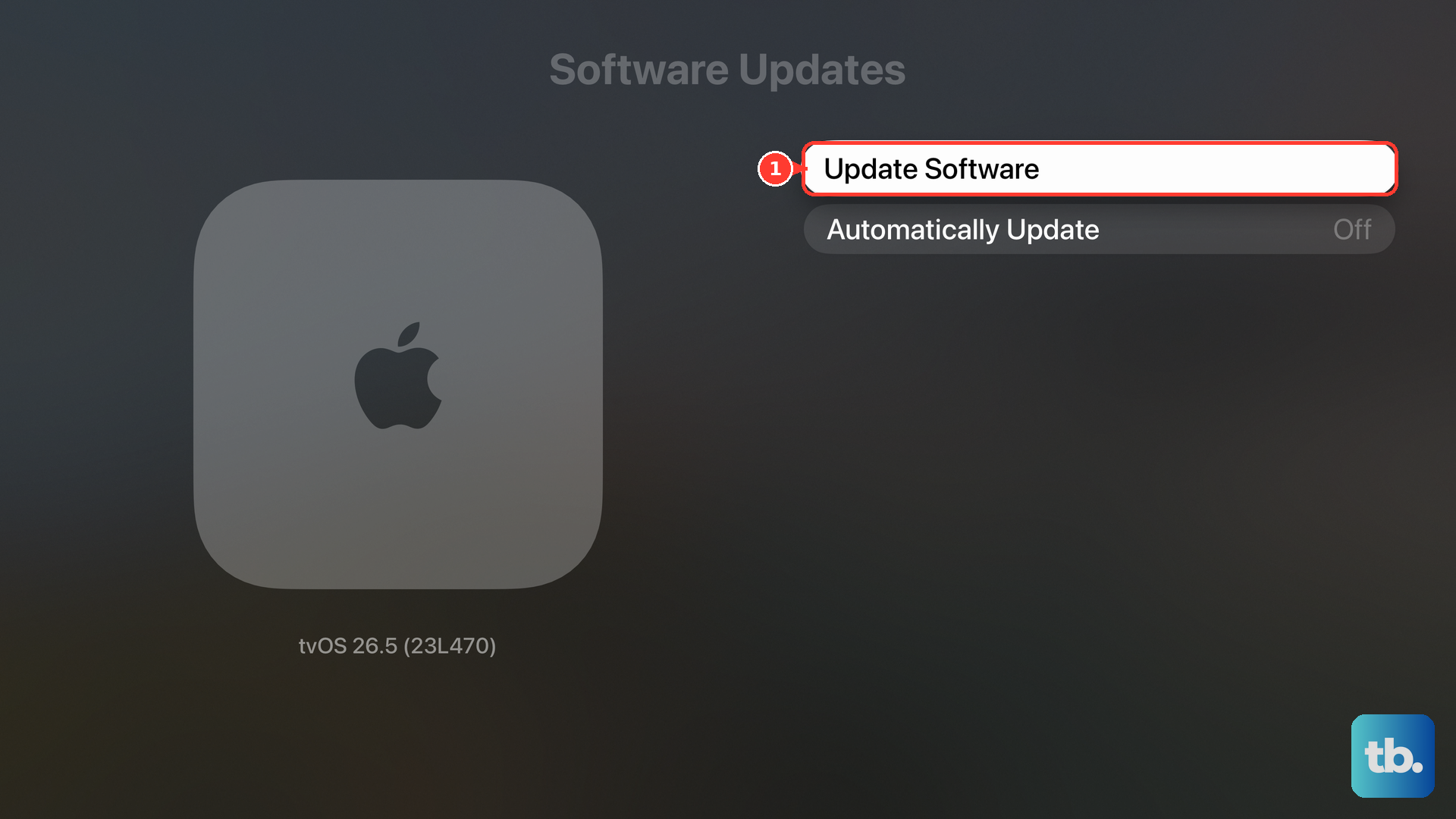
Apple frequently releases updates that include bug fixes for connectivity. Go to Settings > System > Software Updates and select Update Software. If you can't connect to WiFi to download the update, you can use a wired Ethernet connection if your model supports it.
Change Your DNS Server
In Settings > Network, select your network, then choose Configure DNS. Change it from Automatic to Manual. Delete any existing servers and add 8.8.8.8 as the primary DNS. This uses Google's public DNS, which can be more reliable than your ISP's default servers.
Use a Wired Ethernet Connection
For the most reliable connection, plug in an Ethernet cable. The Apple TV 4K has a built-in Gigabit Ethernet port. A wired connection eliminates WiFi interference and distance issues entirely, giving you the best possible performance for streaming.
Check for HDMI CEC Conflicts
This is a known quirk with some setups. The HDMI-CEC feature, which lets your TV remote control the Apple TV, can sometimes cause interference. On your TV, try temporarily disabling the CEC setting (often called Simplink, Anynet+, or BRAVIA Sync). See if your internet connection stabilizes.
Reset All Settings
If you're still stuck, you can reset the Apple TV's settings without erasing your apps and data. Go to Settings > System > Reset and choose Reset All Settings. This will clear all your preferences, including network configurations, and return you to the setup screen.