
When your Apple TV 4K's picture starts flickering, flashing, or cutting to black, it ruins the whole experience. The problem is almost always related to the connection or a setting mismatch, not the Apple TV itself. Let's get it sorted.
Start With a Simple Restart
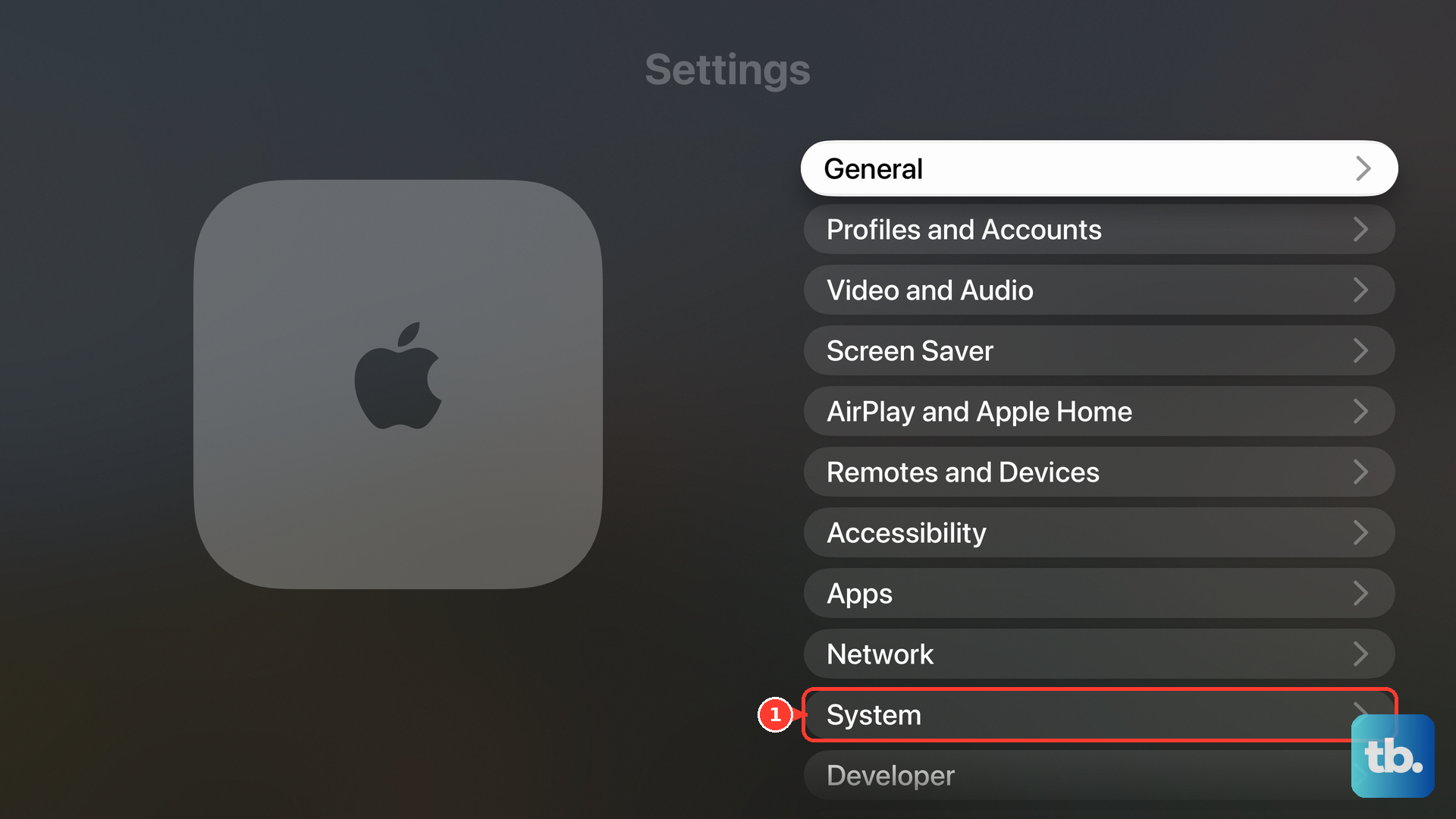
Before you dive into cables and settings, restart your Apple TV. Go to Settings > System > Restart. If the screen is too unstable to navigate, you can force a restart with the Siri Remote.
Press and hold the TV/Control Center button and the Volume Down button together for about five seconds. You'll see the status light on the front of the Apple TV flash rapidly before it reboots. This clears any temporary software glitches causing the display issue.
Inspect and Replace the HDMI Cable
A faulty or low-quality HDMI cable is the single most common culprit for flickering with the Apple TV 4K. Since it outputs high-bandwidth 4K HDR video, it needs a capable cable.
Unplug the HDMI cable from both the Apple TV and your TV or receiver. Check the connectors for any bent pins or debris. Firmly reconnect it, ensuring it's fully seated. If the problem persists, try a different HDMI cable.
I'd recommend using a certified "Ultra High Speed" HDMI cable, especially if you're using features like 4K at 60Hz, Dolby Vision, or HDR10+. Older or generic cables often can't handle the data rate, which causes the signal to drop and the screen to flicker or go black.
Check Your TV's HDMI Input Settings
Many modern TVs have per-input settings that can interfere. On your TV, find the settings for the specific HDMI port your Apple TV is using. Look for options like HDMI Signal Format, HDMI Mode, or Input Signal Plus.
Change this setting to "Enhanced," "Enhanced Format," or "HDMI 2.1" if available. This ensures the TV's port is ready for the full bandwidth of the Apple TV's signal. Also, temporarily disable any TV-level motion smoothing or noise reduction features on that input.
Adjust the Apple TV's Video Format
Sometimes the automatic video format detection gets it wrong. On your Apple TV, go to Settings > Video and Audio > Format. Try switching to a different resolution, like 4K SDR instead of 4K HDR.
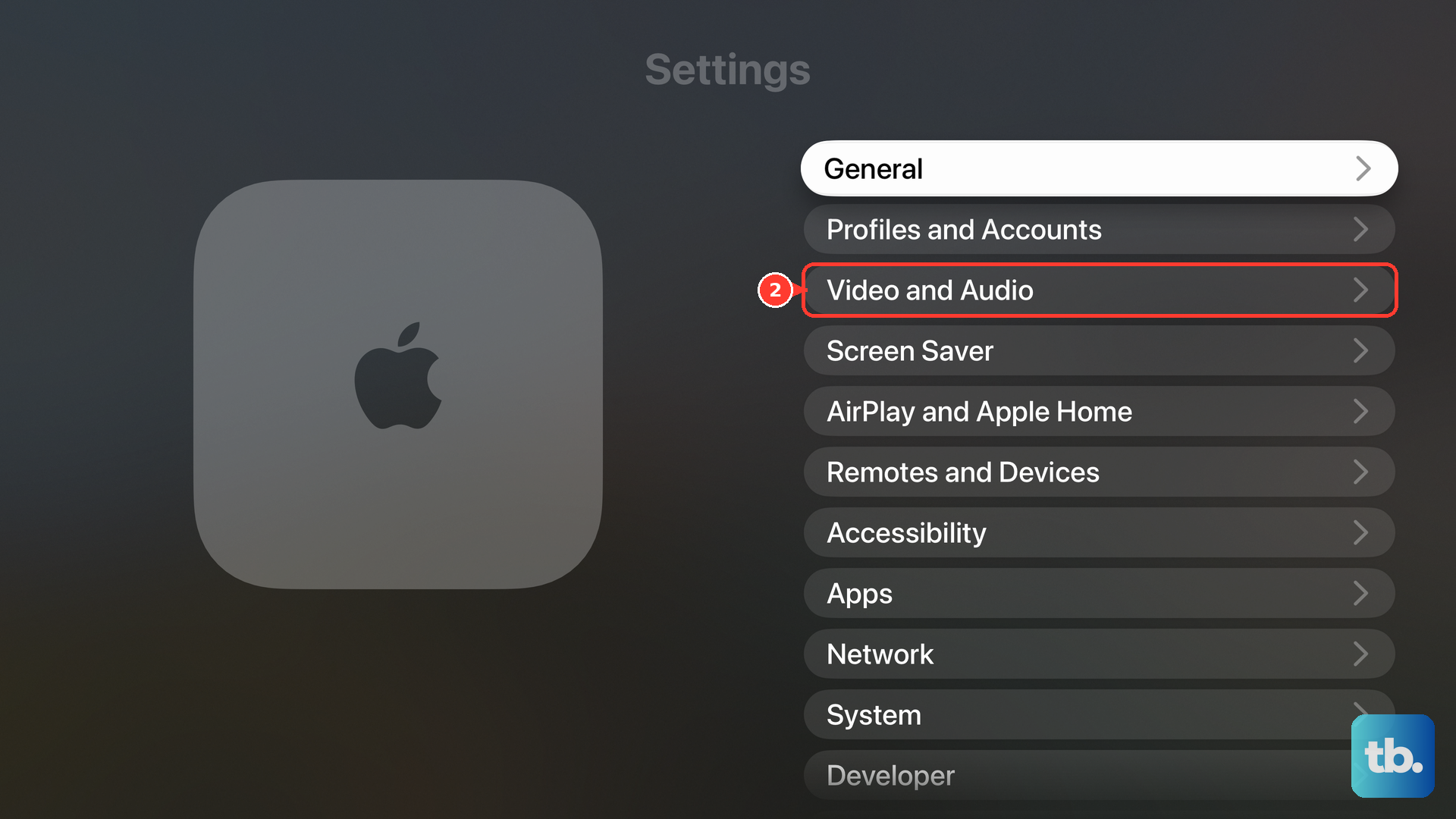
More importantly, go into the "Match Content" settings below. Turn on both "Match Dynamic Range" and "Match Frame Rate." This lets the Apple TV switch to the exact format the content was made in, which often resolves flickering during movie playback.
Manage HDMI-CEC Conflicts
HDMI-CEC is the feature that lets your Siri Remote control your TV's power and volume. It's also a known source of signal conflicts that can cause flickering, particularly with certain TV brands.
To test if this is the issue, go to Settings > Remotes and Devices > Control TVs and Receivers and turn it off. See if the flickering stops. If it does, you can try turning it back on later, but you may need to leave it disabled for a stable picture.
Try a Different HDMI Port and Power Cycle
Plug your Apple TV into a different HDMI port on your TV. This rules out a problem with the specific port. After switching ports, perform a full power cycle on your entire setup.
Unplug the Apple TV and your TV from the wall power. Wait a full minute. Plug the TV back in and turn it on first. Once the TV is fully on, then plug the Apple TV back in. This establishes a clean handshake between the devices.
Check for Software Updates
Apple frequently releases tvOS updates that fix bugs, including display and compatibility issues. Go to Settings > System > Software Updates and select "Update Software." If an update is available, install it.
For good measure, also check if your TV has a firmware update available through its own menu. An update on either side can improve communication and stability.
Test With a Different Display
If you have access to another 4K TV or monitor, connect your Apple TV 4K to it. If the flickering disappears, the issue is likely with your primary TV's settings or hardware. If the flickering continues on a second display, it points more strongly to the Apple TV, its cable, or its power supply.
Speaking of power, make sure the Apple TV's power cord is firmly connected and plugged directly into a wall outlet, not a crowded power strip, to ensure it's getting consistent power.
Reset Video Settings
As a last resort before considering service, you can reset just the video settings on the Apple TV. This will not delete your apps or data. Go to Settings > Video and Audio and select "Reset Video Settings."
The Apple TV will restart and you'll need to reconfigure your video format and match content settings, but this clears any corrupted video configuration that could be causing the problem.