
That spinning circle in the middle of your show is a special kind of modern annoyance. When your Apple TV 4K keeps buffering, it's almost always a network issue, but the fix is usually straightforward. Let's get your stream back on track.
Restart Your Apple TV and Network
This is the universal first step for a reason. Grab your Siri Remote and press and hold the TV/Control Center button and the Back button simultaneously for about five seconds. You'll see the status light on the front of your Apple TV blink rapidly before it restarts.
While that's happening, unplug your modem and router from power. Wait a full minute before plugging the modem back in, letting it fully boot, and then plugging in the router. This clears the slate for both your device and your network.
Check Your Internet Connection Speed
You can run a speed test right from your Apple TV using a free app like Speedtest by Ookla from the App Store. For smooth streaming, you need a minimum of 25 Mbps for 4K content. If your test shows speeds consistently below what you're paying for, the issue is with your internet service.
Use a Wired Ethernet Connection
If your Apple TV 4K model has the built-in Ethernet port, this is the single most effective change you can make. A wired connection is vastly more stable and faster than Wi-Fi. Run a cable from your router directly to the Apple TV to eliminate wireless interference and signal drop-offs completely.
Switch to a 5GHz Wi-Fi Network
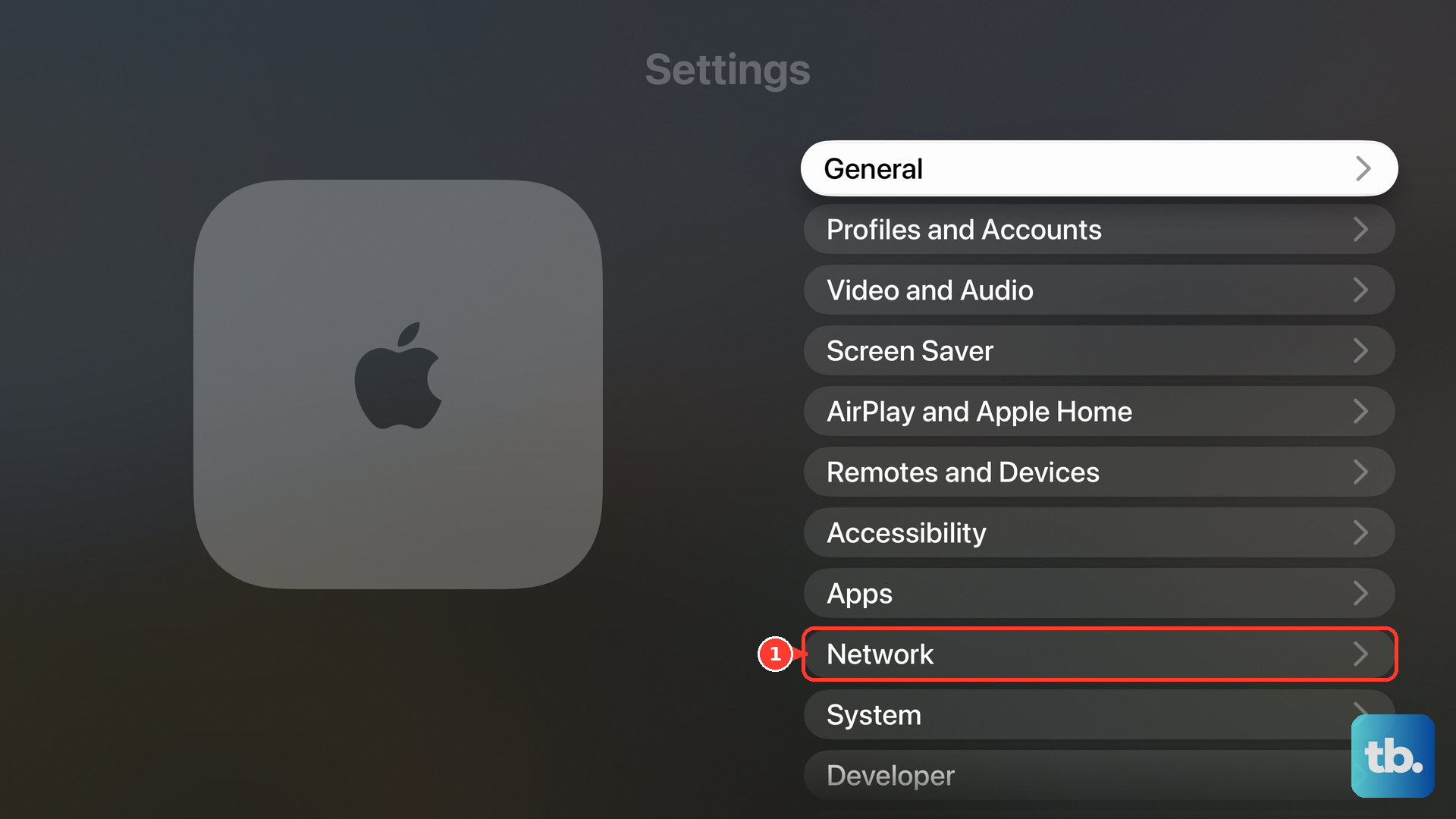
If Ethernet isn't an option, ensure you're connected to your router's 5GHz band, not the 2.4GHz one. The 5GHz band is faster and less congested. Go to Settings > Network on your Apple TV, select your current Wi-Fi network, and choose "Forget This Network." Then, reconnect and select the network name that likely includes "5G."
Close Other Apps and Devices
Every device on your network is competing for bandwidth. If someone is gaming online, video calling, or downloading large files on another device, it can choke your stream. Ask others to pause their heavy usage, or check your router's settings for a Quality of Service (QoS) feature to prioritize your Apple TV's traffic.
Also, force-close any unused apps on the Apple TV itself. Double-press the TV button on your Siri Remote to see the app switcher, then swipe up on any app previews you want to close. This frees up system resources.
Lower the Streaming Quality in the App
When your bandwidth is limited, telling the app to use less can stop the buffering. You usually can't change this in the Apple TV's main settings. Instead, you need to go into the specific app, like Netflix or Disney+, and look for a "Playback Settings" or "Video Quality" option to switch from 4K to HD.
Check for Software Updates
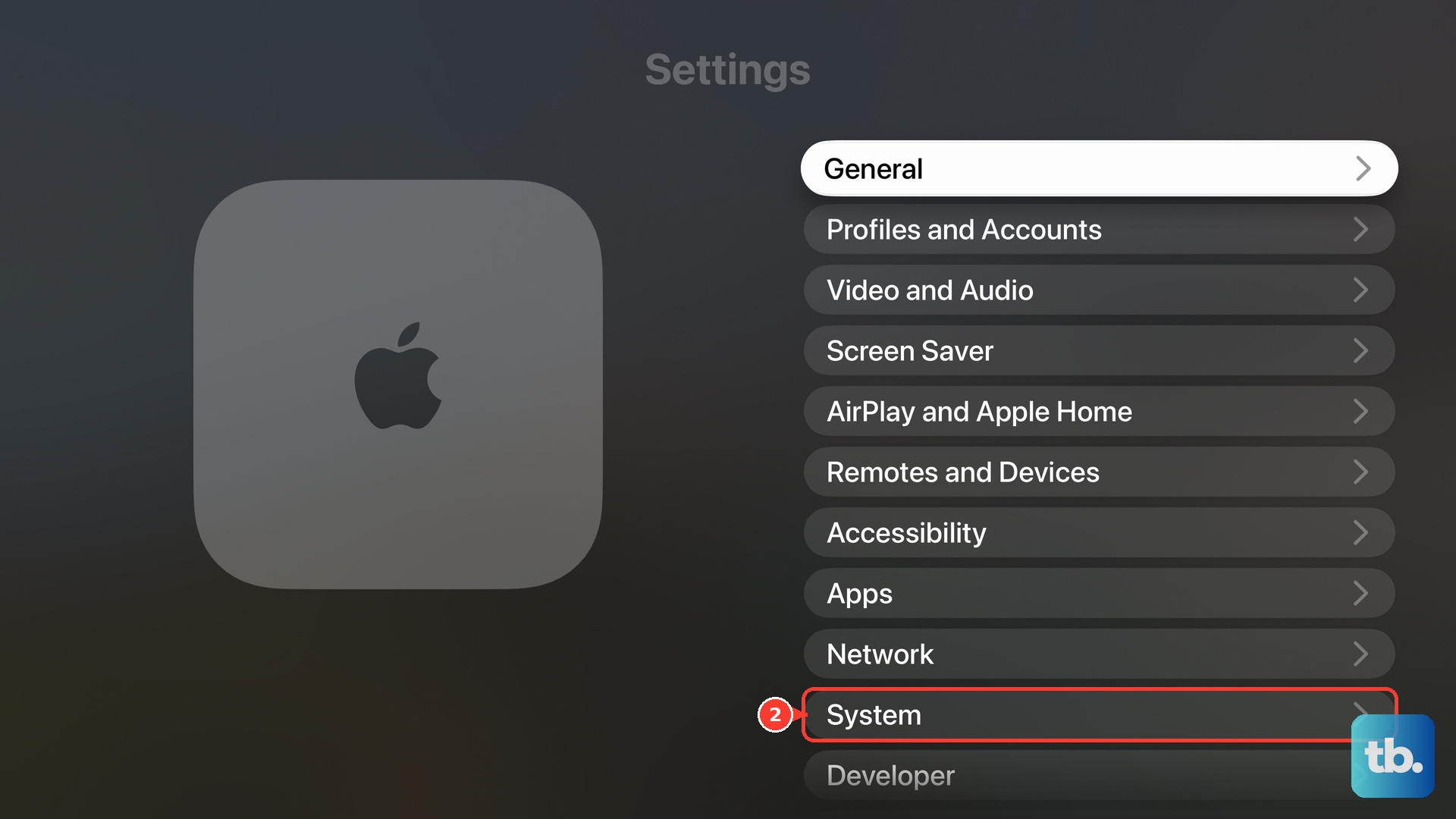
An outdated tvOS version can have bugs that affect streaming performance. Go to Settings > System > Software Updates and select "Update Software." Also, check the App Store for updates to the specific streaming app giving you trouble, as app updates often include playback fixes.
Change Your DNS Server
Your internet provider's default DNS servers can sometimes be slow, which adds delay when your Apple TV looks up streaming servers. Switching to a faster public DNS can help. On your Apple TV, go to Settings > Network > your Wi-Fi or Ethernet connection > Configure DNS > Manual.
From here, you can enter a new DNS server. I've had good results with Google's (8.8.8.8) or Cloudflare's (1.1.1.1). This small tweak can sometimes resolve persistent connection hiccups.
Check for HDMI CEC Conflicts
This is a less common but known issue with some TV brands. HDMI-CEC is the feature that lets your TV remote control the Apple TV. A glitch in this communication can sometimes cause system-wide lag. Try turning it off on your TV or within the Apple TV settings under Settings > Remotes and Devices > Control TVs and Receivers to see if it stabilizes performance.
Reset Your Network Settings
If you've tried everything else and the buffering continues, resetting the network configuration on the Apple TV can wipe out any corrupted settings. Go to Settings > Network, select your Wi-Fi network, and choose "Forget Network" (tvOS has no dedicated "Reset Network Settings" option). You'll need to re-enter your Wi-Fi password, but it often clears up stubborn connection problems.