You are sure you typed the right password, but AOL Mail keeps rejecting it. Maybe it is the website looping back to the sign-in screen, or maybe your phone's Mail app suddenly stopped pulling messages with an "Invalid password" warning.
When you reset credentials, use a password generator rather than inventing a variation of the old password. Random passwords generated locally in the browser are far harder to crack or guess.
The good news: most AOL password failures come from a short list of causes, and the fixes are quick once you know which one applies. The single biggest hidden culprit is 2-step verification, which silently makes your normal password stop working inside other mail apps.
Work through the fixes below in order. The fastest and most common ones come first, so you may be back in your inbox within a minute or two.
Check Caps Lock and Num Lock First
When you get "Invalid password. Please try again" on the AOL Mail website, rule out the keyboard first. AOL lists Caps Lock and Num Lock as direct causes of the error.
Caps Lock changes letter case, so an uppercase character lands where you meant a lowercase one.
Num Lock matters too: on a laptop or keyboard number pad, it can silently change which characters you type.
Toggle both off, then type your password slowly and try again.
Update Your Browser's Saved Password
If your browser autofills your password, it may still be filling the OLD one after a password change. The login screen looks like it is using your password, but it is not.
After any password change, update your saved or autofill password in the browser.
Better still, clear the autofill entry and type the new password by hand once to confirm it works before saving it again.
Fix a Looping or Reloading Sign-in Screen
A sign-in page that loops or keeps reloading is usually not a wrong password; it is stale cookies. Try this sequence on the AOL Mail website.
After entering your username, click "Not you?"
Re-enter your username and password.
Click "Sign in."
If it still loops, clear your browser cookies, quit and restart the browser, then try again.
Switching to a different supported browser also clears the problem in many cases.
Clear the Browser Cache and Cookies
Stored data can cause loading and sign-in errors on the AOL Mail website. A deeper browser cleanup often resolves what a single retry cannot.
Completely sign out, then sign back in to clear a stuck session.
Clear your browser's cache and cookies.
Switch off an outdated browser (such as Internet Explorer) and use an updated, supported one.
Make sure JavaScript (Java scripting) and cookies are enabled.
Disable pop-up-blocking software, or add AOL to its allowlist (allow *.aol.com, registration.aol.com, and webmail.aol.com). You can also hold Shift while clicking a link to bypass a pop-up blocker temporarily.
Reset a Forgotten Password With Sign-in Helper
If you genuinely cannot remember the password, or it stopped working and you want a clean start, reset it online.
- 1.Go to the Sign-in Helper at login.aol.com/forgot.
- 2.Enter one of the listed recovery items: your sign-in email or phone, recovery email, or recovery phone number.
- 3.Click Continue.
- 4.Follow the instructions; you will receive a verification code at your recovery phone or email. Enter it to verify.
- 5.When prompted, set a new, strong password.
If you can still sign in and just want to rotate the password, go to the Account Security page at login.aol.com/myaccount/security, click Change password, enter a new password, and click Continue.
Use an App Password When 2-Step Verification Is On
This is the fix most people miss. Once 2-step verification (2SV) is turned on, your normal account password is rejected by third-party mail apps like iPhone Mail, Mac Mail, Outlook, and the Gmail app.
You must use a generated app password instead. Resetting your main password again will not help; the app needs its own password.
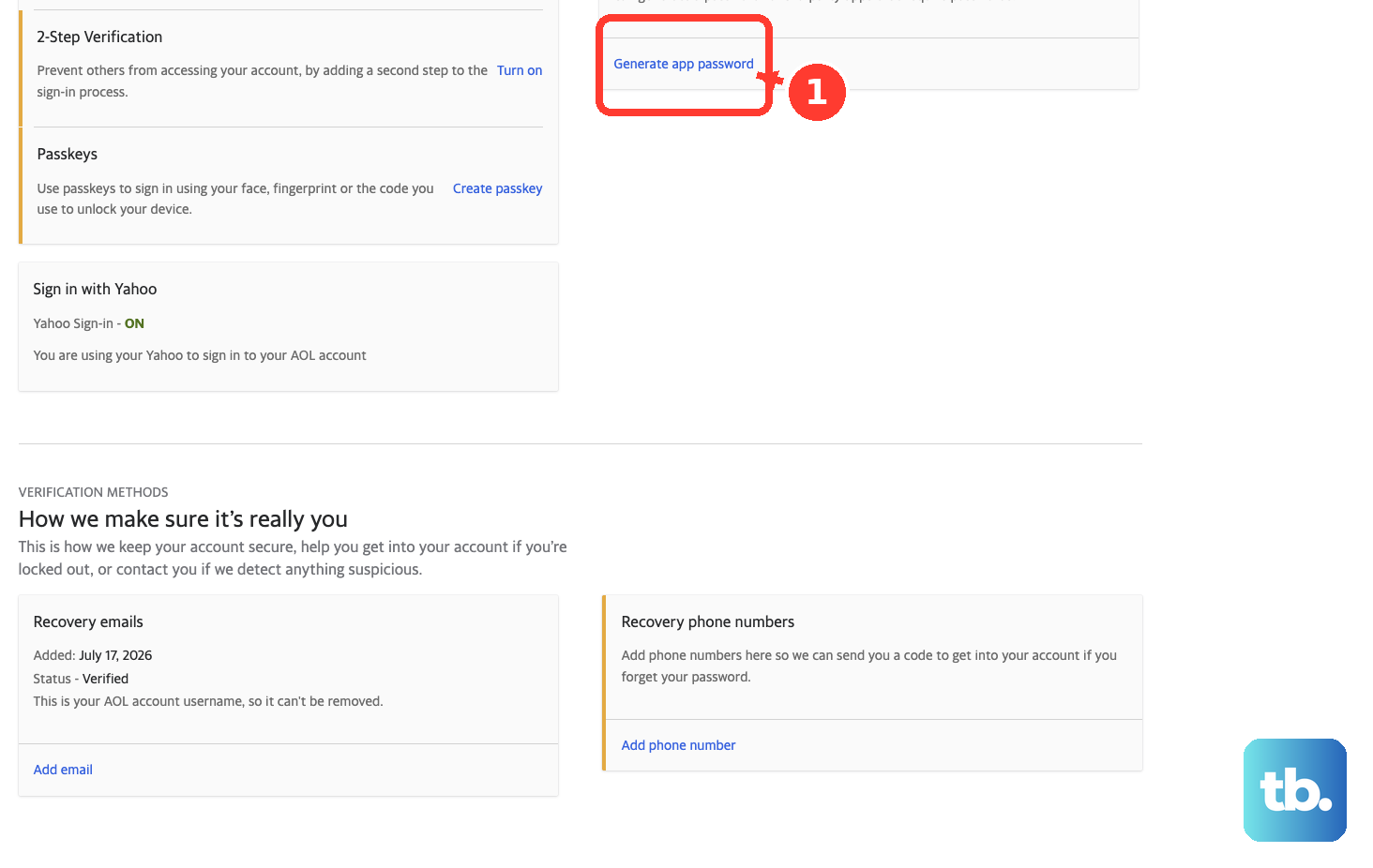
Generate one from a browser you have signed into AOL with for several days in a row.
Do not use Incognito or Private mode (AOL flags new or private browsers and generation can fail).
Go to the Account Security page at login.aol.com/myaccount/security.
Click "Generate app password" (or "Generate and manage app passwords").
Click "Get Started."
Enter your app's name in the text field.
Click "Generate password."
Copy the randomly generated one-time password and enter it as the password in your third-party email app.
Click "Done."
If generating fails, fall back to AOL webmail or the official AOL app.
Delete a Stale App Password and Make a New One
App passwords do not get invalidated when you change your main account password; they stay active.
A previously created app password can keep failing if it was deleted or the app needs a fresh one.
The only way to kill an old one is to delete it.
Sign in to login.aol.com/myaccount/security.
Click "Generate and manage app passwords."
Click "Delete" next to the app password you want to remove.
Confirm by clicking "Delete" again.
Generate a fresh app password and re-enter it in the app.
Re-enter the Password in iPhone or iPad Mail
If only your iOS Mail app is failing, you can often reauthenticate without deleting the account. The path differs by iOS version, and using the wrong one is a common dead-end.
On iOS 17: open Settings > Mail > Accounts, tap your AOL account, tap "Re-enter Password," enter your username and password, handle the verification code if prompted, then tap Continue, Done, and Agree.
On iOS 18: open Settings > Apps > Mail > Mail Accounts, tap your AOL account, tap "Re-enter Password," and enter your credentials plus the verification code if needed.
Remove and Re-add the Account on iPhone or iPad
If re-entering the password does not stick, delete and re-add the account.
This forces a fresh, secure sign-in. Apple/iOS Mail supports AOL's secure OAuth sign-in when you re-add it.
Update your mail app to the latest version first.
Remove the account: Settings > Mail > Accounts, tap AOL, then Delete Account.
Re-add it: Settings > Mail > Accounts > Add Account, then tap the AOL provider logo to trigger the secure OAuth sign-in.
Sign in with your AOL email and password, or an app password if 2-step verification is on.
Reauthenticate AOL on Android
On Android, remove and re-add the account to refresh the sign-in. The exact menu labels vary by manufacturer and Android version; on Samsung devices the path is below.
Open Settings, tap Accounts and backup, then Accounts.
Remove the existing AOL account, then choose Add account > Email.
Tap the AOL logo to use the secure sign-in method where supported.
Important: the Gmail app does not support AOL's secure OAuth sign-in. For the Gmail app you must generate an app password on the Account Security page and enter that instead of your normal password.
Re-enter the Password in Outlook and Mac Mail
Outlook desktop and Mac Mail do not support OAuth for AOL, so they typically need an app password if 2-step verification is on.
In Outlook for Windows: click File, click the Account Settings icon, then "Manage Profiles."
Click "Email Accounts," double-click your AOL account, then remove and re-enter your AOL Mail password (or app password).
When the status shows "Completed," click Close.
In Mail on Mac: click Mail > Settings, select your AOL account, open the "Server Settings" tab, then delete and re-enter your password in BOTH the Incoming and Outgoing sections.
Click Save.
Updating only one section leaves sending or receiving broken.
Verify Your IMAP and SMTP Settings
In a manually configured client, wrong server settings or ports cause authentication to fail even with the correct password. Confirm these values.
Incoming mail (IMAP): server imap.aol.com, port 993, SSL on.
Outgoing mail (SMTP): server smtp.aol.com, port 465, SSL on.
Username: your full email address including @aol.com (a bare username can fail).
Password: your AOL password, or an app password if 2-step verification is on.
AOL recommends IMAP rather than POP, as it works best with AOL Mail.
Secure the Account If You Suspect Unauthorized Access
If a password you know is correct suddenly stops working, someone may have changed it.
Reset it through the Sign-in Helper, then review and secure your account settings at login.aol.com/myaccount/security.
While you are there, make sure your recovery details are current.
If your recovery phone or email is missing or out of date, the self-service reset cannot deliver a code and you can get locked out.
Sign in to the Account Security page, scroll to the bottom, and click "Add email" or "Add phone number," completing the on-screen verification.
Add recovery info before you ever lose access.
Frequently Asked Questions
Why does my correct AOL password fail in my mail app but work on the website?
Almost always 2-step verification. Once 2SV is on, third-party apps reject your normal password and require a generated app password from the Account Security page, while the website continues to accept your normal sign-in.
Does changing my main password disable my old app passwords?
No. App passwords stay active even after you change your main password. The only way to invalidate one is to delete it on the "Generate and manage app passwords" screen, then generate a fresh one.
The sign-in screen keeps reloading. Is my password wrong?
Usually not. A looping or reloading sign-in page is typically caused by stale cookies. Click "Not you?", re-enter your credentials, and if it persists, clear your cookies, restart the browser, or switch to a different supported browser.
I see "First time signing in here?" asking for a code. Is that a password failure?
No. That prompt appears when you sign in from a new device, program, or location. Enter the verification code sent to your recovery phone or email to continue.
Why can't I generate an app password?
AOL flags new or private browsers. Use a normal (non-Incognito) browser you have signed into AOL with for several days in a row. If it still fails, use AOL webmail or the official AOL app instead.
Does the Gmail app work with AOL's secure sign-in?
No. The Gmail app does not support AOL's OAuth sign-in, so you must generate an app password on the Account Security page and enter that in place of your normal password.











