You open the Mail app expecting your latest AOL messages, but the inbox is stale, a reply you sent never shows up, or new mail simply refuses to land. When AOL Mail stops syncing on an iPhone, the cause is almost always a small configuration or sign-in detail rather than a broken account. The good news is that you can work through it methodically, and most people get back to a live inbox within a few minutes.
Below are eight clearly numbered fixes, ordered from the quickest checks to a full account rebuild. Try them in sequence, testing your inbox after each one so you stop as soon as mail starts flowing again. One thing to keep in mind throughout: the exact wording and menu paths in iPhone Settings shift between iOS versions, so if a step names a path you do not see, look for the closest matching option under Settings and Mail.
First, Confirm the Problem Is Your iPhone, Not Your Account
Before touching any settings on the phone, find out whether AOL Mail itself is healthy. Sign in to AOL Mail at mail.aol.com in a web browser, then compose a message, put your own address in the 'To' field, and send it to yourself.
If that test email arrives in the web inbox, your account is working and the issue lives in your iPhone's configuration. If mail also fails on the web, the problem is with the account rather than the device, and the device-side fixes below will not help.
Fix 1: Verify Your iPhone Actually Has Internet
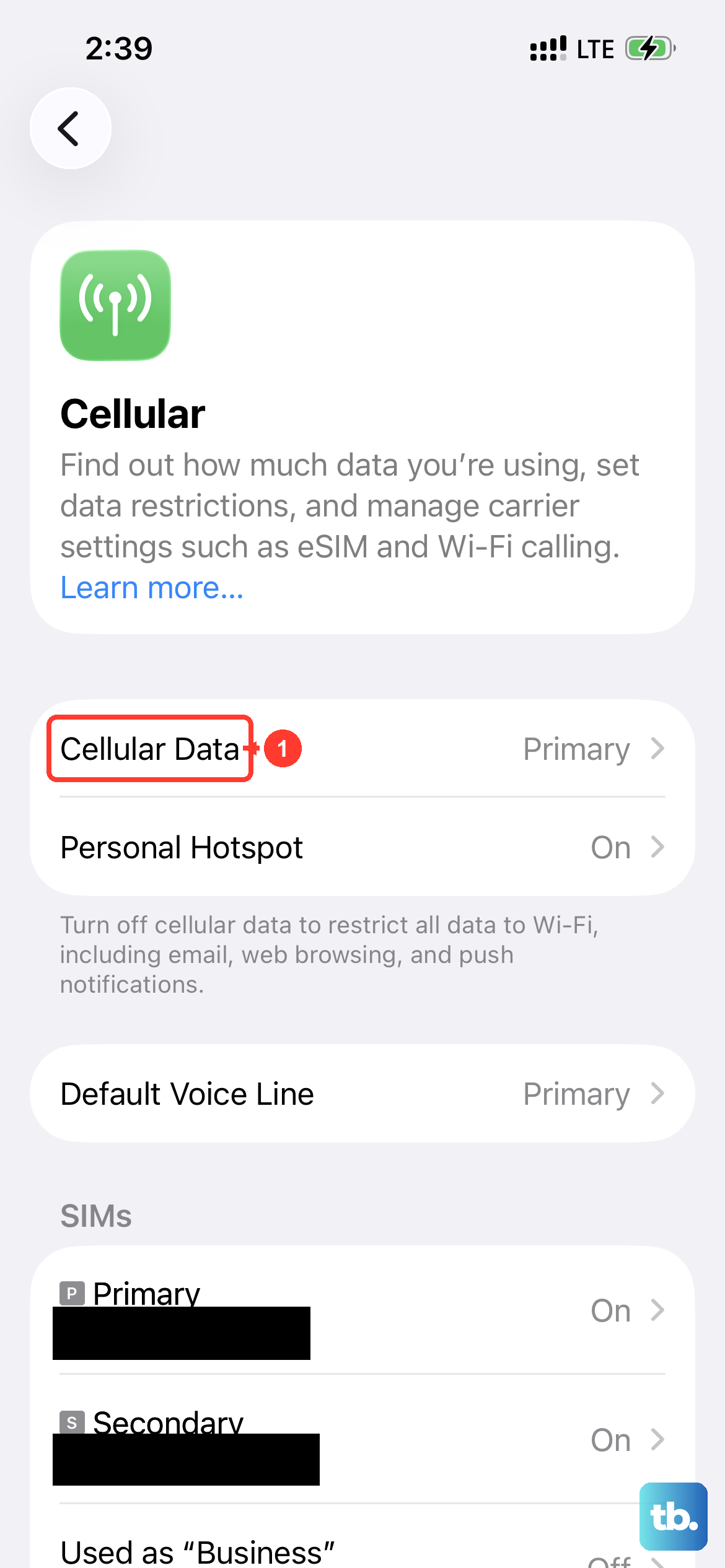
It sounds obvious, but the first recommended step for an iPhone that cannot receive email is to make sure the device is connected to the internet. A dropped Wi-Fi connection or a stalled cellular data session will leave Mail looking broken when nothing is actually wrong with AOL.
Open Safari and load any website to confirm your data or Wi-Fi connection is live. If pages will not load, fix the connection first, then return to Mail and check whether your AOL messages start arriving.
Fix 2: Set Fetch New Data So Mail Pulls Messages
If your connection is fine but new mail is slow or absent, your phone may not be checking for messages often enough. Open Settings, find Mail, then open Mail Accounts and Fetch New Data, where you can choose Automatically, Manually, or a timed schedule.
When Push is not available for an account, it defaults to Fetch. The 'Automatically' option only fetches in the background when the device is charging and on Wi-Fi, so if you want frequent updates, pick a timed schedule such as Every 15 Minutes. That single change is often enough to bring a lagging inbox back to life.
Fix 3: Re-enter Your AOL Password on the Device
If you recently changed your AOL password, the old one saved on your iPhone is now wrong, and Mail will quietly fail to sync. The fix is to update the stored password so the app can authenticate again.
AOL documents this re-entry flow for recent iOS versions, where the path runs through Settings, then Mail, then Accounts. Open Settings, scroll to Mail and tap it, tap Accounts, tap your AOL Mail account, then tap Re-enter Password. Enter your AOL username and password. If you are prompted, choose where to receive a verification code, enter the code, tap Next, then tap Continue. The exact wording can vary by iOS version, so follow the closest equivalent prompts your phone shows.
Fix 4: Generate an AOL App Password for Two-Step Verification
If two-step verification is enabled on your AOL account, or you are using an older app that lacks AOL's branded sign-in, AOL requires an app-specific password instead of your normal one. Your regular password will keep getting rejected until you create and use this special code.
Sign in to your AOL Account Security page at login.aol.com/myaccount/security and click Generate app password (or Generate and manage app passwords). Then follow these steps:
- 1.Click Get Started.
- 2.Enter a name for the app so you can recognize it later.
- 3.Click Generate password.
- 4.Use that one-time password in place of your normal password in iPhone Mail.
- 5.Click Done.
Keep in mind that app passwords stay active even after you change your main account password. To invalidate one, you have to delete it from the security page.
Fix 5: Reauthenticate by Deleting and Regenerating the Password
If sign-in still fails after the steps above, the saved credentials on your phone may be stale or corrupted. AOL's advice here is to clear them out and authenticate fresh rather than retyping the same details repeatedly.
Delete the existing password from your email application's settings, then re-enter your AOL Mail password. If you sign in with an app password instead, delete the current app password, generate a new one on the AOL Account Security page, and enter that new code in iPhone Mail. This forces a clean handshake between the phone and AOL's servers.
Fix 6: Confirm the Correct IMAP and SMTP Settings
AOL recommends IMAP, which it says works best with AOL Mail, so a wrong server, port, or missing SSL toggle can stop sync entirely. If you set up the account manually, it is worth checking every value against AOL's documented settings.
Use the following for incoming and outgoing mail, with your full email address including @aol.com as the username:
Incoming (IMAP)
Server imap.aol.com, port 993, with SSL enabled.
Outgoing (SMTP)
Server smtp.aol.com, port 465, with SSL enabled and authentication required.
Make sure SSL encryption is switched on for both incoming and outgoing mail. If either side is missing SSL or pointed at the wrong host, messages will fail to sync even when your password is correct.
Fix 7: Remove the AOL Account and Add It Back
When nothing else clears the issue, AOL's reconfiguration fix is to delete the account from the iPhone and set it up again. Re-adding lets the iPhone use AOL's secure sign-in, which often resolves stubborn authentication problems in one pass.
Before you delete anything, sign in at mail.aol.com to confirm your mail is safely preserved on the server. Then on the iPhone:
- 1.Open Settings, find Mail, then open Mail Accounts.
- 2.Tap the AOL account.
- 3.Tap Delete Account.
- 4.Add it again through Add Account.
When you re-add the account, the iPhone can use AOL's secure sign-in. If you are prompted for manual setup instead, enter the correct IMAP server settings from the previous fix.
Fix 8: Update iOS to the Latest Version
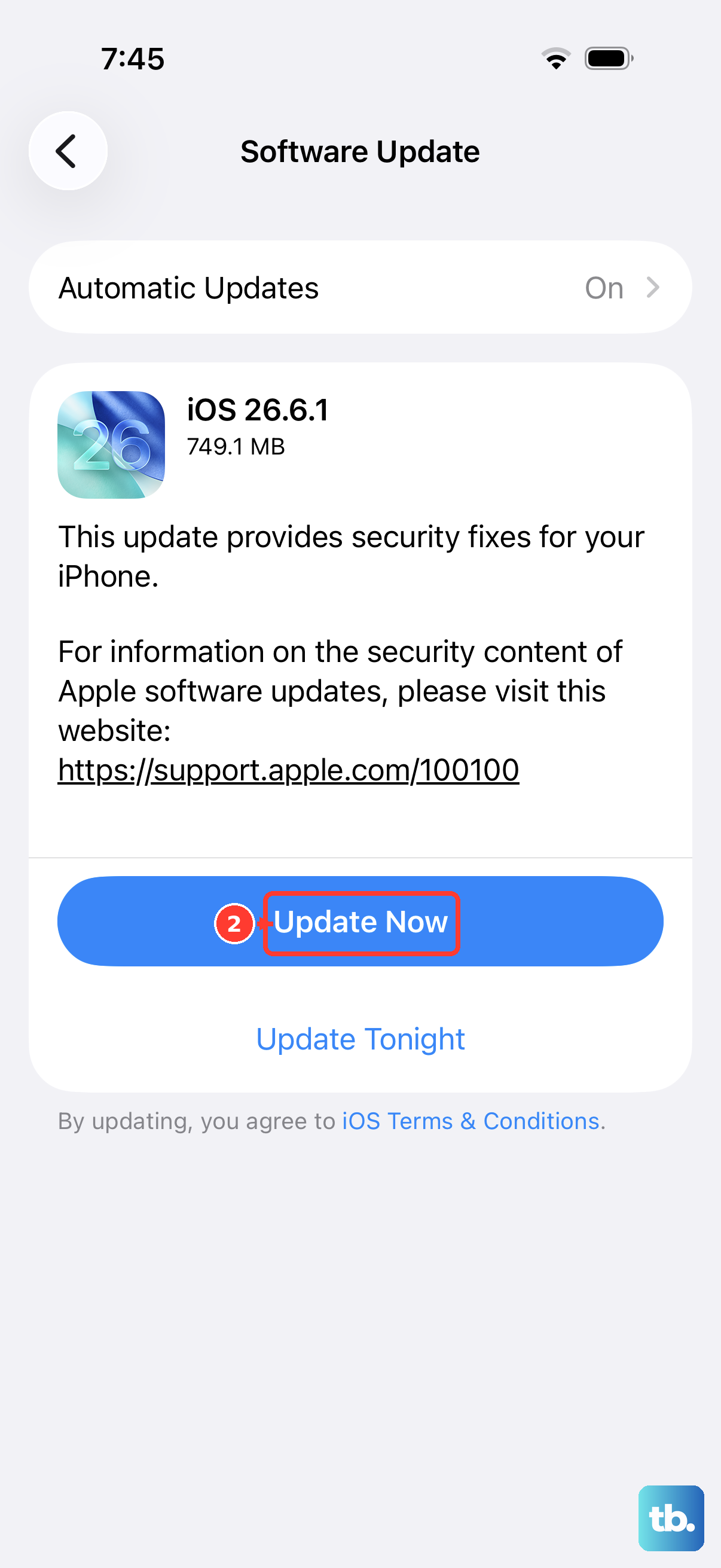
Older email clients can become outdated and stop working with current security settings, which is exactly the kind of mismatch that breaks AOL sync. Keeping the iPhone on the newest software available is a reliable way to rule that out, since secure sign-in tends to work best on up-to-date systems.
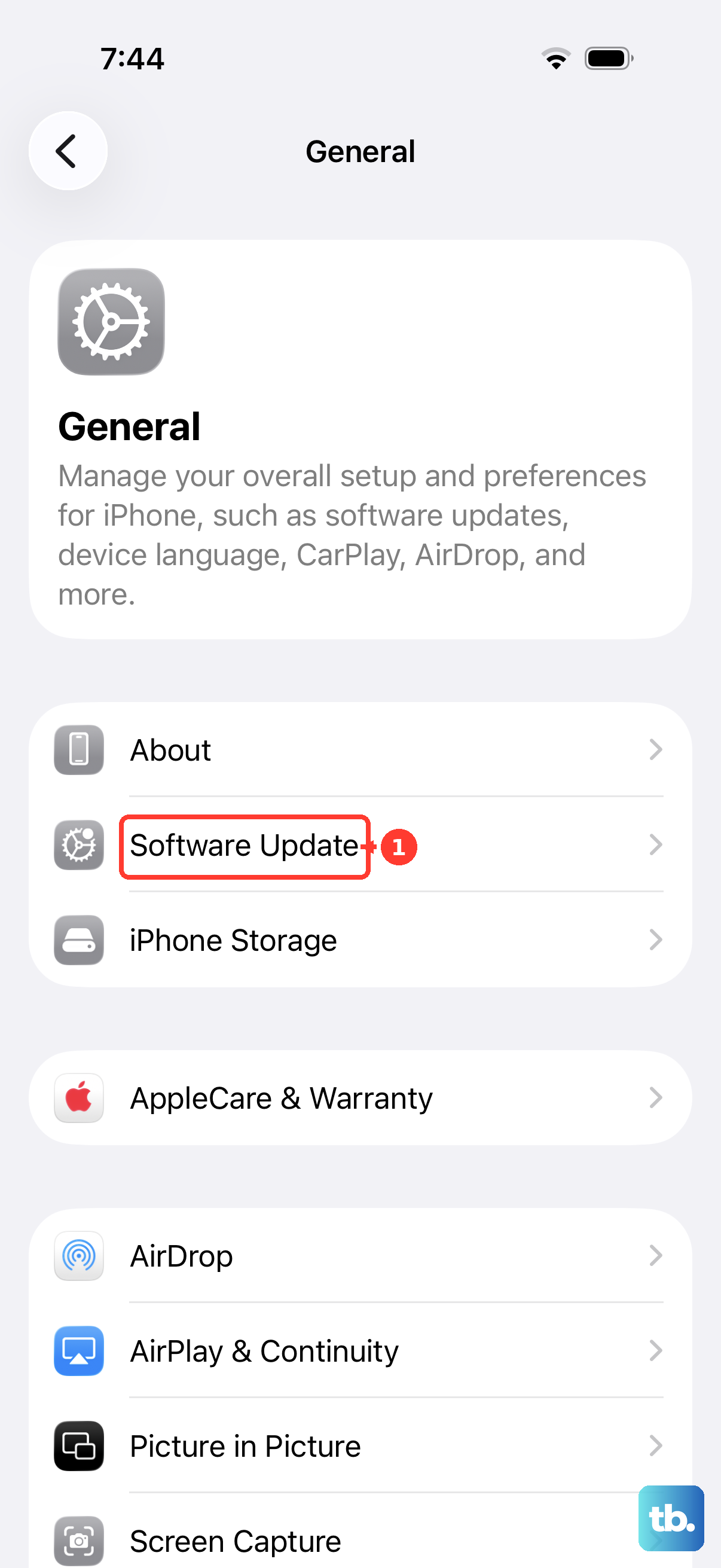
Open Settings, tap General, then Software Update, and install the latest iOS update if one is offered. Running current software can quietly resolve sync failures that stem from compatibility gaps between an older system and AOL's sign-in requirements.
Re-adding the Account When AOL Is Missing From the List
Sometimes the trouble shows up while you are trying to add the account back and AOL is not offered as a built-in choice. Open Settings, find Mail, then open Mail Accounts and Add Account, and enter your email address. If AOL appears, follow the prompts to sign in with your email and password.
If AOL is not listed, tap Add Other Account, then Mail Account, and enter your name, AOL email address, password, and a description. Choose IMAP, then enter the incoming server imap.aol.com and the outgoing server smtp.aol.com. This manual path reproduces the same secure connection without relying on AOL appearing as a preset.
Frequently Asked Questions
Why is my AOL email not syncing on my iPhone but working on the web?
If AOL Mail loads and sends correctly at mail.aol.com but not in the iPhone Mail app, the account is healthy and the problem is in your device configuration. Focus on the iPhone-side fixes such as re-entering your password, checking Fetch New Data, confirming the IMAP and SMTP settings, or removing and re-adding the account.
Do I need an app password for AOL Mail on my iPhone?
You need an app-specific password if two-step verification is enabled on your AOL account, or if you are using an older app that lacks AOL's branded sign-in. Generate one from your AOL Account Security page at login.aol.com/myaccount/security and use it in place of your normal password in iPhone Mail.
What are the correct AOL IMAP and SMTP settings for iPhone?
For incoming mail, use IMAP server imap.aol.com on port 993 with SSL. For outgoing mail, use SMTP server smtp.aol.com on port 465 with SSL and authentication enabled. Use your full email address including @aol.com as the username, and keep SSL turned on for both incoming and outgoing mail.
How often does iPhone Mail check for new AOL messages?
That depends on your Fetch New Data setting, found by opening Settings, then Mail, then Mail Accounts and Fetch New Data. If Push is unavailable, the account defaults to Fetch, and the Automatically option only updates in the background when the device is charging and on Wi-Fi. Choosing a timed schedule such as Every 15 Minutes makes AOL Mail sync more frequently.
Will deleting the AOL account from my iPhone delete my emails?
Your messages live on AOL's servers, so signing in at mail.aol.com first lets you confirm they are preserved before you remove the account. After deleting and re-adding the account on the iPhone, your mail downloads again through AOL's secure sign-in.











