You open AOL Mail in your browser and the page just hangs. Maybe it shows a blank white screen, freezes on a spinning loader, or displays an old version of your inbox that never refreshes.
The good news: this is almost always something on your end, not a lost account. Cached files, a stale cookie, an ad blocker, or an outdated browser are the usual culprits, and each has a quick fix.
Work through the fixes below in order. They are arranged quickest and most common first, so most people are back in their inbox within the first two or three steps.
Sign Out Completely, Then Restart Your Browser
A stuck sign-in session is the simplest cause of a page that won't load. Clearing it takes under a minute.
- 1.Sign out of your AOL account fully, then sign back in.
- 2.Close your browser entirely (not just the tab), then start it back up.
- 3.Go to mail.aol.com and enter your username and password.
This clears most simple browser and session glitches, and it also resolves basic sign-in hiccups. If you instead see "Invalid password. Please try again," that is a password issue, not a loading one; use account recovery to reset it rather than continuing here.
Confirm AOL Mail Isn't Down
Before you change any settings, rule out a server problem. High traffic, routing issues, or an outage on AOL's side can stop content from loading, and these usually clear on their own within minutes to hours.
One clue is the exact message "Temporary error 1." It typically resolves itself given a little time. If a quick check of a third-party status monitor (for example, a search for the status of mail.aol.com) shows the service is down for everyone, the fix is simply to wait.
Use a Supported, Up-to-Date Browser
AOL Mail won't work properly in an outdated or unsupported browser. Internet Explorer is the classic offender: it may appear to load AOL Mail, but Microsoft no longer supports it and it can't be updated, so persistent problems there are solved by switching browsers, not troubleshooting Internet Explorer.
AOL Mail works best with the latest version of these. On Windows 7 and newer: Edge, Firefox, Chrome, Safari, and AOL Desktop Gold. On Mac OS X and newer: Safari, Firefox, and Chrome.
If you're on an older browser, update it or download a current one, then reload mail.aol.com.
Enable JavaScript and Cookies
AOL Mail relies on scripting and cookies to run. If JavaScript is disabled, many websites, including AOL Mail, won't load correctly.
Make sure both JavaScript (which AOL refers to on its site as "Java scripting," meaning JavaScript and not the separate Java plug-in) and cookies are enabled in your browser settings, then refresh the page.
Pause Your Ad Blocker and Allowlist AOL
Ad-blocking and script-blocking extensions can insert code that breaks functionality and even hides messages in AOL Mail, so missing emails can be an extension symptom rather than a server problem. AOL's recommendation is to allow aol.com in any ad blocker.
AdBlock: Click the extension icon (top right), under "Pause on this site" select "Always," then refresh. AdBlock Plus: Click the icon, toggle off "This website," then refresh.
uBlock or uBlock Origin: Click the icon, click the power icon, then refresh. Ghostery: Click the icon, click "Trust Site," then refresh.
AdAware: Click the icon, click the power button, then refresh. AdRemover: Click the icon, click "Don't run on pages on this domain," then refresh.
Also scan every icon in your browser's navigation bar for other blockers. Ad blocking can run in places you might forget: a built-in ad blocker inside your antivirus suite, or ad blocking enabled on your home internet router. Unblock aol.com in those too, and reset your browser security settings to the default level.
Clear the Browser Cache and Cookies
Corrupted or outdated cached files cause AOL Mail to show stale pages, freeze, or fail to load, and an invalid cookie can block sign-in. Clearing both is one of the most reliable fixes. Note that deleting cookies signs you out of websites and clears saved preferences, so expect to re-enter your AOL login afterward.
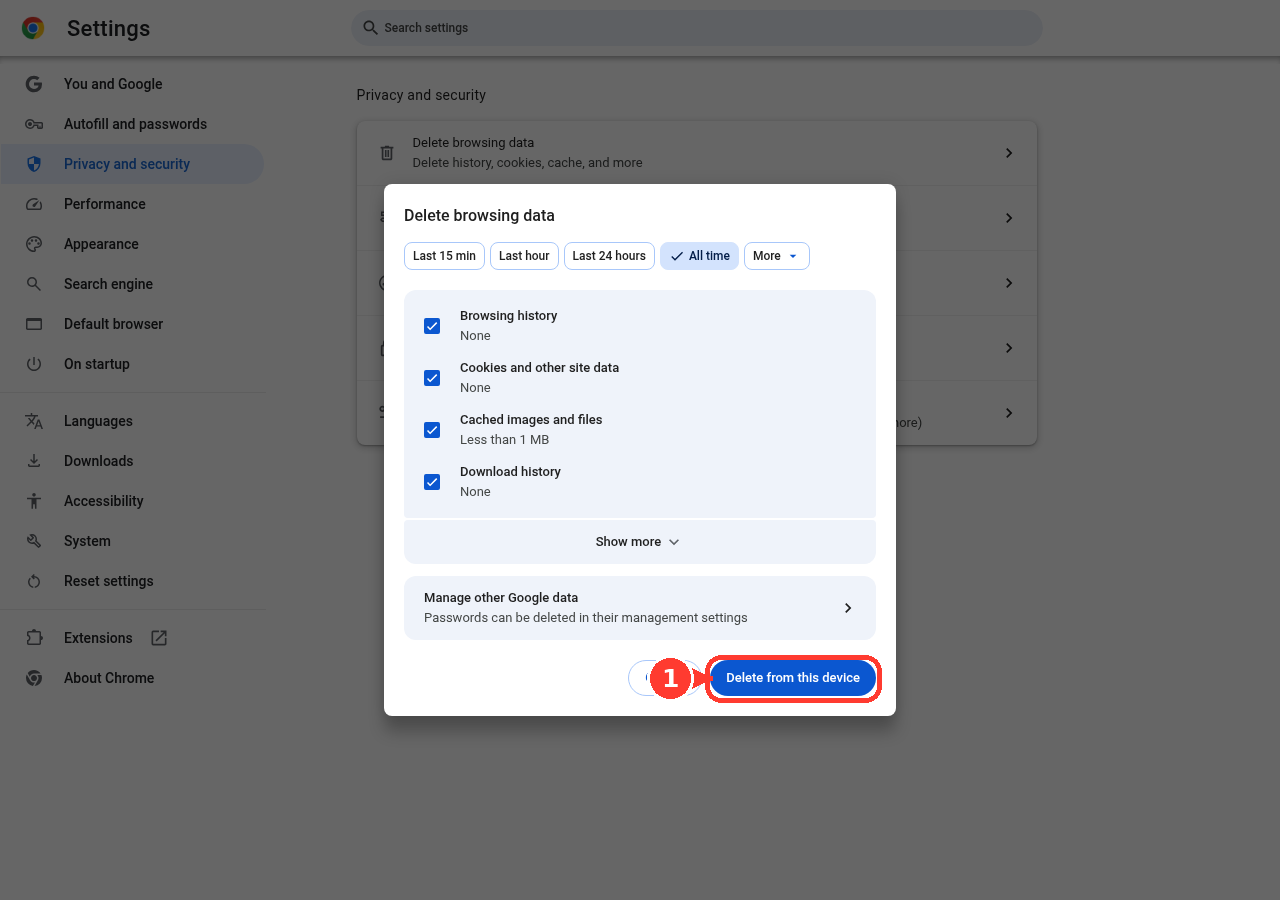
Google Chrome (computer): Open Chrome and click More (the three-dot menu) at the top right, then "Delete browsing data." Choose a time range from the dropdown. Check "Cookies and other site data" and "Cached images and files." Click "Delete data."
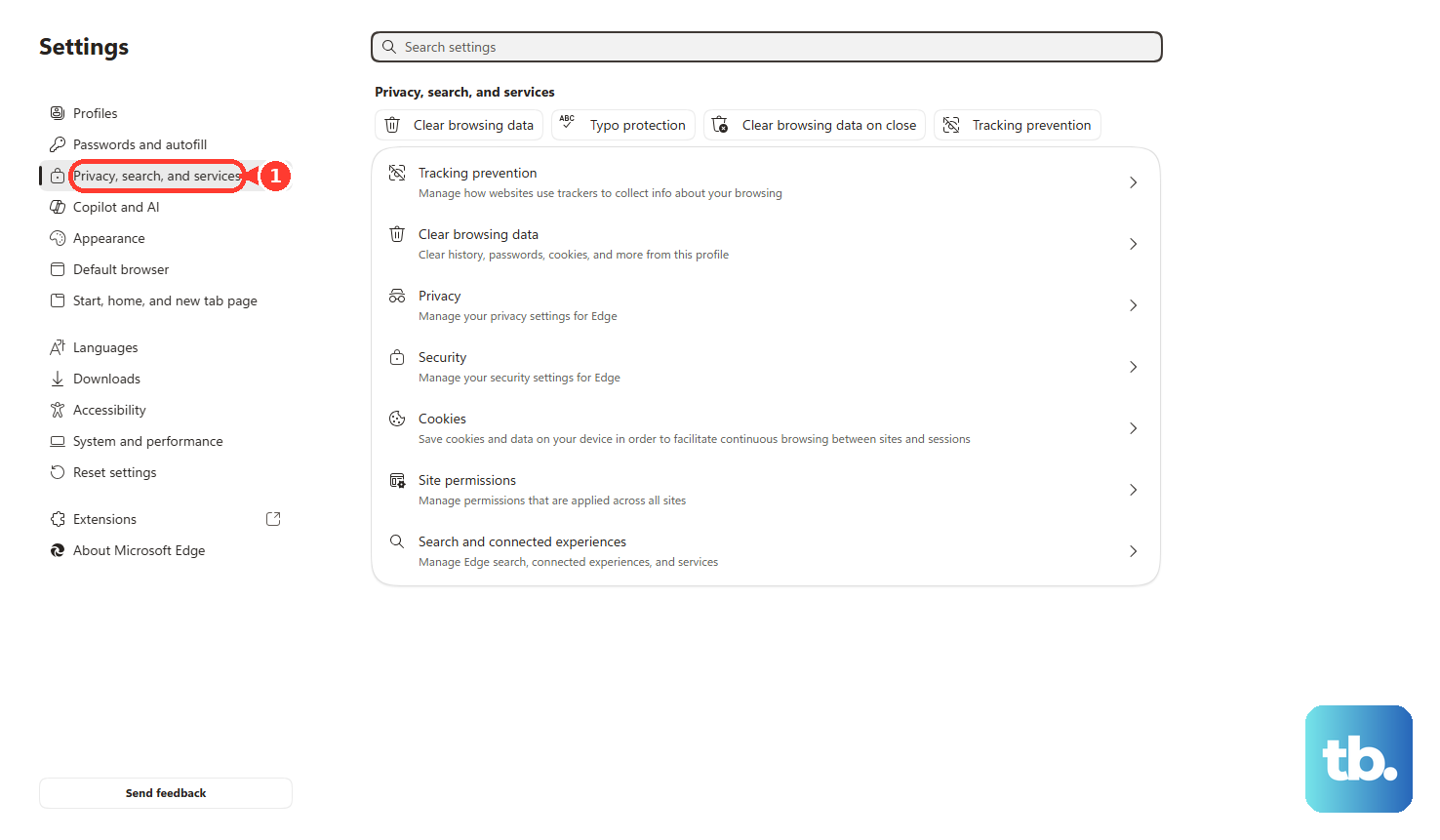
Microsoft Edge: Select "Settings and more" (the three-dot icon), then Settings > "Privacy, search, and services." Under "Clear browsing data," select "Choose what to clear." Pick a time range, then check "Cached images and files" and "Cookies and other site data." Select "Clear now."
Mozilla Firefox: Click the menu button (three horizontal lines), then "Settings." Select the "Privacy & Security" panel. In "Cookies and Site Data," click "Clear Data." Set "When:" to "Everything," confirm "Temporary cached files and pages" is checked, then click "Clear."
Safari (Mac): Open Safari, then from the menu bar choose History > "Clear History." Use the pop-up menu to choose how far back to clear, then confirm.
Disable Your Pop-Up Blocker, Firewall, or Security Software
Pop-up blocking software can interfere with AOL Mail. Disable it or add AOL to your allowlist; most browsers also let you bypass the blocker temporarily by holding the Shift key while clicking a link.
Firewall and security software can be more disruptive still, sometimes producing a blank page instead of an obvious error. To test this, temporarily disable your firewall, then check whether you can connect to the internet and load AOL Mail. For McAfee specifically, turn off the McAfee Internet Security Suite firewall to diagnose.
If you haven't shut down your computer in a while, restart it to clear its memory (RAM), which often resolves lingering issues. Re-enable your firewall and security software afterward.
Fix It on Mobile (iOS and Android)
If AOL Mail won't load in a phone or tablet browser, the cause is usually no network, an outdated browser, an outdated OS, or a corrupted browser install. Work through this sequence: confirm your device is connected to a network. Update your browser to the latest version. Close and restart the browser.
Next, clear the browser's cache and cookies (steps below). Enable location services for the browser. Restart your device. Uninstall and reinstall the browser, or try a different one.
After that, update your device's operating system to the latest version.
Safari (iPhone or iPad): Open the Settings app, tap "Safari," then tap "Clear History and Website Data" and confirm. Chrome (iPhone or iPad): Open Chrome, tap the Menu icon > "Settings" > "Privacy" > "Clear Browsing Data," check "Cached images and files" and "Cookies, Site Data," then tap "Clear Browsing Data."
Chrome (Android): Open Chrome, tap the Menu icon > "Settings" > "Privacy and security" > "Clear browsing data," check "Cached images and files" and "Cookies and site data," then tap "Clear data." Firefox (Android): Open Firefox, tap the Menu icon > "Settings," under "Privacy and security" choose "Delete private data," select "Cached images and files" and "Cookies," then tap "Delete browsing data" and confirm.
Reset the Browser or Switch to the App as a Last Resort
If clearing the cache didn't help, restoring your browser to its default settings removes adware, strips out extensions you didn't install, and improves performance. This is more destructive than clearing the cache: it can delete bookmarks, stored passwords, and your homepage, and it resets your security settings, so back up anything you don't want to lose first. Follow your specific browser's official reset instructions.
If the browser keeps failing (a common scenario with "Temporary error 1," which can appear when AOL Mail is open in two different browsers or accessed from multiple devices in different locations), switch surfaces entirely. Use the AOL Mail app for iOS or Android, or set up your AOL account in your device's native mail app. This requires iOS 14 or later, or Android 9 (SDK 28) or later.
Frequently Asked Questions
What does "Temporary error 1" mean in AOL Mail?
It appears when you're on an unsupported browser, when AOL Mail is open in two different browsers at once, or when it's accessed on multiple devices from different locations. It usually clears itself within minutes to hours. Closing extra sessions or switching to the AOL Mail app resolves it.
Will clearing cookies delete my AOL password?
Deleting cookies signs you out of websites and clears saved preferences and passwords for those sites, so you'll need to re-enter your AOL login afterward. Clearing the cache alone is less disruptive than a full browser reset, which can also remove bookmarks and your homepage.
My inbox loads but some emails are missing. Is that a loading problem?
Not necessarily. Ad blockers can hide messages in AOL Mail, so allowlist aol.com first. Then check your filters, look in the Spam and other folders, and in Mail Settings > Block Senders make sure "Block All Senders Except Contacts" is unchecked.
Why does a blank page appear with no error message?
A blank page is often a sign that firewall or security software is blocking the connection to AOL. Temporarily disable your firewall to test, and re-enable it once you confirm whether that was the cause.
Can I just keep using Internet Explorer?
It may still load AOL Mail, but Microsoft no longer supports it and it can't be updated, so it will keep causing problems. Switch to a current version of Edge, Chrome, Firefox, or Safari instead.
I haven't logged in for a very long time and now I can't get in. Why?
If you haven't signed in for an extended period, your account could be in the process of being deactivated for inactivity, which can affect access and missing mail. This is an account-status issue rather than a browser fix.