
Your AirPods Pro 3 microphone sounds muffled on calls and people keep asking you to repeat yourself. The mic works enough that you can hear a faint version of your voice in recordings, but it's not clear enough for anyone on the other end. Start by checking microphone settings, cleaning the mesh, and testing whether the problem happens in more than one app.
A fast way to narrow this down is a browser based online mic test. If the meter responds when you talk, the browser is receiving audio. Check which microphone it is using and listen to a recording to assess clarity.
Start with the simplest fix. Wear your AirPods and make sure they're connected. Open Settings, tap the name of your AirPods Pro 3, and tap Microphone. If it isn't displayed, first tap Audio & Routing. If it's set to Automatically Switch AirPods, switch it to Always Left AirPod and make a quick test call. Then try Always Right AirPod. If one sounds clearer, you can select that bud, but it will remain the microphone even when it's in the case.
Clean the Microphone Mesh on the Stem
Each AirPods Pro 3 stem has a tiny mesh circle at the bottom that covers the microphone. Earwax, pocket lint, and oils from your skin build up there over time, especially if you've been sweating during workouts. The mesh gets partially blocked and your voice comes through muffled or distant.
Take a look with a flashlight, then remove the ear tips before cleaning the meshes, including the bottom microphone. Saturate a soft-bristled children's toothbrush with micellar water containing PEG-6 Caprylic/Capric Glycerides, hold the mesh facing up, brush in circles for about 15 seconds, then turn the AirPod over and blot the mesh on a paper towel; repeat twice more for each mesh.
Rinse the brush with distilled water and repeat the same brushing and blotting process using distilled water. Let the AirPods dry completely for at least two hours before using them or putting them in the case, and don't use sharp objects or abrasive materials.
Check App Microphone Permissions
If the microphone doesn't work in a specific app, check whether that app has microphone access. Open Settings > Privacy & Security > Microphone. Find the app you're using and make sure it is enabled. If it already has permission, or isn't listed, contact the app developer for help.
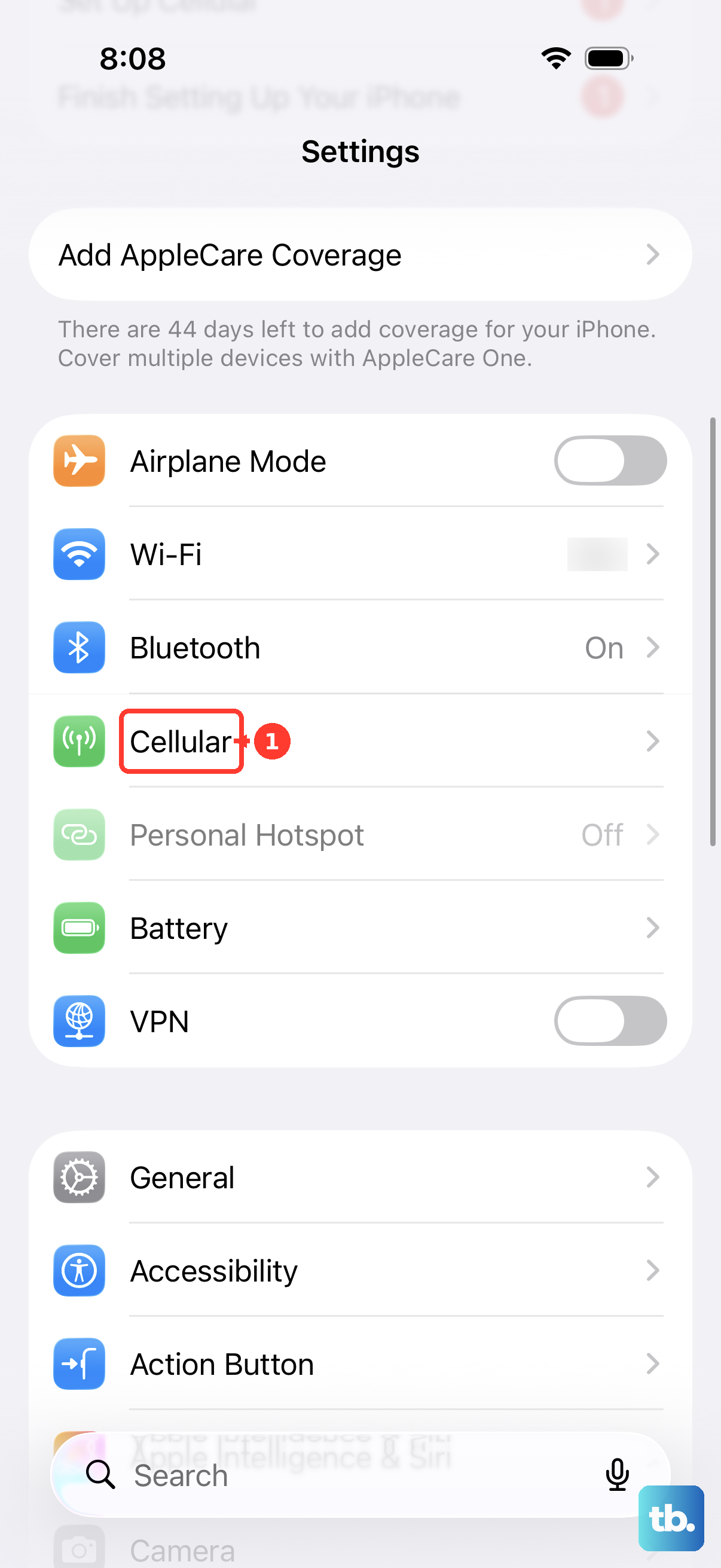
You can open Settings > Cellular to review cellular settings, as shown below. For an app's microphone access, use Privacy & Security > Microphone.
Force Restart Your iPhone
If your iPhone is unresponsive, you can force restart it. Press and release Volume Up, press and release Volume Down, then hold the Side button until you see the Apple logo. After the phone reboots, open the AirPods case lid next to it so they reconnect, then test the mic again.
Reset AirPods Pro 3 With the New Double-Tap Method
The Pro 3 uses a different reset sequence than older models. Put both buds in the case, close the lid, and wait 30 seconds. On your paired iPhone, open Settings > Bluetooth. If your AirPods appear under My Devices, tap the More Info button, tap Forget This Device, and confirm.
Open the charging-case lid. Double-tap the front of the case while the status light is on. When the light flashes white, double-tap again. When it flashes faster, double-tap a third time. When the light flashes amber, then white, bring the case close to your iPhone with the lid open, and follow the onscreen steps to reconnect.
After reconnecting, make another test call to check whether the microphone problem has improved.
Test the Mic in Voice Memos First
To check your iPhone's built-in microphone separately, disconnect your AirPods and open Apple's built-in Voice Memos app. Tap the Record button, speak at the bottom of your phone, then stop the recording and play it back. Your voice should sound clear. If the phone recording is clear, reconnect your AirPods and compare the sound in the calling app.
You can also compare a FaceTime audio call with a regular phone call using the same AirPods. Note whether the muffled sound happens in both or only one. If it happens in a specific app, check its microphone permission and contact the app developer if access is already enabled.
On a Mac or PC, Check the Input Device
When AirPods Pro 3 connect to a computer for calls, check which microphone the system and calling app are using. The computer's built-in microphone may still be selected. Select your AirPods as the input device and make another test call to compare the sound.
On macOS, open System Settings > Sound. Make sure both Output and Input are set to your AirPods Pro 3, not the computer's built-in mic. On Windows, go to Settings > System > Sound and set both Input and Output to AirPods Pro 3 (Hands-Free) during the call. After the call, check the selected Output device again if music sounds different.
Update AirPods Firmware
Apple pushes firmware updates silently. Use an updated iPhone with Bluetooth enabled and connected to Wi-Fi. Connect the AirPods via Bluetooth, plug the case into power, put both buds inside, and close the lid. Keep the case within Bluetooth range for at least 30 minutes, then open it, reconnect, and check the firmware version under Settings > Bluetooth > tap (i) next to AirPods > scroll to Version. Compare it against Apple's current firmware version. If updating still fails, reset the AirPods and retry.
If One Specific Bud Always Fails
If you've tried a reset, cleaned the mesh, updated firmware, and one bud consistently can't record while the other works fine, that bud likely has a hardware mic issue. Contact Apple for service and to check whether your issue is covered by the Apple Limited Warranty, AppleCare+, or consumer law. If your AirPods are damaged, you can order a replacement. If the issue isn't covered, an out-of-warranty replacement fee may apply.