
A blinking white LED on your AirPods Max means they're in pairing mode, advertising for a device to connect to. They'll keep blinking white until something picks them up, so if that light won't stop, something is blocking the handshake. The fix usually comes down to a quick reset or a simple iPhone setting.
Start with a free left and right audio test that checks left and right channels, stereo order, bass, and treble. Two minutes there tells you whether the hardware needs attention at all.
The fastest solution is to unlock your iPhone and bring it within a few feet of the headphones. Pairing mode uses Bluetooth Low Energy, which doesn't work well through walls or pockets. Wake the iPhone, swipe up to unlock, and hold the AirPods Max near it. The setup card should appear within ten seconds.
Check That iPhone Bluetooth Is On
Open Settings > Bluetooth and make sure the toggle is green. If you see other devices like your Apple Watch or AirPods Pro listed there, Bluetooth is working fine. If the screen looks frozen or nothing shows up, try a force-restart of the iPhone first: press Volume Up, then Volume Down, then hold the Side button until the Apple logo appears.
One thing people miss: make sure your iPhone is signed into iCloud and Find My is enabled. Go to Settings > [your name] > iCloud > Find My iPhone. AirPods rely on that iCloud handshake for a seamless first-time pair. If you're signed out, the setup card won't appear.
Force the AirPods Max Out of Pairing Mode
Sometimes the headphones get stuck broadcasting even though nobody's trying to connect. Place them in the Smart Case and wait about 30 seconds. Taking them out of the case resets the advertising state. Then bring them near your unlocked iPhone again. If you don't have the Smart Case, you can also wait 5 minutes for them to automatically enter low-power mode, just don't use them during that time. After that, tap the noise control button and try again.
Reset the AirPods Max
If the blinking white won't stop and no iPhone will pair, do a full factory reset. Hold both the noise control button and the Digital Crown for 15 seconds. The LED will flash amber, then white. Release both buttons. This clears all stored pairing info and returns the AirPods Max to a fresh state.
After the reset, they'll go back into pairing mode automatically. Bring them near your unlocked iPhone and the setup card should appear. If not, move on to the next step.
Forget the Device From iPhone Bluetooth
If these AirPods Max were previously paired to your iPhone, the old connection record can interfere with a fresh pair. Open Settings > Bluetooth, tap the (i) icon next to your AirPods Max, then tap Forget This Device. Confirm. Now, with the headphones out of the case and near the iPhone, the pairing card should show up because the iPhone treats them as a new device.
Update iOS
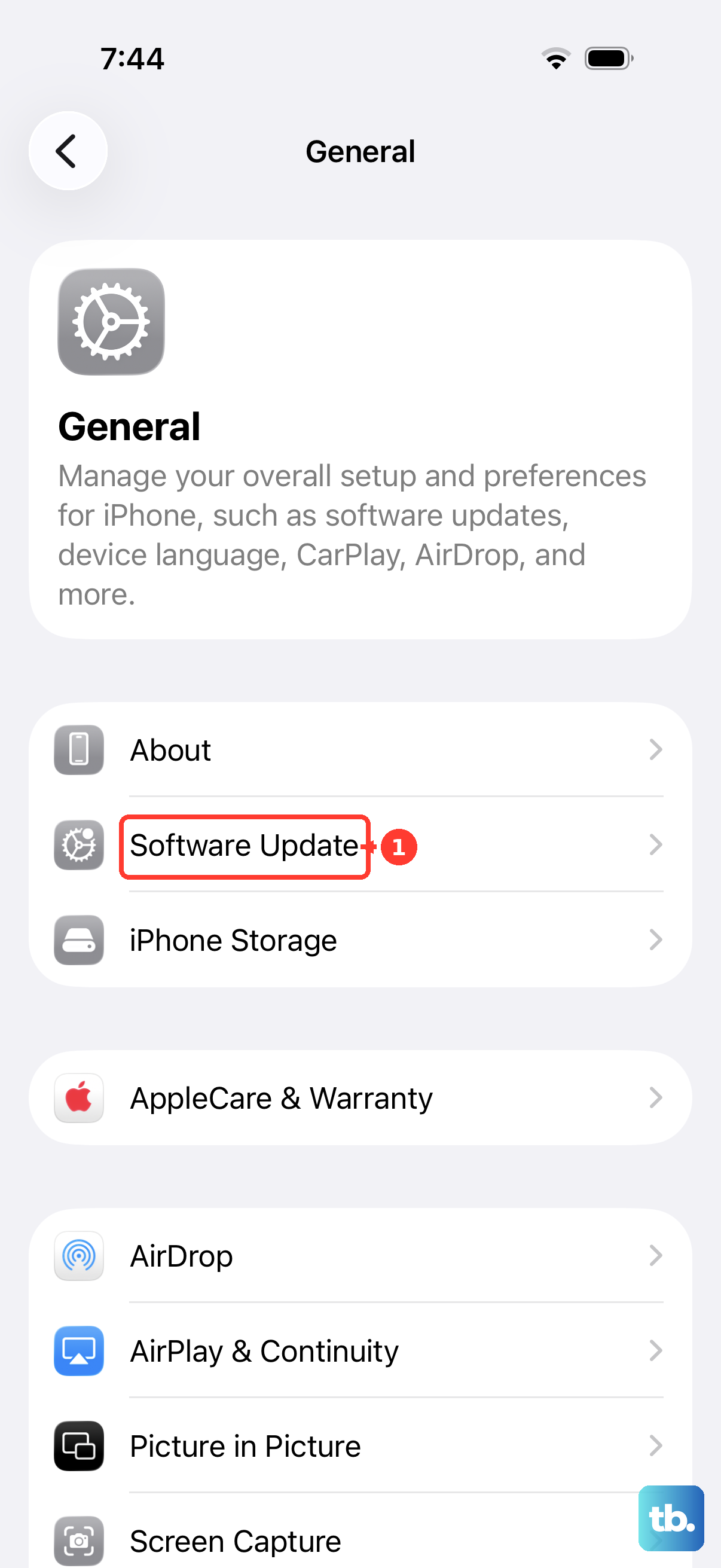
AirPods Max firmware updates are delivered through your iPhone. If you're running an older iOS version, the headphones might not be able to negotiate the pairing handshake correctly. Go to Settings > General > Software Update and install any pending updates. One specific note: lossless audio over USB-C requires iOS 17.4 or later, and the latest iOS 26 is recommended for all current features. A fresh update can also fix Bluetooth driver bugs that cause pairing to stall.
Try Pairing to a Different Apple Device
Bring the AirPods Max near another iPhone, iPad, or Mac that's signed into your iCloud account. If they pair there easily, the problem is with your original iPhone, not the headphones. Once paired on any Apple device, they'll sync to all devices signed into the same iCloud account. If they won't pair to any device at all, the AirPods Max may need service.
Check for Activation Lock
If you bought these AirPods Max used, they could be locked to the previous owner's Apple ID through Find My. This prevents pairing to a different account. You can't bypass it yourself, the original owner has to remove the AirPods from their Find My list. Until then, the headphones will stay in pairing mode or refuse to connect.
Manually Initiate Pairing
The noise control button on the AirPods Max can also be used to force pairing mode. Press and hold the noise control button until the LED starts flashing white. This is separate from the reset. Try this if the headphones are not automatically advertising. Then bring them close to your iPhone while the LED is flashing white.
One last thing: make sure the USB-C cable you're using for charging supports audio passthrough if you want lossless. For pairing, it doesn't matter, but it's worth noting that some cheap USB-C cables only charge. Apple's included cable works fine.
If none of these steps stop the blinking white, an Apple Store appointment is the next step. The reset should clear most software issues, but hardware failures can occasionally prevent the pairing process from completing.