
The most common AirPods Max disconnect pattern is a brief dropout on one side that comes back within a second, usually during walking transitions or when you move your head a certain way. Audio resumes fast enough that you probably keep using them, but it chips away at the experience over a long session. The cause is almost always connection-handling logic, not bad hardware.
A browser based left and right audio test makes this easy to confirm. If both sides play test tones correctly there, the headphones are fine and the problem is in the device or app.
Start by disabling Automatic Switching as a test. Open Settings > Bluetooth, tap the info icon next to your AirPods Max, then tap Connect to This iPhone and choose When Last Connected to This iPhone. That stops the headphones from jumping to your iPad, Mac, or Apple Watch mid-song. If the dropouts stop, Automatic Switching was the culprit.
Turn Off Head Tracking for a While
Head-tracked Spatial Audio is a cool trick, but it's also a constant stream of accelerometer and gyroscope data that the headphones have to process and relay. Any hiccup in that pipeline can manifest as a brief dropout. In Settings > AirPods Max, tap Spatial Audio and switch to Fixed or Off. Use it that way for a day. If the disconnects vanish, keep it on Fixed and only toggle Dynamic when you're watching content that actually benefits from full head tracking.
Move Away From Interference Sources
AirPods Max use Bluetooth 5.0, which shares the 2.4 GHz band with most home WiFi networks, microwave ovens, baby monitors, and a dense array of smart home gadgets. If you're sitting at a desk with a microwave running three feet away, or your router is broadcasting only on 2.4 GHz with no 5 GHz fallback, the airwaves are crowded and your headphones will fight for bandwidth.
Test by walking into a different room well away from electronics. If the connection suddenly stabilizes, you found your interference source. Moving the router, switching it to 5 GHz only for compatible devices, or simply accepting reduced range indoors usually clears it up.
Reset the AirPods Max
If the software-side tweaks haven't helped, do a full reset. Hold the noise control button and the Digital Crown together for about 15 seconds until you see the LED flash amber, then release. That clears the pairing state and resets the internal connection manager without erasing saved settings or ear cushion fit data.
After the reset, the headphones will show up again in your Bluetooth menu. Pair them fresh and test for a few hours before re-enabling any features you turned off.
Forget and Re-Pair From Scratch
A corrupt saved pairing record can cause dropouts that no other fix resolves. Open Settings > Bluetooth, tap the info icon next to AirPods Max, and choose Forget This Device. Now hold the noise control button until the LED starts flashing white, which puts the headphones in pairing mode. They'll auto-detect on your iPhone and walk you through fresh setup.
This is also a good time to run Personalized Spatial Audio if you haven't already. Open Settings > AirPods Max and tap through the Face ID scan. It takes about 30 seconds and can improve both spatial stability and general connection behavior on supported content.
Update iOS and Firmware
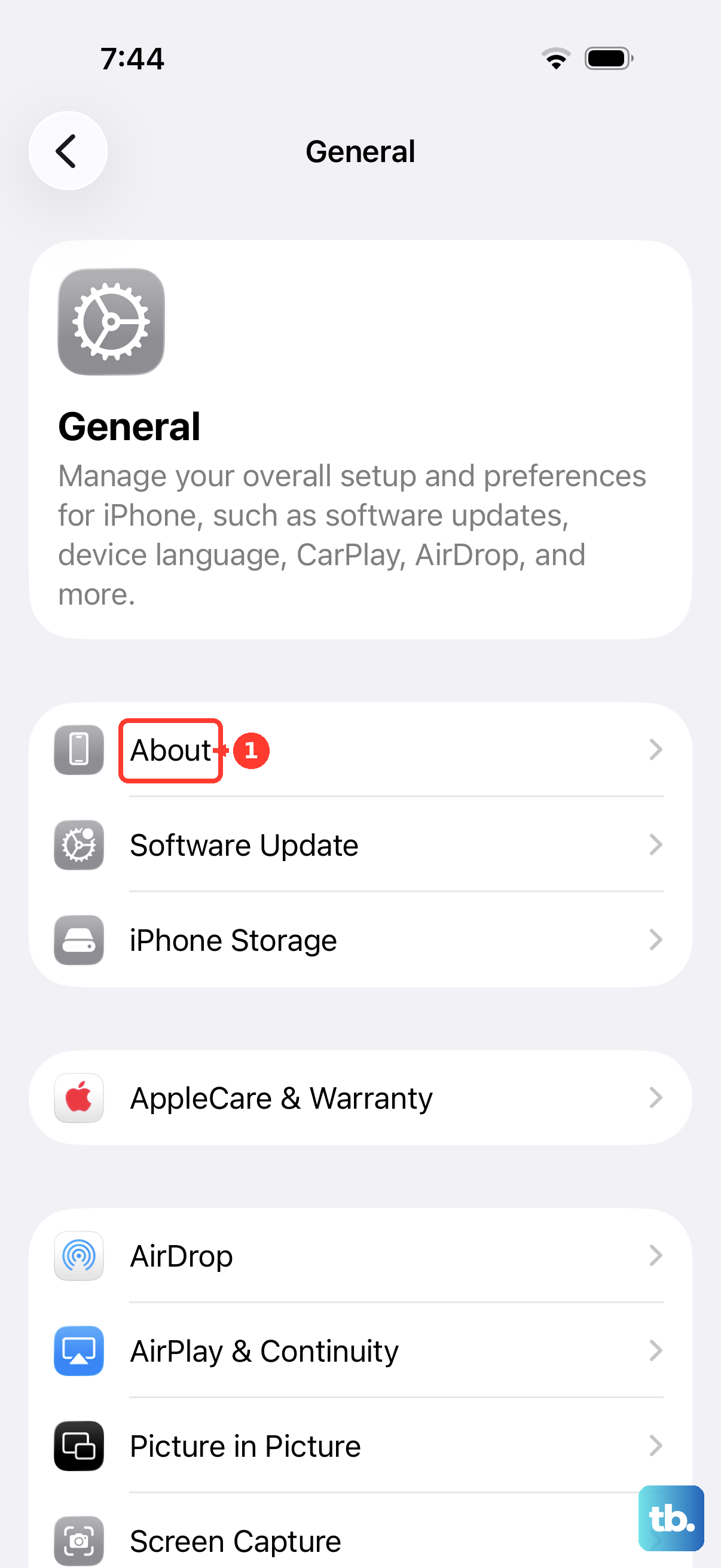
Apple has shipped several firmware revisions that tighten Bluetooth behavior on the USB-C AirPods Max. The headphones update automatically while connected to an iPhone, in range, and charging via USB-C. To force a check, connect them to power, keep your iPhone nearby, and leave the pair idle for 10-15 minutes. You can verify the current version in Settings > General > About > AirPods Max.
Your iPhone's OS version matters too. Lossless audio over USB-C requires iOS 18.4 or later. These USB-C AirPods Max use the H1 chip, so they do not support Adaptive Audio at all. If you're behind on updates, the headphones may fall back to older connection profiles that aren't as stable with your apps.
Charge to 100% Before Judging Stability
Low battery can throttle the Bluetooth radio just enough to cause intermittent dropouts. Plug the AirPods Max into USB-C directly (no case, just the cable into the headphone's right earcup) and let them charge to full. A 5W input is typical, so budget about two hours from empty. Test again at full charge before going deeper on any other fix.
The headphones never fully turn off, by the way. They enter a low-power mode immediately when placed in the Smart Case, or after 5 minutes of sitting stationary outside it, but they're always listening for a connection request. If battery anxiety is making you second-guess the dropouts, full charge eliminates that variable.
Try a Different Source Device
If the disconnects only happen with your iPhone, the issue may live in your phone's Bluetooth stack rather than the headphones. Pair the AirPods Max to a different iPhone or an iPad briefly. If they stay connected fine, your original phone needs a network settings reset (in Settings > General > Transfer or Reset) rather than further headphone troubleshooting. This is a quick test that can save you an hour of cycling through headphone-side fixes that won't help.
Check the Ear Cushions and Headband
The ear cushions on the USB-C AirPods Max are user-replaceable, and they do wear down after a couple years of daily use. Deteriorated cushion foam can affect the optical sensor that detects when the headphones are on your head, which in turn affects auto-play and connection behavior. If the cushions are flattened, smelling odd, or not seating flush against the earcup, replace them through Apple for $69.
The mesh headband is another spot to check. It accumulates moisture and sweat in humid environments, which can short the internal wiring over time. If you live in a humid climate or work out in the headphones, wipe the headband dry after each session and let the headphones air out before storing them in the case.