
When your Acer Swift Go 14 shows a "USB Device Not Recognized" error or just doesn't see your flash drive, mouse, or external drive, it's a real roadblock. The problem could be with the port itself, a driver hiccup, or a power setting. Let's get it working again.
Try a Different Port on Your Swift Go
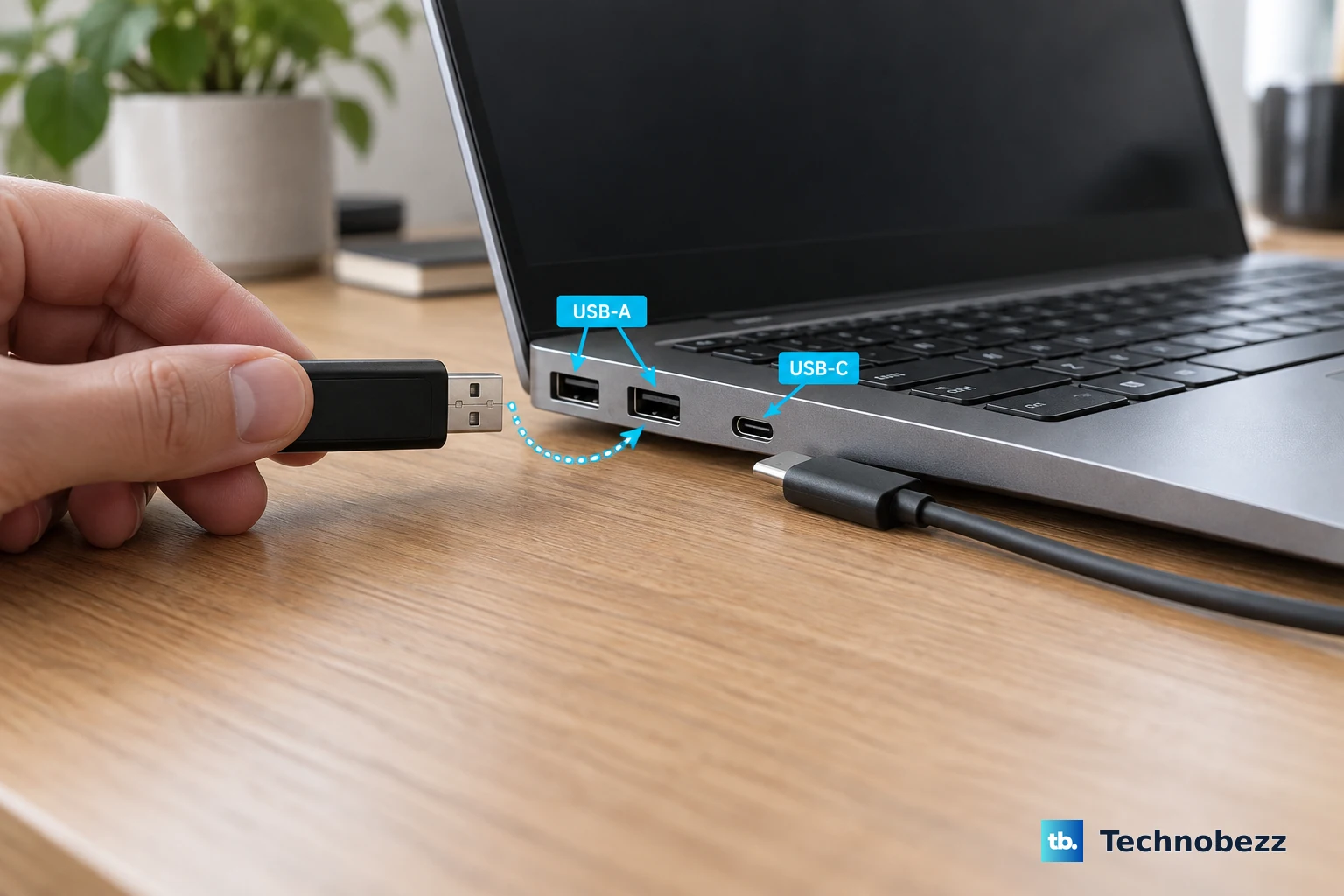
Unplug your device and try it in another USB port. The Swift Go 14 typically has both USB-A and USB-C ports, including Thunderbolt 4. If your mouse works in one port but not another, you've likely found a hardware issue with that specific port. I'd start with this simple swap.
Perform a Full Restart
A full restart reloads all your system drivers, including the USB controller. This clears out temporary glitches that can cause ports to stop responding. Make sure you select "Restart" from the Windows menu, not just closing the lid to put it to sleep.
Test the USB Device Elsewhere
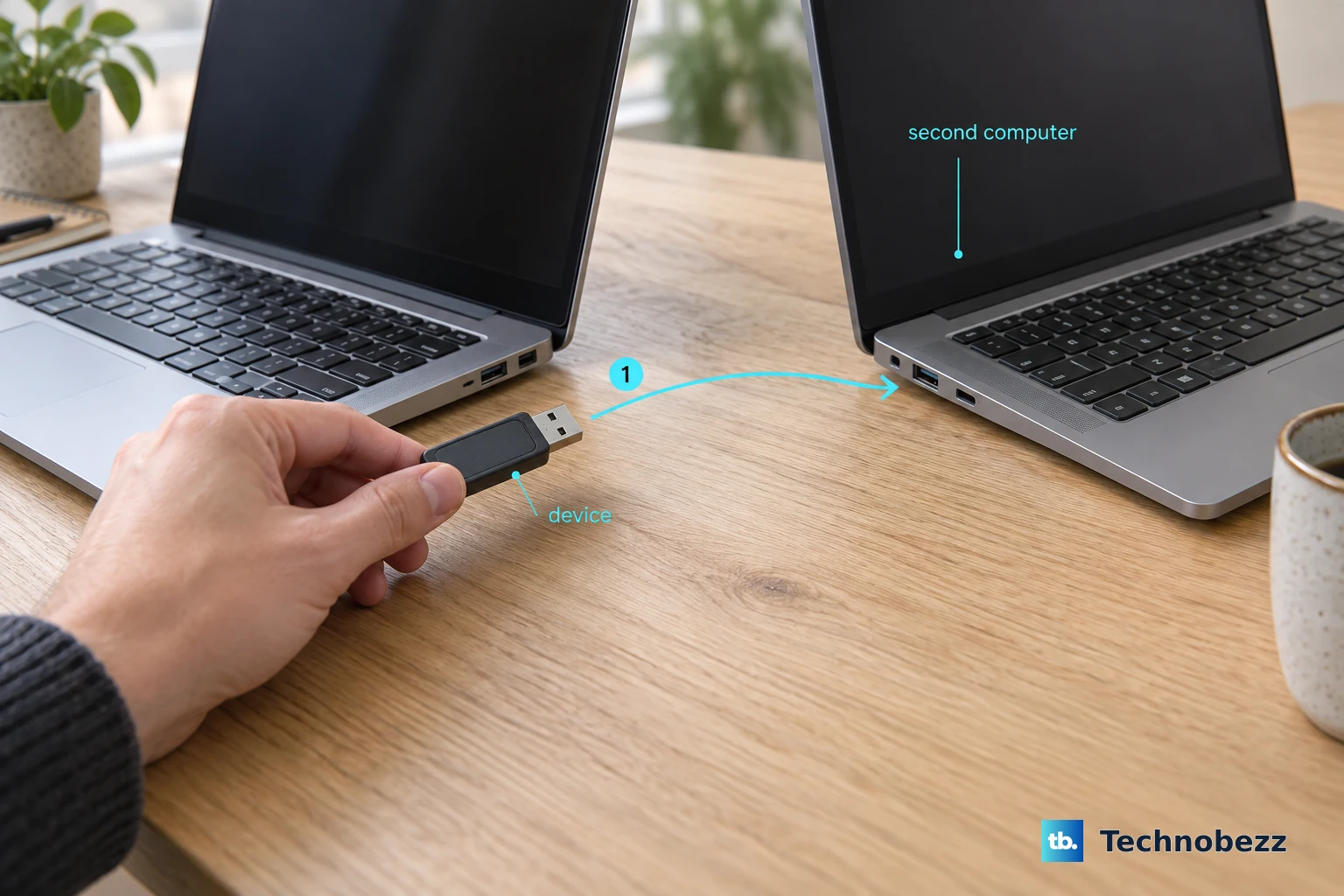
Plug the problematic device into another computer. If it fails to work on a second machine, the issue is almost certainly with the device or its cable. If it works perfectly elsewhere, then the focus shifts back to your Acer laptop's settings or drivers.
Swap Out the Cable
For devices like external hard drives or phones, the cable is a common point of failure. Cables can wear out internally, especially near the connectors. Try a different, known-good cable. A cable might still deliver power for charging but have broken data lines, which would explain why a drive isn't detected.
Update or Reinstall USB Drivers
Press the Windows key + X and select Device Manager. Expand the Universal Serial Bus controllers section. Look for any entries with a yellow exclamation mark. Right-click on them and choose Update driver.
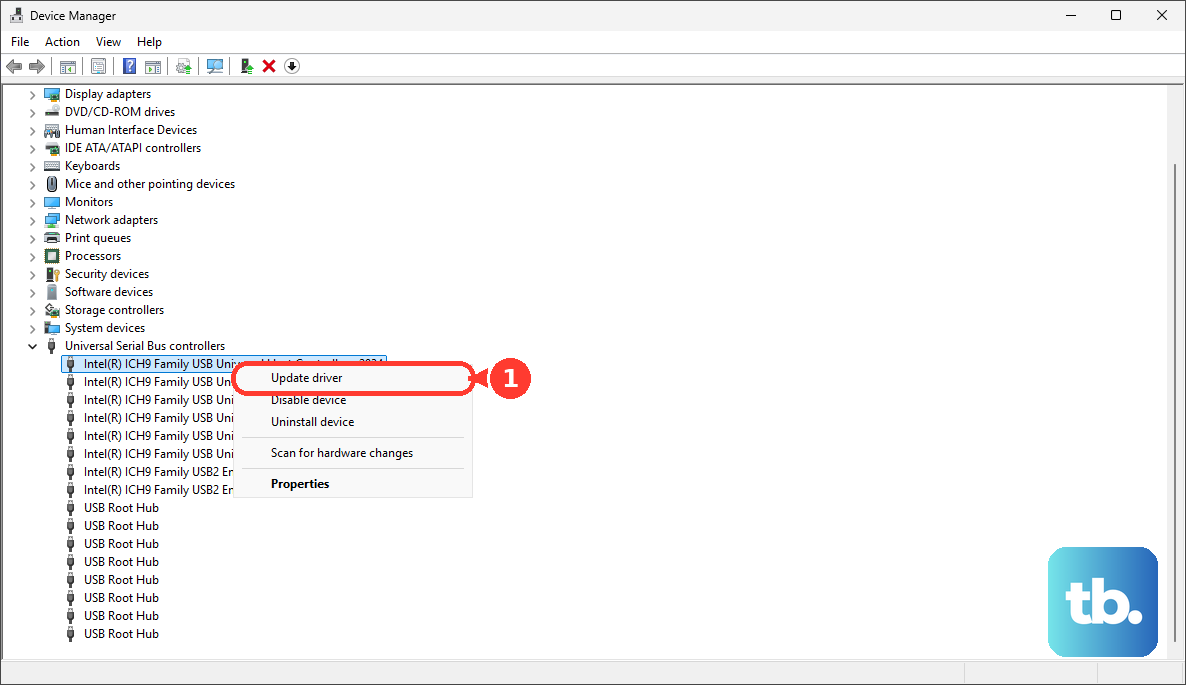
You can also try right-clicking on the top-level USB controllers (like the USB Root Hub) and selecting Uninstall device. Restart your laptop, and Windows will automatically reinstall fresh drivers. This often resolves stubborn recognition problems.
Use Acer Care Center for a System Check
Your Swift Go 14 comes with Acer Care Center pre-installed. Open it and run the system checkup tool. It can identify driver issues, including outdated or corrupted USB/chipset drivers, and provide one-click updates directly from Acer. It's a good centralized place to start a diagnostic.
Disable USB Selective Suspend
Windows tries to save power by putting idle USB ports to sleep, which can sometimes prevent devices from waking up. To turn this off, go to Control Panel > Hardware and Sound > Power Options.
Click Change plan settings next to your selected plan, then Change advanced power settings. Expand USB settings and then USB selective suspend setting. Set both "On battery" and "Plugged in" to Disabled. Click Apply and OK.
Check for Windows and Optional Driver Updates
Go to Settings > Windows Update and click Check for updates. Install all available updates. After that, click Advanced options and then Optional updates.
Here, you might find driver updates specifically for your chipset or USB controllers from Acer or Intel. Installing these can add compatibility fixes for newer devices.
Reset the Thunderbolt Controller in BIOS
Some users have reported Thunderbolt compatibility issues with certain docks on the Swift Go. If your USB-C/Thunderbolt port is the problem, a BIOS reset can help. Restart your laptop and press F2 repeatedly as it boots to enter the BIOS.
Look for a setting related to Thunderbolt or USB Configuration. There is often an option to "Reset Thunderbolt Controller" or "Clear TBT Security." Selecting this can resolve handshake failures. Save and exit the BIOS to restart.