
A non-responsive touchpad on your Acer Swift Go 14 turns a portable laptop into a desktop anchor. Whether the cursor is frozen, taps don't register, or two-finger scrolling is gone, these steps will get you back on track.
Toggle the Touchpad with the Function Key
Your Swift Go 14 has a dedicated key to enable or disable the touchpad. Look for the function key, usually F7, that has a touchpad icon with a slash through it. Press the Fn + F7 keys together to toggle it.
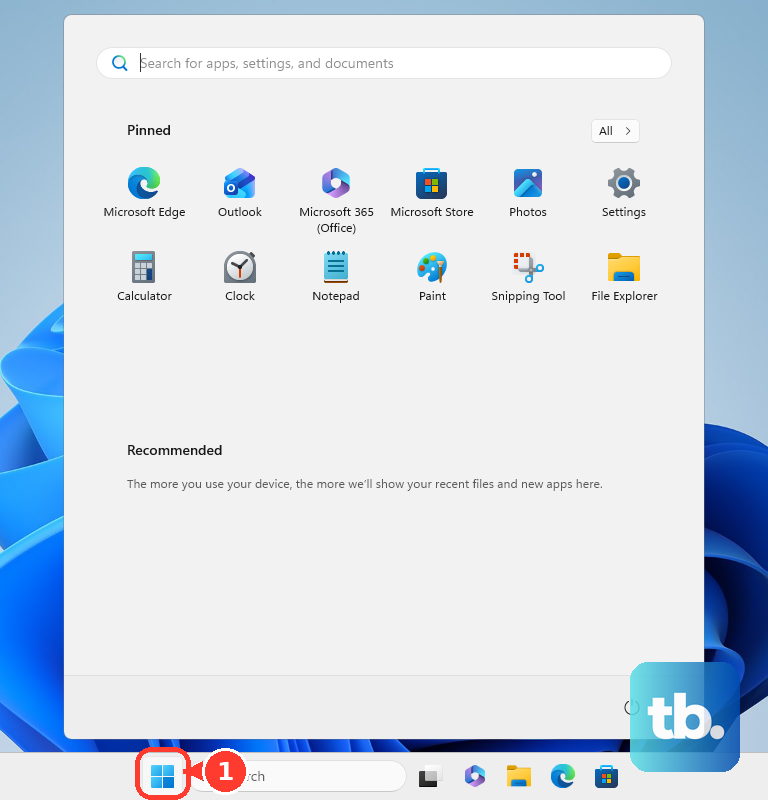
You can also check the software setting. Press the Windows key, type "touchpad," and open the touchpad settings. Make sure the main toggle at the top is switched to "On."
Perform a Full Restart
A simple restart reloads all your drivers, including the one for the touchpad. This is especially effective if the problem started after the laptop woke from sleep.
Use your keyboard to navigate: press the Windows key, then use the Tab key to highlight the power icon, press Enter, and select "Restart."
Disconnect Any External Mouse
Windows has a setting that can automatically disable the internal touchpad when it detects an external mouse. Unplug any USB mouse or disconnect your Bluetooth mouse.
If the touchpad starts working, you can change this behavior. Go to Settings > Bluetooth & devices > Touchpad and look for a setting like "Leave touchpad on when a mouse is connected" to turn it on.
Update Your Drivers
Outdated or corrupted drivers are a common culprit. The best tool for your Acer is the Acer Care Center app, which can check for and install manufacturer-approved driver updates.
You can also check manually. Open the Start menu, type "Device Manager," and look under Mice and other pointing devices. Right-click on your touchpad (it might be listed as an ELAN, Synaptics, or Precision Touchpad device) and select "Update driver."
Clean the Touchpad Surface
Finger oils, lotion, or moisture can interfere with the touchpad's capacitive sensors. The surface might look clean but still have an invisible film.
Power off the laptop and gently wipe the touchpad with a microfiber cloth slightly dampened with water. Dry it thoroughly before turning the laptop back on.
Check the BIOS Setting
The touchpad can be disabled at a system level. Restart your Swift Go 14 and immediately press the F2 key repeatedly to enter the BIOS.
Navigate using your keyboard arrow keys. Look for a menu like "Main" or "Advanced" and find an option for "Internal Pointing Device" or "Touchpad." Ensure it is set to "Enabled."
Reinstall the Touchpad Driver
If updating didn't help, a fresh install might. In Device Manager, right-click on the touchpad device and select "Uninstall device." If you see a checkbox that says "Attempt to remove the driver for this device," check it.
Restart your laptop. Windows will install a basic driver. For full functionality, I'd then use Acer Care Center or visit the official Acer support site to download the latest touchpad driver for your exact model.
Run a System Scan
Corrupted Windows system files can cause all sorts of hardware issues. Open the Start menu, type "cmd," right-click on Command Prompt, and select "Run as administrator."
In the window, type sfc /scannow and press Enter. Let the scan complete and restart your laptop if it repairs any files.
Test for a Hardware Issue
If none of the software fixes work, you need to check the hardware. Boot into Windows Safe Mode (hold Shift while clicking Restart in the power menu) and see if the touchpad works there.
You can also see if it's recognized in the BIOS screen. If the touchpad doesn't work in Safe Mode or the BIOS, the internal ribbon cable might be loose or the touchpad itself could be faulty. This would require a professional repair.