
When you plug your Acer Swift Go 14 into an external monitor and the screen stays blank, it's usually a quick settings or connection fix. Let's get that second screen working.
A browser based online monitor test cycles solid colors and gradients across the whole screen, which helps you confirm whether the panel itself shows the fault.
Check Your Physical Connection First
Unplug the cable from both your laptop and the monitor, then firmly reconnect it. I'd try a different cable if you have one, as they can fail without any obvious signs. Also, double-check that your monitor is powered on and set to the correct input source, like HDMI 1 or USB-C.
Use the Windows Projection Shortcut
Press the Windows key + P on your keyboard. This brings up a sidebar with four display modes. If it's set to "PC screen only," your external display is disabled. Try selecting Duplicate or Extend to see if the signal kicks in.
Restart Your Laptop While Connected
Leave the monitor cable plugged in and restart your Swift Go. Sometimes the graphics hardware only fully initializes the external display ports during the boot process. A restart with the cable connected can force this detection.
Update Your Display Drivers
Outdated graphics drivers are a common culprit. For the Swift Go 14, you'll want to get the latest driver directly from Intel's website for the integrated graphics. You can also use the Acer Care Center application, which often has validated driver updates for your specific model.
If you want to do it manually, open Device Manager, expand Display adapters, right-click on your Intel Iris Xe graphics, and select Update driver. Let Windows search automatically, but know that the manufacturer's site usually has a newer version.
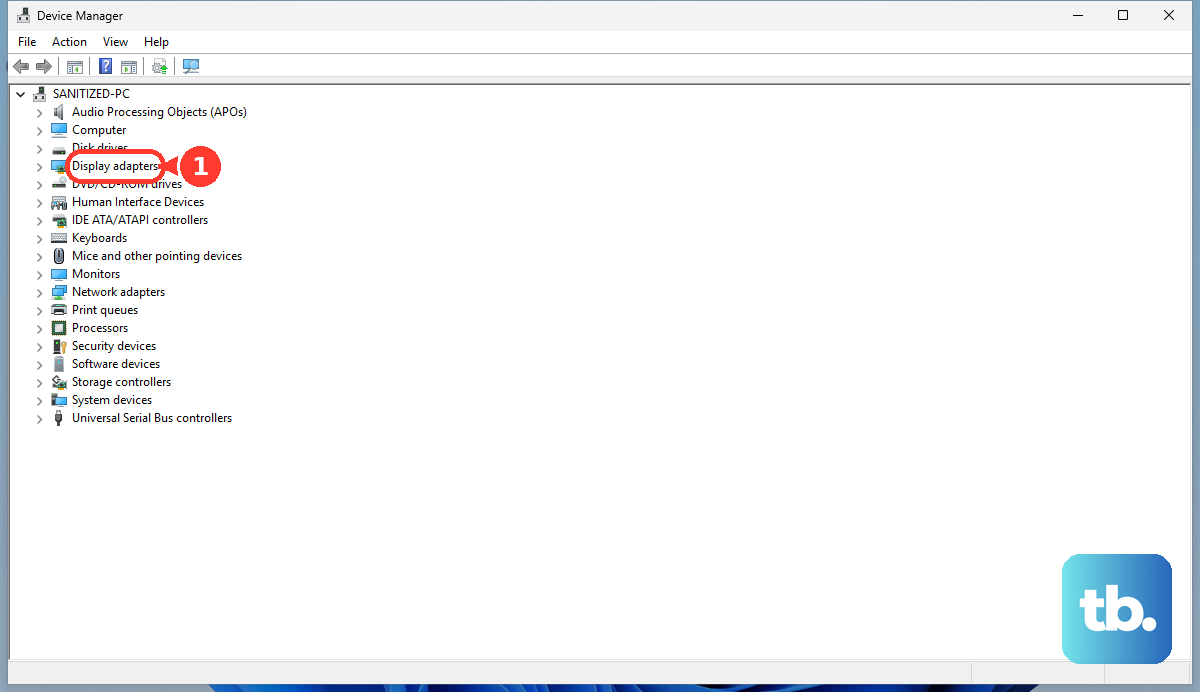
Adjust Your Display Settings in Windows
Go to Settings > System > Display. Click the Detect button. If Windows finds your monitor, click on its representation and scroll down to ensure the display resolution and refresh rate are set to values your monitor supports. Trying a standard 1920x1080 resolution is a good test.
Try a Different Port or Adapter
The Swift Go 14 typically has USB-C ports that support DisplayPort Alt Mode. If you're having trouble with the HDMI port, try connecting your monitor via a USB-C to HDMI or DisplayPort adapter instead. This can tell you if the issue is with the specific HDMI port.
Be aware that some users have reported occasional compatibility hiccups with certain Thunderbolt docks, so a simple direct adapter is best for testing.
Test with Another Monitor or TV
Plug your laptop into a different external display, like a living room TV. If it works there, the problem likely lies with the settings or hardware of your original monitor. This quickly narrows down where the fault is.
Refresh the Display Adapter in Device Manager
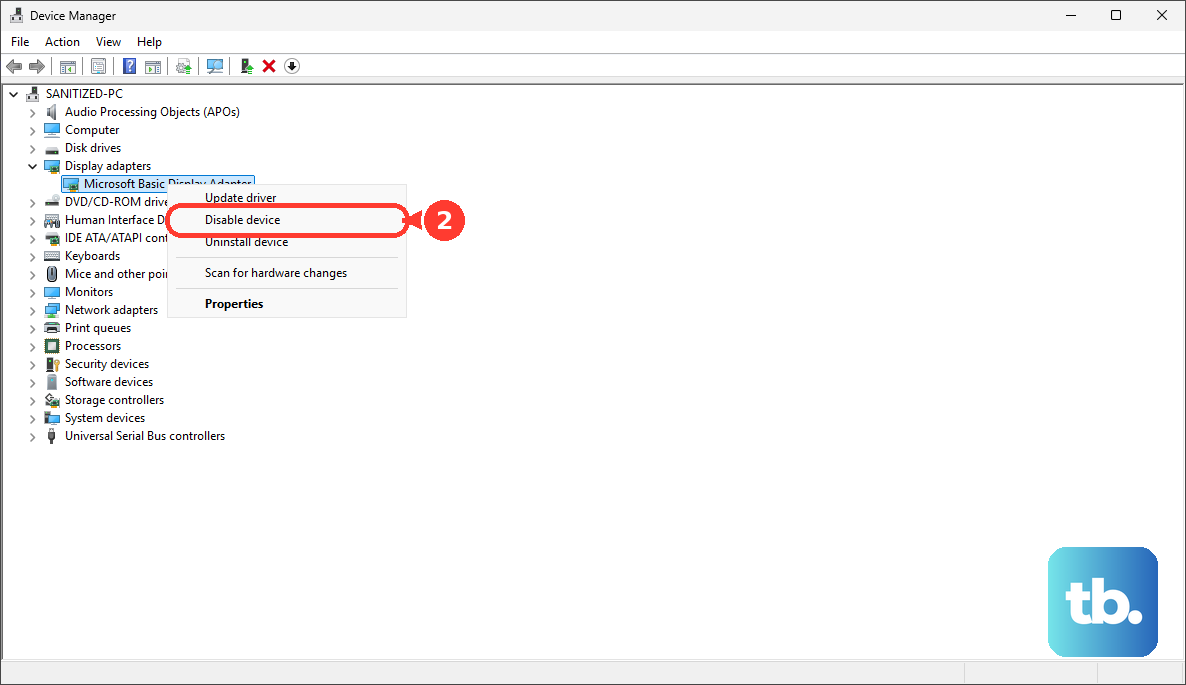
Back in Device Manager under Display adapters, right-click on your Intel graphics and select Disable device. Wait about ten seconds, then right-click again and choose Enable device. This resets the graphics driver and can re-establish the connection to your external display.
Check for BIOS Settings Related to Display
Restart your laptop and press F2 repeatedly as it boots to enter the BIOS. Look through the menus for any settings related to display output, primary display, or Thunderbolt configuration. It's rare, but a BIOS update can sometimes reset these. Just be careful not to change anything else you're unsure of.