
When Bluetooth stops working on your Acer Swift Go 14, your wireless mouse, headphones, or keyboard suddenly become useless. The connection might drop, a device won't pair, or the Bluetooth toggle itself can disappear from Windows. It's a common hiccup, but you can almost always get it working again with a few straightforward checks.
Toggle Bluetooth On and Off
Start with the simplest fix. Click the network icon in your taskbar and make sure the Bluetooth tile is turned on. If it's already on, turn it off, wait about ten seconds, and then turn it back on. This quick reset of the Bluetooth radio can clear up temporary glitches, especially after the laptop wakes from sleep.
Restart Your Acer Swift Go 14
If toggling doesn't help, give your laptop a full restart. This forces Windows to reload all its drivers and services, including the Bluetooth stack. I've found this resolves a lot of post-update issues where Bluetooth just seems to vanish or behave erratically.
Forget and Re-Pair Your Device
Go to Settings > Bluetooth & devices. Find the problematic device in the list and click the three dots next to it, then select Remove device. Put your Bluetooth headset or mouse back into pairing mode, then click Add device on your Swift Go to pair it fresh. A corrupted pairing profile is one of the most frequent causes of persistent connection problems.
Run the Windows Bluetooth Troubleshooter
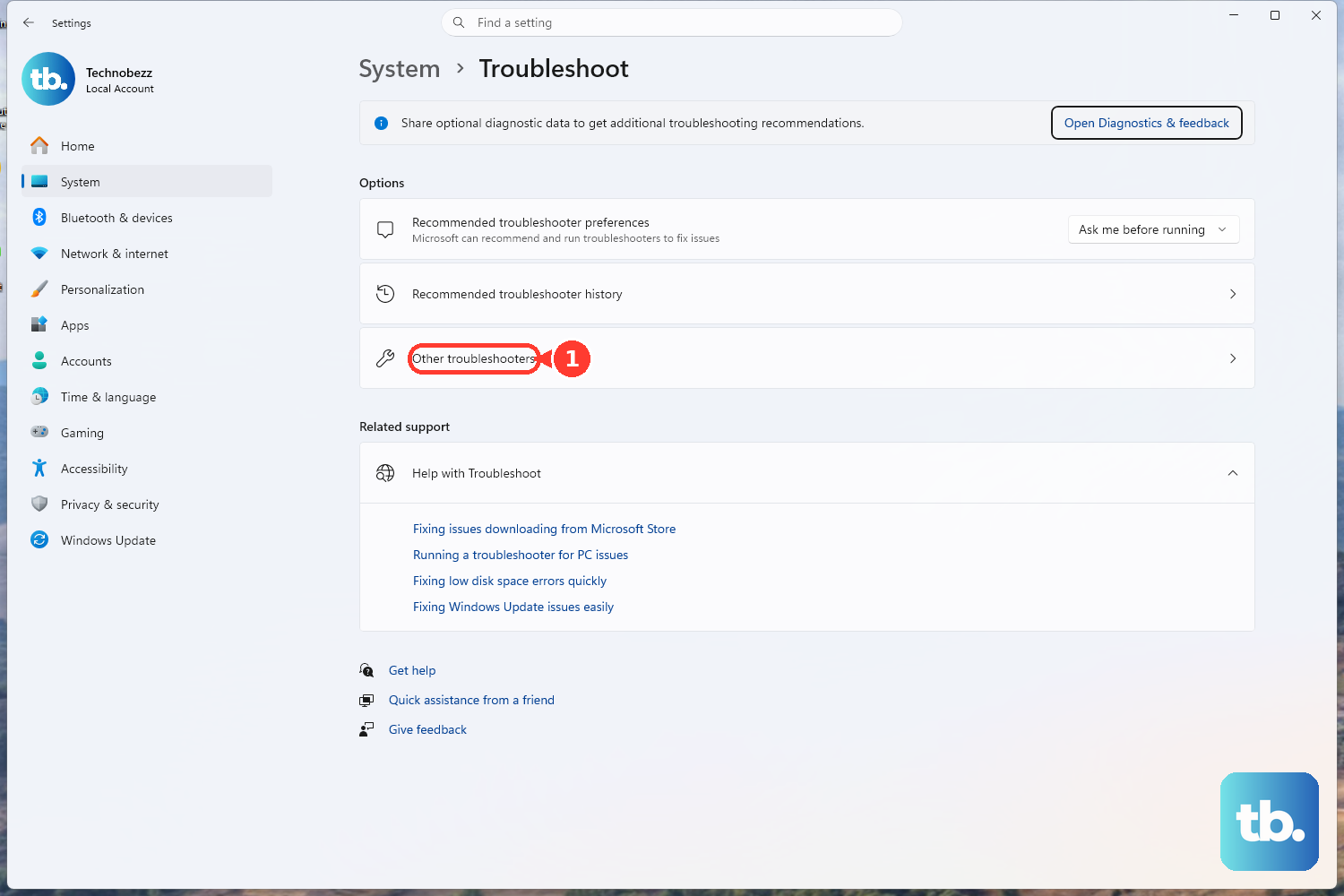
Windows has a built-in tool for this. Go to Settings > System > Troubleshoot > Other troubleshooters. Find the Bluetooth troubleshooter and click Run. It will scan for common configuration problems and often apply a fix automatically, which is a great time-saver.
Update Your Bluetooth Drivers
Outdated or corrupted drivers are a prime suspect. Press the Windows key + X and select Device Manager. Expand the Bluetooth section, right-click on your Bluetooth adapter (it might be listed as Intel or Realtek), and choose Update driver > Search automatically for drivers. For the Swift Go 14, you should also check the Acer Care Center app, as it can provide manufacturer-specific driver updates.
Restart the Bluetooth Support Service
Sometimes the background service that manages Bluetooth stops running. Press Windows + R, type services.msc, and hit Enter. Scroll down to find Bluetooth Support Service, right-click it, and select Restart. While you're there, double-click it to open its properties and ensure the Startup type is set to Automatic.
Check for Wireless Interference
Bluetooth shares the 2.4GHz band with WiFi and many other electronics. If your connection is choppy or drops when you're near the router, try moving your laptop or the Bluetooth device. Also, unplug any USB 3.0 devices, as they can sometimes emit interference that disrupts the Bluetooth signal.
Use Acer Care Center for a System Check
Your Swift Go 14 comes with a useful tool called Acer Care Center. Open it and look for options to check system health or update drivers. It can sometimes identify and fix driver conflicts or missing components that generic Windows updates might miss, making it a good second step after checking Windows Update.
Install All Windows Updates
Head to Settings > Windows Update and click Check for updates. Install any available feature or quality updates. Microsoft regularly patches Bluetooth connectivity and audio issues in these updates, so staying current is important for stability.
Reinstall the Bluetooth Adapter
If nothing else works, you can reinstall the Bluetooth hardware from scratch. In Device Manager, right-click your Bluetooth adapter and select Uninstall device. Check the box that says "Attempt to remove the driver for this device" if it appears. Then, restart your laptop. Windows will detect the hardware on boot and reinstall a fresh copy of the driver.
If you're still stuck after a reinstall, it's worth checking the BIOS. Restart your Swift Go 14 and press F2 repeatedly as it boots to enter the BIOS setup. Look for any Bluetooth or wireless settings to ensure they are enabled. Just be careful not to change anything else you're unsure of.