
A slow gaming laptop can turn a smooth experience into a frustrating slideshow, especially when you're trying to play. If your Acer Nitro V 15 is feeling sluggish, there are several tweaks you can make to get it back up to speed.
Restart Your Nitro V 15
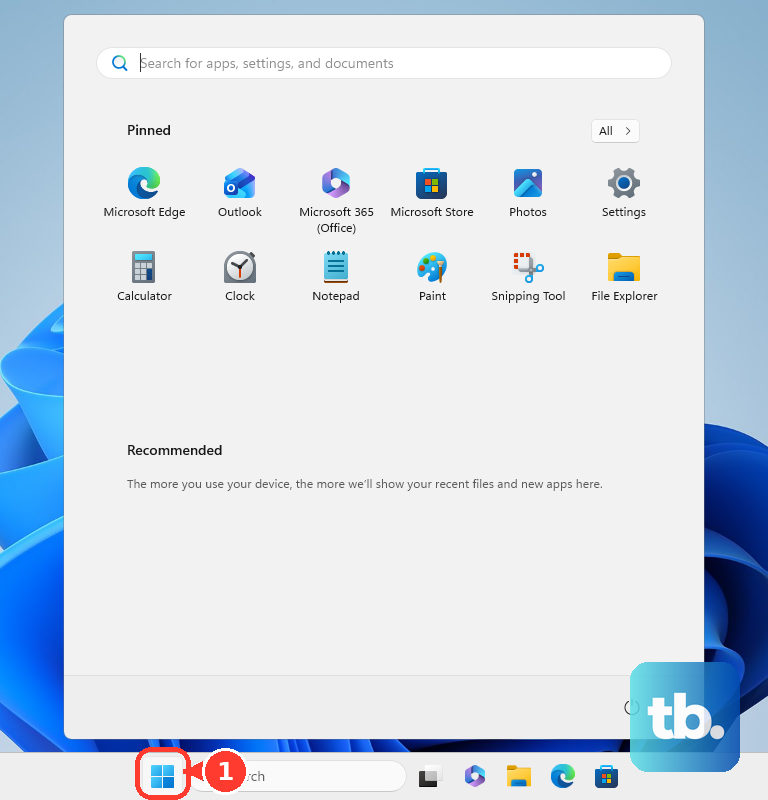
If you've been using sleep mode for days, a full restart can clear out temporary glitches and memory leaks. Click Start > Power > Restart. Don't just shut down, as Windows' fast startup feature doesn't fully reset everything like a restart does.
Use NitroSense to Check Thermals and Fans
Open the NitroSense app that came with your laptop. This is your command center. Check the CPU and GPU temperatures. If they're consistently hitting 90°C or higher, thermal throttling is likely slowing you down. Try switching the fan profile to Max for an immediate cooling boost during gaming sessions.
Find Resource Hogs in Task Manager
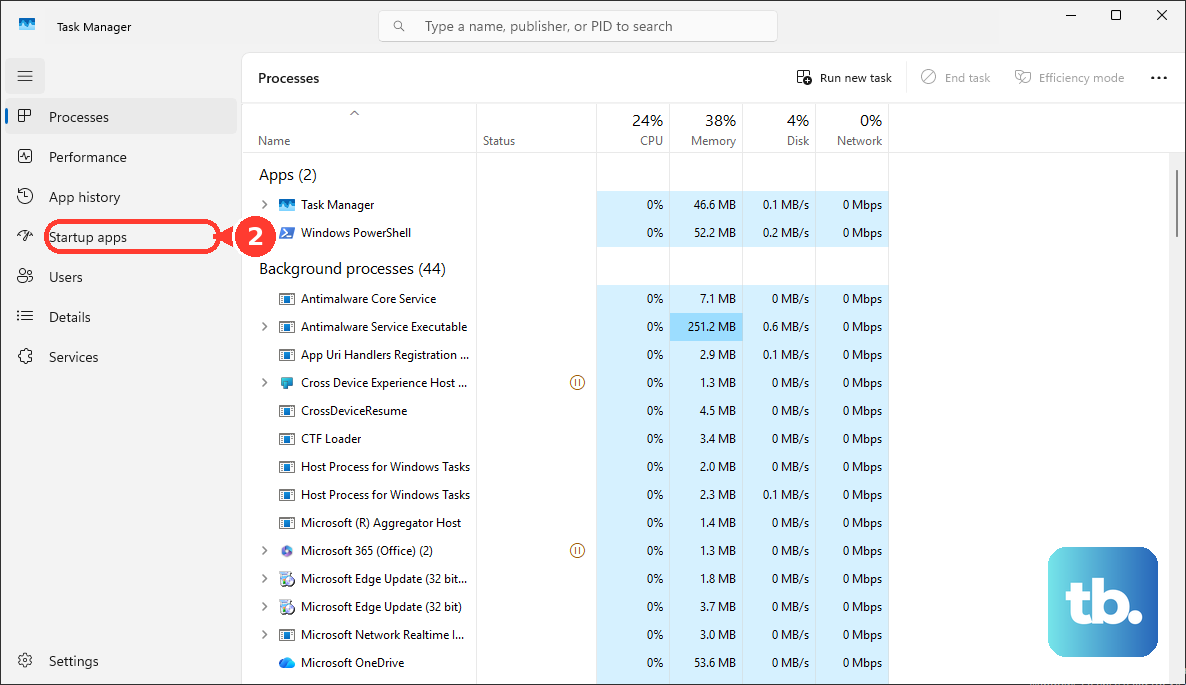
Press Ctrl + Shift + Esc to open Task Manager. Click the CPU, Memory, or Disk columns to sort by what's being used the most. Look for any single process using an unusually high percentage. Right-click on non-essential hogs and select End task.
Stop Programs from Launching at Startup
In Task Manager, click the Startup apps tab. You'll see a list of everything that launches when Windows boots. Disable applications like Discord, Spotify, or game launchers that you don't need immediately. This speeds up boot time and frees up RAM for your games.
Free Up Space on Your Drive
A drive that's over 80% full can slow down your entire system. Go to Settings > System > Storage. Click on Temporary files and remove items like Delivery Optimization files and the recycle bin contents. I'd also recommend uninstalling any games you no longer play directly from the Settings app.
Update Your Graphics and Chipset Drivers
Outdated drivers are a common culprit for poor gaming performance. For your NVIDIA GPU, get drivers directly from the NVIDIA website or NVIDIA app. Also, visit Acer's support page, enter your Nitro V 15's serial number, and download the latest chipset and other system drivers.
Set Your Power Plan to High Performance
Go to Settings > System > Power & battery. For the power mode, select Best performance. When plugged in, you can also search for "Edit power plan" in the Start menu, click on Change advanced power settings, and ensure the processor power management is set to 100% for minimum and maximum processor state.
Scan for Malware
Background malware can consume huge amounts of system resources. Open Windows Security from the Start menu, go to Virus & threat protection, and run a Full scan. Let it complete; it can take an hour or more but will check every file.
Adjust In-Game Graphics Settings
If slowdowns happen primarily in games, lower some demanding settings. Features like ray tracing, shadow quality, and anti-aliasing have a big performance impact. Try using the NVIDIA app to "Optimize" your games, which will apply settings recommended for your specific hardware.
Consider a Hardware Upgrade
The Nitro V 15 often allows for RAM and storage upgrades. If you have 8GB of RAM, upgrading to 16GB can help significantly with modern games and multitasking. If your model came with a hard disk drive (HDD), replacing it with a solid-state drive (SSD) is the single biggest speed upgrade possible for loading times and general system snappiness.