
When your Acer Nitro V 15 is plugged in but the battery percentage won't budge, it's a frustrating roadblock. The problem usually comes down to the power source, the laptop's hardware, or a software setting that's interfering.
Start With the Power Source
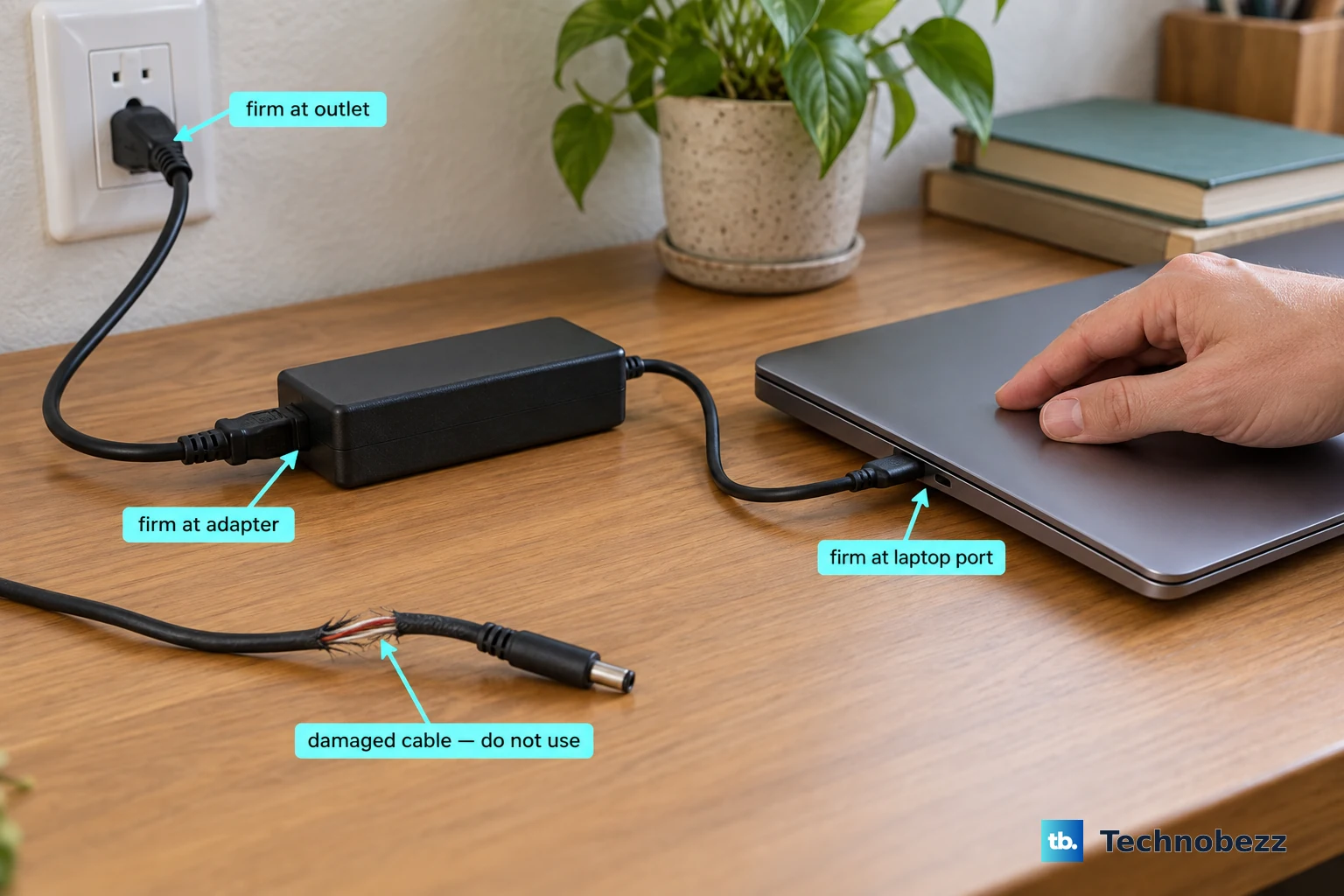
First, check the basics. Make sure the power brick is firmly plugged into the wall outlet and the cable is securely connected to the laptop. Inspect the cable for any obvious damage, like kinks or fraying near the connectors.
Try a different wall outlet to rule out a problem with the power strip or socket. The LED light on the Acer power adapter should be on when it's receiving power from the wall.
Perform a Power Reset
This is often the quickest fix. Shut down your Nitro V 15 completely. Unplug the charger from the laptop, then press and hold the power button for 15-20 seconds.
After that, plug the charger back in and turn the laptop on normally. This drains any residual power and resets the internal power management controller, which can get stuck.
Check for Software Conflicts in Windows
Sometimes, background processes or outdated drivers can confuse the charging system. A simple restart can clear this up. Make sure you select "Shut down" from the Start menu, not just putting the laptop to sleep.
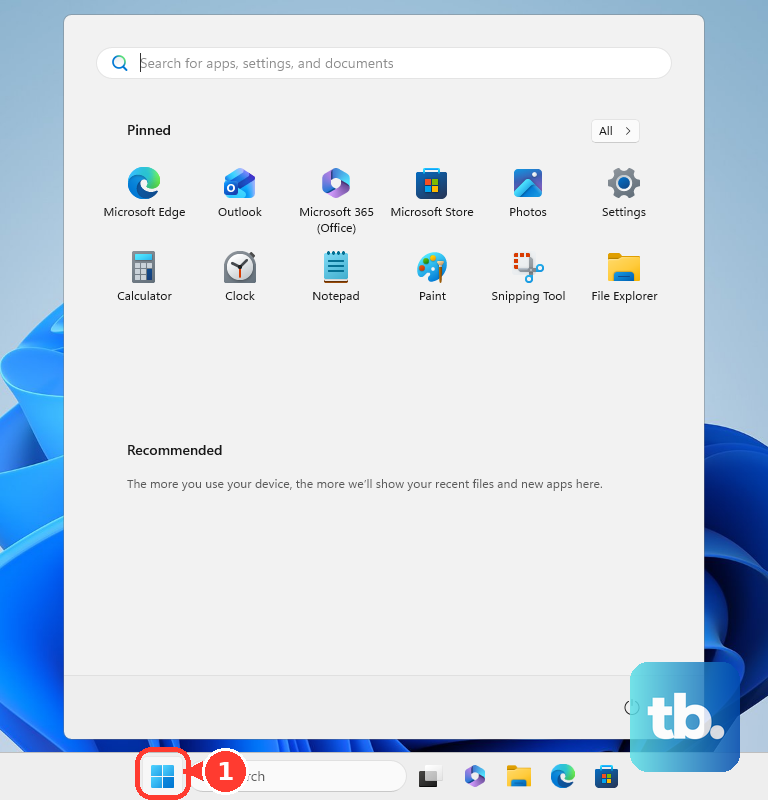
If a restart doesn't help, you can refresh the battery driver. Open the Start menu, type "Device Manager," and open it. Expand the "Batteries" section.
Right-click on "Microsoft ACPI-Compliant Control Method Battery" and select "Uninstall device." Don't worry, you won't delete anything permanently. Just restart your laptop, and Windows will automatically reinstall the correct driver.
Inspect the Physical Charging Port
The barrel-style charging port on the Nitro V 15 can collect dust and lint over time. This prevents the charger's plug from making a solid connection.
With the laptop off and unplugged, use a can of compressed air to blow out the port. You can also gently use a wooden toothpick to dislodge any compacted debris, being very careful not to damage the central pin inside.
Verify Your Charger is Working
Chargers can fail. If you have access to another compatible Acer charger, try it with your laptop. The Nitro V 15 requires its specific power adapter to deliver enough wattage, especially under load.
Using a lower-wattage charger, even if the plug fits, might only slow the battery drain rather than actually charge it. The label on your power brick will show its output rating.
Use the NitroSense App for Diagnostics
Your Nitro V 15 comes with the NitroSense control center. Open it and check the dashboard. It should show your current power source and battery percentage.
I've seen cases where a custom performance or fan profile in NitroSense can indirectly affect power states. Try switching to the "Default" or "Balanced" profile to see if charging behavior changes.
Check for a BIOS Update
Acer periodically releases BIOS updates that fix hardware management issues, including power delivery and charging. Visit the official Acer support website, enter your Nitro V 15's exact model number, and look for BIOS updates.
Updating the BIOS is a more advanced step. Follow Acer's instructions to the letter, ensure your laptop is plugged in during the entire process, and don't interrupt it.
Generate a Battery Health Report
Windows has a built-in tool to check your battery's long-term health. Press the Windows key, type "Command Prompt," and run it as an administrator.
In the command window, type powercfg /batteryreport and press Enter. This creates a detailed HTML file. The file path will be shown in the command prompt; double-click it to open it in your browser.
Look for the "Design Capacity" versus "Full Charge Capacity" numbers. If the full charge capacity is significantly lower than design capacity, the battery itself may be wearing out and holding less charge.
Review Windows Power & Battery Settings
Go to Settings > System > Power & battery. Scroll down to the "Battery" section. Some power-saving features or modes might be limiting charging behavior.
Also, check if you have any third-party battery management or optimization software installed that could be overriding the standard charging process. Temporarily disabling such software can help diagnose the issue.