
When your Acer Nitro V 15 goes silent in the middle of a game or video, it pulls you right out of the experience. The fix is often a quick setting change or driver update, not a hardware failure.
Before changing anything, play a quick quick sound test in your browser. It sends a tone to the left and right channels separately, so you immediately know whether the speakers produce any sound at all.
Check Your Volume and Output
First, click the speaker icon in your system tray. Make sure the master volume slider isn't at zero and that the mute icon isn't highlighted. Right next to the volume slider, click the small arrow to select your output device. If you recently unplugged headphones, Windows might still be trying to send audio to that port.
You should see "Speakers (Realtek Audio)" or something similar listed. Select it to route sound back to your laptop's built-in speakers. I've seen this solve the problem more often than not, especially after disconnecting an external monitor or headset.
Run the Windows Audio Troubleshooter
Windows has a built-in tool that can automatically find and fix common audio glitches. Go to Settings > System > Troubleshoot > Other troubleshooters. Find the "Playing Audio" troubleshooter and click "Run".
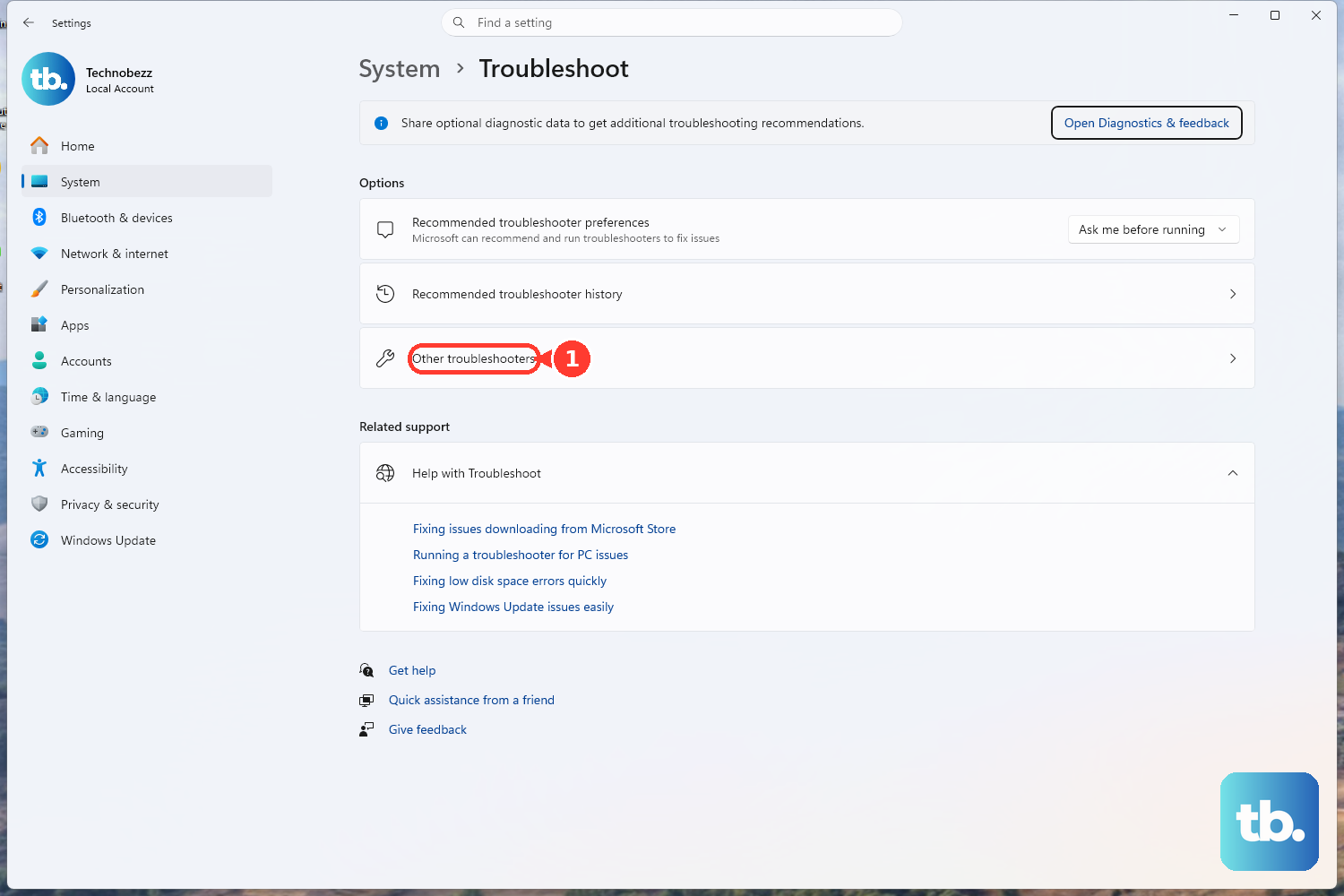
It will scan for issues like disabled services or incorrect default devices. Let it apply any recommended fixes. This is a great first step because it handles a lot of the background configuration for you.
Give Your Laptop a Full Restart
This isn't just a cliché. A full restart clears out any stuck audio processes and reloads all your drivers fresh. Click Start > Power > Restart. Don't just put it to sleep and wake it back up.
If the audio cut out after a recent Windows update or after waking from hibernation, a restart is very likely to bring it back. It's the simplest fix that works for a wide range of software hiccups.
Verify the Sound Settings in Windows
Head to Settings > System > Sound. Under the "Output" section, make sure your Nitro V 15's speakers are selected as the default device. Click on the device name, then click "Test" to see if you hear the chime.
While you're there, scroll down and ensure "Audio enhancements" is set to "Off". Sometimes these software enhancements can conflict and cause audio to drop out completely on gaming laptops.
Update or Reinstall Your Audio Drivers
Outdated or corrupted audio drivers are a common culprit. Press the Windows key + X and choose "Device Manager". Expand the "Sound, video and game controllers" section.
Right-click on your audio device (it will likely be "Realtek Audio") and select "Update driver". Choose "Search automatically for drivers". If that doesn't work, right-click again, select "Uninstall device", and then restart your laptop. Windows will automatically reinstall a fresh driver upon startup.
Restart the Core Audio Services
Sometimes the background services that manage audio get hung up. Press Windows + R, type services.msc, and hit Enter. In the list, find "Windows Audio".
Right-click it and select "Restart". Do the same for the "Windows Audio Endpoint Builder" service just below it. This forces Windows to reset the audio stack, which can instantly resolve sound that's stopped working.
Check Volume Mixer for Individual Apps
It's possible Windows itself has sound, but the specific app or game you're using doesn't. Right-click the speaker icon in the taskbar and choose "Open Volume mixer". You'll see a separate volume slider for each running application.
Make sure the app you're trying to hear isn't muted or set to a very low volume. This is a common issue with browsers or specific games after an update.
Look at the NitroSense App
Your Acer Nitro V 15 comes with the NitroSense control center. Open it up and look for any audio-related settings or profiles. While it's primarily for fan control and performance monitoring, some configurations or "extreme" performance modes could potentially affect system resources in a way that impacts audio.
Try switching to a different performance profile, like "Balanced," and see if the sound returns. It's a long shot, but worth checking since it's software unique to your laptop.
Inspect for Physical and Port Issues
Take a quick look at the laptop's speaker grilles along the front or sides. Make sure they aren't physically blocked by a laptop stand, dust, or debris. While less common, a significant physical blockage can muffle sound.
Also, if you were using the headphone jack, try plugging in a pair of headphones to test it. If audio works through headphones but not speakers, it points to a software setting or driver issue, not a complete audio hardware failure.
Roll Back to a Previous Audio Driver
If your speakers stopped working right after a Windows Update or a driver update you installed, you can revert. Go back to Device Manager > Sound, video and game controllers, right-click your audio device, and select "Properties".
Go to the "Driver" tab. If the "Roll Back Driver" button is clickable, select it. This will uninstall the current driver and reinstall the previous version that was working. After the rollback, restart your laptop to complete the process.