
When your Acer Nitro V 15's keyboard acts up, it can completely derail a gaming session or work project. Keys might stop registering, repeat on their own, or type the wrong characters entirely.
If some keys seem unresponsive, run an online key test first. Keys that register there but not in your app point to software rather than hardware.
Here's how to get it working again, starting with the simplest fix that often solves the problem.
Restart Your Nitro V 15
A full restart clears temporary software glitches and reloads the keyboard driver. If the keyboard is completely unresponsive, you'll need to force a shutdown.
Hold down the physical power button for about 10 seconds until the laptop powers off completely. Wait a few seconds, then press the power button once normally to turn it back on.
Check NitroSense Only If Its Shortcut Key Is the Problem
Acer's keyboard-related NitroSense guidance is for the NitroSense quick launch key: if pressing that key does not open the app, verify that NitroSense and Acer Quick Access are installed.
If either app is missing, download the model-specific application from Acer's support site. Do not present a NitroSense performance profile change as a confirmed fix for a nonresponsive keyboard unless Acer documents that behavior for the exact model.
Update or Reinstall Keyboard Drivers
Outdated or corrupted drivers are a common culprit. Press the Windows key + X and select Device Manager. Expand the Keyboards section, right-click on "Standard PS/2 Keyboard" or "HID Keyboard Device," and choose Update driver.
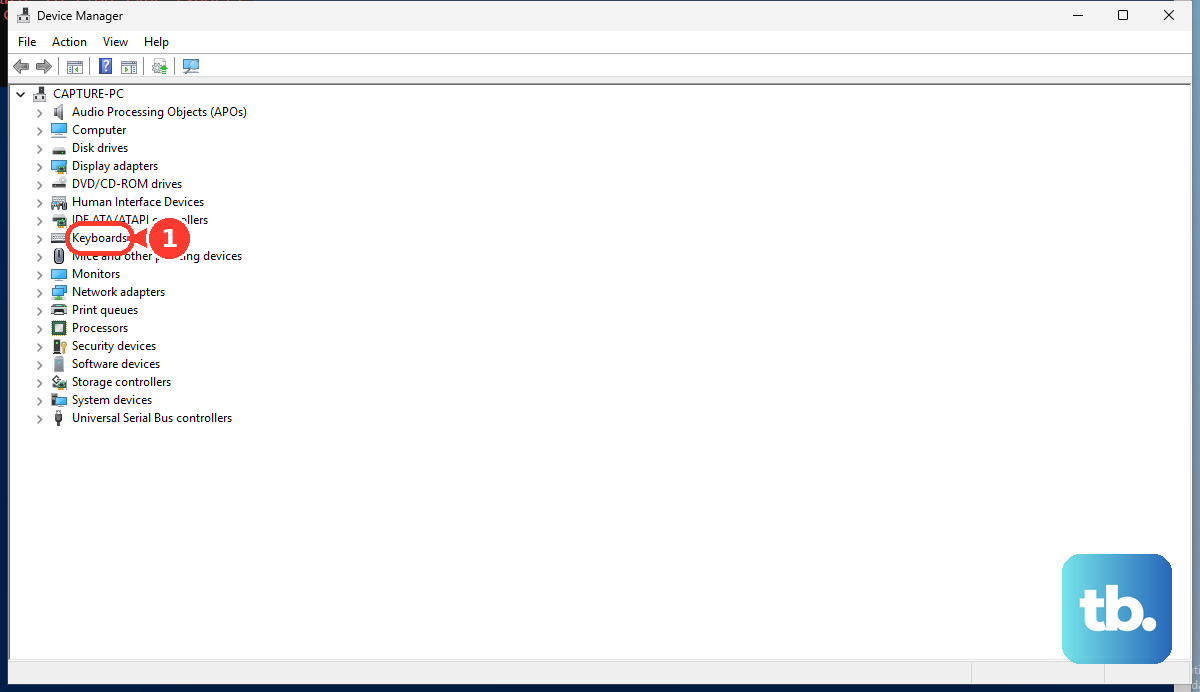
If that doesn't help, right-click again and select Uninstall device, confirm the uninstall, then restart. Windows will attempt to reinstall the driver after the restart; if it does not, return to Device Manager and update the device driver or check Windows Update.
If Acer lists a keyboard driver for your exact Nitro V 15 model, download it only from Acer's official support site. Otherwise, use Windows Update or Device Manager for keyboard-driver updates, since Windows normally delivers recent hardware drivers automatically and can attempt to reinstall a device driver after restart.
Disable Filter Keys and Sticky Keys
Windows accessibility features can sometimes turn on accidentally, making the keyboard feel laggy or unresponsive. Go to Settings > Accessibility > Keyboard.
Make sure the toggles for Filter Keys, Sticky Keys, and Toggle Keys are all switched off. These are meant to help with specific needs but can interfere with normal gaming and typing if enabled unintentionally.
Check for Physical Issues
Gaming laptops can attract crumbs and dust. Gently turn your Nitro V 15 upside down and give it a light shake to dislodge any debris. A can of compressed air is perfect for blowing out particles stuck between the keys.
Also, inspect the keyboard area for any signs of a past liquid spill. Even a small amount can cause keys to short circuit or become sticky over time.
Verify Your Keyboard Layout and Language
If your keys are typing the wrong symbols or characters, the active keyboard layout may have changed. Go to Settings > Time & language > Typing > Advanced keyboard settings.
Ensure your preferred language is set correctly here. You can also remove any extra keyboard layouts you don't use from the language options to prevent accidental switching with a keyboard shortcut like Windows key + Space.
Boot into Safe Mode
This test helps determine if a third-party app is causing the conflict. If your keyboard works normally in Safe Mode, something you installed is likely to blame.
To boot into Safe Mode, go to Settings > System > Recovery and click "Restart now" under Advanced startup. After the reboot, choose Troubleshoot > Advanced options > Startup Settings > Restart. Press 4 or F4 to enable Safe Mode.
Run a System File Check
System File Checker can help fix Windows problems caused by corrupted system files. Microsoft recommends installing the latest Windows updates, restarting, then opening Command Prompt as an administrator.
Type DISM.exe /Online /Cleanup-image /Restorehealth and press Enter. After it completes successfully, type sfc /scannow and press Enter, then wait for verification to reach 100%.
Use an External Keyboard for Testing
Plug in any USB keyboard. If it works perfectly while the built-in one does not, it strongly points to a hardware problem with your Nitro V 15's own keyboard.
This could be a loose internal ribbon cable connection or physical damage. Before considering hardware repair, ensure you've tried all the software fixes above.
Check for BIOS and Windows Updates
Manufacturers often release BIOS updates that fix hardware compatibility issues. You can access the BIOS by pressing the F2 key repeatedly as soon as you power on the laptop.
Note your current BIOS version, then check for a newer version on Acer's support page. Also, install any pending Windows Updates, as they sometimes include critical driver fixes.