
When your Acer Aspire 5 15 shows a "USB Device Not Recognized" error or just doesn't see your flash drive, mouse, or external hard drive, it's a common but fixable hiccup. The problem usually sits with the port, a driver, or a Windows setting that needs a quick adjustment.
Try a Different USB Port on Your Aspire 5
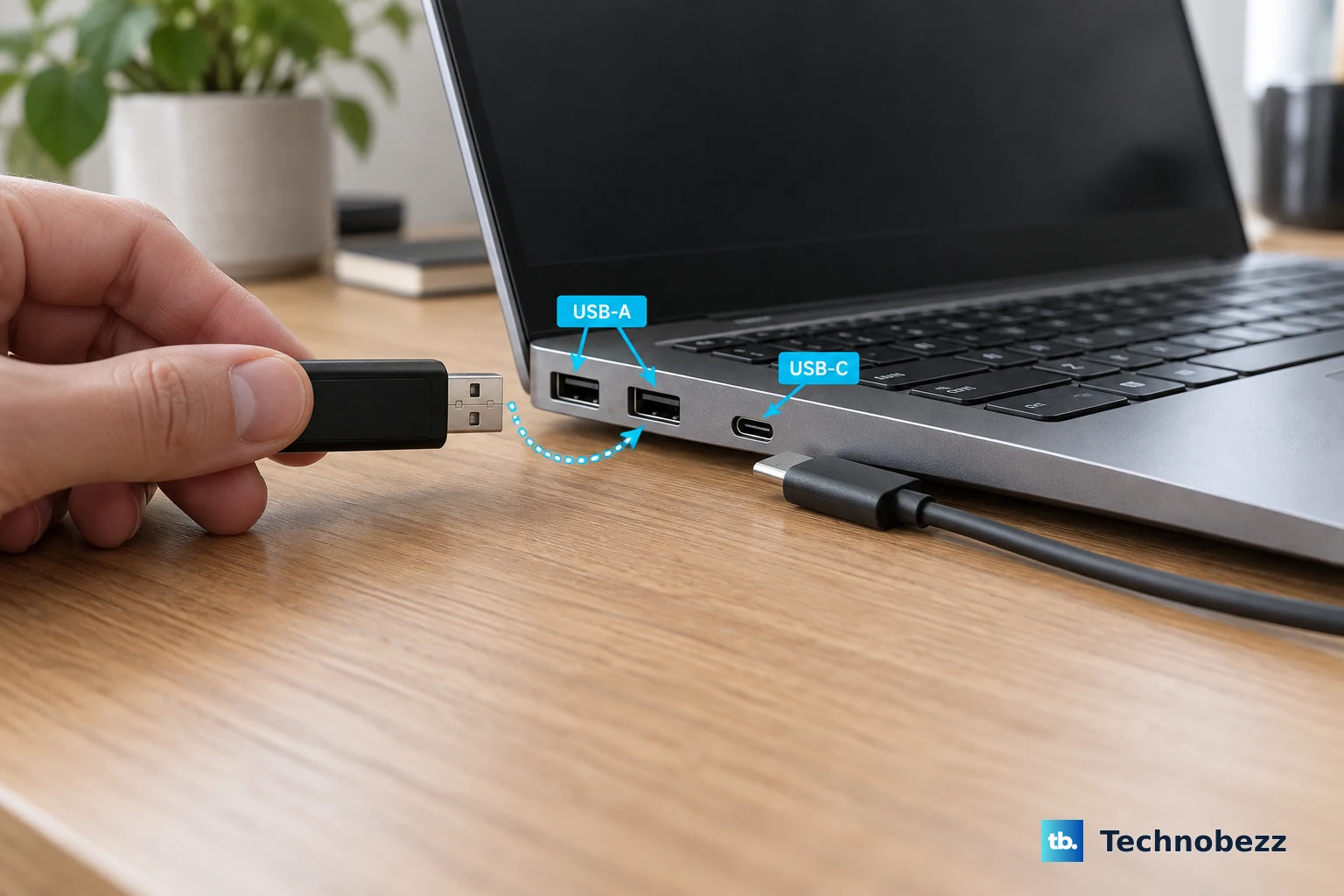
Unplug your device and move it to another USB port on your laptop. The Aspire 5 typically has multiple USB-A ports and often a USB-C port. If your device works in a different port, the original one might be physically damaged or have a loose connection internally.
This is the fastest way to rule out a hardware problem with the laptop's port itself. I'd start with this check every time.
Perform a Full Restart
Go ahead and restart your laptop completely. Don't just close the lid or put it to sleep. A full restart clears temporary glitches in the USB controller and reloads all the necessary drivers from scratch.
This simple step resolves a surprising number of detection issues. It's especially useful if the USB device was working fine earlier in the day.
Test the USB Device on Another Computer
To figure out where the fault lies, plug the problematic USB device into a different PC. If it isn't recognized there either, the device or its cable is likely the culprit.
If it works perfectly on another machine, then the issue is isolated to your Acer Aspire 5's configuration, drivers, or power settings.
Swap Out the USB Cable
If you're connecting something like an external drive or phone with a cable, try a different one. Cables fail over time, and a cable that still delivers power might have broken internal wires responsible for data transfer.
Use a known-good cable that you're sure works for data syncing, not just charging.
Update or Reinstall USB Drivers
Press the Windows key + X and select Device Manager. Look for the section called Universal Serial Bus controllers and expand it. Right-click on your USB device if it's listed with a yellow warning icon, or on generic USB hubs, and choose Update driver.
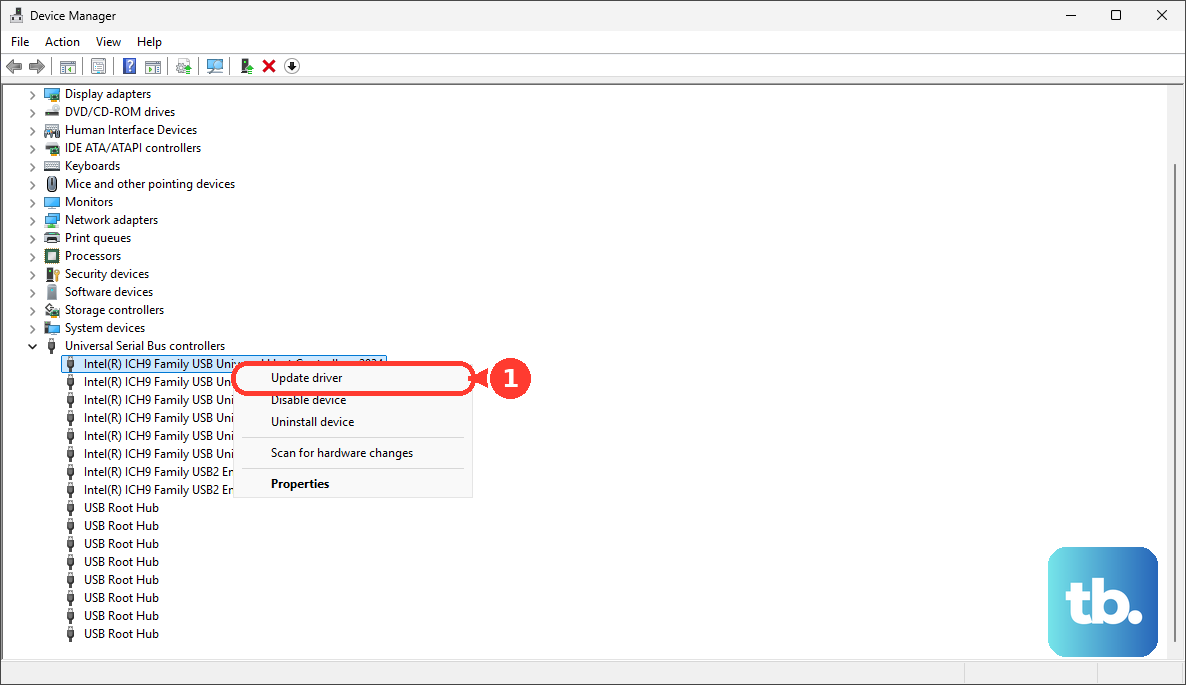
You can also try Uninstall device and then restart your laptop. Windows will automatically reinstall the driver upon reboot, which often cleans up corrupted files.
Disable USB Selective Suspend Setting
Windows tries to save power by temporarily turning off USB ports it thinks are idle. This can sometimes prevent devices from being detected. To turn this off, go to Control Panel > Hardware and Sound > Power Options.
Click Change plan settings next to your selected plan, then Change advanced power settings. Find USB settings, expand it, and set USB selective suspend setting to Disabled. Click Apply and OK.
Use the Built-in Hardware Troubleshooter
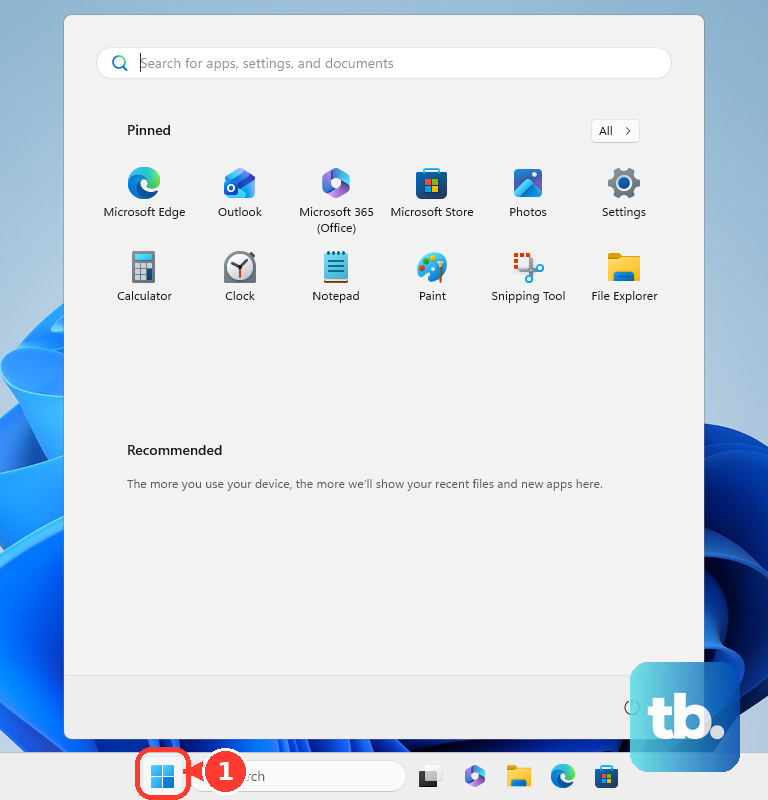
Windows includes a tool that can automatically find and fix some hardware problems. Open the Start menu, type "cmd", right-click on Command Prompt, and select Run as administrator.
In the window, type msdt.exe -id DeviceDiagnostic and press Enter. Follow the prompts in the troubleshooter that opens; it will scan for issues with USB devices and other hardware.
Install All Available Windows Updates
Go to Settings > Windows Update and click Check for updates. Install all important and optional updates. Microsoft and Acer frequently release driver and firmware updates that improve USB compatibility and stability.
After the updates install, restart your laptop to ensure the changes take effect properly.
Run a Manual Hardware Detection Scan
Back in Device Manager, click on the Action menu in the top bar. Select Scan for hardware changes. This forces Windows to immediately check all connections and often prompts it to recognize a plugged-in device it was previously ignoring.
It's a good final step after trying driver updates or changes to your power settings.