
Screen flickering on your Acer Aspire 5 15 can turn a simple task into a frustrating ordeal. You might see rapid flashes, horizontal lines, or the entire screen going black for a split second. It's a common issue with a few straightforward fixes you can try yourself.
Update Your Display Drivers
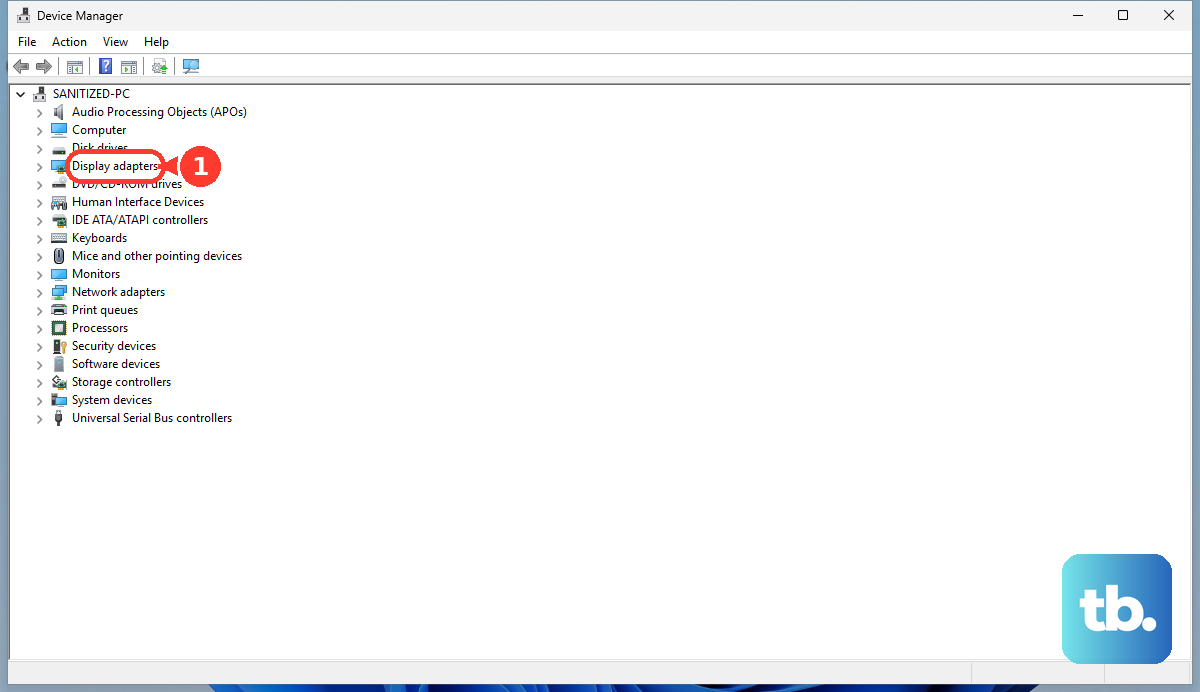
Outdated or corrupted graphics drivers are the most common cause of screen flickering. For your Aspire 5, you'll want to get the driver directly from the manufacturer. First, identify your GPU by checking Device Manager under Display adapters. It's likely an Intel Iris Xe or an NVIDIA GeForce MX series card.
Visit the Intel or NVIDIA website, use their auto-detect tool or manually search for your specific model, and download the latest driver. Running the installer will typically do a clean update. I've found that skipping Windows Update for GPU drivers on Acer laptops often yields a more stable result.
Adjust the Screen Refresh Rate
Right-click on your desktop and select Display settings. Scroll down and click Advanced display. Here, you can see and change your refresh rate. The Aspire 5 usually has a 60Hz panel.
Try switching it to 59.94Hz or 50Hz if available. Sometimes, a slight mismatch between the display's expected signal and what the GPU sends can cause flickering, and this simple tweak can resolve it instantly.
Check for Overheating
The Aspire 5 can run warm during heavy use, and excessive heat can cause the GPU or display components to behave erratically. Feel the bottom of the laptop and the area above the keyboard. If it's very hot to the touch, that could be contributing to your problem.
Make sure the vents on the bottom and side aren't blocked. Use the laptop on a hard, flat surface. You can also run the Acer Care Center app, which came pre-installed, to check system temperatures and run the fan diagnostic test.
Disable Hardware Acceleration in Apps
Some applications, particularly web browsers like Chrome and Edge, use your GPU to render content. A conflict here can cause flickering only within that app. In Chrome, go to Settings > System and turn off Use hardware acceleration when available.
Restart the browser and see if the flickering stops. Other software like video players or messaging apps have similar settings in their preferences menus. This is a quick way to rule out software-specific issues.
Boot Into Safe Mode
If the flickering is constant, booting into Safe Mode will load Windows with only essential drivers. Hold the Shift key while clicking Restart in the Start menu. Navigate to Troubleshoot > Advanced options > Startup Settings and restart.
Press 4 or F4 to enable Safe Mode. If the screen is perfectly stable here, you know a third-party driver or startup program is the culprit. You can then use System Configuration (msconfig) to perform a clean boot and isolate the problematic software.
Run Windows Update and Acer Updates
Go to Settings > Windows Update and install all available updates. Critical display and system fixes are often delivered this way. Next, open the Acer Care Center app and check for updates in the "Updates" or "Driver" section.
Acer provides model-specific drivers and firmware that are tuned for your hardware. Ensuring both Windows and Acer's own packages are up to date covers all your bases. Don't forget to restart after installing updates.
Check for a Loose Internal Connection
This is a hardware possibility, especially if the flickering changes when you gently flex the laptop lid or press on the bezel. The ribbon cable connecting the display to the motherboard can work loose over time.
It's a more delicate fix that usually requires opening the base of the laptop and reseating the cable. If you're not comfortable with that, it's a sign to seek professional repair. This is less common than driver issues but worth considering if all software steps fail.
Roll Back a Recent Display Driver
Did the flickering start right after you updated a driver? You can revert to the previous version. Open Device Manager, expand Display adapters, right-click your GPU, and select Properties.
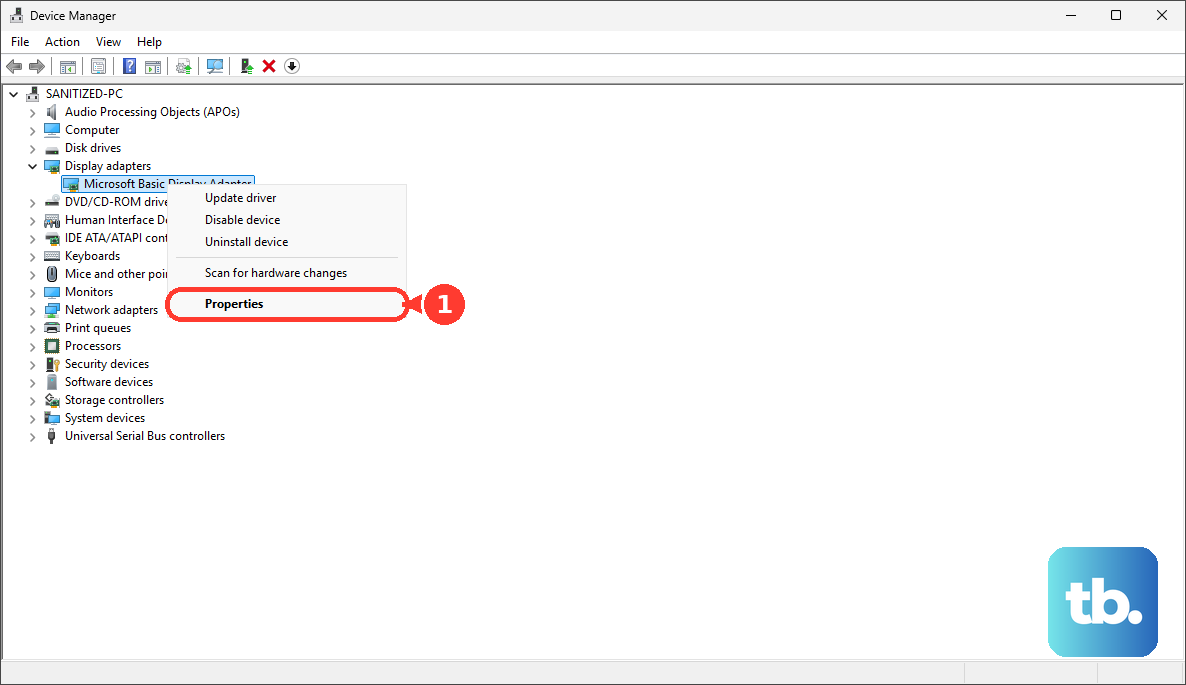
Go to the Driver tab and click Roll Back Driver. If the option is grayed out, Windows doesn't have the old driver saved. This rollback can immediately fix problems introduced by a bad update.
Perform a System Restore
If you can pinpoint when the flickering began, System Restore can return your laptop to a previous state. Type "create a restore point" in the Windows search bar and open the System Properties window. Click System Restore and follow the prompts.
Choose a restore point from a date before the problem started. This will undo system changes, including driver installations and Windows updates, without touching your personal files. It's a powerful last-resort software fix before considering hardware.