
A slow Acer Aspire 5 can turn a productive day into a frustrating crawl. The good news is that most slowdowns are caused by software or settings that you can fix yourself. I'd start with the basics, as they often clear up the issue right away.
Perform a Full Restart
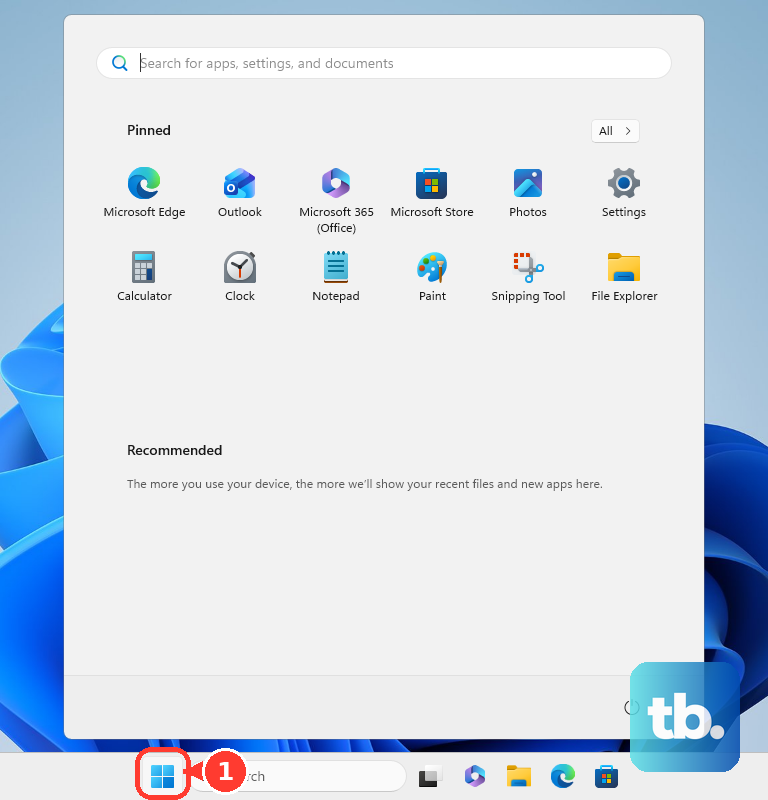
If you usually just close the lid, your laptop has likely been in sleep mode for weeks. This can cause memory leaks and leave background processes hanging. Click Start > Power > Restart to give your system a fresh start. Don't just shut down, as Windows Fast Startup doesn't fully clear everything.
Use Task Manager to Find the Culprit
Press Ctrl + Shift + Esc to open Task Manager. Click on the CPU, Memory, or Disk columns to sort by what's being used the most. You might find a single program, like a web browser with too many tabs or a background update, hogging all your resources. Right-click on anything suspicious and select End task.
Stop Unnecessary Programs from Launching at Boot
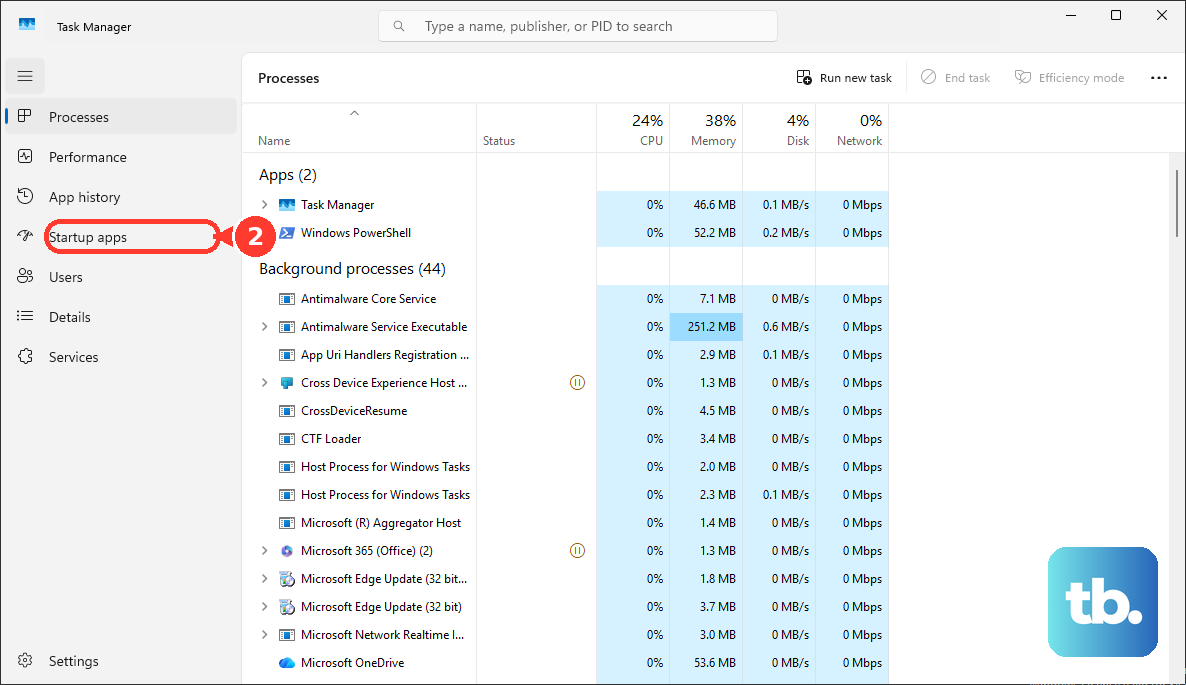
Too many apps launching when you turn on the laptop is a common cause of a slow startup. In Task Manager, go to the Startup apps tab. Look for items like Spotify, Steam, or Skype that have a "High" impact. Right-click and Disable anything you don't need immediately when Windows loads.
This is especially helpful on the Aspire 5, as some factory-installed Acer software can auto-start. Disabling these can free up valuable RAM and CPU cycles from the moment you log in.
Clean Up Your Hard Drive
A drive that's over 85% full will slow down any computer. Open Settings > System > Storage. Click on Temporary files and check the boxes for items like "Delivery Optimization Files" and "Windows Update Cleanup." You can safely delete these to reclaim space.
For a more thorough clean, use the built-in Disk Cleanup tool. Search for it in the Start menu, select your C: drive, and clean up system files. Aim to keep at least 20% of your main drive free for optimal performance.
Run a Malware Scan
Malicious software running in the background can cripple your laptop's speed. Open Windows Security from the Start menu. Go to Virus & threat protection and click Scan options. Choose Full scan and let it run. It will take a while but it's the most thorough way to check for hidden threats.
Update Everything
Outdated drivers and Windows itself can lead to performance bugs. First, go to Settings > Windows Update and install all available updates. Next, use the Acer Care Center app that came with your laptop. It can check for specific driver and BIOS updates from Acer that Windows Update might miss.
Pay attention to chipset, graphics, and network adapter drivers. Some users have reported slower WiFi on base model adapters, which a driver update can sometimes resolve.
Change Your Power Plan
Windows often defaults to a "Balanced" power plan that limits performance to save battery. Plug in your laptop and search for "Choose a power plan" in the Start menu. Select High performance. If you don't see it, click "Create a power plan" on the left and make one. This tells your Aspire 5 to run at full speed.
Reduce Visual Animations
Fancy window effects use your processor and graphics card. Search for "Adjust the appearance and performance of Windows" in the Start menu. In the Visual Effects tab, select Adjust for best performance to turn everything off. This makes the interface less flashy but can feel much snappier on older hardware.
Consider a Hardware Upgrade
If your Aspire 5 has a traditional hard drive (HDD) and only 4GB or 8GB of RAM, upgrading is the most effective permanent fix. Adding more RAM helps with multitasking, while swapping an HDD for a solid-state drive (SSD) is transformative. An SSD makes Windows boot and programs load in seconds.
Some budget configurations of the Aspire 5 come with slower SSDs. Upgrading to a faster NVMe SSD, if your model supports it, can provide another noticeable speed boost for file transfers and loading times.
Reset Your Laptop
If you've tried everything and the slowness persists, a Windows reset can wipe away years of accumulated software clutter. Go to Settings > System > Recovery and click Reset PC. Choose Keep my files to reinstall Windows while preserving your personal documents. Remember, this will remove all your installed applications.
Before you reset, you can try booting into the Acer recovery environment by pressing Alt + F10 during startup. This can sometimes offer repair options. For major changes like accessing the BIOS to check settings, press F2 when you first power on the laptop.