
That sudden blue screen on your Acer Aspire 5 15 is Windows hitting the emergency brake. It's a protective crash, usually triggered by a driver conflict, faulty hardware, or a corrupted system file. The cryptic error code is your main clue, but the solutions below tackle the most common root causes for this laptop.
Write Down the Stop Code
When the blue screen appears, look for the all-caps stop code like "DRIVER_IRQL_NOT_LESS_OR_EQUAL" or "SYSTEM_SERVICE_EXCEPTION." Jot it down or take a picture with your phone. This code points to the category of failure, which is useful for searching later. The general fixes here, however, will resolve the vast majority of BSODs on the Aspire 5.
Perform a Full Restart
A single, isolated blue screen can sometimes be a fluke. Hold down the power button until the laptop turns off completely, wait 30 seconds, then press it again to boot up. If Windows loads normally and the problem doesn't recur, it was likely a temporary glitch. If the BSOD happens again during startup or shortly after logging in, you have a persistent issue to fix.
Boot Into Safe Mode
If the laptop crashes before you can reach the desktop, you'll need to boot into Safe Mode. From the sign-in screen, hold the Shift key while you click the power icon and select Restart. After the restart, navigate to Troubleshoot > Advanced options > Startup Settings > Restart. When it reboots again, press the 4 key to enable Safe Mode. This loads Windows with only essential drivers, which can help you bypass the crashing component.
Uninstall Problematic Software or Drivers
Think about what changed just before the crashes began. If you recently installed a new program, a peripheral, or a driver update, that's your prime suspect. Boot into Safe Mode and uninstall that software from the Control Panel. For drivers, you can use Device Manager to roll back to a previous version. I've seen third-party antivirus suites or outdated graphics drivers cause this on the Aspire 5.
Update Your Drivers Systematically
Outdated or buggy drivers are the leading cause of BSODs. Don't just rely on Windows Update. Visit Acer's official support page for your specific Aspire 5 model and download the latest chipset, audio, and network drivers. For your graphics, go directly to the Intel, NVIDIA, or AMD website to get the latest GPU driver. The Acer Care Center app, which comes pre-installed, can also check for some driver updates.
Run the System File Checker
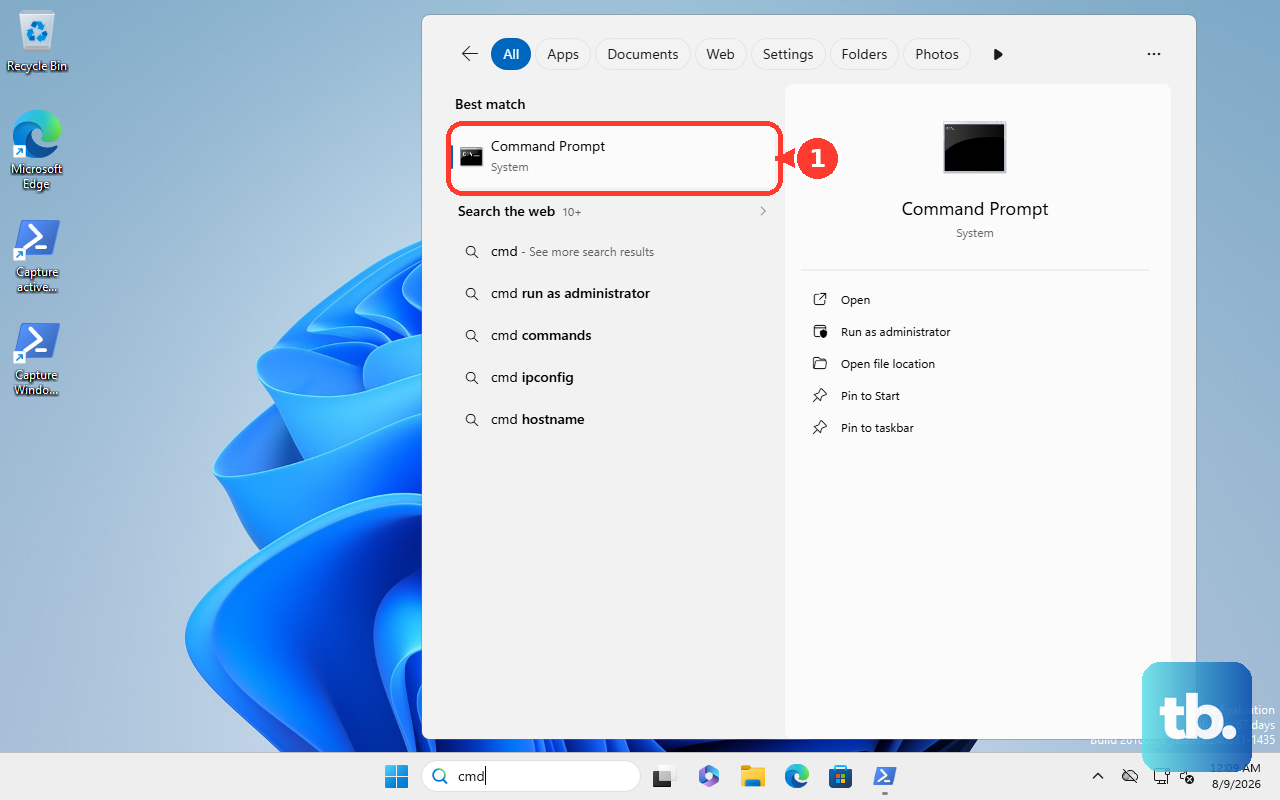
Corrupted Windows system files can trigger crashes. Right-click the Start button and select Windows Terminal (Admin) or Command Prompt (Admin). Type the command sfc /scannow and press Enter. This tool will scan and attempt to repair any damaged system files. If it finds problems it can't fix, run DISM /Online /Cleanup-Image /RestoreHealth first, then try sfc again.
Test Your RAM with Windows Memory Diagnostic
Faulty memory is a classic hardware cause for random BSODs. Type "Windows Memory Diagnostic" into the Start menu and run it. Choose Restart now and check for problems. Your Aspire 5 will reboot and run a comprehensive memory test before Windows loads. Any errors reported after the restart mean you likely have a bad RAM stick that needs replacing.
Check Your Storage Drive for Errors
Open an Administrator Command Prompt as before. To check your main drive, type chkdsk C: /f /r and press Enter. If it asks to schedule the scan for the next restart, type Y and then restart your laptop. This scan looks for and repairs file system errors and bad sectors on your SSD or hard drive. Numerous bad sectors could indicate a failing drive.
Address Potential Overheating
The Acer Aspire 5 15 can run hot under sustained load. If BSODs happen during gaming, video editing, or other intensive tasks, overheating is a likely culprit. Make sure the laptop's vents on the bottom and sides are not blocked. Use it on a hard, flat surface, and consider a laptop cooling pad for better airflow. Dust buildup inside can also cause thermal throttling and crashes.
Perform a System Reset
If all else fails, a Windows reset can wipe out deep-seated software corruption. Go to Settings > System > Recovery and click Reset this PC. Choose Keep my files to reinstall Windows while preserving your personal data. This is a nuclear option for software issues, but it often works. You can also access this by pressing Alt + F10 during boot to launch Acer's recovery environment.