You tap the Settings icon on your Xiaomi 15, the panel flashes open for a second, and then the phone sends you straight back to the home screen before you can change a single toggle.
When the one app you rely on to manage Wi-Fi, storage, updates, and privacy keeps closing on its own, the whole device can feel locked down even though messaging, the camera, and your other apps still run fine.
On a Xiaomi 15 running Xiaomi HyperOS 2 (the Android-based software this model ships with), a Settings app that keeps crashing is almost always a software hiccup rather than broken hardware.
The standard HyperOS troubleshooting flow is built to clear exactly this kind of fault. Work through the fixes below in order; they start with the safest, no-data-loss steps and only reach a reset near the end.
Restart the Xiaomi 15 before anything else
Xiaomi's first-line answer for almost any system glitch is the simplest one, which is to restart the phone and check whether the issue persists.
Try a normal power-off and power-on first. A reboot clears temporary memory and stops the background process that may be dragging the Settings app down with it.
If a crash has frozen the screen and the phone will not respond to taps, do a forced restart instead.
Press and hold the power button for more than 10 seconds until the device powers off and the startup logo appears again.
Do not reach for the 40-second power-plus-both-volume combination you may see elsewhere, because that sequence is only for a brand-new Xiaomi 15 that will not switch on out of the box due to transit battery-saver mode, not for a routine reboot.
Install the latest Xiaomi HyperOS 2 update
Many crashes and abnormal shutdowns trace back to a software bug that a newer build already fixes.
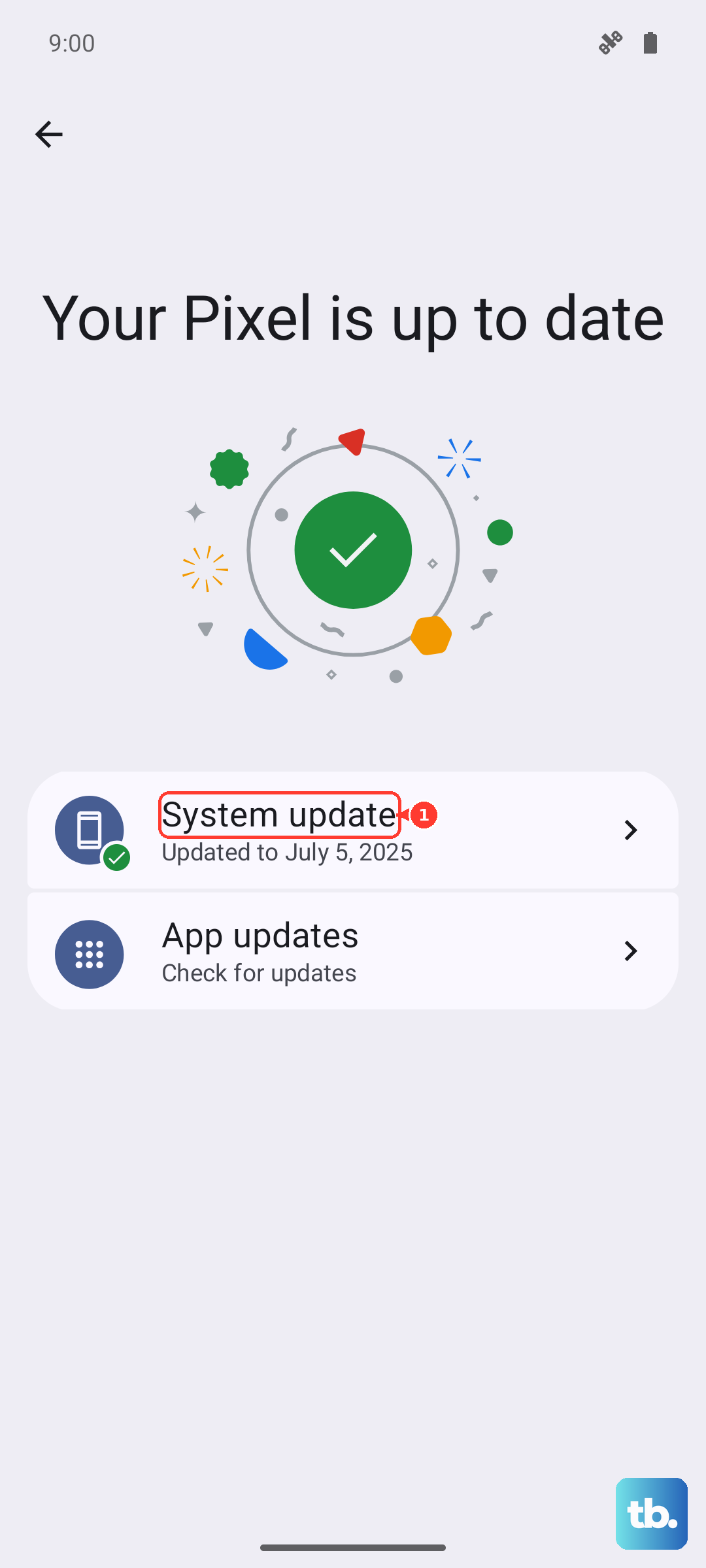
Xiaomi recommends updating the device to the latest version of the system, since some system bugs can cause abnormal behavior, and a Settings crash is a strong candidate for that category.
Open Settings > About phone > Xiaomi HyperOS > Check for updates.
If an update is offered, download and install it.
Before you start, connect to a stable Wi-Fi network and make sure the battery has a comfortable charge or keep the phone plugged in.
Then leave it alone until it finishes. Interrupting a system install partway through can create new problems, so do not power off or yank the connection mid-update.
Clear the data behind the app that keeps closing
If one specific app is the thing that keeps crashing, wiping its stored data forces it back to a clean, first-launch state.
Xiaomi's path for this is Settings > Apps > Manage apps > find the crashing app > Clear data.
Be aware of what this removes. Clearing data deletes that app's cache and saved information, such as chat history, game progress, and sign-in details.
Afterward, the app behaves like a fresh install and you may need to log back in. It only affects the single app you choose, not your photos, contacts, or other apps.
Use Safe Mode to expose a misbehaving app
Safe Mode starts the Xiaomi 15 with only its built-in system apps loaded and every third-party app disabled, which makes it the fastest way to tell whether a downloaded app is the real cause of the crashing or freezing.
Power off the phone.
Press and hold the power button.
When the startup logo appears and the phone vibrates, release the power button and press and hold the volume down button. A [Safe mode] label shows in the lower-left corner of the screen.
Now use the phone as normal.
If Settings stops crashing in Safe Mode, a third-party app is responsible, and your job becomes finding and fixing that app.
To leave Safe Mode, simply power off the phone and restart it.
Once you are back in normal mode, update the suspect app to its latest version from the store, or clear its data and reinstall it.
The path is Settings > More apps > [app] > Clear data, after which you can reinstall the app from Google Play for a clean copy.
Apps pulled from third-party stores can be incompatible with HyperOS, so if an app stays broken after a HyperOS upgrade, wait for the developer's compatibility update or switch to a similar app that works.
Report the bug through Help and Feedback
If nothing you have tried points to a single app and the crash looks like a system-level bug, report it directly so it can be fixed in a future build.
Xiaomi asks owners to submit feedback through the preinstalled Help and Feedback app.
Reporting the problem will not fix the crash on the spot, but it is the official channel for a genuine HyperOS fault and lets Xiaomi's team investigate and address it in a later system update.
It is worth doing alongside the other steps.
Re-download the firmware if the crashes began after an update
Sometimes a system update lands incompletely or with a corrupted package, and the crashing starts immediately afterward.
When that is the timeline, Xiaomi's guidance is to restart the phone first, then manually pull the firmware again rather than waiting for it to retry on its own.
Restart the phone.
Open Settings > About phone > tap the Xiaomi HyperOS icon > tap the three-dot icon at the upper-right corner > Down latest package.
If the crashing still continues, a factory reset (after backing up) is the final way to clear a stubborn system-level fault.
One thing to note is that the built-in updater re-downloads the latest package rather than an older build, so re-pulling the current firmware is the correct move here.
Factory reset as the last self-service step
A factory reset returns the Xiaomi 15 to its original settings and is the most thorough way to clear a deep software fault, but it erases all data, settings, apps, and personal information on the phone.
Back up everything you care about before you begin.
If Settings still opens long enough to use, follow this path.
Open Settings > About phone > Factory reset > Erase all data > choose Back up or not > perform Factory reset.
If Settings itself will not stay open, you can wipe the phone from Recovery Mode instead:
- 1.Power off the phone.
- 2.Press and hold Volume up and Power together to enter Recovery Mode.
- 3.Press Volume down to highlight Wipe Data, then press Power to confirm.
- 4.Press Volume down to highlight Wipe All Data, then press Power to confirm.
All data will be erased, so this is only worth doing once your backup is safe.
Reassuringly, a factory reset does not change the phone's OS version, so you will still be on the same Xiaomi HyperOS 2 build afterward.
When to hand the Xiaomi 15 to an authorized service center
If the crashing and freezing survive every software step above, including a clean factory reset, the cause may no longer be software at all.
Xiaomi advises taking the device to a nearby authorized after-sales service center for inspection, since persistent faults can also stem from a hardware problem that only a technician can diagnose.
Going through the restart, update, app, feedback, and reset steps first is still worthwhile, because it rules out the easy causes and gives the service center a clear picture of what has already been tried.
Frequently Asked Questions
Will clearing an app's data delete my photos and files?
No. Clearing data through Settings > Apps > Manage apps removes only that single app's cache and stored information, such as its chat history, game progress, and sign-in, so the app starts fresh. Your photos, contacts, and other apps are untouched.
Does a factory reset downgrade my Xiaomi HyperOS version?
No. A factory reset erases your data and returns the phone to its original settings, but it does not change the OS version, so you stay on the same Xiaomi HyperOS 2 build you were on before.
Can I roll back to an older HyperOS version if a new update caused the crashes?
The built-in updater re-downloads the latest package rather than older versions. If a recent update seems to have caused the trouble, restart the phone and re-download the latest package via Settings > About phone > tap Xiaomi HyperOS > the three-dot icon at the top right > Down latest package.
How do I restart the Xiaomi 15 if the screen is frozen during a crash?
Press and hold the power button for more than 10 seconds to force a restart. This works even when taps are unresponsive and is the safe choice for a frozen screen.
How do I reach Safe Mode if Settings will not open at all?
Power off the phone, then press and hold the power button; when the startup logo appears and the phone vibrates, release power and hold volume down until the [Safe mode] label shows in the lower-left corner. To exit, just power off and restart normally.