
When your Xiaomi 14T Pro's Settings app keeps closing, it's usually a temporary software hiccup. The quickest thing to try is a simple restart. Just press and hold the power button until the power menu appears, then tap "Restart." This clears out any minor glitches in memory that might be causing the crash.
Clear the Settings App Cache and Data
If a restart didn't help, the next step is to clear the Settings app's cache. This storage is for temporary files that help the app run faster, but they can sometimes get corrupted. Go to Settings > Apps > Manage apps. Find and tap on "Settings" from the list.
Inside the Settings app info, tap on Storage usage. Here, you'll see two buttons: "Clear cache" and "Clear data." Tap "Clear cache" first. This is safe and won't delete any of your personal settings.
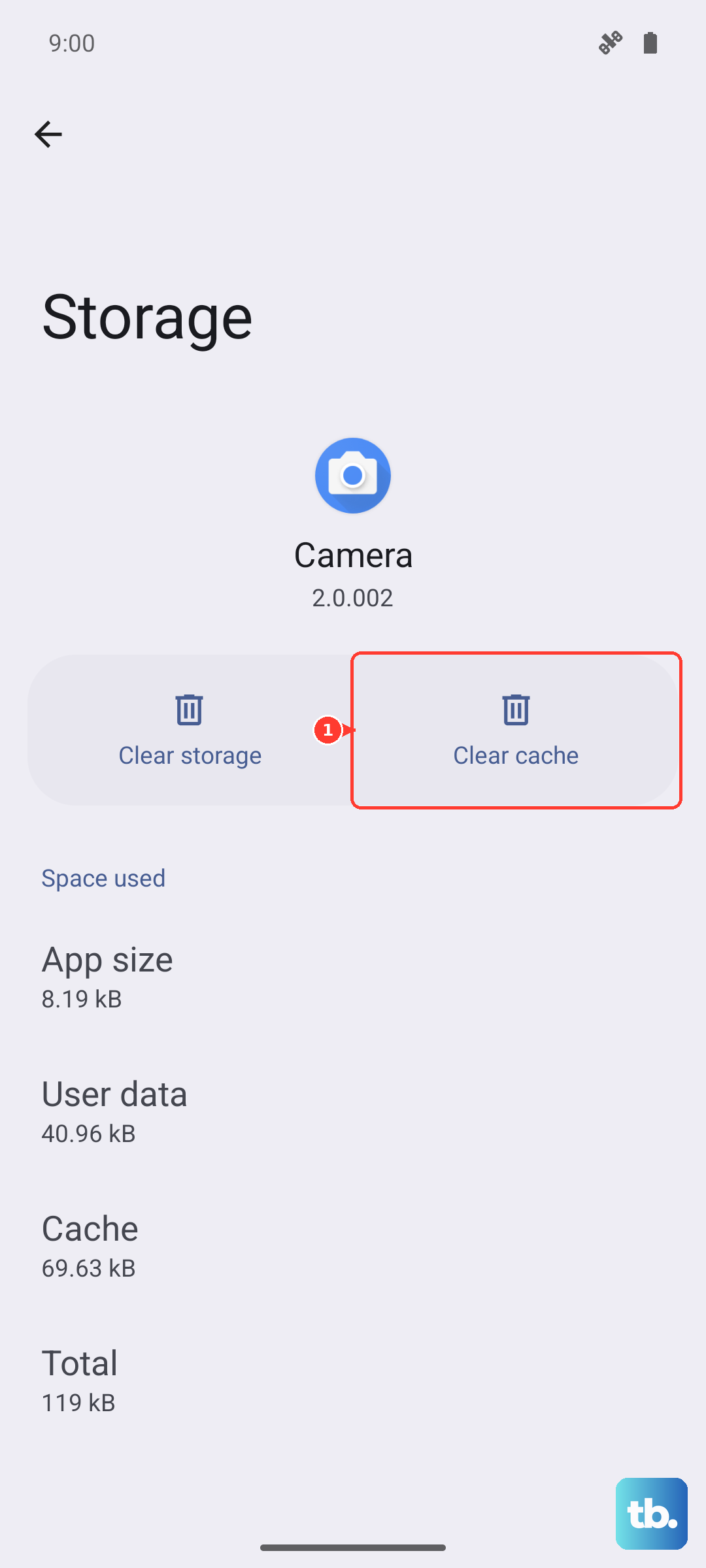
If the app is still crashing, you can go back and tap "Clear data." This is a stronger fix. It will reset the Settings app to its default state, so you might lose some customized preferences, but your core system settings and accounts will remain intact.
Check for a System Update
Xiaomi frequently releases updates for HyperOS that include bug fixes and stability improvements. An outdated system can have conflicts that cause core apps like Settings to misbehave. To check, open Settings (if you can) and go to About phone > HyperOS version.
Tap the "Check for updates" button. If an update is available, make sure your phone is charged above 50% and connected to Wi-Fi before installing it. I've found that updates often resolve these kinds of persistent app crashes, especially on newer phones like the 14T Pro.
Review Recently Installed or Updated Apps
Sometimes, a third-party app you recently installed or updated can interfere with system processes. This is more common if the app requests broad permissions. Think about any new apps you added just before the Settings app started crashing.
You can try booting your phone into Safe Mode. This temporarily disables all third-party apps. To do this, press and hold the power button, then press and hold the "Power off" option on your screen until you see the Safe Mode prompt. If Settings works fine in Safe Mode, a downloaded app is likely the culprit.
You'll need to restart to exit Safe Mode. Then, you can start uninstalling recent apps one by one to find the problematic one. Pay special attention to any utility apps, cleaners, or apps that modify system themes.
Manage Google Play Services
The Settings app relies on Google Play Services for various background functions. If Play Services is acting up, it can cause system apps to crash. Head back to Settings > Apps > Manage apps and find "Google Play services."
Tap on it, then go to Storage usage. Tap "Clear cache" here first. If the problem continues, you can tap "Manage space" and then "Clear all data" for Google Play Services. Don't worry, this will rebuild itself, though you may need to re-sign into some apps.
Consider a Factory Reset
If you've tried everything and the Settings app is still unusable, a factory reset is the final step. This will erase all data on your phone, so it's crucial to back up everything important first. You can use Xiaomi Cloud or manually transfer photos and files to a computer.
To perform the reset, go to Settings > About phone > Factory reset. Tap "Erase all data" and follow the prompts. After the phone restarts, set it up as new to see if the issue is resolved. Avoid restoring a full backup immediately, as it could bring back the corrupted data.