
When your Xiaomi 14T Pro stops ringing for incoming calls, it can leave you feeling disconnected. This problem on HyperOS can stem from a misconfigured setting, a network hiccup, or even a bit of pre-installed software getting in the way. I'd start with the quick checks, as they resolve the majority of these silent phone issues.
First, pull down the notification shade twice to see the full Quick Settings panel. Make sure the airplane icon isn't highlighted. If it is, tap it to turn Airplane Mode off. While you're there, also toggle the mobile data icon off and back on. This simple refresh of your network connection can sometimes kick things back into gear instantly.
Next, check your signal strength. The Dimensity 9300+ chip is powerful, but it won't help if you're in a basement or a rural area with weak coverage. Look at the network bars in the top-right corner. If they're low or showing an "X," moving to a different location or near a window is your next logical step.
Review Do Not Disturb and Focus Modes
HyperOS has several ways to silence your phone that are easy to enable accidentally. Swipe down and check for a crescent moon icon in your Quick Settings. If it's active, tap it to turn off the standard Do Not Disturb mode.
For more granular control, go into Settings > Sound & vibration > Do Not Disturb. Here, look at the rules and schedules. A misconfigured schedule could be blocking calls during your work hours without you realizing it. Also, check the "Exceptions" section to ensure "Calls" are allowed from your contacts or at least from starred contacts.
Check for Call Blocking and Spam Protection
Xiaomi's dialer includes aggressive spam protection that might be a little too good. Open your Phone app, tap the three-dot menu in the top-right, and go to Settings > Call blocking & identification.
Look at the "Blocked numbers" list to see if any important contacts have been added by mistake. Also, review the settings for "Harassment filter" and "Smart identification of nuisance calls." If these are set to automatically block suspected spam, they might be catching legitimate calls. You can try turning them off temporarily to see if calls start coming through.
Inspect Your SIM Card and Network Settings
A loose or faulty SIM card is a classic culprit. The Xiaomi 14T Pro uses a nano-SIM, and the tray is on the bottom edge. Power the phone off completely, then use the SIM eject tool to pop out the tray. Carefully remove the SIM, inspect the gold contacts for any dirt or damage, and then reseat it firmly. Power the phone back on and see if your network connection stabilizes.
If you're still having issues, a network settings reset can clear out any corrupted connection data. Go to Settings > Additional settings > Backup & reset > Reset network settings. Confirm the action. Be aware this will erase all saved Wi-Fi passwords, Bluetooth pairings, and mobile data configurations, so you'll need to reconnect to your networks afterward.
Disable Call Forwarding and Barring
Call forwarding, if accidentally enabled, sends all your incoming calls straight to another number or voicemail. To check, open the Phone app, tap the three-dot menu, and go to Settings > Calling accounts > [Your Carrier] > Call forwarding.
Ensure all options like "Always forward" or "When busy" are set to "Turn off." In the same menu, look for "Call barring" or "Additional settings." Make sure no barring services are active that would block incoming calls, which can sometimes happen if you've entered a wrong code.
Clear the Phone App's Cache and Data
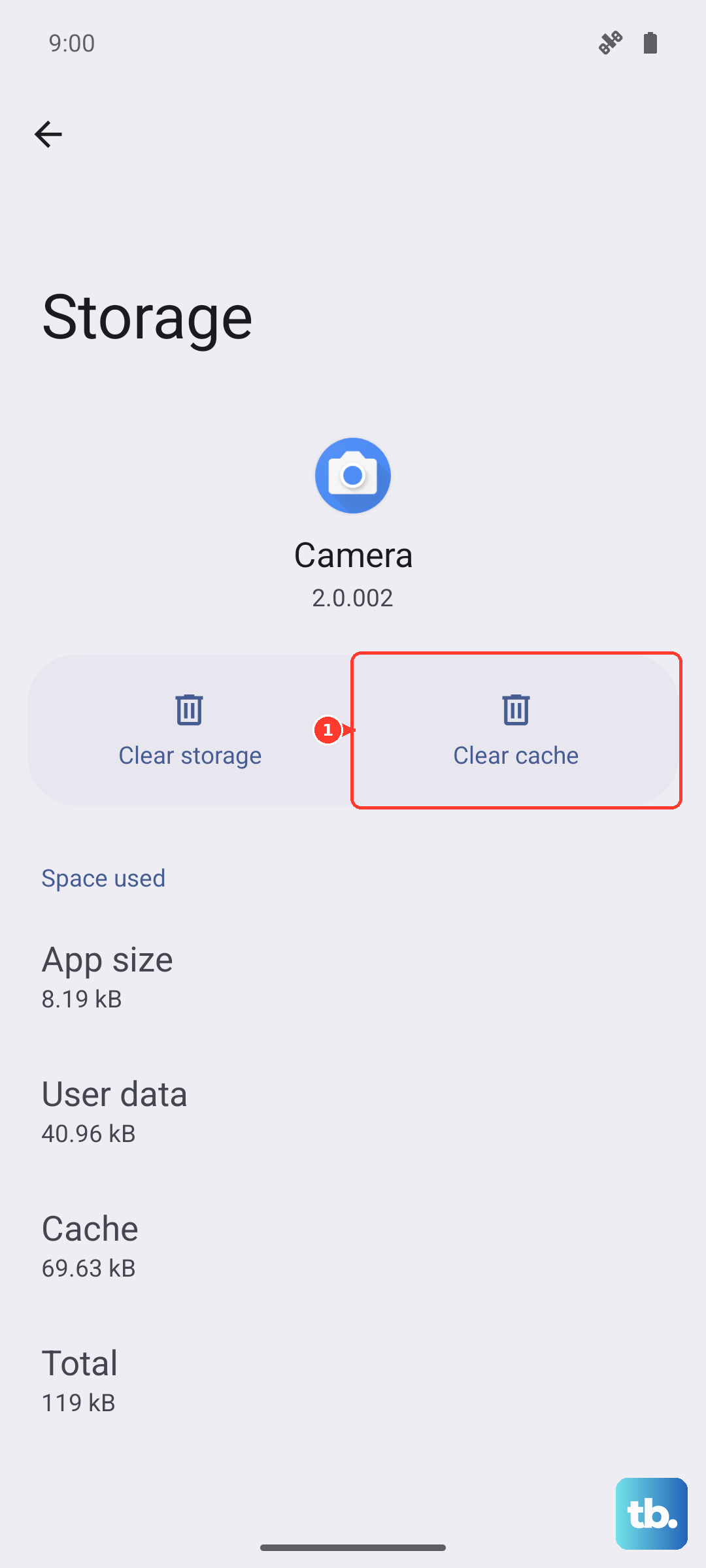
Over time, the Phone app can accumulate corrupted cache data that interferes with its core function. To clear it, head to Settings > Apps > Manage apps. Find and tap on "Phone" in the list.
Tap on "Storage usage" at the bottom, then hit "Clear data." You'll see an option to "Clear all data" or just "Clear cache." Start with "Clear cache" first, as this won't delete your call log or settings. If the problem persists, you can come back and choose "Clear all data," but note this will reset the Phone app to its default state.
Update Your Software and Remove Bloatware
An outdated version of HyperOS might have a bug affecting call handling. Go to Settings > About phone > HyperOS version and tap "Check for updates." If an update is available, install it. The 120W charging can generate heat, so make sure you do this when the phone is cool for a smooth installation.
Some regional variants of the 14T Pro come with pre-installed apps that can cause background interference. It's worth reviewing your installed apps in Settings > Apps > Manage apps. Look for any unfamiliar system or carrier apps you don't use. You can often "Disable" them, which stops them from running. This can free up system resources and eliminate potential conflicts.
Check for App-Specific Permissions
If you use a third-party dialer app from the Play Store, it might not have the correct permissions. Go to Settings > Apps > [Your Dialer App] > Permissions. Ensure that "Phone" and "Contacts" permissions are set to "Allow all the time." Also, check the "Battery saver" settings for that app and set it to "No restrictions" to prevent HyperOS from putting it to sleep.
Perform a Force Restart
If the phone is frozen or unresponsive to the point where calls might be failing in the background, a force restart can clear the slate. Simply press and hold the Power button on the right side for 15 seconds or longer. Keep holding until you feel a vibration and see the Xiaomi logo appear on the screen. This forces a full reboot and can resolve temporary software glitches that a standard restart might miss.
Reset All Settings or Perform a Factory Reset
As a more thorough step before a full wipe, you can try resetting all your settings. This returns system preferences like network, sound, and display to default without touching your personal data. Navigate to Settings > Additional settings > Backup & reset > Reset all settings.
If every other fix has failed, a factory reset is the final option. First, use Xiaomi's cloud service or a computer to back up everything important. Then, go to Settings > Additional settings > Backup & reset > Erase all data (factory reset). Follow the prompts. After the phone reboots, test a call before restoring your full backup, to see if a clean OS installation solves the problem.