
When your Xiaomi 14T Pro's GPS stops locking on, it can leave you stranded in more ways than one. This is usually a software hiccup, especially with the transition to HyperOS on top of Android 14. The good news is you can almost always get it working again with a few simple checks.
I'd start with the quick refresh below. It solves the problem more often than you'd think.
Refresh Your GPS Connection
Swipe down from the top of your screen twice to open the full Quick Settings panel. Find the Location icon, which looks like a teardrop. Tap it once to turn it off, wait about 10 seconds, and then tap it again to turn it back on. This forces the GPS radio to reinitialize and can clear up a temporary glitch instantly.
If that doesn't do it, a full restart is your next best move. Just press and hold the power button until the power menu appears, then tap restart. This clears any system processes that might be interfering with location services.
Check HyperOS Location Permissions and Mode
HyperOS has granular control over location. First, make sure your apps can actually see your location. Go to Settings > Privacy protection > Permission manager > Location. Here, you'll see a list of all your apps. Tap on your navigation app, like Google Maps or Waze, and ensure it's set to "Allow only while using the app" or "Allow all the time."
Next, check the location mode itself. Go back to Settings and tap Location. At the top, make sure the master switch is on. Then, tap on Location services. For the best GPS performance, especially when navigating, you want this set to "High accuracy." This uses GPS satellites, Wi-Fi, and mobile networks together to pin down your location quickly and precisely.
Disable Battery Saver and Manage Heat
The 14T Pro's aggressive battery saving can limit background location access. Pull down your Quick Settings and make sure the battery saver icon isn't highlighted. For a more permanent fix, go to Settings > Battery and turn off any power saving modes while you need navigation.
Also, keep an eye on heat. The Dimensity 9300+ chip and the 120W charging can make the phone quite warm. Extreme heat can cause the system to throttle performance, including the GPS radio. If you've just done a fast charge or the phone feels hot, let it cool down for a few minutes before trying GPS again.
Update Everything and Clear App Data
An outdated app or system software is a common culprit. Open the Google Play Store, tap your profile icon, and go to Manage apps & device > Updates available. Install any updates for Google Maps, Google Play Services, or other navigation apps.
Then, check for a HyperOS update. Go to Settings > About phone > HyperOS version. Tap the "Check for updates" button and install anything that's pending. These updates often contain important bug fixes for connectivity.
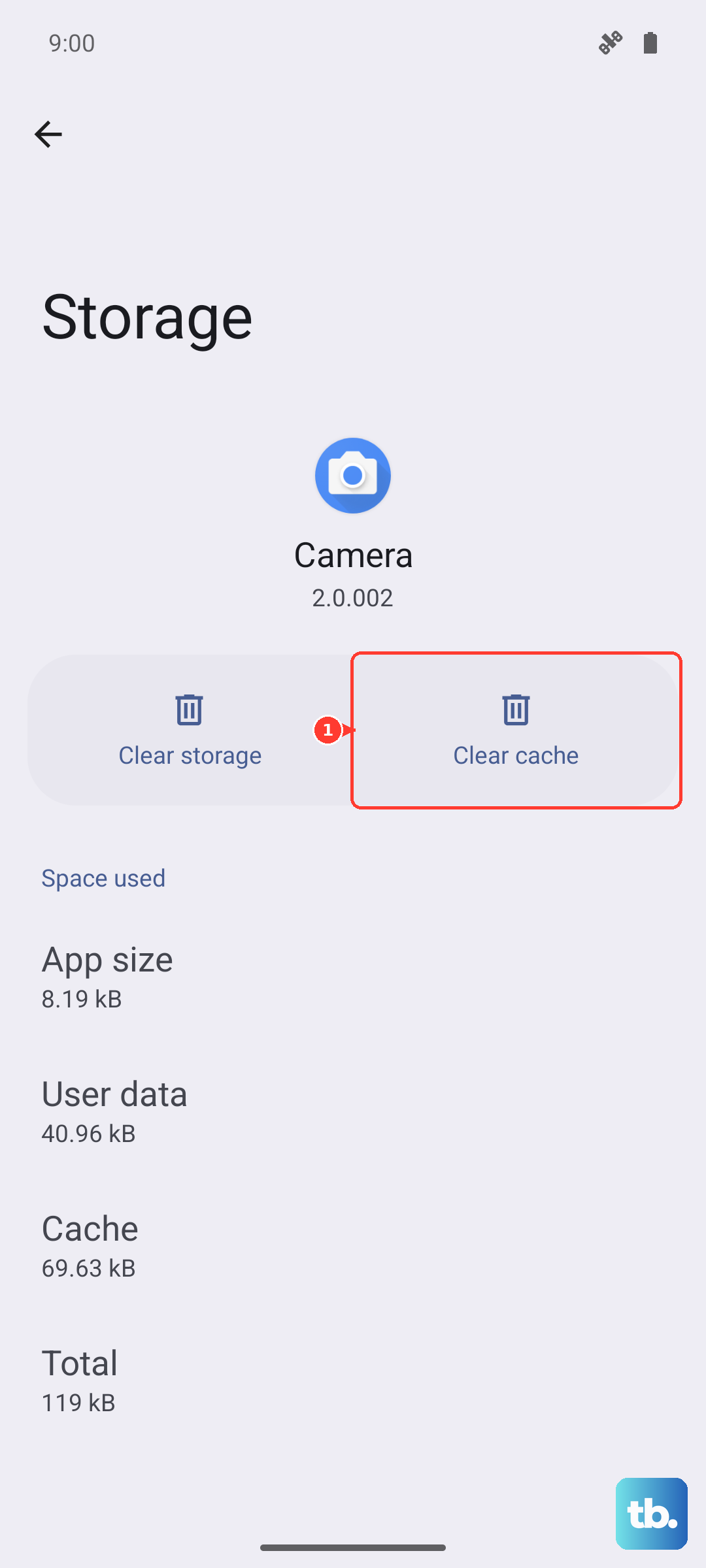
If a specific app is buggy, clear its cached data. Go to Settings > Apps > Manage apps. Find the app (e.g., Google Maps), tap on it, then tap Storage usage > Clear cache. This won't delete your saved places. If the problem is severe, you can tap "Clear data," but this will reset the app to its default state.
Reset Network Settings and Use Airplane Mode
This resets all your wireless radios, including the GPS, back to factory defaults. Go to Settings > Connection & sharing > Reset Wi-Fi, mobile networks & Bluetooth. Tap "Reset settings" and confirm. You'll need to reconnect to Wi-Fi networks and re-pair Bluetooth devices afterward, but it can resolve deep-seated conflicts.
A quicker version of this is the airplane mode trick. Swipe down for Quick Settings and tap the airplane icon to enable it. Wait 15 full seconds, then tap it again to disable it. This cycle forces all the radios, including GPS, to reconnect fresh.
Test in Safe Mode and Check for App Conflicts
If you've installed any apps that tweak location services or system behavior, they could be the issue. Boot into Safe Mode to disable all third-party apps temporarily. Press and hold the power button until the power menu appears. Then, tap and hold the "Power off" option on your screen until you see a prompt to reboot to Safe Mode. Tap "OK."
Once in Safe Mode (you'll see "Safe Mode" in the bottom corner), try opening Maps to see if GPS works. If it does, a recently installed app is likely causing the conflict. Restart normally to exit Safe Mode and try uninstalling apps one by one, starting with the most recent.
Assess the GPS Signal with a Test App
Sometimes you need to see what the phone itself is seeing. Download a free app like "GPS Test" or "GPS Essentials" from the Play Store. Open the app and go outside with a clear view of the sky.
The app will show you a sky view with satellites. If you see zero satellites or the phone never gets a "3D Fix" (which means it's locked onto enough satellites for an accurate position), there could be a deeper software or hardware issue. If you see plenty of satellites and a strong signal but your navigation apps still fail, the problem is almost certainly within the app or your phone's software configuration.
Consider Environmental and Physical Factors
GPS signals are line-of-sight and can be blocked by all sorts of things. Thick metal phone cases, especially ones with magnetic closures for wallets, can interfere. Try removing your case temporarily. Being inside a building, a basement, or a car with a metallic tint can also block or weaken the signal significantly.
For the best lock, step outside or near a window. Tall buildings in cities can also cause "urban canyon" effects, bouncing signals around. If you're in a dense city, your phone will rely more on Wi-Fi and cellular data for assistance, which is why keeping "High accuracy" mode on is so important.