
It's incredibly annoying when your Xiaomi 14T Pro's screen gets stuck in one orientation, especially on a phone with such a vibrant display. The auto-rotate feature relies on a few different systems working together, and a hiccup in any of them can cause it to stop responding.
Thankfully, most of the time it's a simple software or settings glitch that you can fix yourself. Here are the most effective ways to get your screen rotating again on HyperOS.
Toggle the Quick Settings Tile
The absolute first thing to check is the auto-rotate toggle in your notification shade. It's incredibly easy to tap this icon by accident, locking your screen in its current orientation.
Swipe down from the top of your screen to open the Quick Settings panel. Look for the icon that looks like a phone with arrows circling it, or that says "Auto-rotate." If it's grayed out or shows a lock symbol, tap it once to enable it. The icon should light up or change color when it's active.
Restart Your Xiaomi 14T Pro
If the toggle is on but rotation still isn't working, a quick restart is your next best step. This clears out any temporary system glitches that might be confusing the sensors.
Just press and hold the power button until the power menu appears, then tap "Restart." Wait for the phone to fully boot back up. I've found this resolves the issue more often than not, especially if it started happening out of the blue.
Check for App-Specific Rotation Locks
Some apps, particularly video players and games, have their own internal rotation settings that override the system. If rotation only fails in one specific app, the problem is likely with that app, not your phone.
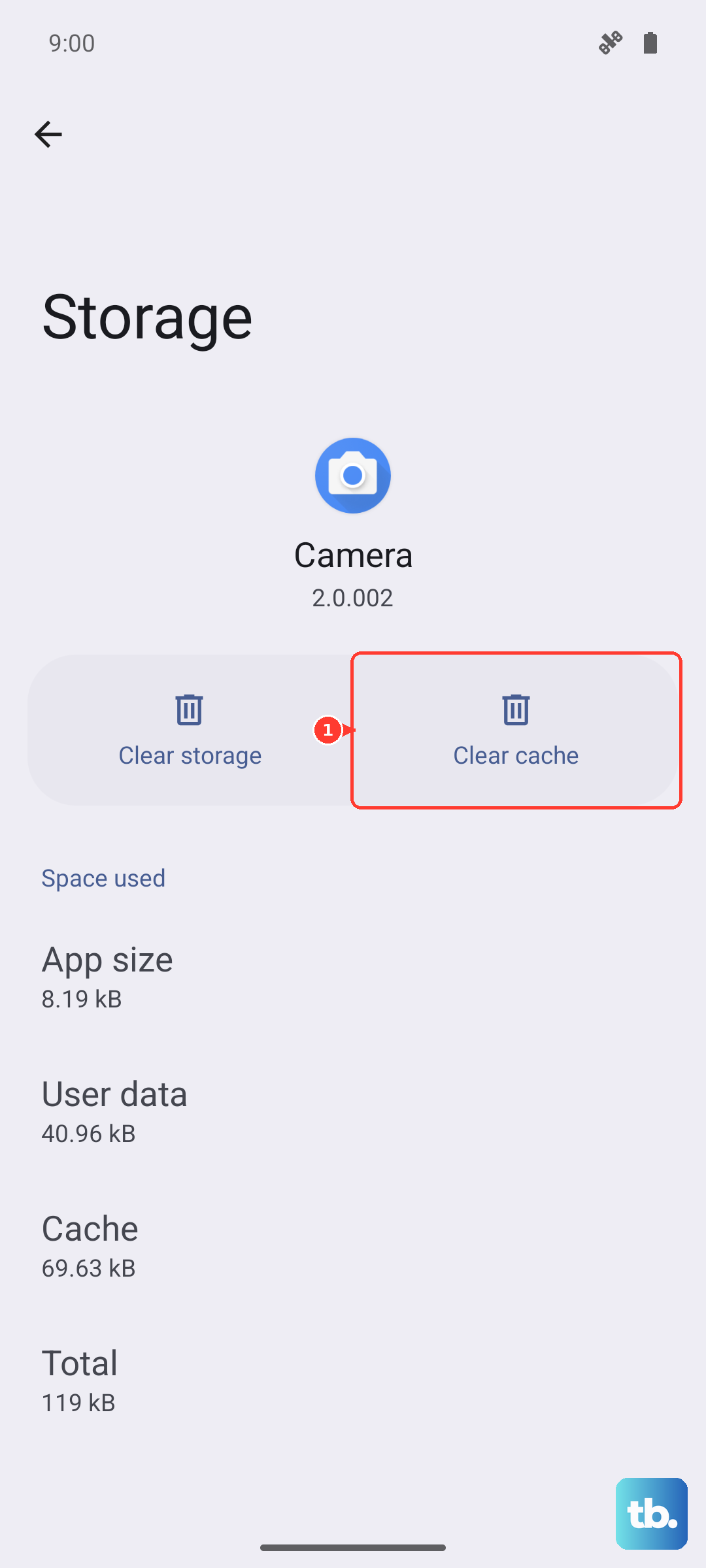
Open a different app, like your web browser or gallery, and try rotating the phone there. If it works everywhere except one app, check that app's settings for a "portrait lock" or "screen orientation" option. You might also try clearing that app's cache from Settings > Apps > [App Name] > Storage & cache > Clear cache.
Perform a Force Restart
For a more thorough refresh than a standard restart, try a force restart. This is different and can clear deeper system hangs without deleting any of your data.
On the Xiaomi 14T Pro, you simply press and hold the power button for 15 seconds or longer. Keep holding it even after you see the screen go black or the Xiaomi logo appear. Release it only once you feel the phone vibrate and see it beginning its normal boot-up sequence.
Update Your System Software
Bugs in HyperOS can occasionally affect sensor performance. Xiaomi regularly releases updates that fix these kinds of issues.
Go to Settings > About phone > HyperOS version and tap "Check for updates." If an update is available, install it. Make sure your phone is connected to Wi-Fi and has at least a 50% charge, especially since the 120W charger can top it up so quickly.
Test the Sensors with a Diagnostic Code
Your phone uses an accelerometer and gyroscope to detect movement. You can test these directly to see if they're functioning.
Open your Phone dialer and enter *#*#6484#*#*. This opens the Mi Test menu. Look for tests related to the "Accelerometer" or "Gyroscope." Run these tests and follow the on-screen instructions, which usually involve tilting the phone in different directions.
If the sensors fail these tests, it points to a deeper problem. If they pass, the issue is almost certainly software-related.
Check for Problematic Third-Party Apps
Sometimes, an app you've installed can interfere with system functions like auto-rotate. This is sometimes an issue with apps that control screen brightness, color calibration, or other display settings.
Think about whether the problem started after you installed a new app. You can boot your phone into Safe Mode to test. Press and hold the power button, then tap and hold the "Power off" option on your screen until you see a prompt to reboot to Safe Mode.
In Safe Mode, all third-party apps are disabled. If auto-rotate works normally here, a downloaded app is the culprit. Restart to exit Safe Mode and try uninstalling recent apps one by one.
Consider a Software Reset (Last Resort)
If nothing else has worked and the hardware tests pass, a software conflict within HyperOS itself might be to blame. Before doing a full factory reset, try resetting just your phone's settings.
Go to Settings > Additional settings > Backup & reset > Reset phone > Reset all settings. This will revert all your system settings (like Wi-Fi passwords and ringtones) back to default without touching your personal photos, messages, or apps. It can often clear out a persistent software bug.
As a final step, you could also try clearing the cache for the "Device Health Services" and "Android System Intelligence" apps in your application settings, as these handle some sensor data.