
When your Xiaomi 14T Pro keeps closing apps, it's usually a software hiccup that you can fix yourself. The powerful Dimensity 9300+ chip and HyperOS are generally smooth, but sometimes things get out of sync. I'd start with a simple restart, as that clears out temporary glitches in the memory.
Force Stop and Restart the App
If a specific app is misbehaving, force stopping it gives it a clean slate. Go to Settings > Apps and find the problematic app in the list. Tap on it and select Force stop. Wait a moment, then open the app again from your home screen. This is often the quickest fix for an app that's freezing or crashing on launch.
Check for App and System Updates
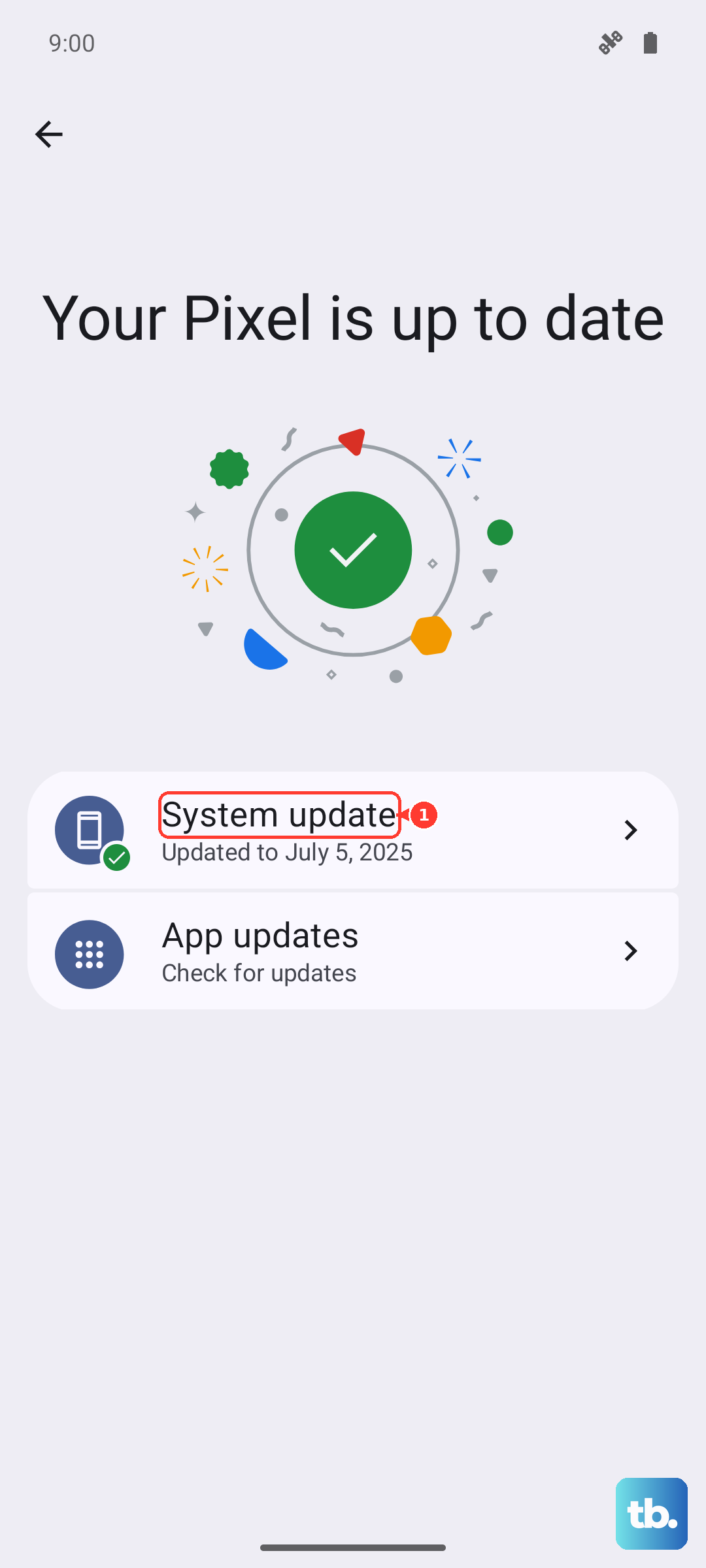
Outdated apps are a common culprit. Open the Google Play Store, tap your profile icon, and go to Manage apps & devices. Install any available updates, especially for the app that's failing. Don't forget about system updates either. Head to Settings > About phone > HyperOS version and tap the check for update button. Xiaomi frequently releases patches that improve stability.
Clear the App's Cache and Data
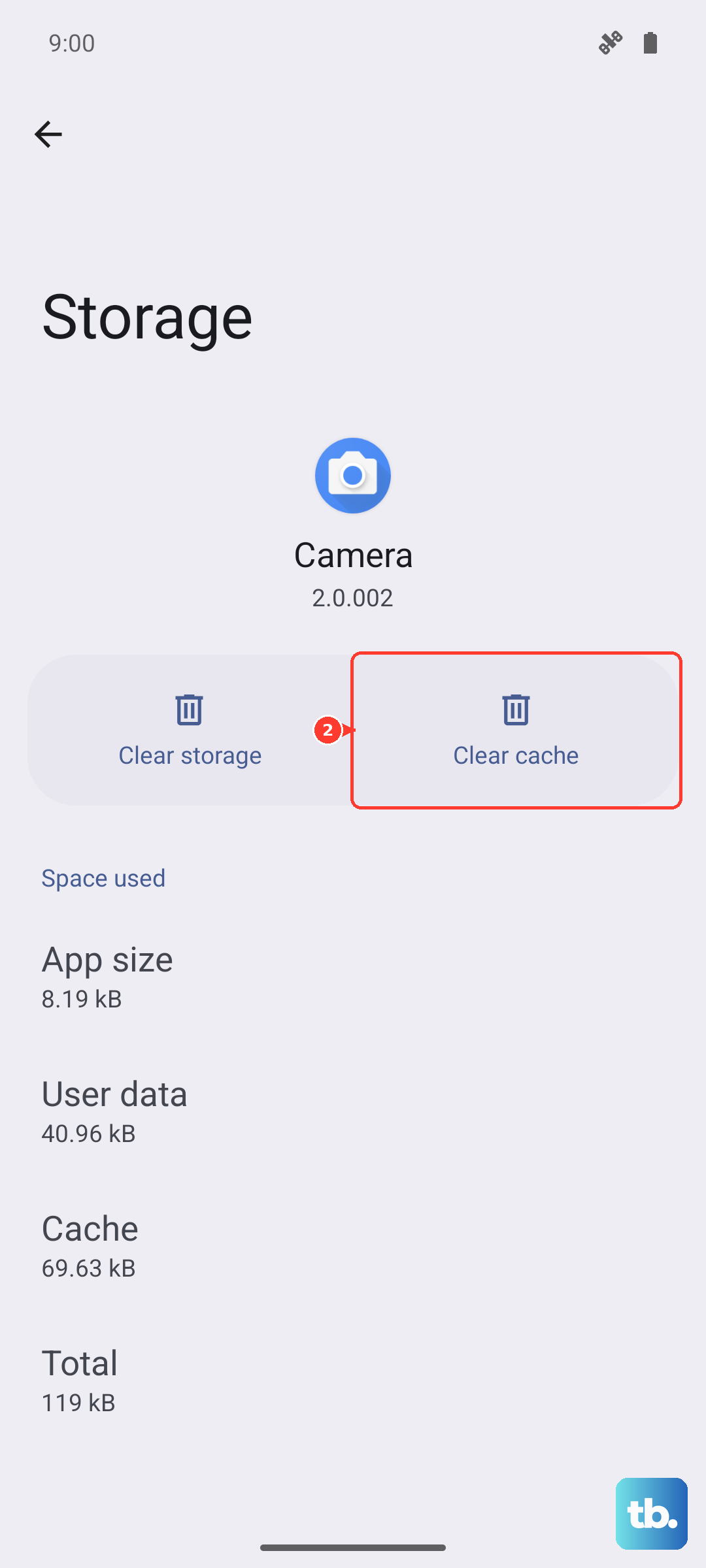
Corrupted temporary files can cause all sorts of weird behavior. For the problematic app, go back to Settings > Apps, select it, and tap Storage & cache. Tap Clear cache first. This deletes temporary data without touching your login info or saved files. If the app still crashes, you can try Clear data, but be warned this will reset the app completely, like you just installed it.
Free Up Storage Space on Your Device
The Xiaomi 14T Pro needs free space to operate smoothly. If your storage is nearly full, apps can struggle to function. Check your storage under Settings > Storage. Consider offloading old photos and videos to the cloud, deleting downloaded files you don't need, and uninstalling apps you never use. This can make a noticeable difference in overall performance.
Manage Background Apps and Memory
HyperOS can sometimes be aggressive with background app management, which might close apps you're actively using. You can adjust this for specific apps. Go to the app's info page in Settings, tap Battery, and then Background settings. Try setting it to "No restrictions" to see if it stays open longer. Also, using the 120W charger can generate heat, and the phone may throttle performance to cool down, which can affect app stability during heavy use.
Review Installed Apps and Bloatware
Some pre-installed apps or services on certain regional variants can cause conflicts. It's worth reviewing your app list. You can't uninstall all system apps, but you can disable many of them. Go to the app's info page and look for a Disable button. Disabling unused system apps can free up resources and potentially resolve background conflicts that cause other apps to close.
Perform a Factory Reset
If you've tried everything and apps are still closing randomly, a factory reset is the nuclear option. This will erase everything on your phone, so you must back up your photos, contacts, and important files first. To do it, go to Settings > About phone > Factory reset. Follow the prompts to erase all data. After the phone reboots, set it up as new and reinstall your apps one by one to see if the problem returns.