You open Windows Update expecting a quick install, but the progress bar parks itself at 0 percent and refuses to budge. The download status sits there, no error, no movement, just a stubborn zero that makes you wonder whether anything is happening at all. Microsoft does not publish a single named cause for a download frozen at zero, but a stalled download almost always comes down to a handful of fixable issues, from a paused setting to a corrupt update cache. Work through the seven fixes below in order, easiest first, and you will usually clear the jam without guesswork. These steps apply to Windows 11. Some steps also apply to Windows 10, but Microsoft says Windows 10 support ended on October 14, 2025. After that date, Microsoft no longer provides free software updates from Windows Update, technical assistance, or security fixes for Windows 10.
1. Restart First, Then Recheck for Updates
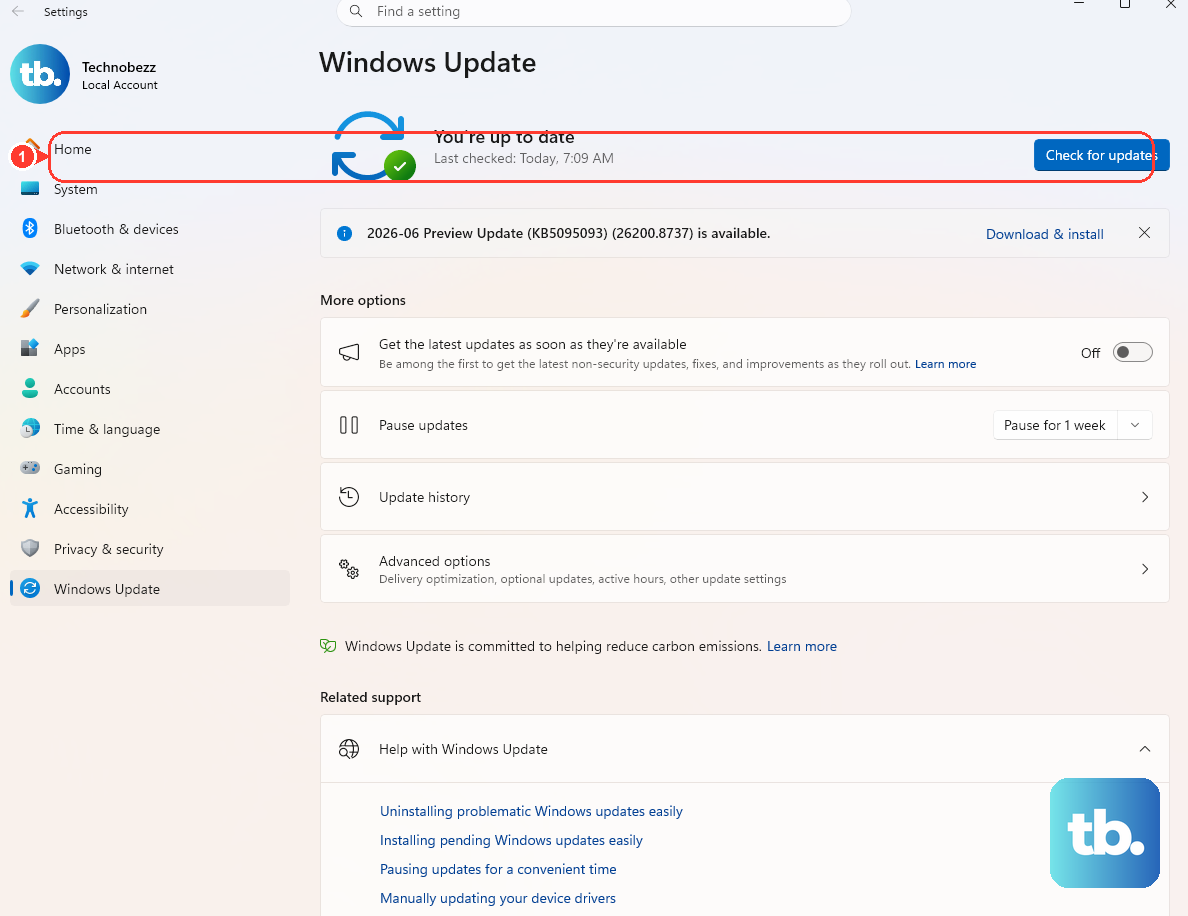
Before anything more involved, restart your PC. A reboot clears background processes that can block an in-progress download, and it is Microsoft's first-line step for a reason. While you are at it, confirm your device is plugged into power and has a stable internet connection, since both help an update download finish.
Once the machine is back up, run the update check again so Windows can pick up where it left off.
- 1.On Windows 11, go to
Start > Settings > Windows Update > Check for updates. - 2.On Windows 10, go to
Start > Settings > Update & Security > Windows Update > Check for updates. - 3.Install anything that appears.
If the same download still hangs at 0 percent after a clean restart, move on to the automated tool below.
2. Let the Windows Update Troubleshooter Do the Work
Microsoft's recommended automated fix is the Windows Update Troubleshooter. On current Windows 11 and Windows 10 devices, Microsoft says to start by running it in the Get Help app, where it will run diagnostics and attempt to fix most problems.
If the Get Help troubleshooter cannot resolve the issue, use the general Settings path. On Windows 11, open Start > Settings > System > Troubleshoot > Other troubleshooters, then select Run next to Windows Update. On Windows 10, open Start > Settings > Update & Security > Troubleshoot > Additional troubleshooters, then select Windows Update and choose Run the troubleshooter.
Restart your device after the troubleshooter finishes, then try the update one more time.
3. Make Sure the Download Is Not Paused or Throttled
A download that never starts is sometimes blocked by a setting, not a fault. If updates are paused, nothing will download until you resume them. Go to Start > Settings > Windows Update and resume if updates are paused. Windows lets you pause for up to 35 days, so it is easy to forget the pause is active.
A metered connection is the other common culprit. Microsoft says some Windows updates will not install automatically on a metered connection. To allow update downloads, open Settings > Windows Update > Advanced options on Windows 11, or Settings > Update & Security > Windows Update > Advanced options on Windows 10, then turn on Download updates over metered connections and retry.
4. Correct the Date, Time, and Time Zone
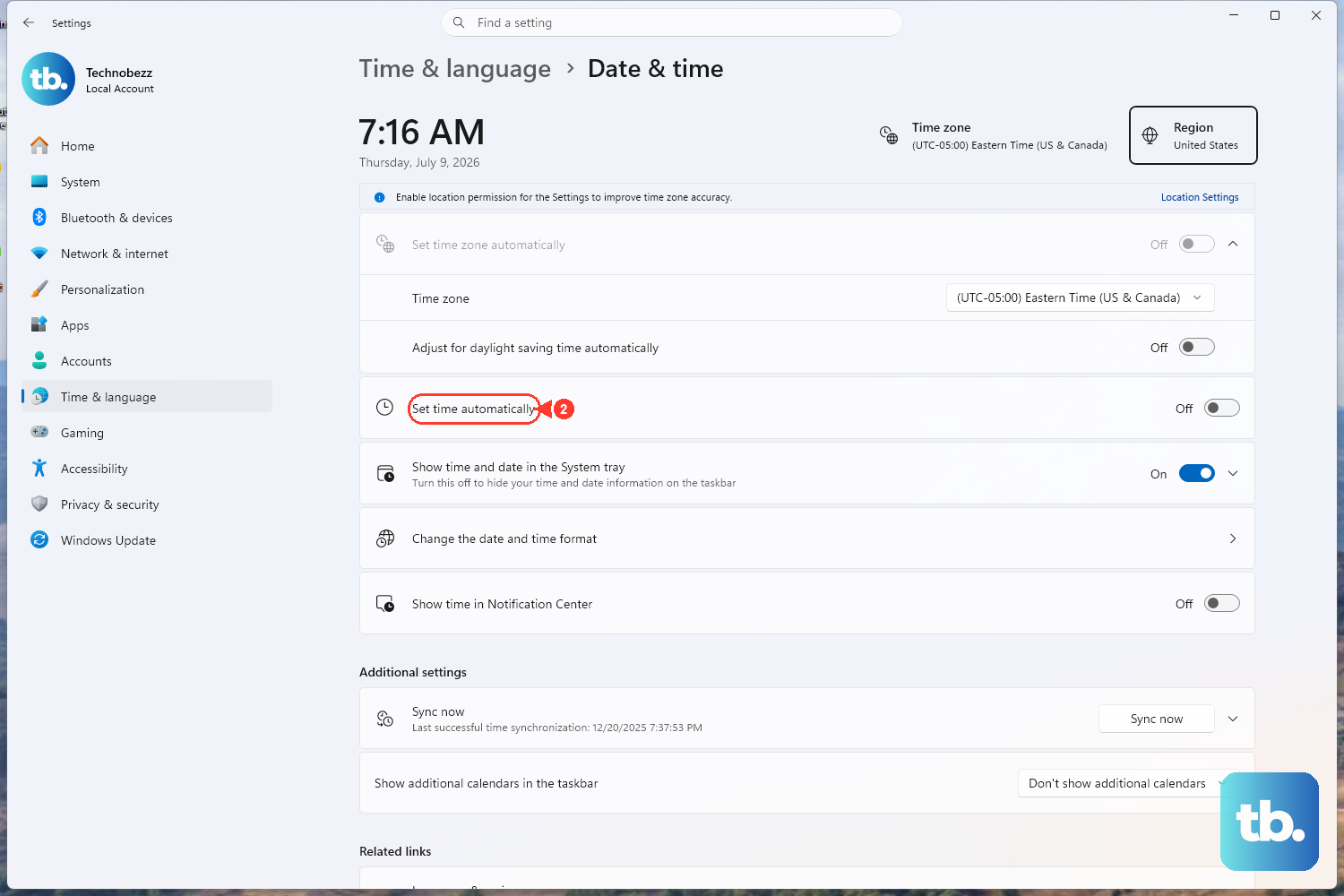
An incorrect clock can quietly break the security checks an update download relies on, so a wrong date or time zone may stall the whole process. Setting it correctly often gets a frozen download moving again.
- 1.Open
Start > Settings > Time & language > Date & time. - 2.Turn on Set time automatically.
- 3.Turn on Set time zone automatically.
- 4.Retry the update.
With the certificate and security checks happy again, Windows can verify and download the package as expected.
5. Free Up Disk Space So the Download Has Room
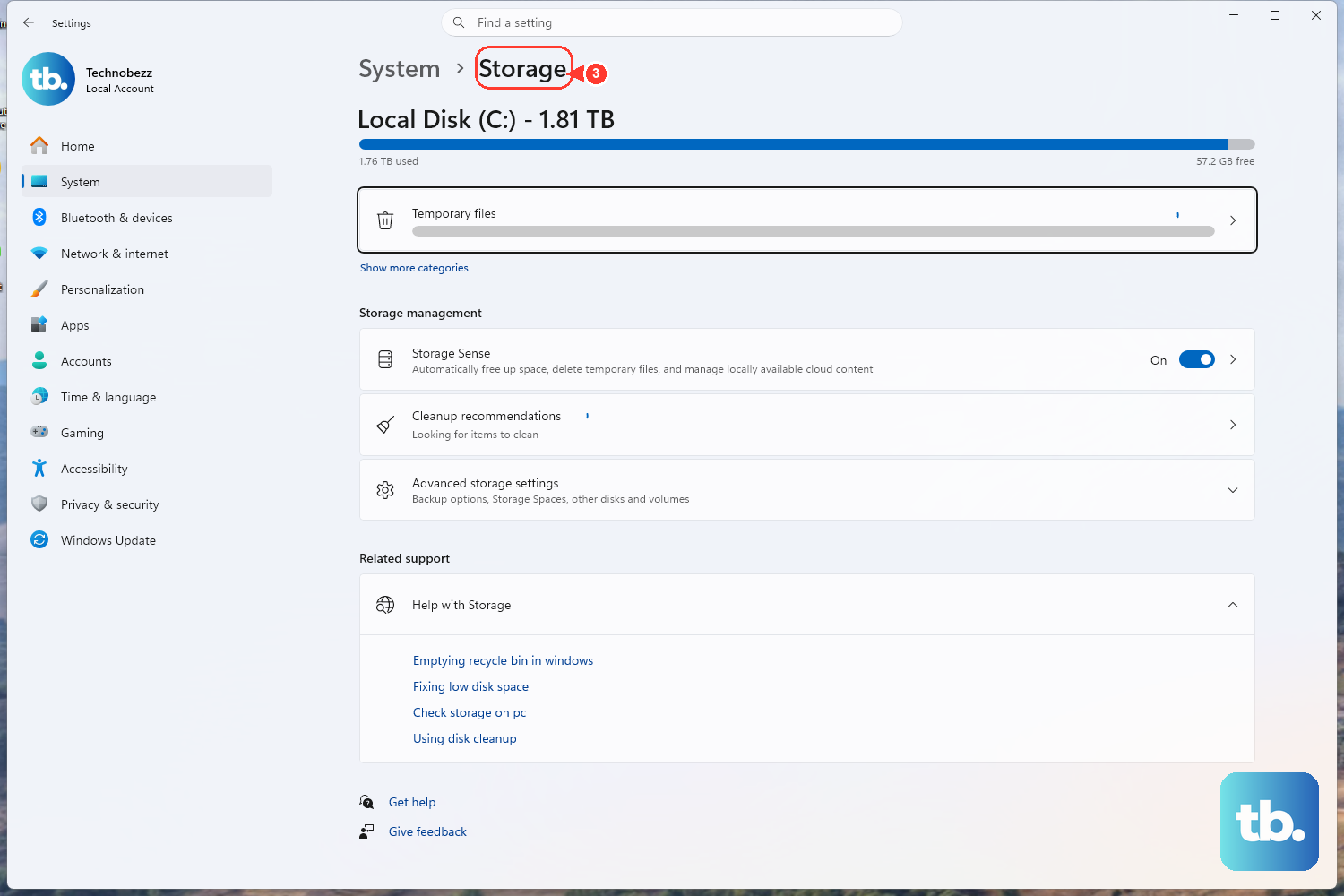
A download can stall if the drive is too full to stage the files. For a Windows upgrade, Microsoft states your device needs at least 16 GB of free space for a 32-bit operating system, or 20 GB for a 64-bit operating system, so keeping a comfortable buffer free is a safe target.
Delete files you do not need, uninstall apps you no longer use, or move files to another drive or to OneDrive to reclaim space. Once you have cleared enough headroom, run the update check again and watch whether the download finally advances past 0 percent.
6. Repair System Files with DISM and SFC
Corrupted system files can quietly stop an update from progressing. Two built-in tools repair them: DISM restores the Windows component store, and System File Checker scans and repairs protected system files. Run DISM first, then SFC.
- 1.Open Command Prompt as administrator.
- 2.Run
DISM.exe /Online /Cleanup-image /Restorehealthand wait for it to finish. - 3.Run
sfc /scannowand let it reach 100 percent before you close the window. - 4.Restart your PC and retry the update.
Letting both commands complete fully matters; closing the window early leaves the repair half done.
7. Clear the Windows Update Cache for a Fresh Download
If the cached download itself is corrupt, the safest fix is to wipe the cache so Windows fetches a clean copy. The cache lives in the SoftwareDistribution folder, and clearing it forces a fresh download on the next check. This removes only the update cache, not your personal files.
Open an elevated Command Prompt and run these in order.
- 1.
net stop wuauserv - 2.
rd /s /q %systemroot%\SoftwareDistribution - 3.
net start wuauserv
After the service restarts, go back to Windows Update and check for updates again. As an alternative, you can navigate to C:\Windows\SoftwareDistribution and delete its contents manually after stopping the Windows Update service.
Still Stuck? Reset Windows Update Components Manually
If none of the seven fixes work, you can reset the update components by hand. This advanced procedure stops the relevant services, clears the queue, and restarts everything clean. Run every command from an elevated Command Prompt, exactly as written, and consider creating a system restore point first.
First, stop the services and clear the transfer queue.
- 1.
net stop bits - 2.
net stop wuauserv - 3.
net stop cryptsvc - 4.
Del "%ALLUSERSPROFILE%\Application Data\Microsoft\Network\Downloader\qmgr*.dat"
Only if the problem still is not resolved, rename the update folders so Windows rebuilds them. These commands rename rather than delete, which keeps a backup copy in place as a safeguard.
- 1.
Ren %Systemroot%\SoftwareDistribution\DataStore DataStore.bak - 2.
Ren %Systemroot%\SoftwareDistribution\Download Download.bak - 3.
Ren %Systemroot%\System32\catroot2 catroot2.bak
Finally, restart the services you stopped.
- 1.
net start bits - 2.
net start wuauserv - 3.
net start cryptsvc
If you still need more, you can also disconnect external storage, docks, and other hardware that is not required for basic functionality, then try the update again. Faulty or conflicting peripherals can interfere with an update mid-download.
Handling Error 0x80070643
If your stuck download is paired with error 0x80070643, identify the cause before you act. The code is a generic install failure (often shown as ERROR_INSTALL_FAILURE) that frequently appears with .NET Framework updates or with Windows Recovery Environment (WinRE) updates, so the right fix depends on which one triggered it.
For WinRE-related cases, check the specific KB article for the update before resizing anything. Microsoft says some WinRE updates require 250 MB of free space in the recovery partition, and if the partition is too small, the update might fail or not be offered. If Microsoft directs you to resize the recovery partition, use the official KB5028997 instructions carefully, since the steps involve adjusting partitions.
For .NET-related cases, run the Windows Update Troubleshooter first. If that does not resolve it, Microsoft offers a .NET Framework Repair Tool you can download from Microsoft Support and run to fix .NET installation problems.
Frequently Asked Questions
Why does my Windows Update download sit at 0 percent for so long?
A download can stall before it starts for several documented reasons, including paused updates, a metered connection that limits downloads, an incorrect system clock, too little free disk space, or a corrupt update cache. Working through the fixes above in order, starting with a restart and the Windows Update Troubleshooter, addresses the most common causes first.
Will clearing the SoftwareDistribution folder delete my files?
No. The SoftwareDistribution folder holds the Windows Update cache, not your personal files. Clearing it simply forces Windows to download a fresh copy of the pending update, which is exactly what you want when a cached download is corrupt.
Is it safe to reset Windows Update components manually?
Yes, when you follow the documented steps from an elevated Command Prompt. The folder commands rename rather than delete, leaving backup copies in place, and the services are restarted at the end. Because it is an advanced procedure, consider creating a system restore point before you begin.
What should I do about error 0x80070643?
First identify the cause, since the code is a generic install failure. If it appeared with a WinRE update, the recovery partition is likely too small, and Microsoft documents how to resize it manually in support article KB5028997. If it is tied to .NET, run the Windows Update Troubleshooter and, if needed, Microsoft's .NET Framework Repair Tool.
How much free space do I need to update Windows?
For a Windows upgrade, Microsoft states your device needs at least 16 GB of free space for a 32-bit operating system, or 20 GB for a 64-bit operating system. If your drive is nearly full, freeing space by deleting unneeded files, uninstalling unused apps, or moving files to another drive or OneDrive can get a stalled download moving.