You turned your PC on after installing a Windows update, and now you are staring at a black screen instead of your desktop. The machine seems to power up, the fans spin, maybe you see a cursor, but nothing usable loads. This is one of the most unnerving things a recent update can do, yet in most cases it points to a display glitch or a few broken system files rather than dead hardware. Work through the fixes below in order, starting with the quickest and safest, and you will likely have your desktop back without losing any of your files.
Everything here uses tools built directly into Windows 11 and Windows 10. No downloads and no third-party software are required, and the safer fixes come first so you never reach for a drastic option before you need it.
Wake the display and reset the graphics driver first
A black screen right after an update is very often a display or driver hiccup, not a failed PC. Windows has a built-in shortcut that restarts the graphics driver without rebooting anything else. On the desktop or sign-in screen, press Windows logo key + Ctrl + Shift + B. If it works, you should hear a short beep or see the screen flicker as the driver reloads.
If the screen is still blank, press Windows logo key + P to open the display-output picker, then cycle through the available modes (PC screen only, Duplicate, Extend, Second screen only). This catches cases where Windows has sent the picture to the wrong output after the update.
While you are at it, confirm the basics. Make sure the monitor itself is powered on and that the video cable is firmly seated at both ends. Try a different cable or a different port if you have one. These are Microsoft's documented first steps for a blank screen, and they resolve a surprising number of post-update cases on their own.
Reach the Windows Recovery Environment
If the display tricks above do not bring back a usable screen, the rest of the repairs live inside the Windows Recovery Environment (WinRE), also called Advanced startup. How you get there depends on how far your PC boots.
If you can reach the sign-in screen, click the Power button, hold the Shift key, and select Restart. That boots you straight into the Advanced startup menu. If Windows starts far enough to open Settings, go to Settings > System > Recovery and select Restart now next to Advanced startup. On Windows 10 the path is Settings > Update & Security > Recovery, then Restart now under Advanced startup.
If the screen is black before you ever reach sign-in, you can force WinRE to appear. Microsoft confirms that Windows starts the Recovery Environment automatically after two consecutive failed attempts to start Windows. To trigger that on purpose, hold the physical power button to shut the PC off during boot, do it a second time on the next start, and the start after that should open the Advanced startup menu for you.
Let Startup Repair fix it automatically
Startup Repair is the safest first repair because it changes nothing you have to choose by hand. From the Advanced startup menu, select Troubleshoot > Advanced options > Startup Repair, then Restart if you are prompted.
The tool scans for the underlying problem and tries to fix issues that stop Windows from starting, such as damaged system files or a corrupted boot configuration. Let it run fully; it can take a while and may restart the PC on its own. If your drive is encrypted with BitLocker, keep your BitLocker recovery key on hand, as you may be asked for it before the repair can proceed.
Roll back the update that started it
Since the trouble began right after an update, removing that update is a direct fix. From the Advanced startup menu, go to Troubleshoot > Advanced options > Uninstall Updates. You will see two choices: Uninstall latest quality update (the usual monthly or security update) and Uninstall latest feature update (a larger version upgrade). Start with the quality update, since those are the most common culprits.
Be aware that Microsoft notes some updates cannot be uninstalled, and you should understand the risk before removing a security update. If your PC actually boots into Windows on its own, you can do the same thing from there through Start > Settings > Windows Update > Update history > Uninstall updates.
Roll the whole system back with System Restore
If uninstalling a single update does not help, System Restore can take your system back to a point before the problem began. The key benefit is that it does not affect your personal files while it reverts the system to an earlier state.
From WinRE, select Troubleshoot > Advanced options > System Restore, choose a restore point dated before the black screen started, then click Next and Finish. If you can get into a working Windows session instead, you can launch the same tool by pressing Windows logo key + R, typing rstrui.exe, and pressing Enter.
Isolate the cause with Safe Mode

If the screen only goes black during a normal boot, Safe Mode helps you find out whether a driver or app is to blame. Safe Mode loads Windows with only a minimal set of drivers, which strips away most third-party software.
In WinRE choose Troubleshoot > Advanced options > Startup Settings > Restart. When the list appears, press 4 or F4 for Safe Mode, 5 or F5 for Safe Mode with Networking, or 6 or F6 for Safe Mode with Command Prompt.
Here is the useful signal: if the problem does not happen in Safe Mode, then the default settings and basic drivers are not the cause. That points the finger at a third-party driver or app, very often the display driver. From within Safe Mode you can update or roll back the display driver before returning to a normal boot.
Repair broken system files with DISM and SFC
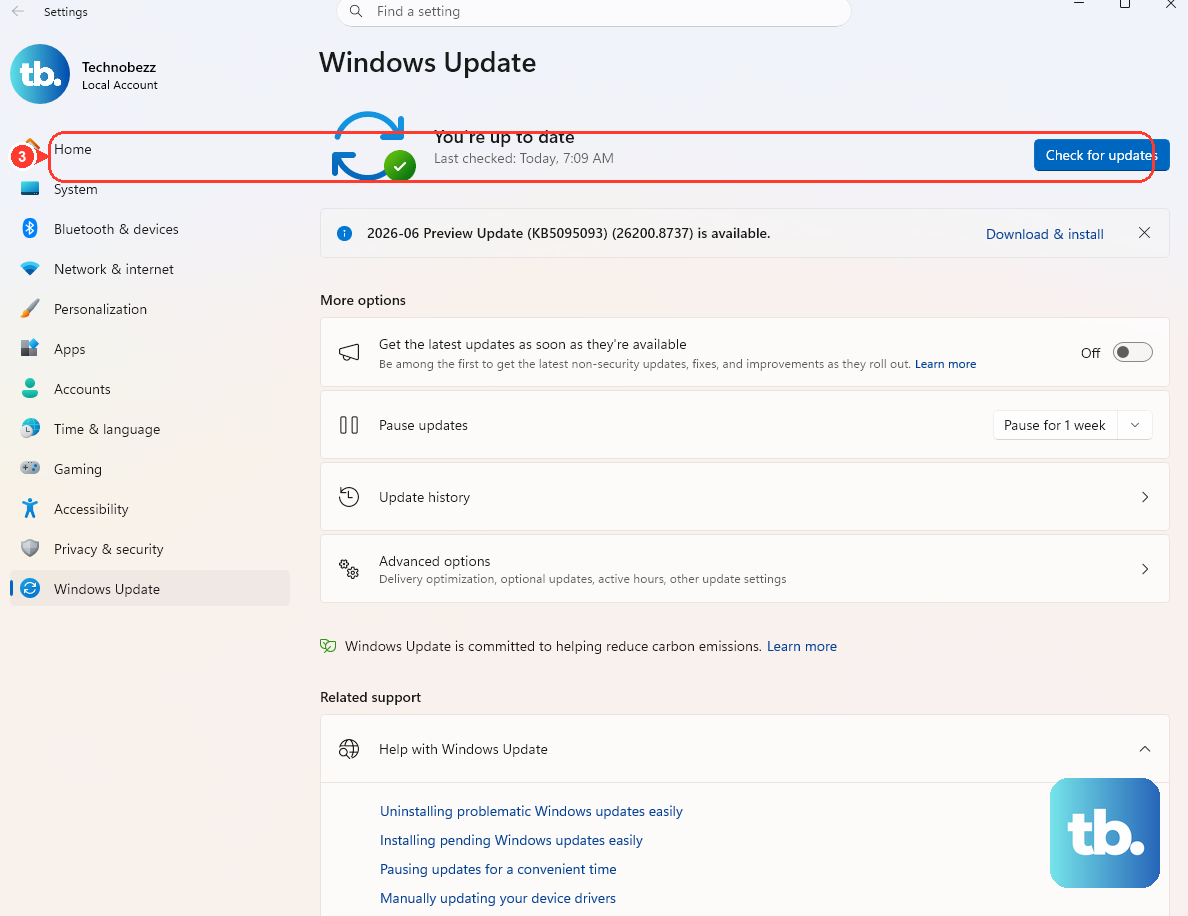
An update can leave Windows system files missing or corrupted, and two built-in tools repair exactly that. Open an elevated Command Prompt. In a working Windows session, type cmd in Search, right-click Command Prompt, and choose Run as administrator. If Windows will not boot, open it from WinRE or from Safe Mode with Command Prompt.
Microsoft says to run DISM first, then run System File Checker. Run these commands in order and let each one finish:
- 1.Run
DISM.exe /Online /Cleanup-image /Restorehealthto repair the Windows component store, pulling replacement files through Windows Update. - 2.Then run
sfc /scannowto scan and repair protected system files.
Do not close the window until SFC reaches 100 percent verification. Interrupting it partway can leave the repair incomplete.
Check the drive for errors with chkdsk
If you suspect the storage drive itself has corruption, Check Disk can scan and repair it. Run it from an elevated Command Prompt or from the WinRE Command Prompt. Microsoft's documented syntax is CHKDSK [volume[[path]filename]] [/F] [/V] [/R] [/X] [/I] [/C] [/L[:size]] [/B] [/scan] [/forceofflinefix] [/perf] [/spotfix] [/sdcleanup] [/offlinescanandfix] [/freeorphanedchains] [/markclean].
For most cases, /F fixes errors on the disk, while /R additionally locates bad sectors and recovers readable information (and it includes the work that /F does). One thing to expect: on the system drive, chkdsk cannot lock the volume while Windows is running, so it will offer to run on the next restart. Accept that and let it complete fully.
Reset this PC as a last resort
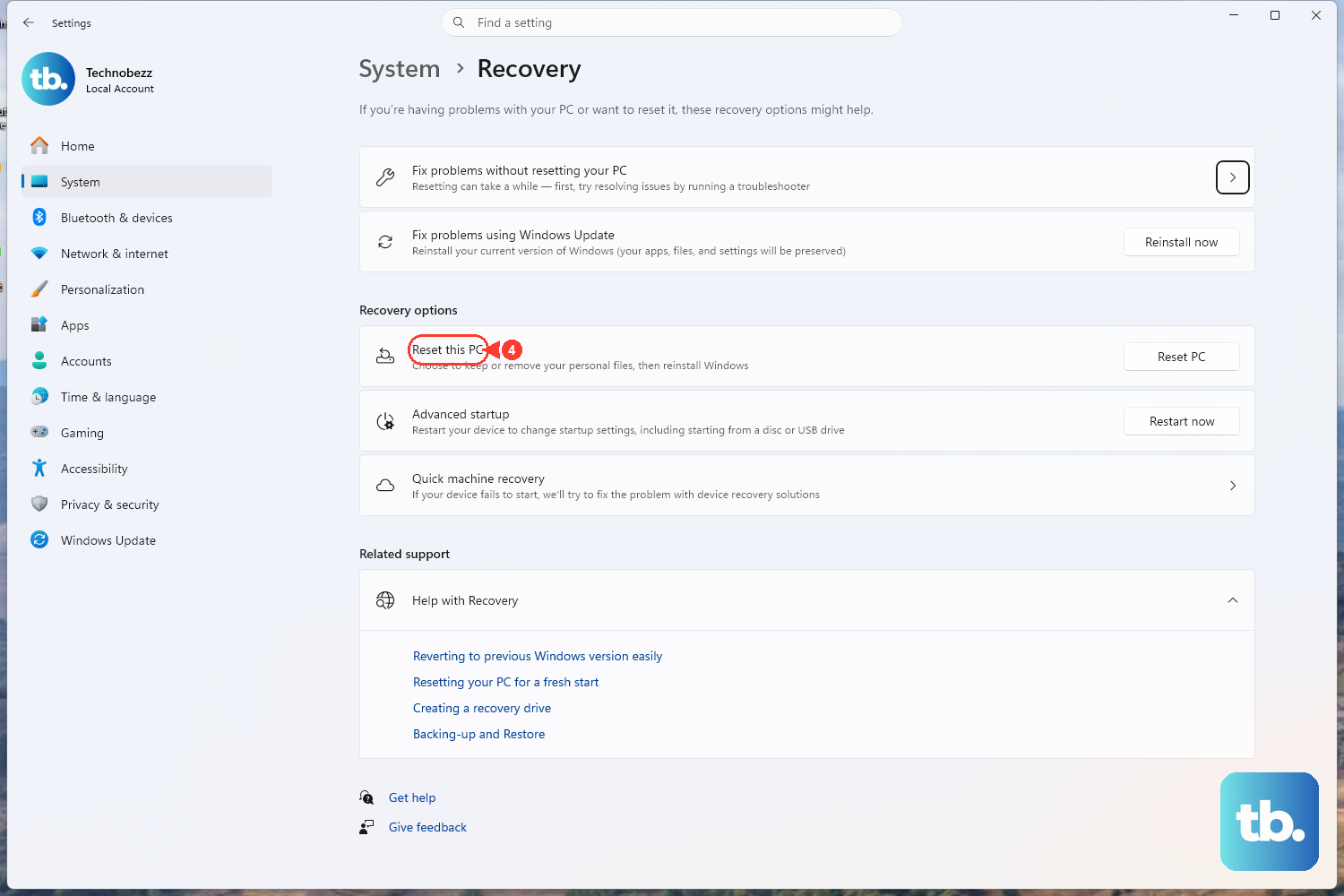
If none of the steps above bring Windows back, WinRE includes a deeper recovery option that reinstalls Windows for you. From the Advanced startup menu, select Troubleshoot > Reset this PC. You will be given the choice to keep your personal files or remove everything during the reinstall.
Choose Keep my files unless you specifically want a clean slate, and back up anything important first if you can reach your data through Safe Mode. Microsoft lists Reset this PC among the recovery options as the deeper fix to fall back on when the system still will not start.
Frequently Asked Questions
Will fixing a post-update black screen erase my files?
The safer fixes do not touch your personal files. Startup Repair, Uninstall Updates, System Restore, Safe Mode, DISM, SFC, and chkdsk all leave your documents in place. Only Reset this PC can remove files, and even then it offers an option to keep your personal files during the reinstall.
How do I get to the recovery menu if my screen is black before sign-in?
Force it. Microsoft confirms Windows starts the Recovery Environment automatically after two consecutive failed attempts to start Windows. Hold the power button to shut the PC off during boot, repeat it a second time, and the next start should open the Advanced startup menu where all the repair tools live.
Should I run DISM or SFC first?
Run DISM first. Microsoft directs you to run DISM.exe /Online /Cleanup-image /Restorehealth before sfc /scannow, because DISM repairs the underlying Windows image that SFC then draws on to fix individual system files. Keep the window open until SFC reaches 100 percent.
Why didn't the black screen happen in Safe Mode?
Safe Mode loads only a minimal set of drivers. If the problem does not occur in Safe Mode, the default settings and basic drivers are not the cause. That usually means a third-party driver or app is responsible, most commonly the display driver, which you can update or roll back from within Safe Mode.
Can every Windows update be uninstalled?
No. Microsoft notes that some updates cannot be uninstalled, and you should understand the risk before removing a security update. When you can remove one, use Troubleshoot > Advanced options > Uninstall Updates in WinRE, or Settings > Windows Update > Update history > Uninstall updates if Windows boots.