Your Windows 10 PC powers on, shows the logo, and then freezes on those little dots circling endlessly. The animation never stops, the desktop never arrives, and pressing keys does nothing. This is one of the more nerve-wracking startup failures because the machine looks alive yet refuses to finish loading. The good news is that this is a known and well-documented situation with a clear set of built-in repairs, and you do not need any downloaded tools to work through it.
What the Spinning Dots Actually Tell You
Microsoft classifies a PC stuck on the spinning (rolling) dots animation, or a black screen, that appears after the Windows logo as a Kernel-phase startup problem. In its own description, this is when the screen is stuck at the "spinning wheel" (rolling dots) "system busy" icon, or a black screen appears after the splash screen.
What this tells you is important. Windows has already cleared the firmware and the boot loader stages, so the hang is happening while it loads drivers, services, or the registry. That narrows the likely causes to a recent change, a damaged driver, corrupted system files, or disk errors, which is why the fixes below lean toward Safe Mode, rolling back recent changes, and repairing system files rather than just hitting the power button repeatedly.
Start With a Clean Restart and Let Recovery Open On Its Own
Before anything else, fully power the PC off and then back on a single time. A clean cold boot sometimes clears a one-time hang where a driver or service simply stalled.
If Windows still cannot start, it will hand you a recovery menu by itself. After Windows fails to start normally, it is designed to launch the Windows Recovery Environment (WinRE) automatically. That automatic "Choose an option" screen is the gateway to every repair in this guide, so getting there is the first real goal.
If the Dots Keep Hanging Before Any Menu Appears
When the PC freezes on the dots before recovery shows up, you can force WinRE open. Start the device and wait for the Windows (or your manufacturer's) logo, then press and hold the power button until the device shuts off. Repeat that once.
After two interrupted boots, Windows opens the Windows Recovery Environment on the next restart. If you ever get back into a working Windows session, you can also reach the same place through Settings > Update & Security > Recovery > Advanced startup > Restart now, or from the sign-in screen by holding Shift while selecting Power > Restart.
Fix 1: Run Startup Repair, the Hands-Off Automatic Option
Startup Repair is the easiest fix and a sensible first move because it works automatically. From the recovery menu, choose Choose an option > Troubleshoot > Advanced options > Startup Repair.
This tool scans for and automatically fixes common problems that can keep Windows from starting. You let it run, and it attempts the repairs on its own. One note before you start: if your device uses BitLocker, you will need your recovery key to proceed.
Fix 2: Boot Into Safe Mode to Isolate the Culprit
Safe Mode is the diagnostic that tells you whether a third-party driver or app is to blame. From the recovery menu, go to Troubleshoot > Advanced options > Startup Settings > Restart.
After the PC reboots into the Startup Settings screen, press 4 or F4 for Safe Mode, or press 5 or F5 for Safe Mode with Networking. Safe Mode starts Windows in a basic state with a limited set of files and drivers.
Here is how to read the result. If the spinning-dots hang does not happen in Safe Mode, then the problem is being caused by a non-default driver, app, or setting, and you can use Safe Mode to remove or roll back whatever you most recently installed. If it still hangs even in Safe Mode, the issue is deeper and the system-file and disk repairs below are your next stop.
Fix 3: Uninstall the Most Recent Update If the Hang Followed One
Did the spinning dots first appear right after Windows installed an update? If so, removing that update is the supported way to recover. From the recovery menu, go to Troubleshoot > Advanced options > Uninstall Updates, then choose Uninstall latest quality update, or the latest feature update if that matches the timing.
One caution applies here: understand the risk before removing a security update, since doing so can leave your PC exposed until a replacement is installed. Still, when Windows will not boot at all, this is the official, supported method for rolling an update back.
Fix 4: Roll the System Back With System Restore
If a restore point exists, System Restore can send your PC back to a moment when it booted fine. From the recovery menu, select Troubleshoot > Advanced options > System Restore.
- 1.Pick a restore point dated before the problem started, using "Show more restore points" if you need older entries.
- 2.Select Next, then Finish.
- 3.Restart the PC and let it complete the rollback.
System Restore reverts system files, registry settings, and installed programs without affecting your personal files. On a BitLocker-encrypted device you will need the recovery key, and remember this option only works if a restore point already exists.
Fix 5: Repair Corrupted System Files With DISM and SFC
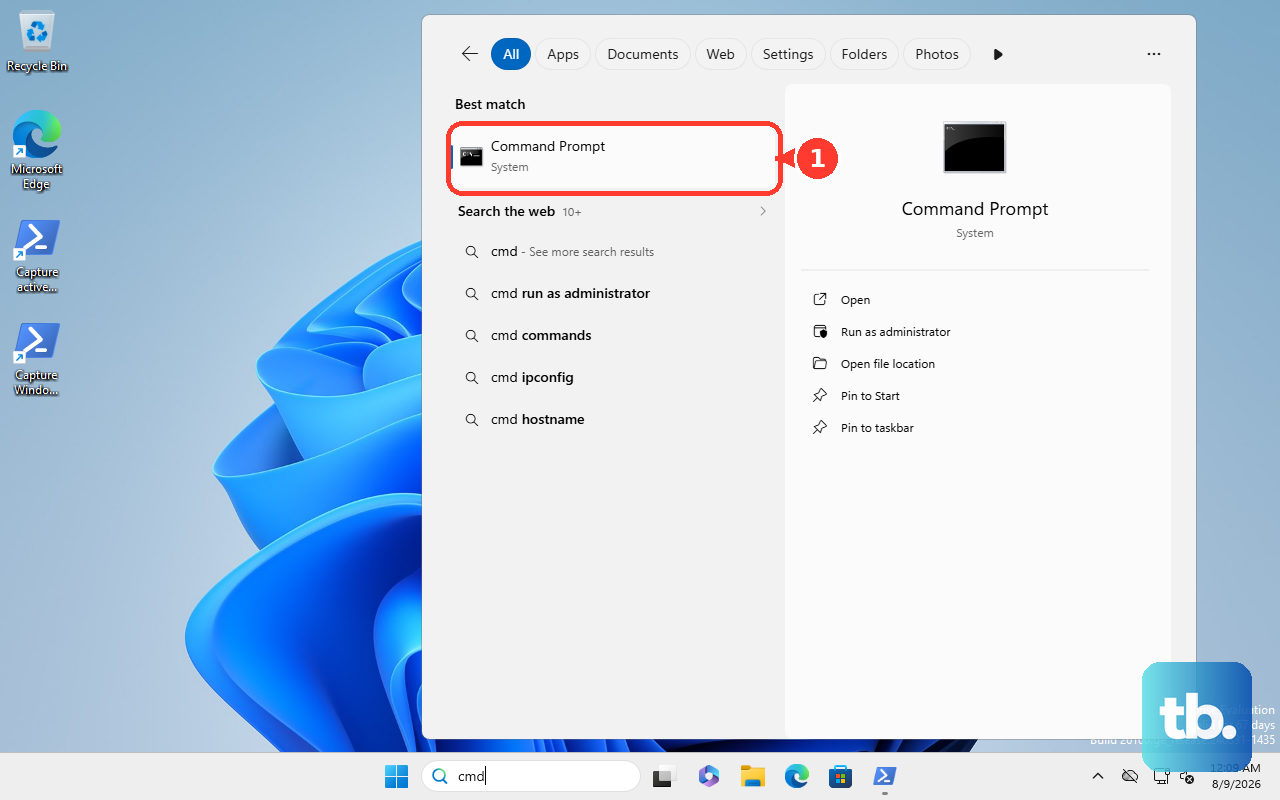
Damaged system files are a common reason Windows stalls during the kernel phase, and two built-in commands repair them. Open an elevated Command Prompt by typing cmd in Search, right-clicking Command Prompt, and choosing Run as administrator. If you cannot reach the desktop, use Troubleshoot > Advanced options > Command Prompt in WinRE instead.
Run the component-store repair first. Microsoft explicitly says to run DISM before System File Checker, because SFC relies on a healthy component store.
- 1.Run
DISM.exe /Online /Cleanup-image /Restorehealthand wait for it to finish. Do not close the window until the operation completes. - 2.When DISM reports that it completed successfully, run
sfc /scannowto scan and repair protected system files.
If you are working from a WinRE prompt where Windows is offline because it will not boot, use the offline form of System File Checker instead: SFC /Scannow /OffBootDir=C:\ /OffWinDir=C:\Windows. Adjust the drive letters if your installation lives somewhere other than C.
Fix 6: Check the Drive for Errors With chkdsk
Logical disk errors and bad sectors can stall a boot, and Check Disk repairs them. In a Command Prompt, run chkdsk with the /f switch to fix logical errors. Microsoft's documented example targets a specific drive: chkdsk d: /f, so substitute the letter of the drive you want to check.
If Check Disk cannot lock the system drive, it will offer to run at the next restart. For a deeper repair launched from WinRE, the boot-troubleshooting guidance documents chkdsk /f /r, where /r also locates bad sectors and recovers readable information while including the /f functionality.
Fix 7: Rebuild the Boot Records and BCD With bootrec
Sometimes the spinning-dots hang travels alongside boot-loader trouble, such as a missing or corrupted Boot Configuration Data (BCD) store or a missing boot manager. When that is the case, open Command Prompt in WinRE and repair the boot records.
- 1.Run
BOOTREC /FIXMBRto write a compatible Master Boot Record to the system partition without overwriting the partition table. - 2.Run
BOOTREC /FIXBOOTto write a new boot sector to the system partition. - 3.For BCD problems, run
Bootrec /ScanOSto scan all disks for installed Windows systems and list entries that are not in the BCD store.
If the BCD is still broken after scanning, Microsoft's documented rebuild sequence is to first back up the store and then rebuild it. Run these in order: bcdedit /export c:\bcdbackup, then attrib c:\boot\bcd -r -s -h, then ren c:\boot\bcd bcd.old, then bootrec /rebuildbcd, and finally restart. These are advanced steps, so be sure to run the bcdedit /export backup first as shown so you can restore the original store if needed.
When the PC Loops on the Recovery Screen or F8 Fails
Two narrow situations have their own documented commands. If the PC repeatedly stops on the recovery-options screen, you can break that loop with Bcdedit /set {default} recoveryenabled no. And if the F8 advanced-boot options do not respond, you can restore the legacy boot menu with Bcdedit /set {default} bootmenupolicy legacy. Use these only for the specific symptoms they address.
Fix 8: Reset This PC or Reinstall as a Last Resort
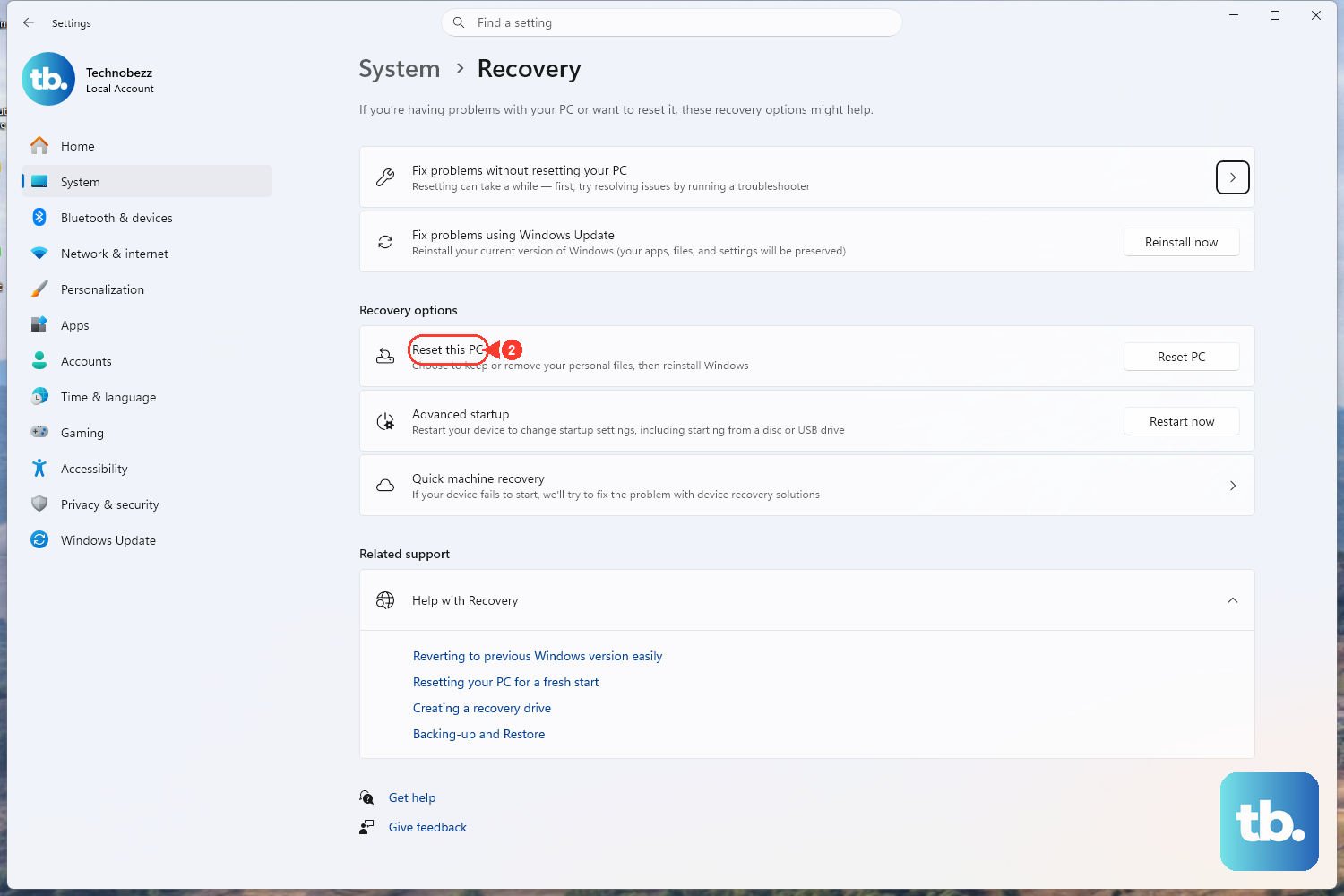
If startup still fails after everything above, Microsoft's documented final options remain. Reset this PC reinstalls Windows and gives you the option to keep your personal files, which makes it the gentler last resort.
If the PC is not responding to recovery options at all, reinstalling Windows from installation media is the deeper fallback. Both sit alongside Startup Repair, Safe Mode, System Restore, and uninstalling updates among the official recovery options, so you are still working within supported tools the whole way.
Frequently Asked Questions
Is the spinning dots screen tied to a specific error code?
No. Microsoft describes the spinning (rolling) dots as a symptom, specifically the "system busy" icon during the Kernel phase of startup, not as a numbered error or stop code. Because there is no code attached to it, you diagnose it by behavior, such as whether it still hangs in Safe Mode, rather than by looking up a code.
Do these fixes work on Windows 11 too?
Yes. The recovery tools and commands here are documented for both Windows 10 and Windows 11. Microsoft notes that Windows 10 mainstream support ended on October 14, 2025, but the recovery procedures and commands remain documented and applicable to existing Windows 10 installs.
Will I lose my files using these steps?
Most of these repairs do not touch your personal files. Startup Repair, Safe Mode, the DISM, SFC, chkdsk, and bootrec commands, and System Restore all leave your documents alone, and System Restore specifically reverts system files, settings, and programs without affecting personal files. Only Reset this PC or a reinstall change that, and Reset this PC offers an option to keep your files.
What if I am asked for a BitLocker recovery key?
Several recovery actions, including Startup Repair and System Restore, will require your BitLocker recovery key on an encrypted device. Have that key ready before you begin so the repair can proceed without interruption.
Why does Microsoft say to run DISM before SFC?
System File Checker repairs protected system files using the component store, and DISM repairs that component store itself. Running DISM.exe /Online /Cleanup-image /Restorehealth first makes sure the source SFC depends on is healthy, which is why Microsoft instructs you to run DISM before sfc /scannow.