You reach for the side of your Vivo X200 Pro to turn the ringer down in a quiet room, or to nudge a video up a notch, and the volume up and volume down keys do nothing at all. Maybe one direction still works while the other is dead, or both feel like they click but the on-screen volume slider never moves. It is a frustrating fault on an otherwise capable phone, and the good news is that a stuck or unresponsive volume key is often a software hiccup you can clear yourself before assuming the hardware has failed.
This phone runs Funtouch OS 15, which is built on Android 15, so you have both Vivo's own settings and Android's built-in accessibility tools to fall back on. Work through the steps below in order, starting with the safest and easiest, and only move on to a reset or a service visit if the simpler fixes come up empty.
Get sound control back right now with on-screen keys
Before you troubleshoot anything, give yourself a way to change the volume that does not depend on the side keys at all. Android 15 includes an Accessibility Menu with software volume up and volume down buttons, and it works as a full replacement for the physical keys while you sort out the underlying problem.
- 1.Open Settings and go to Accessibility.
- 2.Tap Accessibility Menu, then turn on 'Accessibility Menu shortcut'.
- 3.Open the menu by using the gesture 'Swipe up with two fingers' (use three fingers if you have TalkBack turned on).
- 4.Tap 'Make the volume louder' or 'Make the volume quieter' to adjust the sound entirely on screen.
This will not repair the buttons, but it keeps the phone fully usable so you are never stuck at the wrong volume during the rest of these fixes.
Restart the X200 Pro using only the power button
A temporary software glitch can stop button input from registering, and a simple restart clears it more often than you would expect. The catch is that the usual restart shortcuts may involve the volume keys, which are the faulty part here, so use a power-only method instead.
Hold down the power button for about 30 seconds to force the phone to restart. Once it boots back up, press the volume up and volume down keys and see whether normal control has returned.
Catch a buggy build with a Funtouch OS update
If a software update introduced a bug in how the system reads button presses, installing the next update can quietly fix it. Vivo ships these over the air through the built-in updater.
- 1.Open your phone's Settings app.
- 2.Near the bottom, tap System and then Software update (Funtouch OS 15 typically labels this 'System update').
- 3.Follow the on-screen instructions to download and install the latest version.
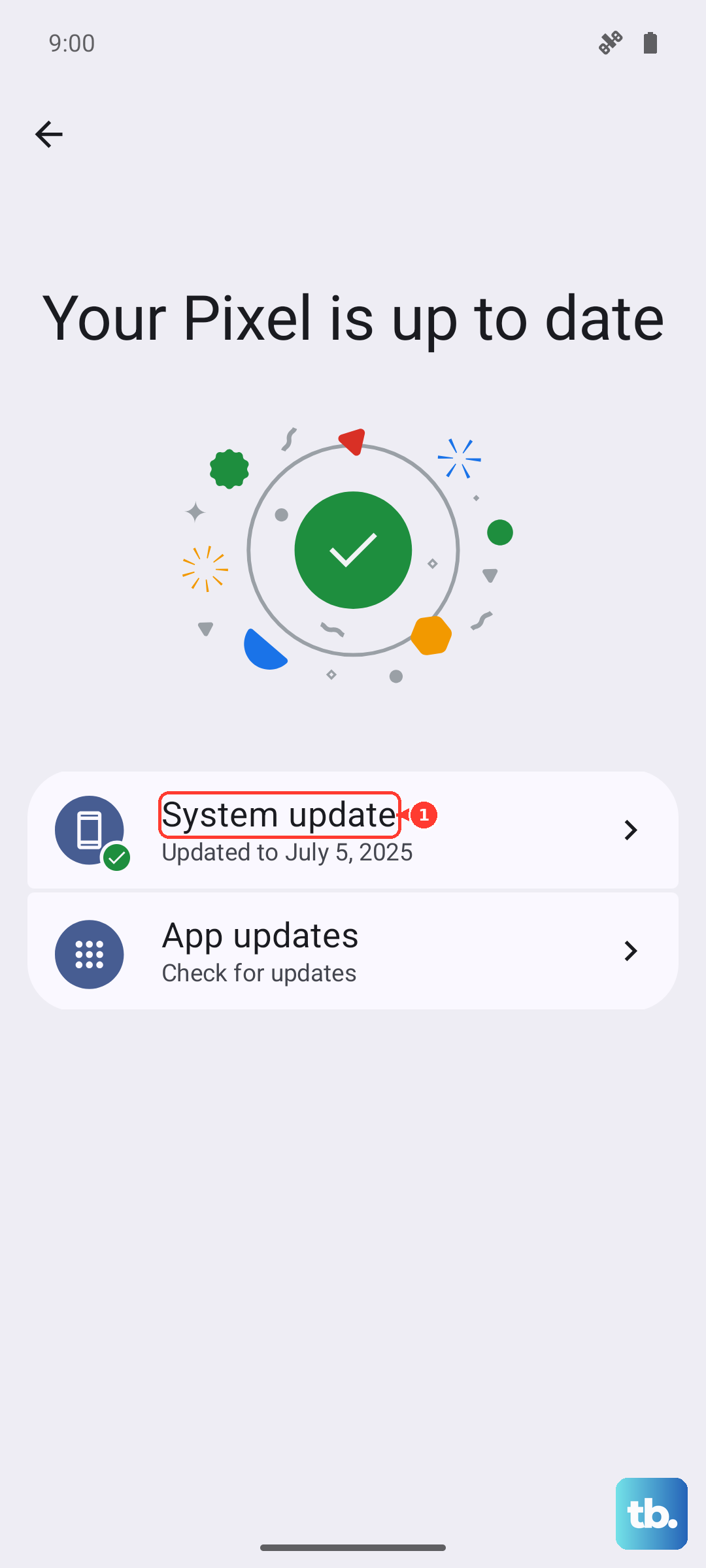
After the update completes and the phone restarts, test the volume keys again to confirm whether the new build resolved the issue.
Free up storage to give the system room
Very low free space can make the system behave unpredictably, including how it handles button input. If your Vivo X200 Pro is running close to full, clear out files, photos, downloads, or apps you no longer use to give the software some breathing room. Once you have recovered some space, restart the phone normally and test the volume keys again.
Remove recently installed apps one by one
Think about what changed right before the buttons stopped working. A recently installed app can interfere with how the system reads button presses. Uninstall the apps you added most recently one at a time, restarting the phone normally after each removal, and check the volume keys in between. If the keys come back to life after you remove a particular app, you have found the culprit.
Boot into Safe mode to expose a rogue app
Safe mode loads the phone with only its built-in software, so if a third-party app is interfering with the volume keys, they should suddenly work again. That single test tells you whether the problem is something you installed or something deeper in the system.
The exact key sequence to enter and exit Safe mode varies by phone, so use Vivo's own instructions for the X200 Pro combination rather than guessing a shortcut that might rely on a key you cannot press. If the volume buttons respond normally in Safe mode, an installed app is to blame, and removing the offending app (as in the previous step) should restore everyday use. If they stay unresponsive even in Safe mode, the fault is in the system or the hardware, and you should continue down the list.
Rule out a remapped key in Sound and Accessibility settings
It is worth confirming that the keys have not simply been reassigned or limited by a setting. Vivo officially documents Sound and Vibration and Shortcuts and Accessibility settings that govern how the buttons behave.
Open Settings and look through those two areas, and make sure no shortcut, gesture, or accessibility option has taken over the volume keys for another function. Returning any such option to its default can give the keys their normal behavior back without any further work.
Reset all settings before you wipe anything
If you suspect a misconfiguration but do not want to lose your data, reach for the gentler option first. Vivo's Backup and Reset FAQ explains the difference between 'reset all settings' and 'erase all data'. The first restores your system preferences to default without deleting your photos, apps, or accounts, while 'erase all data' is a full factory reset.
Choose 'reset all settings' at this stage. It clears any tangled configuration that might be blocking the keys while leaving your personal content untouched, so it is the least destructive fix to try before a wipe.
Factory reset as your final software move
If nothing above works and you still believe the problem is software, a factory reset is the last resort on the software side. Be careful here, because this step is destructive.
Warning. A factory reset erases all your data from your phone. Before you start, back up everything you want to keep, charge the battery to at least 70 percent, and make sure you know your Google Account credentials so you can sign back in afterward.
- 1.Open Settings and tap System.
- 2.Tap Reset options.
- 3.Tap Erase all data (factory reset) and confirm.
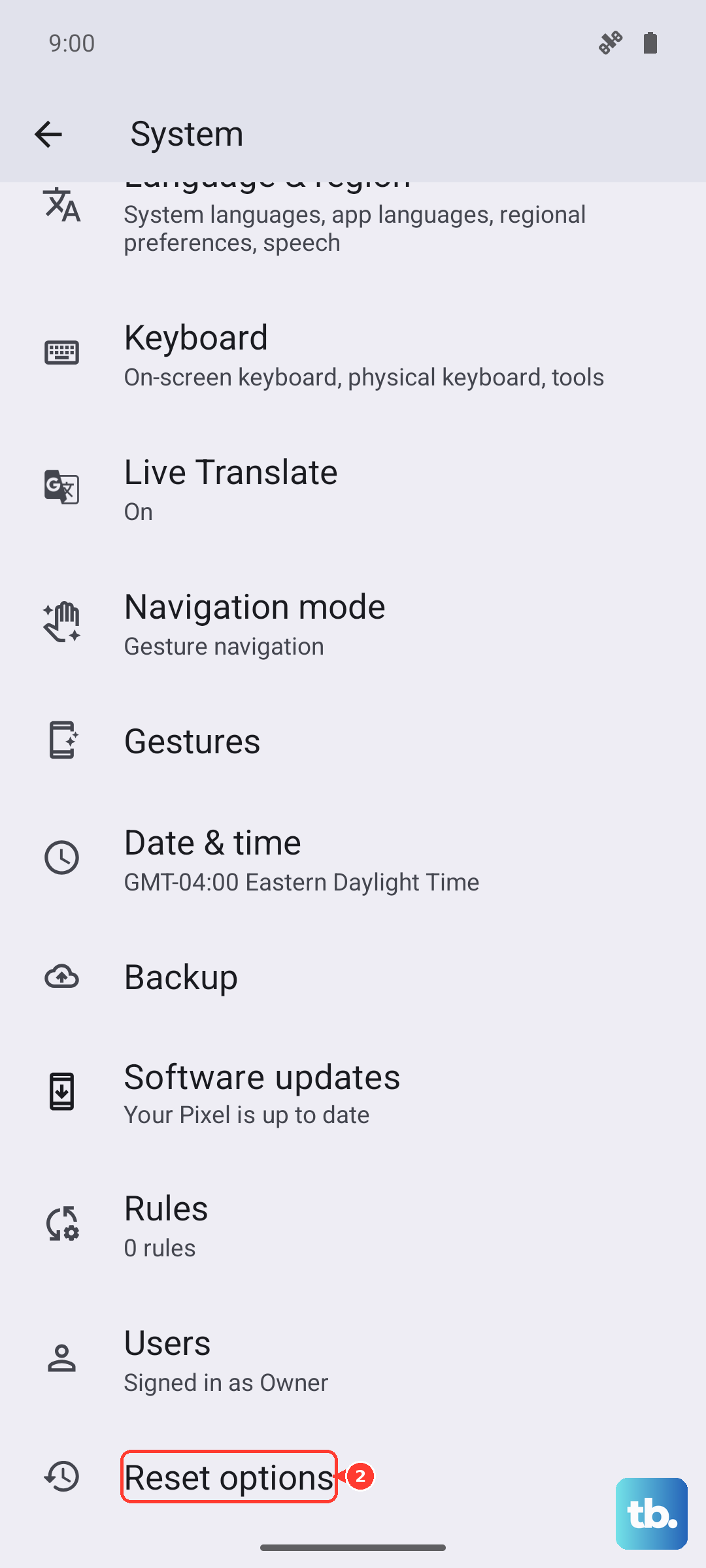
That path follows the standard Android 15 layout, and the exact Funtouch OS 15 wording may differ slightly, so look for the equivalent 'Erase all data' option in the Backup and Reset section. Once the phone is set up again, test the volume keys before restoring all of your apps.
When it is hardware, go through Vivo's official channels
If the volume buttons still fail after updating, checking settings, and resetting, the cause is most likely a hardware fault, and at that point the right move is to let Vivo handle it. Trying to fix a physical key yourself, or using an unauthorized repair shop, can void your coverage.
Use Vivo's official support options. Find your nearest Vivo Service Center with the locator on Vivo's site, submit the Email Us support form (Vivo aims to reply within 24 hours), and review your Warranty Terms to see what is covered. Vivo also publishes guidance on choosing official repair over unauthorized repair, which is worth reading before you book anything.
Frequently Asked Questions
Can I still use my Vivo X200 Pro if the volume buttons are physically broken?
Yes. Turn on the Android Accessibility Menu (Settings, then Accessibility, then Accessibility Menu, then turn on 'Accessibility Menu shortcut'), open it by swiping up with two fingers, and tap 'Make the volume louder' or 'Make the volume quieter'. These on-screen controls fully replace the physical keys, so the phone stays usable even if the side buttons never recover.
How do I restart the phone if the volume keys do not work?
Use the power-only method so you never need a faulty key. Hold down the power button for about 30 seconds to force the X200 Pro to restart, then test the volume buttons once it boots back up.
Will a factory reset fix volume buttons that are not responding?
Only if the problem is software. A factory reset can clear a stubborn system fault, but it erases all of your data, so back up first, charge to at least 70 percent, and have your Google Account details ready. If the keys still fail after a reset, the issue is almost certainly hardware and needs Vivo's attention.
How can I tell whether it is a software glitch or a hardware fault?
Boot the phone into Safe mode and test the keys. If they work in Safe mode, an installed app is interfering and the fix is to remove it. If they stay dead in Safe mode and remain unresponsive after an update and a reset, treat it as a hardware fault and contact Vivo.
Should I go to a local repair shop for the buttons?
It is safer to use Vivo's official channels first. Locate an authorized Service Center, submit the Email Us form, and check your Warranty Terms, because Vivo's own guidance warns that unauthorized repair can void your coverage.