
If your Vivo X200 Pro's battery is draining faster than it should, it's a frustrating problem for a phone known for its large 6000mAh capacity. The good news is that a sudden drop in endurance is usually caused by software or settings, not a failing battery. Let's get straight into the most effective fixes.
Check What's Using Your Battery
Before you change anything, take a quick look at your battery stats. This is the fastest way to see if a single app is the villain. Go to Settings > Battery > Battery Usage.
You'll see a breakdown of power consumption by app over the last 24 hours or week. If an app is using a suspiciously high percentage (like 30% or more) without you actively using it, that's your prime suspect. I'd start investigating there first.
Manage Background Activity and Location
Apps running in the background are a top cause of battery drain. Funtouch OS gives you good control over this. Head to Settings > Apps > App Management.
Tap on any power-hungry app you identified earlier. Look for options like "Auto-start" and disable it to stop the app from launching on boot. Also, check and restrict "Background Permissions" to limit what it can do when you're not using it.
Location services are another big drain. You don't need every app tracking you all the time. Go to Settings > Privacy > Permission Manager > Location. Here, you can set most apps to "Ask every time" or "Deny," reserving "Allow all the time" only for essential apps like maps.
Optimize Your Display Settings
The X200 Pro's bright, high-refresh-rate display is fantastic but power-hungry. A few tweaks can make a big difference. First, consider lowering the refresh rate. Go to Settings > Display & Brightness > Screen Refresh Rate and select "Standard" (60Hz) instead of "High" (120Hz).
Also, reduce your screen timeout. A shorter wait before the screen sleeps saves power. You can find this under Settings > Display & Brightness > Sleep. Setting it to 30 seconds or 1 minute is a good balance.
Enable Dark Mode. With an OLED screen, showing black pixels actually turns them off, saving power. You can turn it on in Settings > Display & Brightness > Dark Mode or schedule it for nighttime.
Update Your Software and Apps
Software bugs can cause abnormal battery drain. Vivo releases updates that often include power optimization fixes. Check for a system update by going to Settings > System Update.
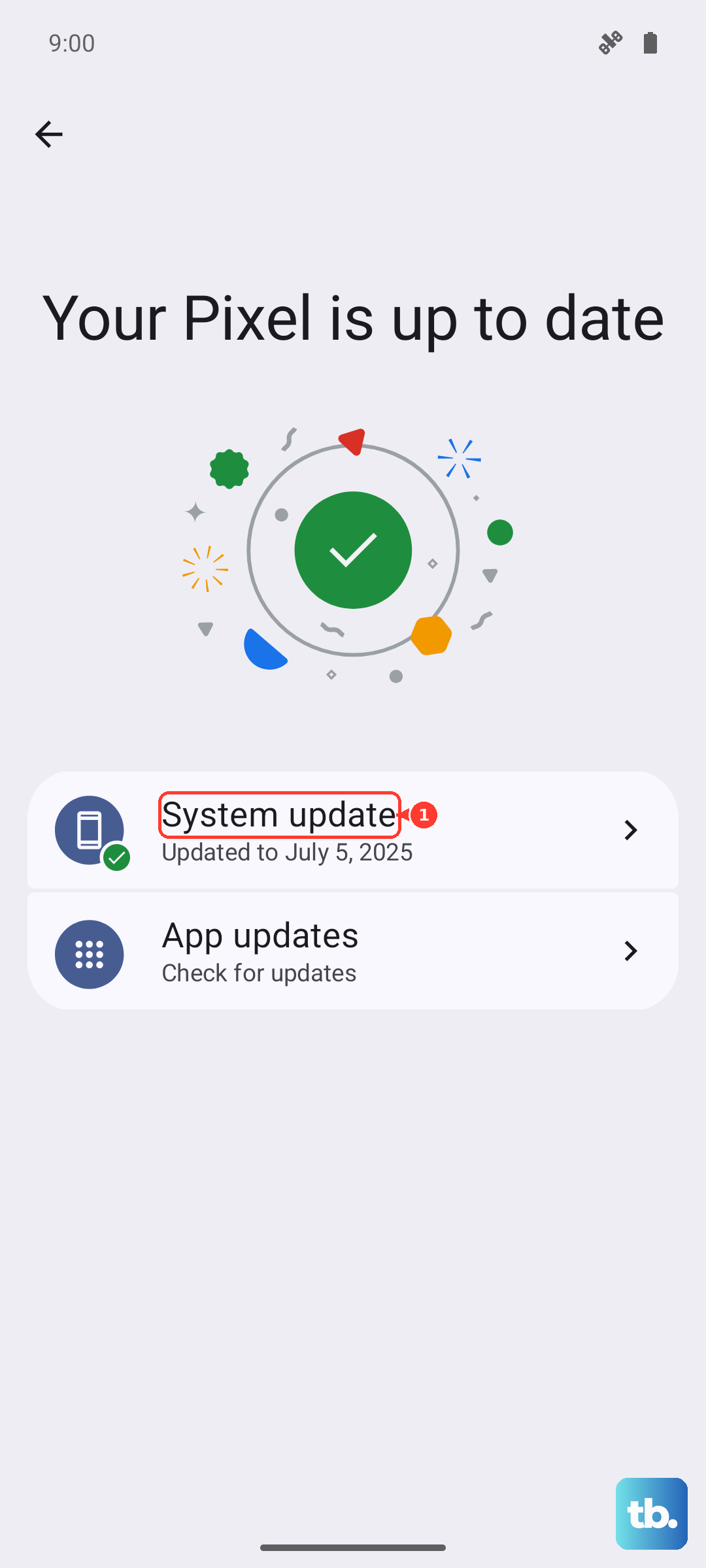
Similarly, make sure all your apps are updated. Outdated apps can have compatibility issues with Android 15 that lead to inefficient battery use. Open the Google Play Store, tap your profile icon, and select "Manage apps & device" to update everything.
Review and Remove Unnecessary Bloatware
Depending on your region, your X200 Pro may have come with pre-installed apps you don't use. These can sometimes run background processes. Go through your app drawer and see if there are any you can safely disable or uninstall.
You can often disable them by going to Settings > Apps, selecting the app, and tapping "Disable." This stops them from running without fully removing them, which is useful for system apps you're unsure about.
Use the Built-in Power-Saving Modes
Don't overlook the X200 Pro's own battery saver features. The standard Power Saving Mode (found in Settings > Battery) limits background sync and reduces performance slightly. For a more aggressive save, there's often an Ultra Power Saving Mode that strips the interface down to just calls, messages, and a few core apps.
You can also enable "Smart Power Saving" in the battery settings. This feature automatically adjusts system performance and network usage based on your habits to extend battery life.
Check Your Network and Connectivity
Constantly searching for a weak Wi-Fi or cellular signal is a major battery killer. If you're in an area with poor reception, try switching to Airplane Mode temporarily, or manually turn off Wi-Fi and mobile data if you don't need them.
Also, consider turning off Bluetooth and NFC if you're not using them. You can do this quickly from the notification shade or in Settings > Connection & Sharing.
Reset All Settings
If the drain started suddenly after you changed a bunch of settings, a misconfiguration might be the cause. You can reset all your system settings to default without losing your personal data like photos and messages.
Go to Settings > System Management > Backup & Reset > Reset Phone. Then, select Reset All Settings. You'll have to reconfigure things like Wi-Fi passwords and display preferences, but it can clear up obscure software glitches.
Perform a Force Restart
Sometimes, a simple software hiccup is to blame. A force restart can clear temporary caches and stop any runaway processes. On the Vivo X200 Pro, just press and hold the Power button for about 12 seconds until you feel it vibrate and see the Vivo logo appear.
Monitor Battery Health Over Time
While the X200 Pro's battery is designed to last, all batteries degrade with use and charging cycles. The phone includes tools to help you maintain it. Avoid constantly charging to 100% and letting it drop to 0%. Keeping it between 20% and 80% is ideal for long-term health.
Also, while the included 90W charger is incredibly fast, using it for every top-up can generate more heat, which stresses the battery over time. For overnight charging, using a slower charger or enabling any "Optimized Night Charging" feature in settings can be gentler.
When a Factory Reset Makes Sense
If you've tried every other step and the battery is still draining abnormally fast, a factory reset is the last software step. This will erase everything on your phone, so make sure you have a complete backup first.
Go to Settings > System Management > Backup & Reset > Reset Phone > Erase All Data. After the reset, set the phone up as new without restoring a backup immediately to see if the drain persists. If it does, the issue could be hardware-related.