You uninstall a program, restart your PC, and there it is again on your taskbar like it never left. Maybe it relaunches every time you sign in, maybe it quietly puts itself back after you thought it was gone, or maybe it refuses to uninstall at all and throws an error when you try. This is one of the more frustrating Windows problems because it feels like the machine is working against you, but in almost every case there is a specific, fixable reason behind it. The eight solutions below work on both Windows 10 and Windows 11, and they are ordered from the simplest and safest to the more thorough cleanup steps, so start at the top and stop once the program stays gone.
Remove the Program the Way Windows Expects
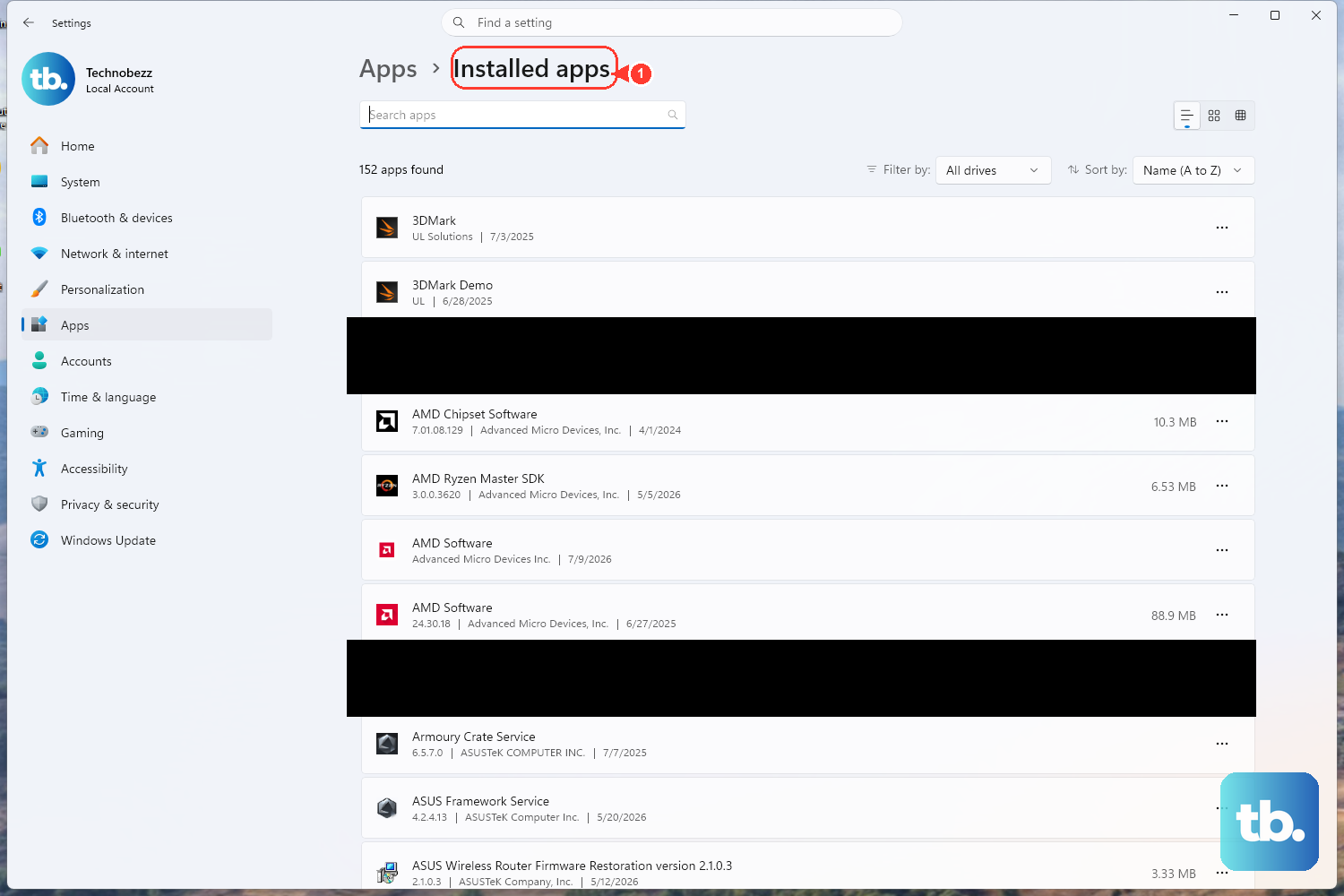
Before assuming anything sinister is happening, make sure the program was actually uninstalled through the proper channel rather than just deleted or closed. A clean removal is the foundation for everything that follows.
On Windows 11, use the Settings route first, since it covers most modern apps. On Windows 10 the equivalent screen lives under Apps & features.
Go to Start > Settings > Apps > Installed apps (on Windows 10, Start > Settings > Apps > Apps & features).
Find the program in the list, then select More > Uninstall.
If the program is not listed there or will not remove, search for Control Panel on the taskbar and open it.
Choose Programs > Programs and Features, right-click the program, and select Uninstall or Uninstall/Change.
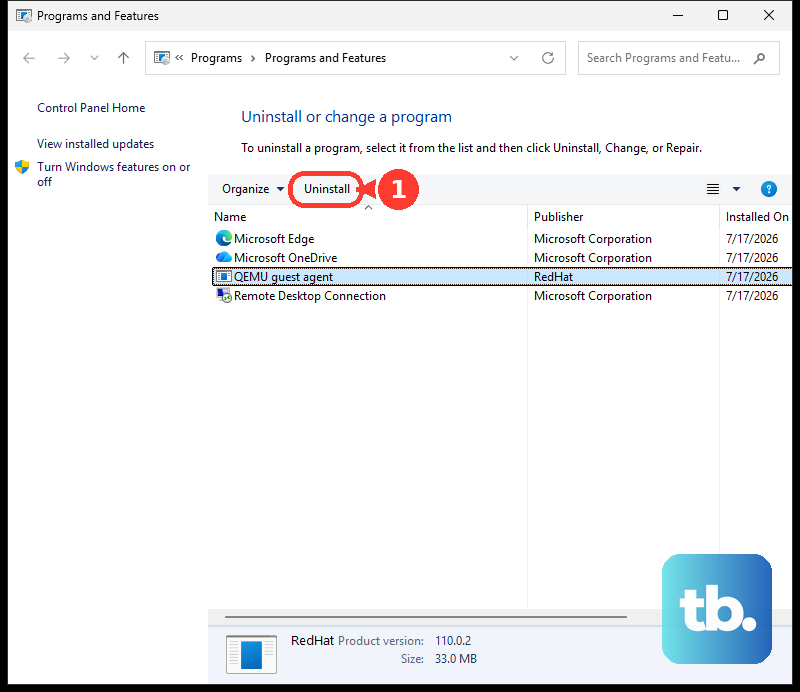
Keep in mind that some apps are built into Windows and cannot be uninstalled, so if a particular item simply has no uninstall option, that may be by design rather than a fault.
Stop It From Relaunching at Sign-In
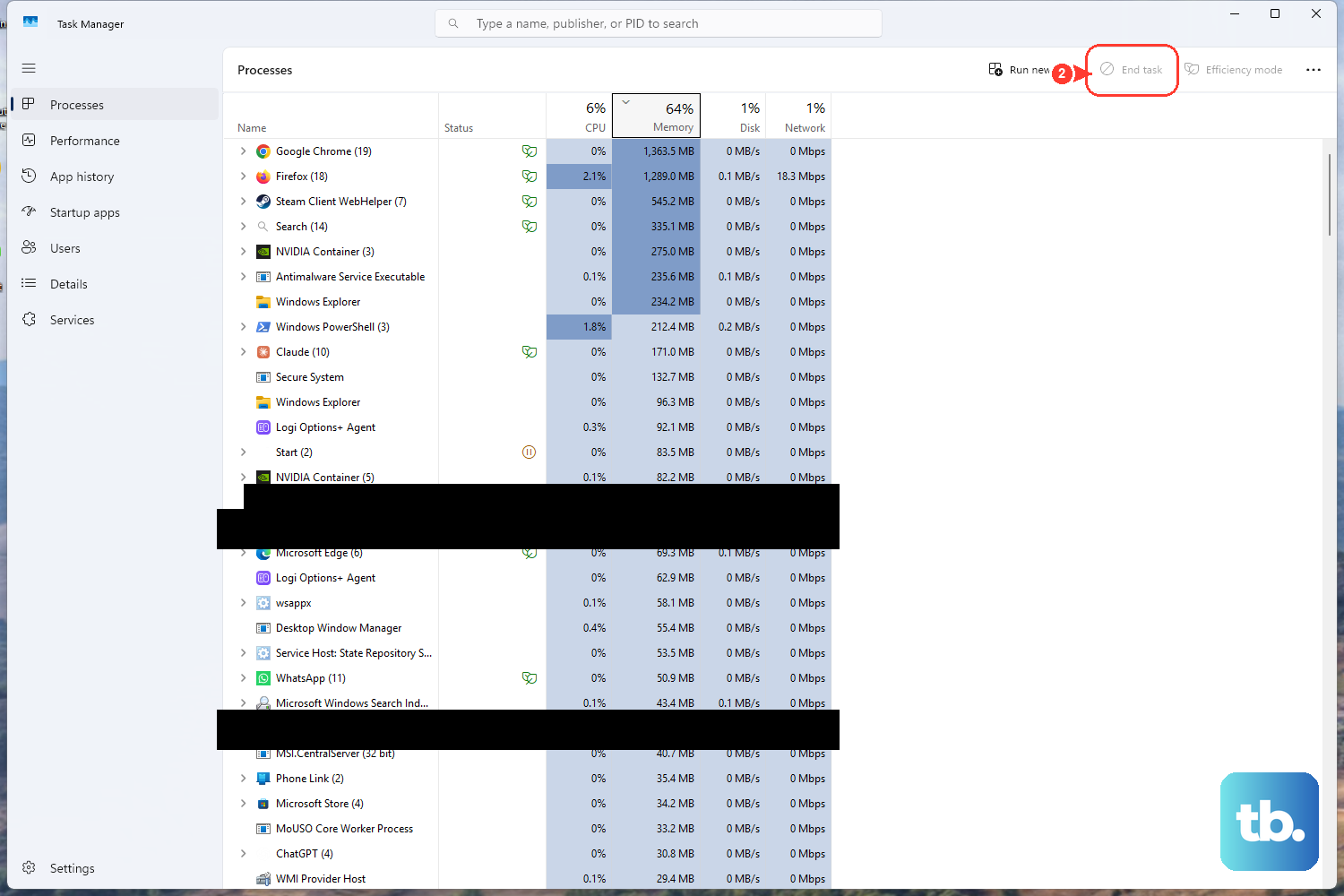
Very often a program that seems to "come back" was never reinstalled at all. It is simply set to launch automatically every time you sign in, so it reappears after each restart and gives the impression that it reinstalled itself. Disabling that startup entry usually solves the whole problem on its own.
You have two ways to do this, and either one works.
Go to Start > Settings > Apps > Startup and set the app's toggle to Off.
Alternatively, right-click Start and open Task Manager, then select the Startup apps tab.
Right-click the app in that list and choose Disable.
This prevents the app from starting automatically when you sign in. If the program was only relaunching rather than reinstalling, it should now stay closed after a restart.
Block Potentially Unwanted Apps From Coming Back
If the program is something you never deliberately installed, it may be a potentially unwanted application, or PUA. These can slow your machine down, show unexpected ads, or pull in other unwanted software, and Microsoft Defender can block them before they take hold. Check that potentially unwanted app blocking is enabled, since turning it on is one of the most effective ways to stop unwanted software from reinstalling.
Go to Start > Settings > Update & Security > Windows Security > App & browser control.
Open Reputation-based protection settings.
Find Potentially unwanted app blocking and turn it on.
Microsoft recommends enabling both options here. Block apps detects PUA that has already been downloaded or installed, while Block downloads catches PUA as it downloads in Microsoft Edge. Turning on both gives you coverage at the moment of download and afterward.
Confirm Real-Time Protection Is Actually Running
None of Defender's blocking works if real-time protection is switched off, and a piece of unwanted software that keeps reinstalling itself may be doing exactly that. Check it directly in the Windows Security app.
Open the Windows Security app, go to Virus & threat protection > Manage settings, and switch Real-time protection to On. If it turns on cleanly, your live protection is restored.
If Real-time protection will not turn on, there are two common explanations. The first is that a third-party antivirus has taken over; Microsoft Defender Antivirus turns off automatically when another antivirus is installed and turns back on if you uninstall that product.
The second is Tamper Protection, which prevents malicious apps from changing important Microsoft Defender settings such as real-time and cloud-delivered protection. You can view Tamper Protection under Virus & threat protection > Manage settings.
Note that if Tamper Protection is on, you must turn it off before you can turn Real-time protection off, so it acts as a deliberate guardrail around your security settings.
Sweep the System With a Full Defender Scan
With protection confirmed, run a thorough scan to find and remove whatever keeps putting the program back. A Full scan checks every file and program on your device, which is what you want when you are not sure where the unwanted software is hiding.
Open the Windows Security app and go to Virus & threat protection > Scan options.
Choose Full scan.
Select Scan now and let it complete.
For unwanted software specifically, Microsoft's advice is to get the latest security intelligence first and then run a full scan with Microsoft Defender Antivirus, so make sure your definitions are current before you begin.
Catch Hidden Malware With an Offline Scan
Some malware is built to hide while Windows is running, which is exactly why a program can keep reinstalling no matter how many normal scans you run. A Microsoft Defender Offline scan deals with this by running before Windows fully loads, so persistent threats have nowhere to hide.
Because this scan restarts your PC, save your files and close your apps first.
In the Windows Security app, go to Virus & threat protection > Scan options.
Select Microsoft Defender Antivirus (offline scan).
Select Scan now; your PC will restart automatically.
The scan uses the latest definitions and runs after the restart, inside the Windows Recovery Environment, so persistent malware cannot stay active to protect itself. Once your PC comes back up, you can view what it found in the Windows Security app under Protection history.
If you prefer, you can also start an offline scan directly using the Microsoft-documented protocol link windowsdefender://wdoscan/.
Repair an Uninstall That Errors Out
If the underlying problem is that the program simply refuses to uninstall and throws an error when you try, the cause is often corrupted registry keys that block installation, removal, or updates. Microsoft's Program Install and Uninstall Troubleshooter is built specifically to repair those keys, including for programs that will not remove through Programs and Features in Control Panel.
Download the Program Install and Uninstall Troubleshooter from the Microsoft Support page; the download file is named MicrosoftProgram_Install_and_Uninstall.
When prompted, select Run or Open.
Follow the troubleshooter to repair the corrupted registry keys blocking the uninstall.
Microsoft documents this troubleshooter for Windows 10. If you are on Windows 11 and a program will not remove, Microsoft directs you back to Settings > Apps > Installed apps as the primary route.
Because this tool targets the exact registry entries that govern install and uninstall, it is the right fix when an ordinary uninstall keeps failing.
Use a Clean Boot to Trace What Keeps Bringing It Back
If the program still returns after everything above, a clean boot can help you pin down the background software responsible. A clean boot starts Windows with only essential drivers and startup programs, which makes conflicts and stubborn relaunchers far easier to spot.
- 1.Search
msconfigfrom the Start menu search box and open System Configuration. - 2.Go to the Services tab and check Hide all Microsoft services.
- 3.Select Disable all, then Apply.
- 4.Go to the Startup tab and select Open Task Manager.
- 5.Disable each startup item there.
- 6.Return to System Configuration, select OK, then restart to test.
Check Hide all Microsoft services before you select Disable all, because that checkbox keeps essential Microsoft services running and is what makes this safe. Microsoft cautions that System Configuration can make the computer unusable if used incorrectly, so do not skip that step.
With only essential services and startup items running, you can watch whether the program reappears. If it stays gone in this minimal state, re-enable items a few at a time to narrow down which background component was reinstalling or relaunching it.
When you are finished testing, reverse these changes to return Windows to a normal startup.
Frequently Asked Questions
Why does a program keep reinstalling itself after I remove it?
In many cases it is not reinstalling at all; it is set to relaunch automatically at sign-in, which you can stop under Start > Settings > Apps > Startup or in Task Manager's Startup apps tab. If it genuinely returns, the cause is often potentially unwanted software or hidden malware, which is why enabling PUA blocking and running Defender scans is part of the fix.
What is the difference between a Full scan and an Offline scan?
A Full scan checks every file and program on your device while Windows is running. A Microsoft Defender Offline scan restarts your PC and runs inside the Windows Recovery Environment, so persistent malware that hides during normal use cannot protect itself; you view the results afterward under Protection history.
Why can't I turn Real-time protection on?
Two common reasons are that a third-party antivirus is installed (Microsoft Defender Antivirus turns off automatically when another antivirus takes over and turns back on if you uninstall it), or that Tamper Protection is preventing changes to important Defender settings. You can check Tamper Protection under Virus & threat protection > Manage settings.
The program shows an error when I try to uninstall it. What should I do?
Use Microsoft's Program Install and Uninstall Troubleshooter, which fixes corrupted registry keys that block programs from being installed, uninstalled, or updated, including programs that will not remove through Programs and Features in Control Panel. Download it from the Microsoft Support page (the file is named MicrosoftProgram_Install_and_Uninstall) and select Run or Open when prompted.
How do I turn on PUA blocking in Windows?
You can enable potentially unwanted app blocking under Start > Settings > Update & Security > Windows Security > App & browser control > Reputation-based protection settings, and Microsoft recommends turning on both Block apps and Block downloads for full coverage.