When your Tecno Spark 30 Pro's Settings app keeps closing, it's usually a software hiccup. The phone runs on HiOS 14 over Android 14, and sometimes a background process or a bit of corrupted data can cause the system app to crash. Let's get it working again.
Force Stop and Restart the Settings App
This is the quickest thing to try. Force stopping the app shuts it down completely and lets it start fresh the next time you open it. On your Spark 30 Pro, go to Settings > Apps > Manage apps.
Find and tap on the "Settings" app in the list. On its info page, tap the Force stop button and confirm. Now, try opening Settings again from your app drawer or notification panel.
Clear the Settings App Cache
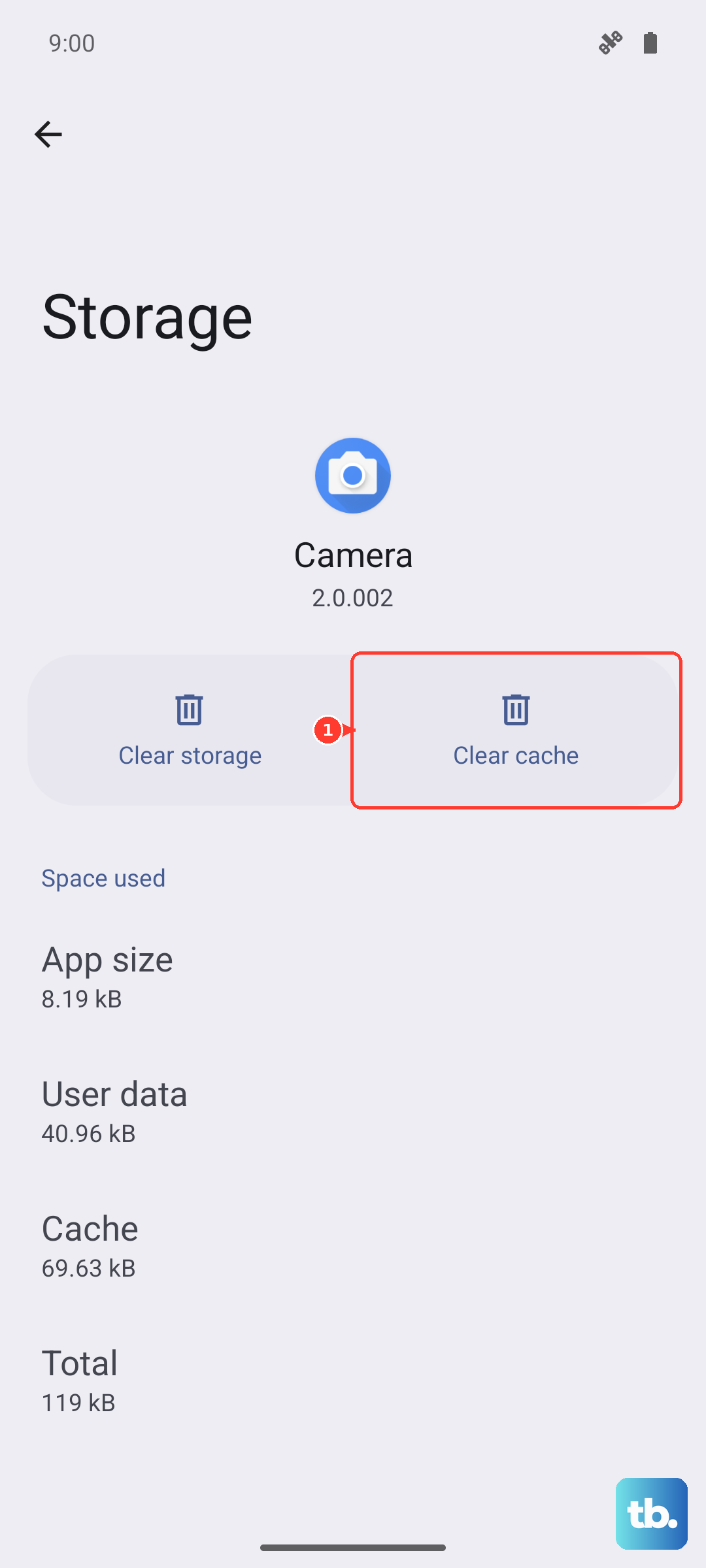
If force stopping didn't help, the app's temporary cache files might be the problem. These files can get corrupted. You'll need to go back into the app management menu.
Navigate to Settings > Apps > Manage apps and select "Settings" again. This time, tap on Storage usage. Here, you'll see an option to Clear cache. Tap it. This won't delete any of your personal settings, just the temporary junk files.
Check for a System Update
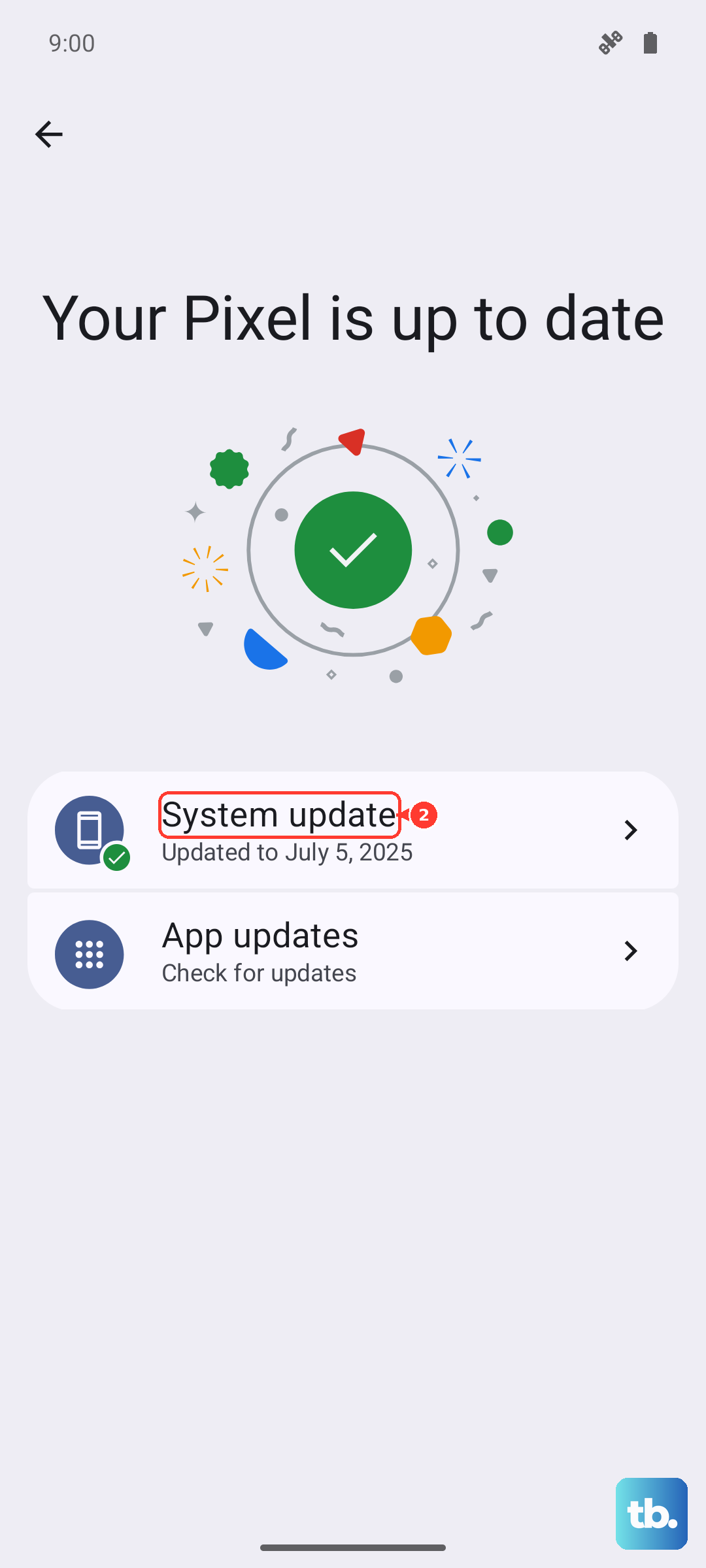
Tecno occasionally releases updates for HiOS that fix bugs like this. It's a good idea to make sure your phone is running the latest software. Go to Settings > System > Software update.
Tap Check for updates. If an update is available, connect to Wi-Fi and plug in your 33W charger to ensure the install goes smoothly. I've seen minor system updates resolve app crashes on several Tecno models.
Review Recently Installed Apps
Sometimes, a third-party app you installed can conflict with system functions. Think about any new apps you added just before the Settings app started crashing. Try uninstalling them to see if the problem stops.
You can do this from Settings > Apps > Manage apps. If you can't access Settings at all, you can uninstall apps by long-pressing their icon on the home screen and selecting the uninstall option.
Manage Google Play Services
Google Play Services is a core component that many system features rely on. If it's acting up, it can cause other apps to misbehave. First, try force stopping it. Go to Settings > Apps > Manage apps, tap the three-dot menu, and select Show system.
Find and select "Google Play Services." Tap Force stop, then Storage usage, and hit Clear cache. Don't clear the data here unless you're prepared to sign back into some accounts, as it's a more drastic step.
Perform a Soft Reset
A simple reboot can clear out temporary glitches in memory. If your Settings app is responsive enough, hold the power button and select Restart. If the phone is completely frozen, you'll need to force restart it.
For the Tecno Spark 30 Pro, press and hold the Power button and the Volume Down button together for about 10 to 15 seconds. Release when you see the Tecno logo, and the phone will boot up normally.
Consider a Factory Reset
If nothing else has worked, a factory reset is the final step. This will erase everything on your phone, so you must back up your photos, contacts, and important files first. You can use Google Drive or transfer files to a computer.
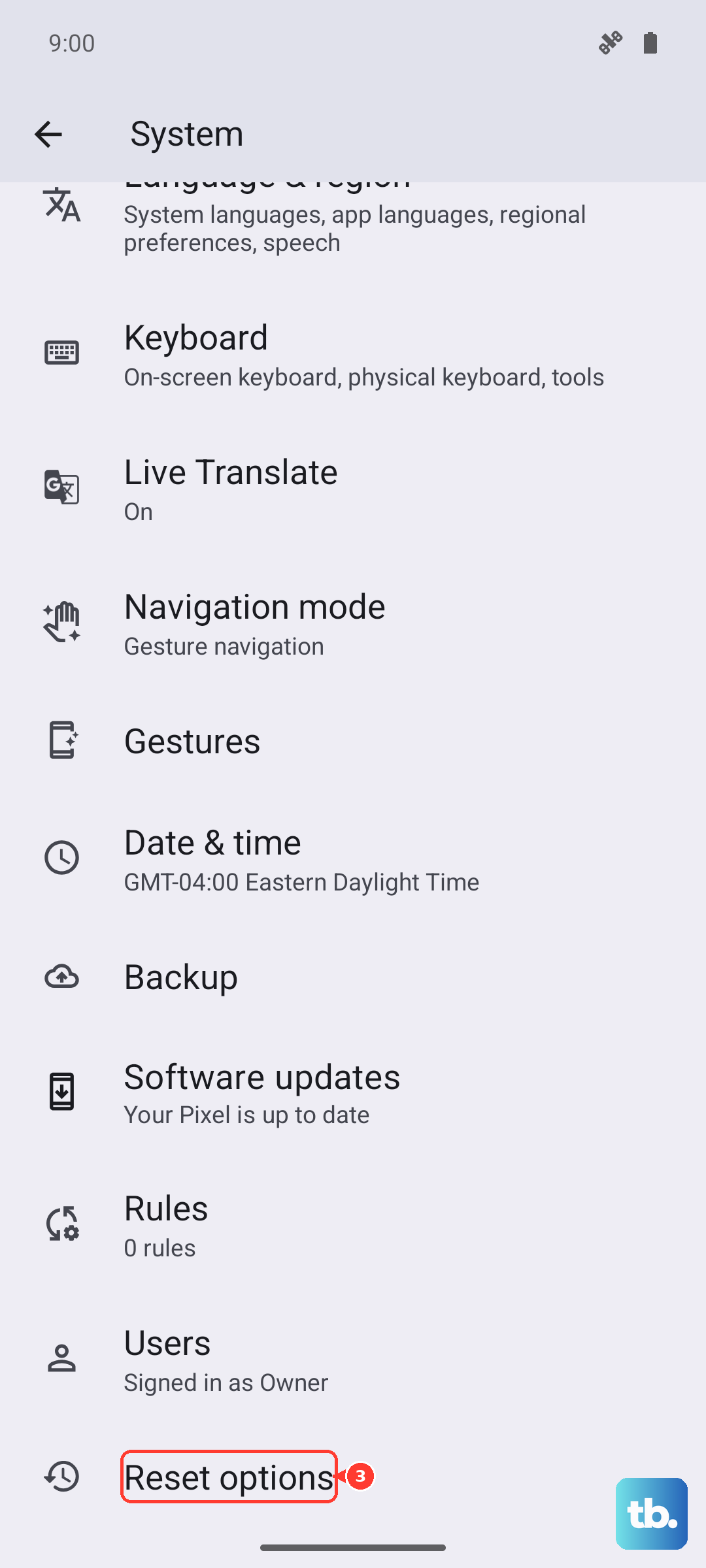
To reset, go to Settings > System > Reset options. Select Erase all data (factory reset). You may need to enter your PIN or password. After the reset, set up the phone as new and avoid restoring from a backup immediately to see if the issue is gone.