
When your Tecno Spark 30 Pro stops ringing, it can leave you wondering if you're suddenly invisible. This is a common hiccup on Android phones, and it's usually tied to a setting or a temporary software glitch. The good news is you can almost always fix it yourself without needing a trip to a repair shop.
Before we get into the detailed fixes, let's knock out the quick ones. First, pull down the notification shade from the top of your screen and make sure the airplane icon isn't highlighted. Toggle it off if it is. Next, give your phone a simple restart. This clears out minor software bugs that can mess with the cellular radio. Finally, check your signal bars. If you're in a basement or a rural area with poor coverage, calls simply can't get through.
Check Do Not Disturb and Silent Mode
It's easy to accidentally enable modes that silence calls. On your Spark 30 Pro, swipe down twice from the top to open the full Quick Settings panel. Look for icons labeled "Do Not Disturb" or a bell with a slash. If they're active, tap them to turn them off.
You should also check the physical volume buttons. Press the volume up button and make sure the slider that appears isn't set to vibrate or silent. Sometimes a case can press and hold these buttons without you realizing it.
Review Your Call Blocking Settings
HiOS and the Phone app have built-in tools to block spam, but they can sometimes be overzealous. Open your Phone app and tap the three-dot menu in the top right, then go to Settings.
Look for a section called "Blocked numbers" or "Call rejection." Tap into it and review the list. If you see any numbers you recognize and want to receive calls from, remove them from the block list. Also, check if a setting like "Block unknown callers" is turned on, as this will send any number not in your contacts straight to voicemail.
Disable Call Forwarding
If call forwarding is active on your line, all your incoming calls are being sent to another number. To check this on the Tecno Spark 30 Pro, open the Phone app and dial #002# and then tap the call button. This is a universal code to deactivate all call forwarding.
You can also check in your settings. Go to Settings > Mobile network > Call forwarding. Make sure all the options, like "Always forward" or "When busy," are set to "Disable" or your carrier's voicemail number.
Inspect Your SIM Card
A loose or faulty SIM card is a classic culprit. You'll need the SIM ejector tool that came in the phone's box. Gently push it into the small hole on the SIM tray on the left side of the phone to pop it out.
Remove the SIM card, give the gold contacts a quick wipe with a dry, soft cloth, and carefully re-seat it in the tray. Push the tray back in until it clicks. If you have access to another phone, try your SIM card in it to see if calls come through, which will tell you if the issue is with the card or your Spark 30 Pro.
Reset Your Network Settings
This is a powerful step that clears all your network-related configurations without touching your personal data. It will forget your Wi-Fi passwords and unpair Bluetooth devices, but it often fixes persistent calling issues.
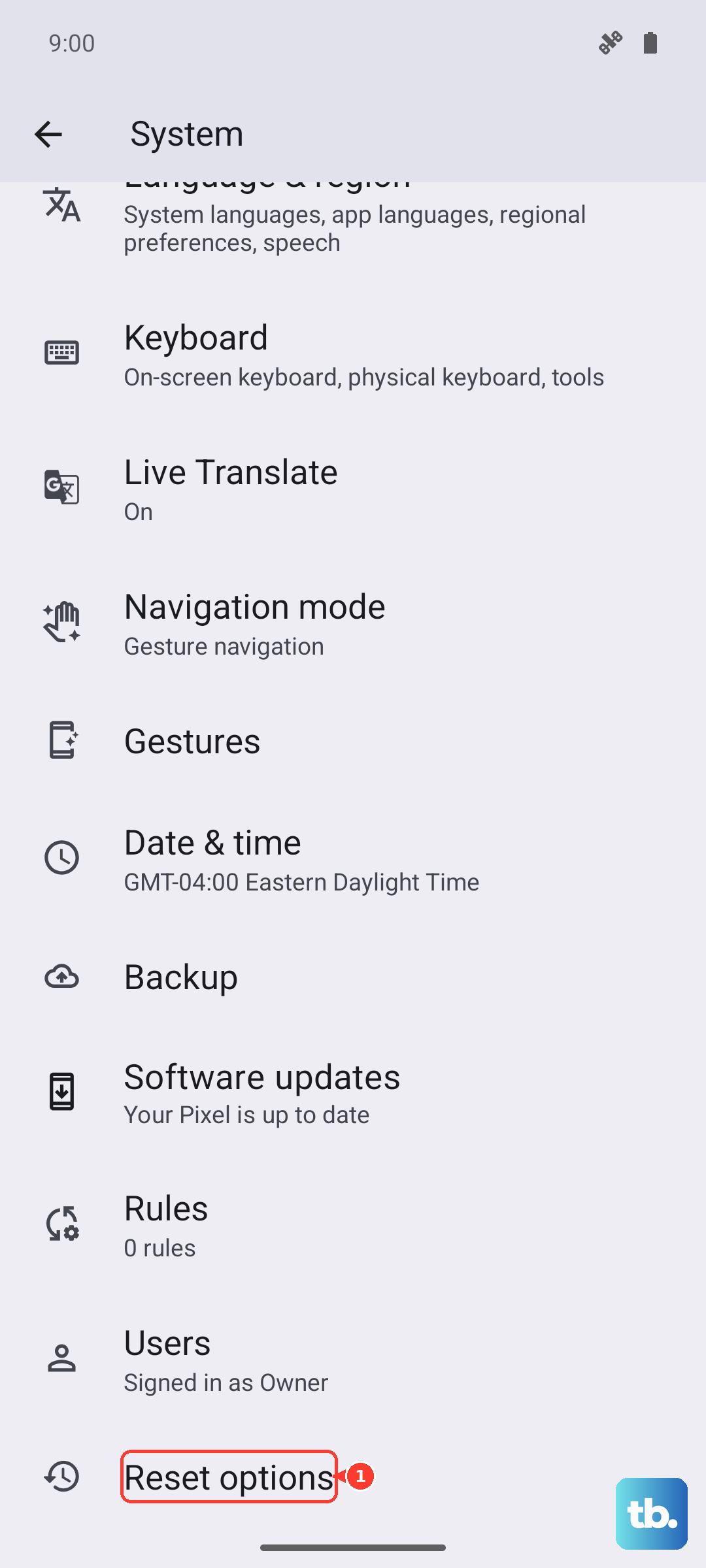
On your phone, go to Settings > System > Reset options. Tap on Reset Wi-Fi, mobile & Bluetooth. Confirm the reset and let your phone reboot. After it restarts, you'll need to reconnect to Wi-Fi and re-pair any Bluetooth devices.
Update Your Phone's Software
Running outdated software can lead to bugs that affect calling. Tecno releases periodic updates to fix these kinds of problems. Connect to a Wi-Fi network, then go to Settings > System > System update.
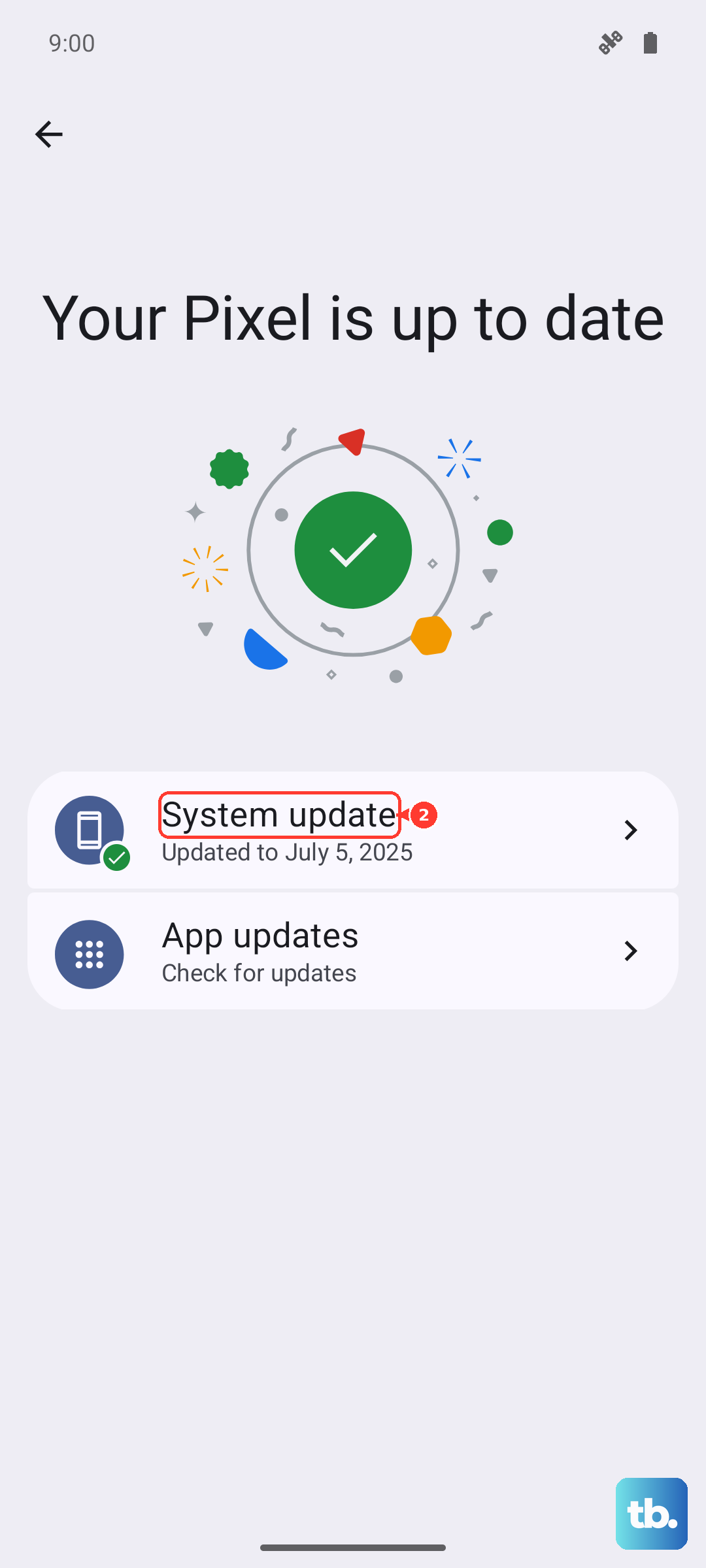
Tap "Check for updates." If one is available, download and install it. I'd recommend doing this while your phone is plugged into the included 33W charger to ensure the update doesn't get interrupted by a dead battery.
Clear the Phone App's Cache and Data
The Phone app can accumulate corrupted temporary files. Clearing its storage can give it a fresh start. Head to Settings > Apps > See all apps. Find and tap on "Phone" in the list.
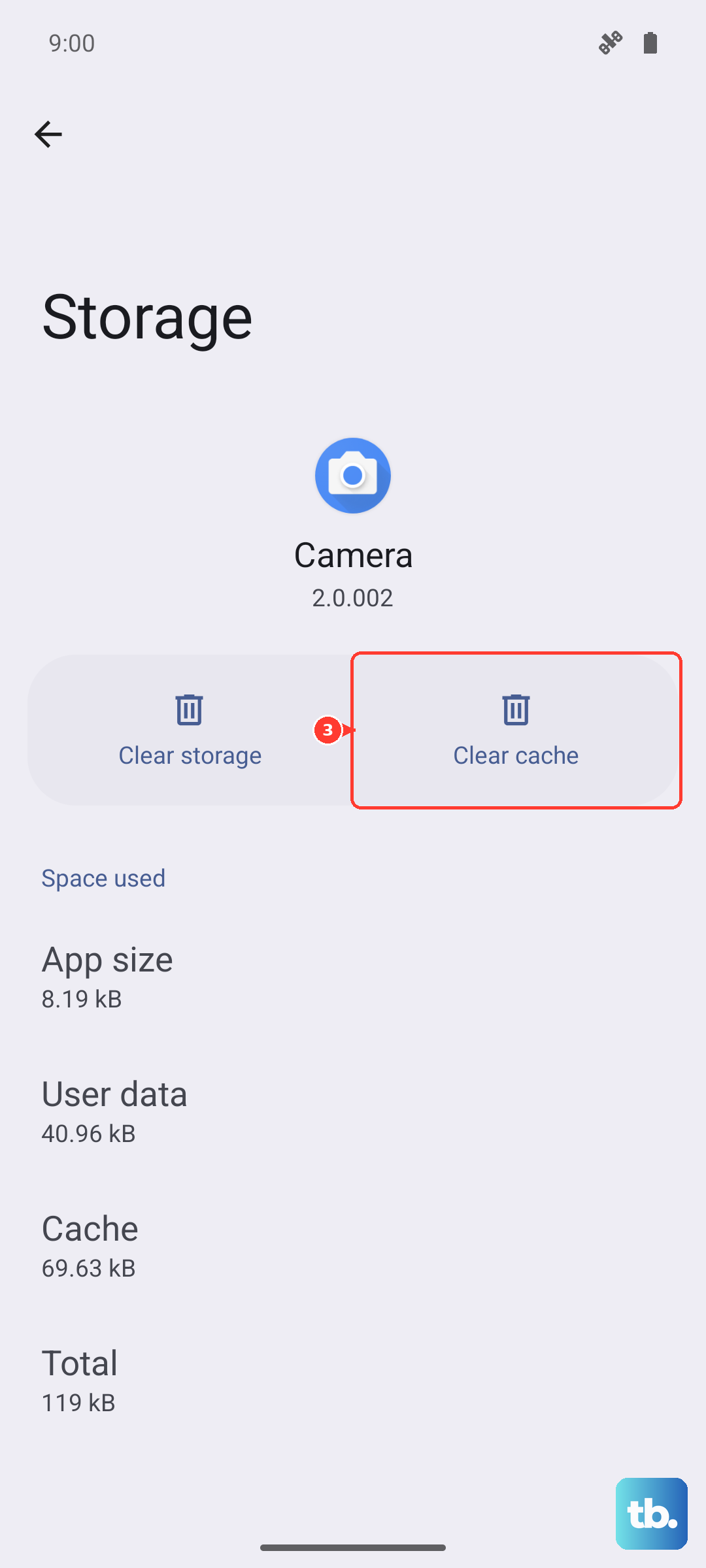
Tap Storage & cache. First, tap "Clear cache." If the problem persists, go back and tap "Clear storage" or "Clear data." Don't worry, this won't delete your contacts or call history, but it will reset the app's preferences.
Check for Problematic Third-Party Apps
Sometimes, an app you installed can interfere with core phone functions. Think about any call recorder, dialer, or security apps you've added recently. Try booting your phone into Safe Mode, which temporarily disables all downloaded apps.
To do this, press and hold the power button until the power menu appears. Then, press and hold the "Power off" option on your screen until you see a prompt to reboot to Safe Mode. Tap it. If you can receive calls in Safe Mode, a third-party app is the likely cause. You'll need to uninstall apps one by one to find the offender.
Remove Unnecessary Bloatware
The Tecno Spark 30 Pro comes with pre-installed apps that you may not use. While you can't fully uninstall all of them without advanced steps, you can disable many. These apps can sometimes run in the background and cause conflicts.
Go to Settings > Apps > See all apps. Scroll through the list and look for apps you don't recognize or need. Tap on one, and if the option is available, tap "Disable." Freeing up this background RAM can help overall system stability, including call functions.
Perform a Factory Reset
This is your last resort, as it will erase everything on your phone. Before you do this, ensure you have a complete backup of your photos, messages, and app data. You can use Google's backup service in Settings > System > Backup.
Once backed up, go to Settings > System > Reset options > Erase all data (factory reset). Follow the prompts. After the reset, set up your phone as new initially to see if calls work, rather than restoring from a backup, in case the backup contained the corrupted setting.