When your Tecno Spark 30 Pro's GPS starts acting up, it can leave you stranded in more ways than one. Whether Google Maps is showing you in the wrong place or your food delivery app can't find your address, location issues are a real headache. The good news is that most of the time, this is a software problem you can fix yourself.
I'd start with the quickest solutions first. Often, a simple refresh of the system is all it takes to get your location services back on track.
Refresh Your Location Connection
Swipe down from the top of your screen twice to open the full Quick Settings panel. Look for the Location icon, which looks like a teardrop-shaped marker. Tap it once to turn it off, wait about 15 seconds, and then tap it again to turn it back on. This forces the GPS radio to restart, clearing any minor glitches.
If that doesn't do it, try a full device restart. Press and hold the power button until the power menu appears, then tap "Restart." For a more forceful reset, you can perform a force restart by holding the Power button and the Volume Down button together for about 10 seconds until you see the Tecno logo.
Check Your Location Mode and Permissions
Your Spark 30 Pro has different location accuracy modes to balance battery life and precision. For the best GPS performance, especially when navigating, you need to be in High Accuracy mode. Go to Settings > Location and make sure the main toggle at the top is on.
Then, tap on "Location services" or "Mode." Select High accuracy. This mode uses GPS satellites, Wi-Fi, and mobile networks to pinpoint you, which is crucial for apps like Google Maps. Also, double-check that your apps have permission. Go to Settings > Apps, select your navigation app (like Maps), then tap Permissions and ensure "Location" is set to "Allow all the time" or "Allow only while using the app."
Disable Battery Saver and Toggle Airplane Mode
HiOS's battery saver is designed to extend your phone's life by limiting background processes, and that often includes throttling the GPS. If you have it on, your location might be slow or inaccurate. Swipe down to Quick Settings and look for the battery saver icon, or go to Settings > Battery to turn it off completely.
A trick that works on many Android phones, including the Spark 30 Pro, is using Airplane Mode. Swipe down and tap the airplane icon to enable it. Wait 20 seconds, then tap it again to disable it. This resets all the phone's wireless radios, cellular, Wi-Fi, Bluetooth, and GPS, which can clear up connection conflicts causing the issue.
Update Your Apps and System Software
Outdated software is a common culprit. First, head to the Google Play Store, tap your profile icon, and go to "Manage apps & device." Install any pending updates, especially for Google Maps, Google Play Services, and any other apps you use for location.
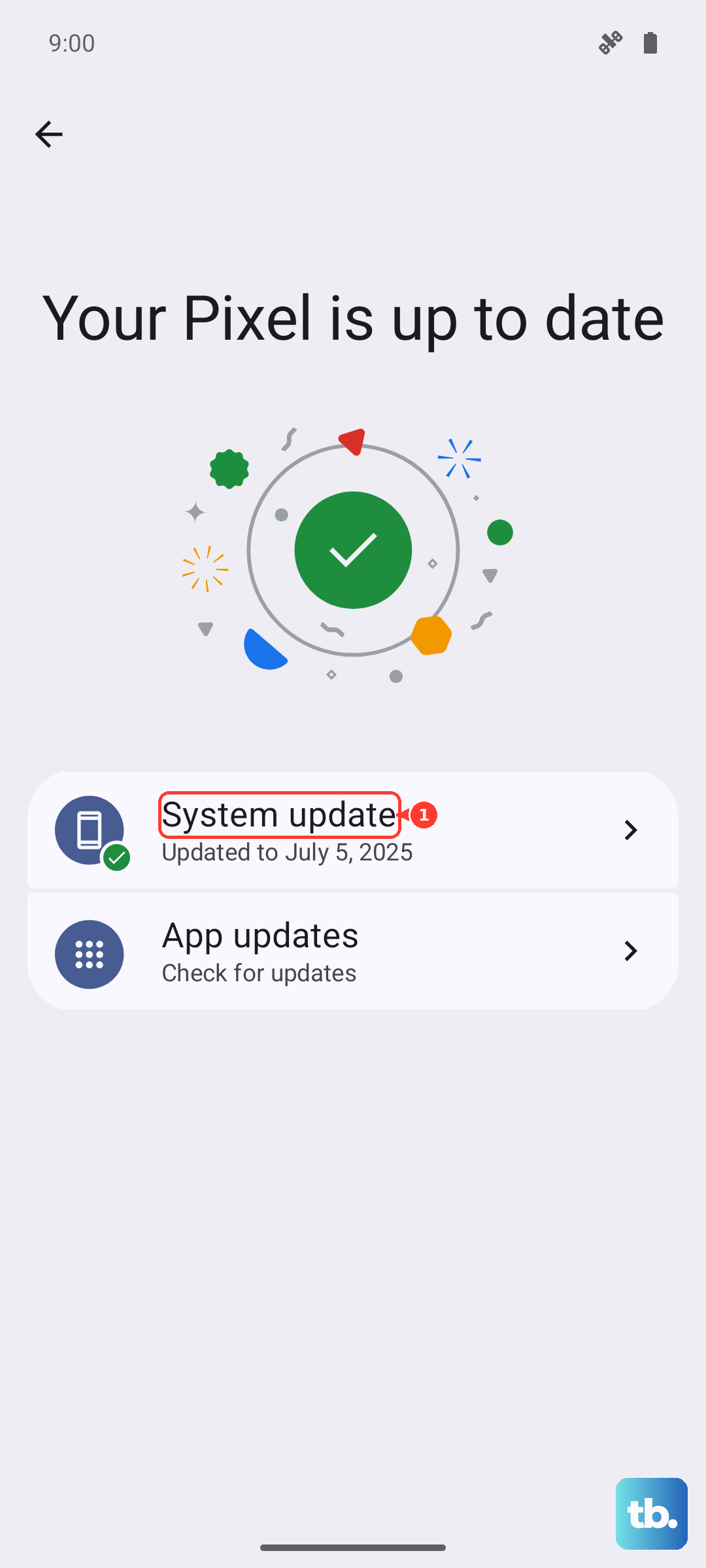
Next, check for a system update. Tecno occasionally releases updates that fix bugs and improve performance. Go to Settings > About phone > Software update and tap "Check for updates." If an update is available, install it. Given the Helio G100 processor, keeping software optimized is key for smooth operation.
Clear App Cache and Data
Sometimes, the data stored by your mapping app gets corrupted. You can clear this without losing your saved places. Go to Settings > Apps > Google Maps. Tap on Storage & cache, then hit "Clear cache." This is safe and won't delete your account info.
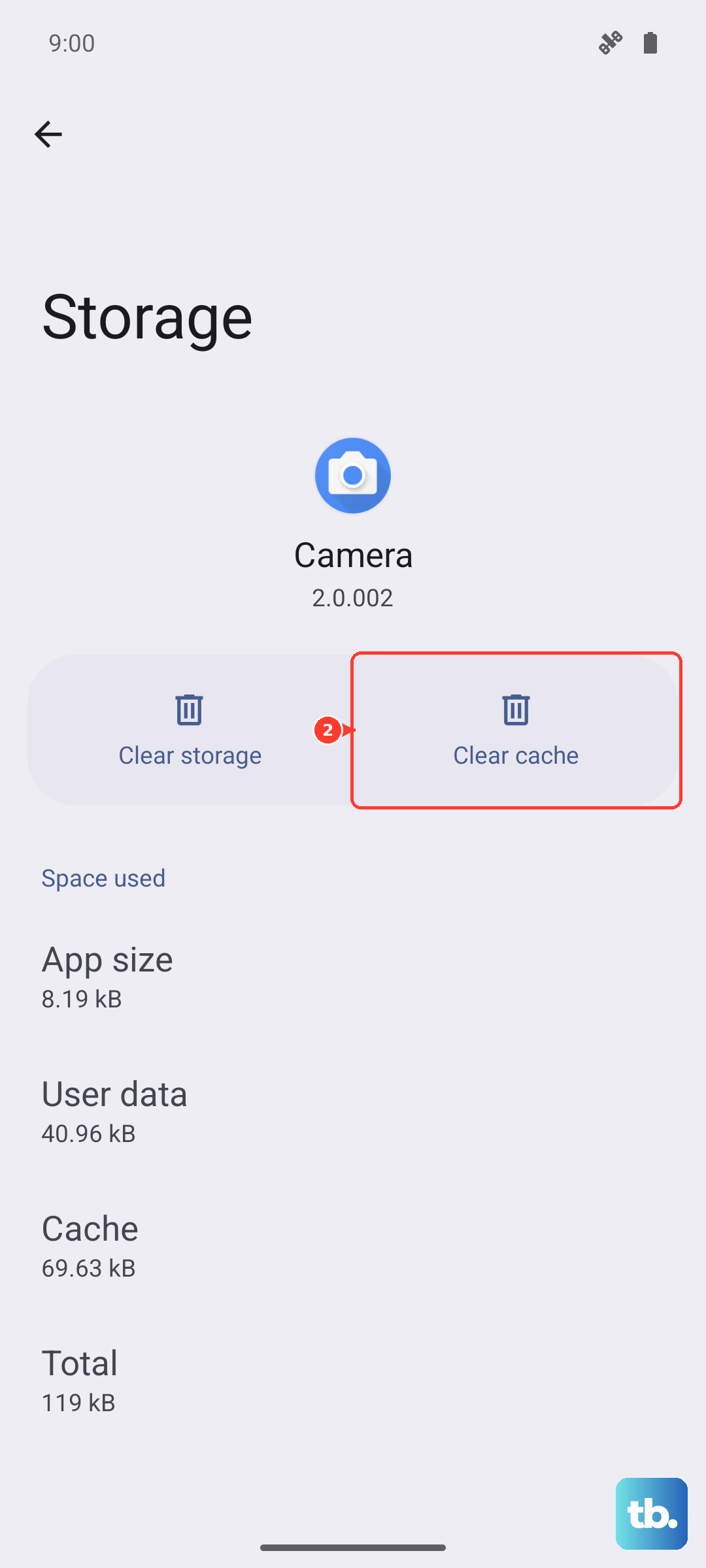
If the problem persists, you can take the stronger step of clearing the app data. In the same menu, tap "Clear storage" or "Clear data." A warning will pop up, this will reset the app to its default state, so you'll need to sign back in. It often fixes deeper software glitches.
Test in Safe Mode and Check for Interference
To rule out a third-party app causing trouble, boot into Safe Mode. Press and hold the power button until the power menu appears. Then, tap and hold the "Power off" option on your screen. You should see a prompt to reboot to Safe Mode. Tap "OK."
In Safe Mode, all downloaded apps are disabled. Try opening Maps and see if the GPS works. If it does, a recently installed app is likely the problem. Restart your phone normally to exit Safe Mode and try uninstalling apps one by one to find the culprit. Also, be mindful of your environment. Thick phone cases, being inside a car with metallic tint, or surrounded by tall buildings can block the weak GPS signal.
Improve GPS Accuracy with Calibration
If your location is "jumpy" or seems slightly off, your phone's compass might need calibration. Open Google Maps and tap the blue location dot. A menu will appear at the bottom, tap "Calibrate." You'll be prompted to move your phone in a figure-8 motion a few times. Do this slowly until the accuracy improves to "High."
For a more technical check, you can download a free app like "GPS Test" or "GPS Essentials." Open it and go to the satellite view. If you're outdoors with a clear view of the sky, you should see your phone connecting to multiple satellites. If it sees satellites but your location is still wrong, it's a software issue. If it can't see any satellites at all, there might be a deeper problem.
Reset Your Network and Location Settings
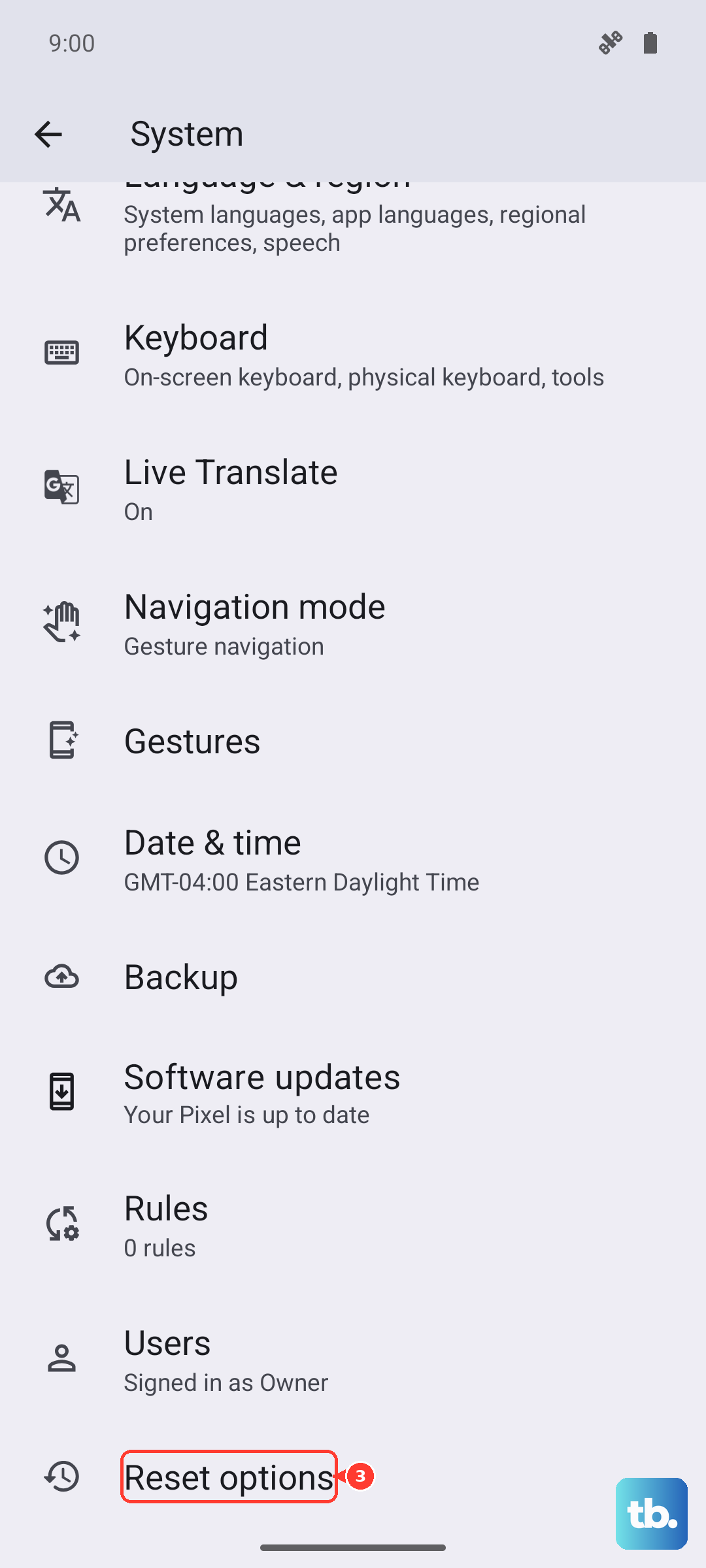
This resets all your Wi-Fi, Bluetooth, and mobile network settings back to default, along with location preferences. It won't delete your personal files or apps. Go to Settings > System > Reset options. Tap on "Reset Wi-Fi, mobile & Bluetooth." Confirm the action. After the phone reboots, you'll need to reconnect to your Wi-Fi networks and re-pair Bluetooth devices, but it can resolve persistent radio issues.
As a very last resort, you can perform a factory reset. Before you do this, ensure everything important is backed up. In the same Reset options menu, select "Erase all data (factory reset)." Follow the prompts. This will return your Spark 30 Pro to its out-of-the-box state, eliminating any software corruption. Given the phone's tendency to come with some bloatware, a fresh start can sometimes improve overall performance, not just GPS.