
If your Tecno Spark 30 Pro camera app is crashing, freezing, or just showing a black screen, start with a simple restart. Press and hold the power button until the shutdown menu appears, then tap Restart. This clears out any temporary glitches in the system or the camera app's memory that could be causing the problem.
Start with a free camera test to rule out a hardware fault. If a live preview appears there but not in your app, the camera is fine and the app is the problem.
Key Points
- Restart Your Phone: This is the quickest fix for most temporary camera app glitches.
- Check for App and System Updates: Outdated software is a common cause of camera failures.
- Clear the Camera App's Cache and Data: This resets the app to its default state without deleting your photos.
- Check App Permissions: The camera needs permission to access your phone's camera hardware.
- Boot in Safe Mode: This helps determine if a third-party app is interfering with the camera.
- Inspect for Physical Damage: Look for cracks or obstructions on the camera lenses.
- Try a Third-Party Camera App: This tests if the problem is with the hardware or Tecno's camera software.
- Reset App Preferences: This reverts all app permissions and defaults without deleting your data.
- Perform a Factory Reset: A last resort to rule out deep-seated software corruption.
Give the phone a full minute to reboot completely. Once it's back on, try opening the camera again to see if it works.
Check for App and System Updates
Outdated software is a frequent culprit. First, check if the camera app itself has an update. Open the Google Play Store, tap your profile icon, and go to Manage apps & device. Look for the Tecno Camera app in the updates list and install any available updates.
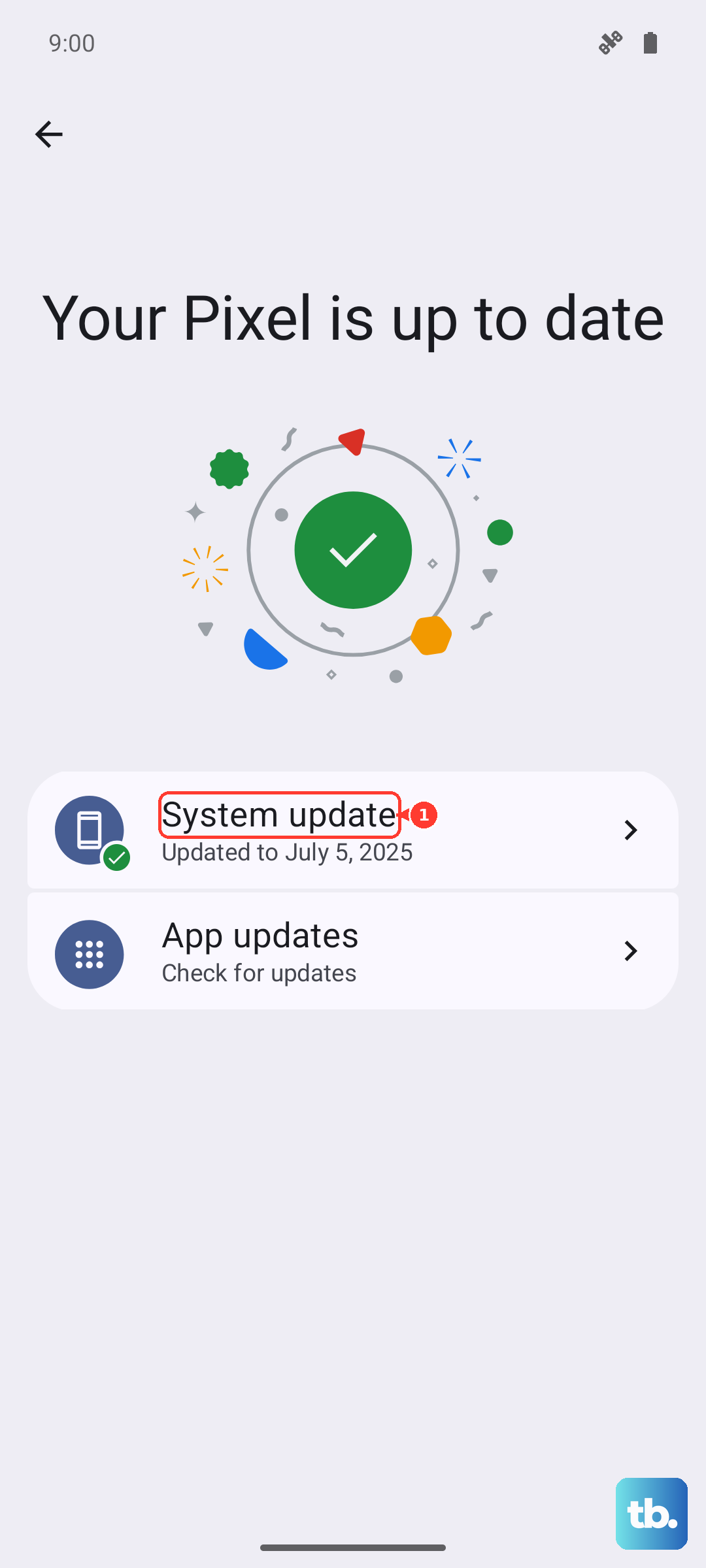
Next, check for a system update. Go to Settings > About phone > Software update and tap Check for updates. Tecno occasionally releases patches that fix bugs, including camera issues. I'd install any available update and restart your phone afterward.
Clear the Camera App's Cache and Data
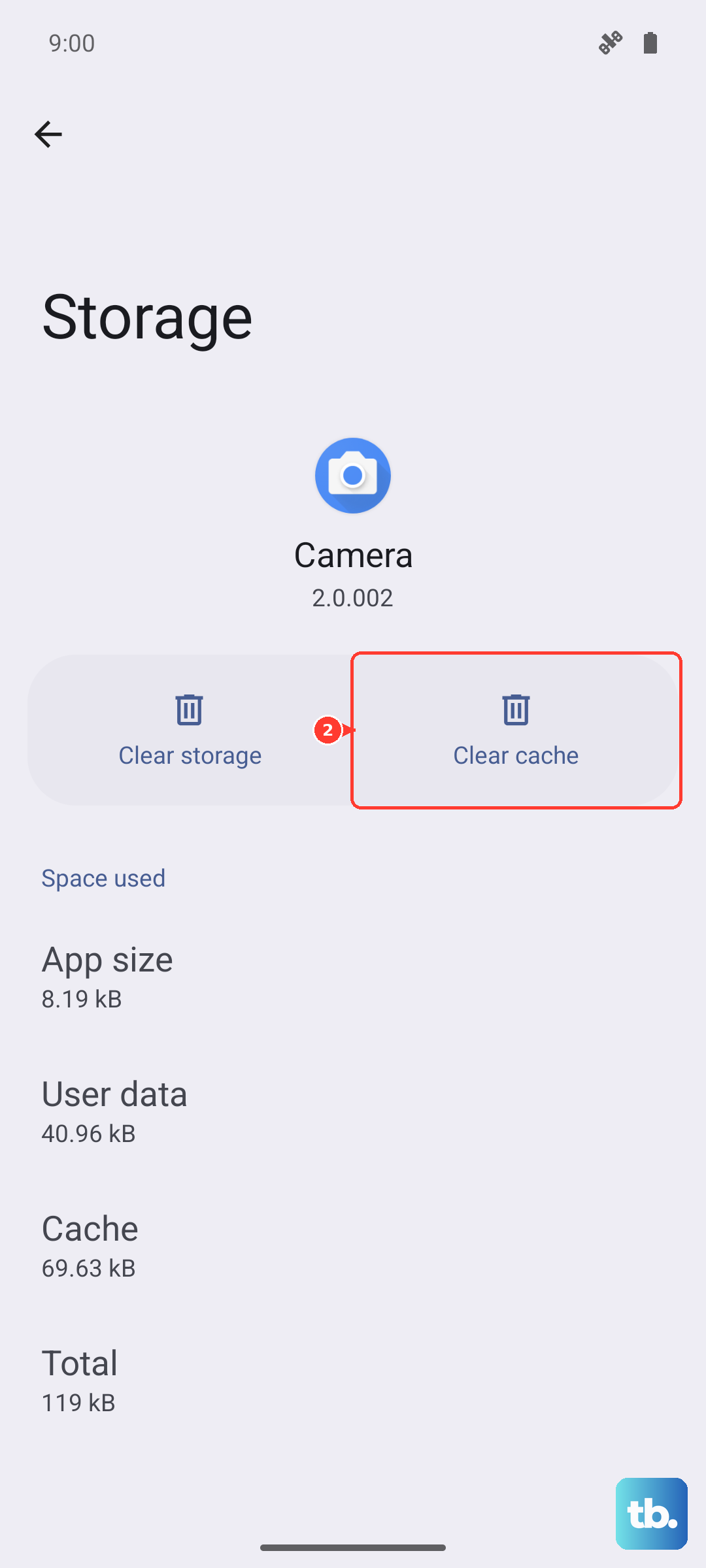
If the camera app is buggy, clearing its stored data can help. Go to Settings > Apps > Manage apps. Find and tap on Camera in the list. Then, tap Storage usage.
First, tap Clear cache. This deletes temporary files and often fixes crashes without affecting your settings. If the problem persists, tap Clear data. A warning will pop up, this will reset the camera app to its default settings, but it won't delete your photos or videos.
Verify Camera Permissions
The camera app needs explicit permission to use the camera hardware. Go to Settings > Apps > Manage apps > Camera. Tap on Permissions.
Make sure the Camera permission is set to "Allow." While you're there, also check the Microphone permission if your video recording isn't working. Sometimes updates or system changes can reset these permissions.
Boot in Safe Mode
If the camera still fails, a third-party app you installed might be causing a conflict. Booting into Safe Mode temporarily disables all downloaded apps. Press and hold the power button until the power off menu appears.
Then, press and hold the "Power off" option on your screen. A prompt will ask if you want to reboot to Safe Mode. Tap OK. Once the phone restarts, you'll see "Safe Mode" in the bottom corner. Try the camera now. If it works perfectly in Safe Mode, you'll need to find and uninstall the problematic app, starting with any recently installed ones.
Inspect for Physical Damage or Obstructions
Take a close look at the camera module on the back of your phone. Check all the lenses for any cracks, deep scratches, or dust trapped inside. Even the small plastic ring around the lenses can come loose and block the sensor.
Also, make sure your phone case isn't misaligned and covering part of the camera lens. Give the lenses a gentle wipe with a soft, microfiber cloth to remove any fingerprints or smudges that could be blurring the image or confusing the autofocus.
Try a Third-Party Camera App
Download a simple camera app like "Open Camera" from the Play Store. If this third-party app can access and use the camera hardware without issues, then the problem is likely with Tecno's own camera software or its integration with HiOS.
This is a good diagnostic step. If the third-party app works, you can use it temporarily while waiting for a Tecno software update, or you can proceed with a more thorough software reset.
Reset App Preferences
This is a broader fix that resets permissions, default apps, and background restrictions for all applications without deleting any personal data. Go to Settings > System > Reset options.
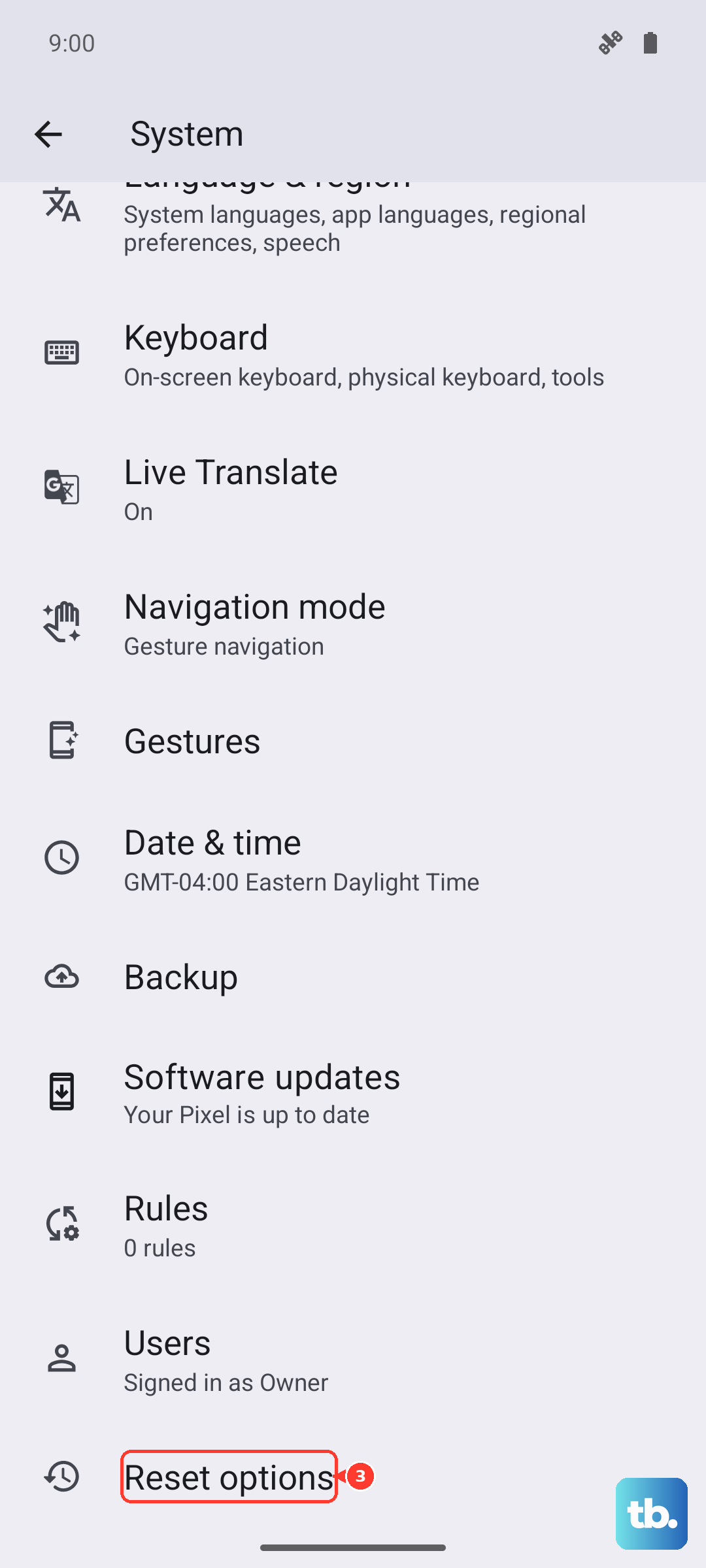
Tap on Reset app preferences and confirm. Afterward, you'll need to re-grant permissions when you open apps for the first time, but it can resolve conflicts where another app has taken control of the camera hardware.
Perform a Factory Reset
If nothing else has worked, a factory reset is the final step to rule out deep software corruption. This will erase all data from your phone, so it's crucial to back up your photos, videos, contacts, and important files first. You can use Google's backup service or transfer files to a computer.
Once backed up, go to Settings > System > Reset options > Erase all data (factory reset). Follow the prompts to reset the phone. After it restarts, set it up as a new device without restoring a backup immediately, and test the camera first. If it works, the issue was software-related.